

How to update your Android phone (Samsung, Pixel and more)
Android updates live in Settings, but the exact menu name changes by brand. Here is where to look on each one.
Photo by Indra Projects on Unsplash
Android updates do two jobs. Big yearly updates bring new features and a new Android or One UI version. Smaller monthly or quarterly security updates patch vulnerabilities, and they matter even more, because phones without them are easier to attack. Here is how to install both on Samsung, Pixel and other phones, and what to do when an update will not show up or install.
The fix
Samsung Galaxy
- 1
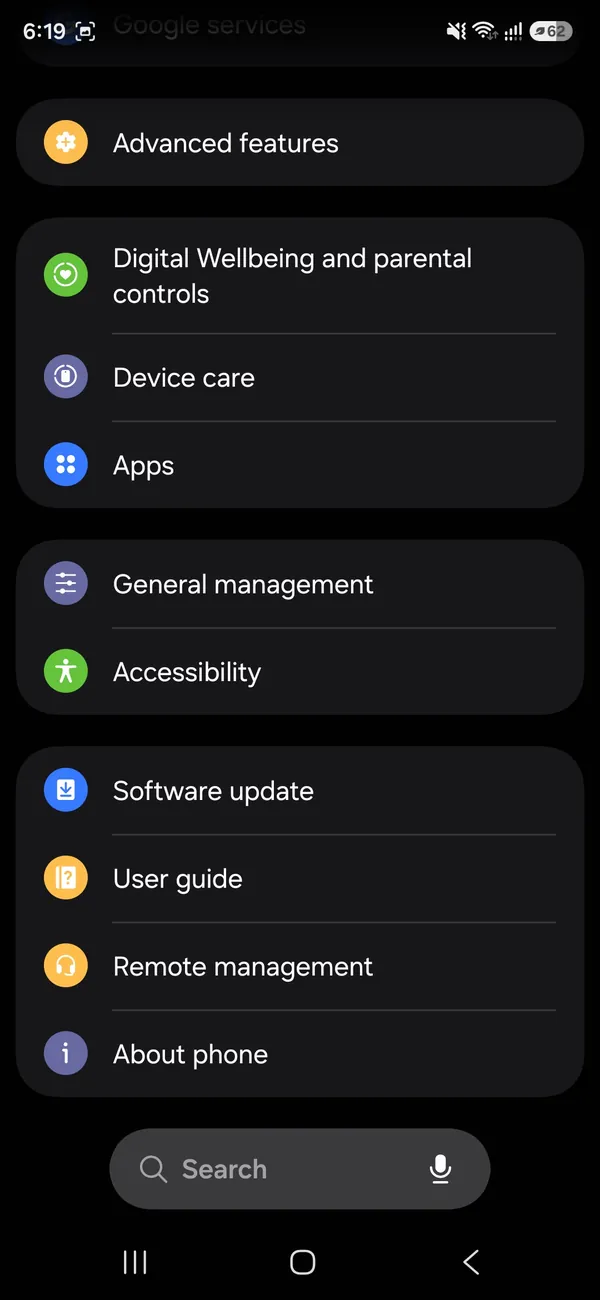
Open Settings and tap Software update.
It is near the bottom of Settings, and also in Device care.
- 2
Tap Check for updates.
On older One UI versions the button says Download and install.

- 3
Download the update, then tap Install now.
If there is nothing new, it says Your software is up to date.

The fix
Google Pixel
- 1
Open Settings › System › Software updates.
- 2
Tap System update, then Check for update.
- 3
Tap Download and install, then Restart now.
The fix
Motorola, OnePlus and other brands
- 1
Open Settings and type Update in the search bar.
- 2
Open System updates or Software update and check for one.
Do not forget these two
- Google Play system update: Settings › Security & privacy › System & updates. It patches parts of Android between big updates.
- Apps: Play Store › profile picture › Manage apps & device › Update all.
Check your security patch level
The Android security patch level shows how current your protection is. On Samsung, find it in Settings › About phone › Software information. On Pixel, it is in Settings › About phone › Android version. A date within the last two or three months is good. If it is more than six months old and no update appears, your phone may no longer be supported.
Why the update is not showing
- Staged rollout: makers release updates gradually, so friends may get it days or weeks before you.
- Carrier phones: Verizon, AT&T and T-Mobile versions often get updates later than unlocked models while carriers test them.
- Region and model: updates roll out by country and model number, not just phone name.
- End of support: older models eventually stop receiving updates.
How long phones get updates
Support periods have grown a lot. Recent Galaxy S phones and Pixel 8 and later are promised up to seven years of Android and security updates, and several recent Galaxy A models also get long support. Older and budget phones from many brands get far fewer, sometimes only two or three years. If yours has stopped receiving security updates, it still works, but it becomes riskier for banking and email, and apps slowly drop support. That is the point where a newer phone is worth considering.
Automatic and overnight updates
- Samsung: in Settings › Software update, turn on Auto download over Wi-Fi. When an update is ready, you can choose to install it overnight.
- Pixel: updates download automatically and you choose when to restart. Restart soon after the notification to finish installing.
- Apps: in the Play Store, open your profile › Settings › Network preferences › Auto-update apps and choose Over Wi-Fi only or Over any network.
Why updates matter
Most Android attacks use security holes that have already been fixed in an update. A phone that is a year behind is exposed to all of them. Updates also fix battery drain, crashes and connection bugs, and keep apps working, since banking and payment apps in particular stop supporting old Android versions. Installing updates within a week or two of release is one of the simplest ways to keep a phone safe.
Google Play system updates explained
Google can patch some core parts of Android through the Play Store, separately from your phone maker. These Google Play system updates usually arrive monthly and fix security issues and components such as the media player and Wi-Fi. They install in the background and need a restart to finish. Check yours in Settings › Security & privacy › System & updates › Google Play system update, or in Settings › About phone on some Samsung models, and restart if one is waiting.
Stuck on the logo after an update?
If the phone restarts after an update and stays on the Samsung or Google logo, give it 15 to 20 minutes first, since the first boot after a big update is slow. If it is still stuck, see what to do when a Samsung is stuck on the logo or how to fix a Pixel stuck on the Google logo.
Update failed or stuck
- 1
Free up several gigabytes of storage; big updates need room to unpack.
- 2
Charge to at least 50% or keep the phone plugged in.
- 3
Restart, connect to a different Wi-Fi network and check again.
- 4
On Samsung, connect the phone to a computer and update with Smart Switch for PC or Mac, which downloads the update on the computer.
- 5
If the phone is stuck on a logo after an update, see the stuck-on-logo guide for your brand, or contact the maker.
Update over mobile data?
Most phones download system updates only over Wi-Fi by default, because a major update can be several gigabytes. On Samsung, you can allow mobile data in the Software update settings if your plan is unlimited; on Pixel, the update screen asks before using mobile data. If you are traveling or have a limited plan, wait for Wi-Fi. Security updates are much smaller and are reasonable to download on mobile data if you will not be on Wi-Fi for a while.
How long does an update take?
Security updates usually install in 10 to 20 minutes, including the restart. Major Android or One UI versions can take 30 minutes or more, plus the download time. During the install, the phone cannot be used, though some newer phones install in the background and only need a restart at the end. Start updates when you have a little time and a charger nearby.
Beta versions
Google runs the Android Beta Program for Pixel phones, and Samsung sometimes opens One UI betas through the Samsung Members app. Betas let you try features early, but they can be buggy and drain battery, and leaving a beta can require erasing the phone. Keep them off the phone you rely on every day.
Updating a parent’s or child’s phone
Phones that belong to older relatives and children are often the most out of date. Next time you have their phone, check Software update and the security patch level, turn on automatic downloads over Wi-Fi, and set the Play Store to update apps on its own. Explain that the update notification is safe to accept, so they do not ignore it for months. If the phone is too old to get updates at all, it is worth planning a replacement, especially if they use it for banking.
Watches and earbuds
Galaxy Watch, Pixel Watch and Galaxy Buds update through their companion apps on the phone: Galaxy Wearable for Samsung, and the Pixel Watch app for Pixel. Open the app, look for Watch settings or Earbuds settings, then Software update. Keep the watch on its charger and near the phone during the update.
Before and after a major update
Before a big Android or One UI update, back up the phone, check that your important apps support the new version, and pick a time when you can leave the phone alone for half an hour. After the update, the phone optimizes apps in the background for a day or so, which can make it warm or slower at first. Update your apps from the Play Store, restart once, and give it a day before judging battery life. Going back to an older version is generally not possible on Samsung and Pixel phones without erasing them, so updates are a one-way step.
Frequently asked questions
Why is no update available for my phone?
Your phone may already be up to date, the update may be rolling out slowly, or the maker has stopped supporting your model. Carriers can also delay updates by a few weeks.
Will updating delete my data?
No. Normal updates keep your apps, photos and settings. A backup first is still a good idea.
How do I see my Android version?
Open Settings › About phone and look for Android version, or Software information on Samsung.
How long will my phone get updates?
It depends on the model. Recent Galaxy S and Pixel phones are promised up to seven years of updates, while many budget phones get fewer. Check the maker’s support page for your exact model.
What to try next
People also ask
Why is the Android 17 update not showing on my Pixel?
The rollout is staged, so it reaches phones in waves. Check for it by hand in Settings, System, System updates, System update, Check for update, and confirm your Pixel is on the supported list.
Read the full guide: Android 17 update not showingWhat happens after I factory reset my Android phone?
The phone restarts to the setup screen with no apps, accounts or personal files. To use it, sign in with the Google account that was on it before, because of Factory Reset Protection.
Read the full guide: Factory reset an Android phoneHow long does an iPhone update take?
Small updates take 10 to 20 minutes. Major updates can take 30 minutes to an hour, longer on release day when Apple’s servers are busy.
Read the full guide: Update your iPhoneDo I need to remove my Google account before selling my phone?
Yes. If you reset the phone while your Google account is on it, Factory Reset Protection can ask the next person for your login. Remove the account first, then reset.
Read the full guide: Sell your Android phoneRelated guides
Android 17 update not showing
Android 17 update not showing on your Pixel or Samsung? See 8 reasons, from staged rollouts to beta enrollment, and how to check for the update the right way.
Factory reset an Android phone
Factory reset a Google Pixel, Motorola or other Android phone from Settings or with the buttons. Back up first and avoid the Google lock after the reset.
Update your iPhone
Update your iPhone to the latest iOS over Wi-Fi or with a computer, turn on automatic updates, and fix an update that is not showing or will not install.
Sell your Android phone
How to sell your Android phone safely: back up, remove your accounts, factory reset, check unlock status and pick a trade-in or private sale.
More guides you may need
Is your phone being tracked?
How to check if your phone is being tracked: review location sharing, apps and profiles, run Safety Check and learn what to do safely if you find something.
Choose a cell phone plan
How to choose a cell phone plan in 7 steps: check coverage, measure your data, compare real monthly costs, read the fine print and test before you commit.