

How to use Bubbles on a Pixel with Android 17 (floating apps)
Android 17 lets any Pixel run apps as floating bubbles. Here are Google's steps to create, move, switch and close them, the limit of five, and the extra taskbar method for Pixel Fold.
Photo by Shutter Speed on Unsplash
Android 17 added a way to use an app without leaving the one you are in. The app floats on top of the screen as a small bubble, and you can open it, use it and put it away. Google calls the feature Bubbles, and it is one of the headline multitasking changes in Android 17. The announcements tell you it exists. They do not tell you how to start one. This guide uses Google's Pixel Help page to show the exact steps, including the extra method on Pixel Fold, how to switch between bubbles, and how to close them. It also covers the limits and a few things that Google's page does not say.
What are Bubbles on Android 17?
A bubble is an app that floats over whatever else is on your screen. You can leave a chat open while you read a web page, or keep a map handy while you reply to a message. When you do not need it, you minimize it to a small icon. Google says that Bubbles are available on all Pixel phones, including Pixel Fold, with Android 17. Older versions of Android had bubbles for chat notifications, but Android 17 lets you do it from an app icon.
How to make an app a bubble
Create a bubble from an app icon (all Pixel phones)
- 1
Go to the home screen or the all apps screen.
- 2
Touch and hold the app icon you want.
- 3
Tap Bubble in the menu that appears.
The app opens in a floating window.
Pixel Fold: make a bubble from the taskbar
Google gives a second way on Pixel Fold. From the bottom of the screen, swipe up slowly to open the taskbar. Touch and hold an app in the taskbar, then drag the icon to the left or right side of the screen and release it. The app becomes a bubble. Google also says that on Pixel Fold you can pin the taskbar. Swipe up from the bottom edge, touch and hold the divider line, and turn on Always show Taskbar in the pop-up menu. Turn it off the same way.
How to use a bubble
- Expand: tap the floating bubble icon.
- Minimize: tap the bubble again, or tap anywhere outside the bubble window.
- Close one bubble: touch and hold it, then drag it onto Close at the bottom of the screen.
- Close the whole bar: touch and hold the bubble bar, then drag it onto Close.
- Move the bar: touch and hold the bubble bar and drag it to a new place on the screen.
How many bubbles can you have?
Google says you can have up to 5 bubbles at one time. When you have more than one, they are grouped together in a bubble bar. To switch between them, tap the bubble bar to see all open bubbles, then tap an icon in the bar. To find recent bubbles, tap More, as Google's page describes. If you try to add a sixth, expect to close one first.
Pixel Fold: three apps at once
Google says that on Pixel Fold you can open a bubble over a split-screen view. That lets you work with three apps at once: two in split screen and one in a bubble. This is only described for Pixel Fold on Google's page. Other Pixel phones use one app plus bubbles.
Which apps work as bubbles?
Google's page says that touching and holding an app icon and tapping Bubble opens that app in a floating window, and it does not say any app is excluded. In practice, an app may not resize well, because the developer has to support it. If an app looks cramped or will not open as a bubble, open it normally. We do not have a list of apps that do not work, and Google's page does not give one.
How to use bubbles well
- Keep chat and a reference side by side. Put a messaging app in a bubble while you read a page or follow a map.
- Use bubbles for quick lookups. Open a calculator or notes app as a bubble, check a number, then minimize it.
- Group related apps. Google says several bubbles are grouped in a bubble bar, so keep that bar for the apps you switch between.
- Move the bubble bar out of the way. Touch and hold it and drag it to a corner that does not cover buttons.
- Close what you are finished with. Fewer bubbles keep the phone responsive.
Bubbles, split screen or picture in picture?
Android has several ways to show more than one app. Split screen divides the display into two parts. Picture in picture floats a small video window. Bubbles float an app over the one you are using and can be minimized to an icon. Bubbles suit short tasks, because the app is one tap away and does not take space until you open it. Split screen suits longer work with two apps at once, such as copying details from one to the other. Google's Pixel Help page describes bubbles, and on Pixel Fold it describes combining a bubble with a split-screen view.
Does using bubbles affect battery and performance?
Google's page does not give figures, so we cannot say how much. As a general rule, each open app uses some memory and may use battery in the background, so five bubbles use more than one. If the phone feels slower or warmer, close the bubbles you are not using. If the phone freezes, restart it and try with fewer bubbles. Keep the system updated, because Google fixes bugs in monthly updates.
A bubble will not open or looks cramped
- Open the app normally and check that it works in full screen first.
- Update the app in the Play Store, since developers add bubble support over time.
- Close other bubbles to free memory, then try again.
- Restart the phone, then touch and hold the app icon and tap Bubble once more.
- If the Bubble option is missing for one app, it may not support it. Google's page does not list unsupported apps.
Who gets the most from Bubbles?
People who switch between a chat and something else many times a day gain the most: someone who checks a map while texting, a student who keeps notes next to a web page, or a shopper who compares prices while talking to a friend. If you mostly use one app at a time, you may never need the feature. It costs nothing to try, because closing a bubble is a single drag.
Can you turn Bubbles off?
Google's help page does not describe a setting to turn Bubbles off. It only explains how to close a single bubble or the whole bubble bar. If you do not want to use the feature, simply do not tap Bubble in the app icon menu. If the option does not appear on your phone, check your Android version.
The option is missing: what to check
- Is your Pixel on Android 17? Open Settings, tap About phone and look at the Android version.
- Is an update waiting? Open Settings, tap System, then System update. See steps to install a system update.
- Did you touch and hold the icon on the home or all apps screen? The Bubble option is in that menu, not in the Recents screen.
- Have you reached five bubbles? Close one and try again.
What about Screen Reactions?
Google's Android 17 announcements also describe Screen Reactions, a creator tool that records you and your screen at the same time. Google's blog says it rolls out first on Pixel devices and works in just a few taps, but it does not give menu steps. Some news sites describe the steps, and since we could not confirm them from Google's pages, we do not repeat them here. Check Google's Pixel Help pages when they are published.
Bubbles slowing your Pixel down?
Several apps open at once use memory and battery. If the phone becomes slow, close the bubbles you do not need. If it freezes, see our guide on an Android phone that keeps freezing. For quiet calls, read why your Pixel call volume may be too low, and if the volume keeps dropping on its own, see a Pixel that keeps lowering the volume.
Frequently asked questions
Which Pixel phones support Bubbles?
Google says Bubbles are available on all Pixel phones, including Pixel Fold, with Android 17.
How many bubbles can I have at once?
Google says up to 5 bubbles at one time. When you have more than one, they are grouped together in a bubble bar.
How do I close a bubble?
Touch and hold the bubble, then drag it onto Close at the bottom of the screen. To dismiss the whole bubble bar, touch and hold the bar and drag it onto Close.
Is there a setting to turn Bubbles off?
Google's help page does not describe one. It only covers closing one bubble or the whole bubble bar.
What to try next
Sources
Official pages these steps are based on. Menus can differ by software version.
People also ask
How do I turn an app into a bubble on Android 17?
Long press the app icon on your Home Screen or taskbar and tap the Bubble option in the menu. The app opens in a floating window that you can shrink into a bubble.
Read the full guide: Android 17 bubblesWhy is the Android 17 update not showing on my Pixel?
The rollout is staged, so it reaches phones in waves. Check for it by hand in Settings, System, System updates, System update, Check for update, and confirm your Pixel is on the supported list.
Read the full guide: Android 17 update not showingWhat is the latest iOS version?
iOS 27.0.1, released on September 28, 2026, according to Apple's security releases page. It works on iPhone 11 and later.
Read the full guide: iOS and Android updates trackerWill clearing cache delete my photos or messages?
No. Cache is temporary data the app can rebuild, such as thumbnails and downloaded images. Your account, messages and saved files are untouched.
Read the full guide: Clear app cache on AndroidRelated guides
Android 17 bubbles
Android 17 bubbles let you float almost any app over what you are doing. Learn how to start a bubble, move and close it, and fix a missing Bubble option.
Android 17 update not showing
Android 17 update not showing on your Pixel or Samsung? See 8 reasons, from staged rollouts to beta enrollment, and how to check for the update the right way.
iOS and Android updates tracker
The latest iPhone and Android software updates in one place: iOS 27.0.1 fixes, Pixel update dates, who can update, and our guides for problems after an update.
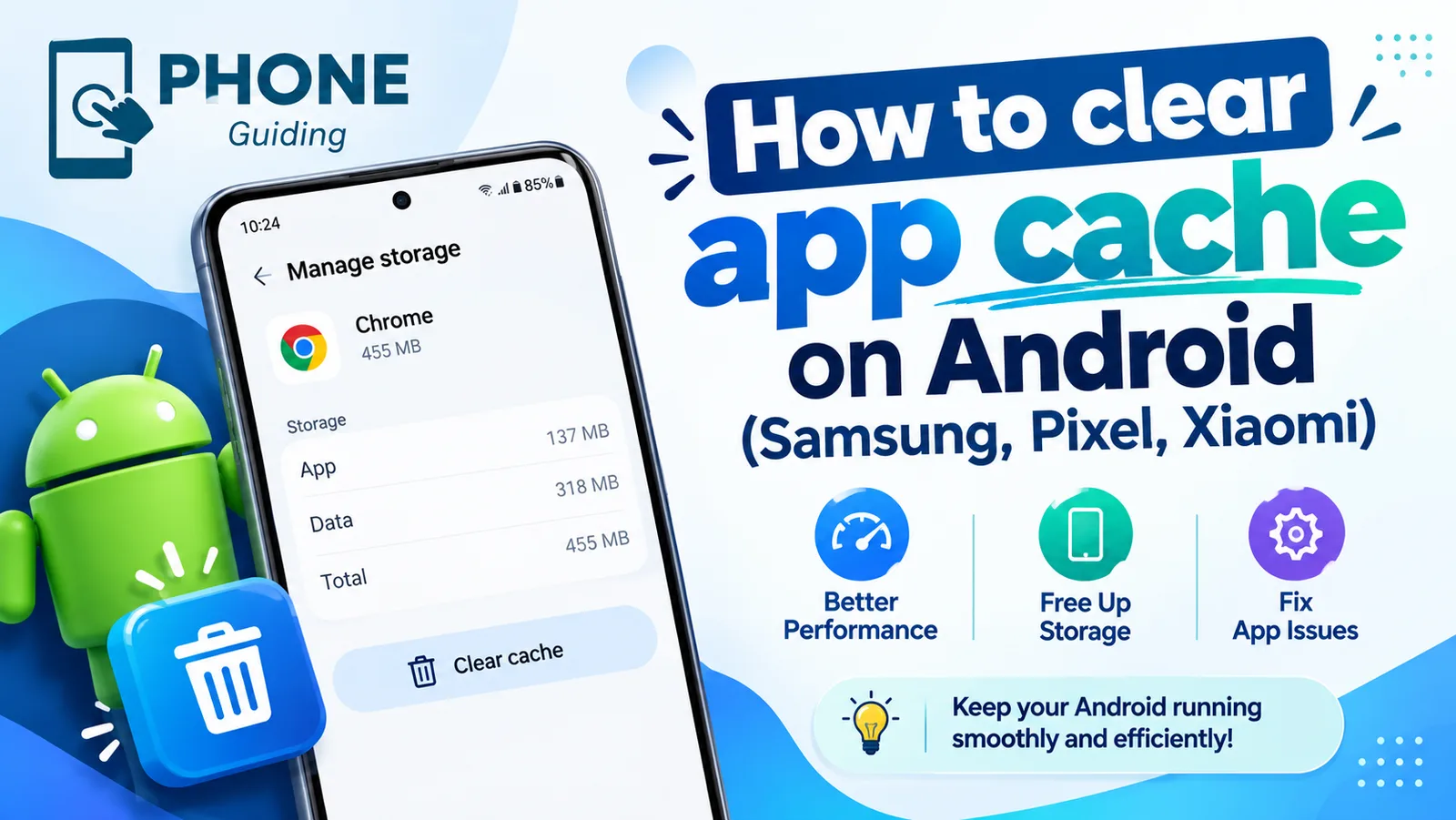
Clear app cache on Android
Clear an app's cache on Android to fix crashes and free up space. Step-by-step instructions for Samsung, Google Pixel, Xiaomi and other phones.
More guides you may need
Message blocking is active
Samsung shows message blocking is active and your texts will not send? Check blocked numbers, your carrier block and account settings with these steps.
Motorola stuck on logo
Motorola stuck on the Hello Moto or logo screen? Force restart it, charge it, wipe the cache in recovery and use Motorola’s Software Fix tool before a reset.