

Pixel Screen Reactions: how to record your screen and selfie camera together
Screen Reactions is an Android 17 feature on Pixel that records your screen and your selfie camera at once. Google's pages give the steps and one rule that trips people up: it only works when you record the entire screen.
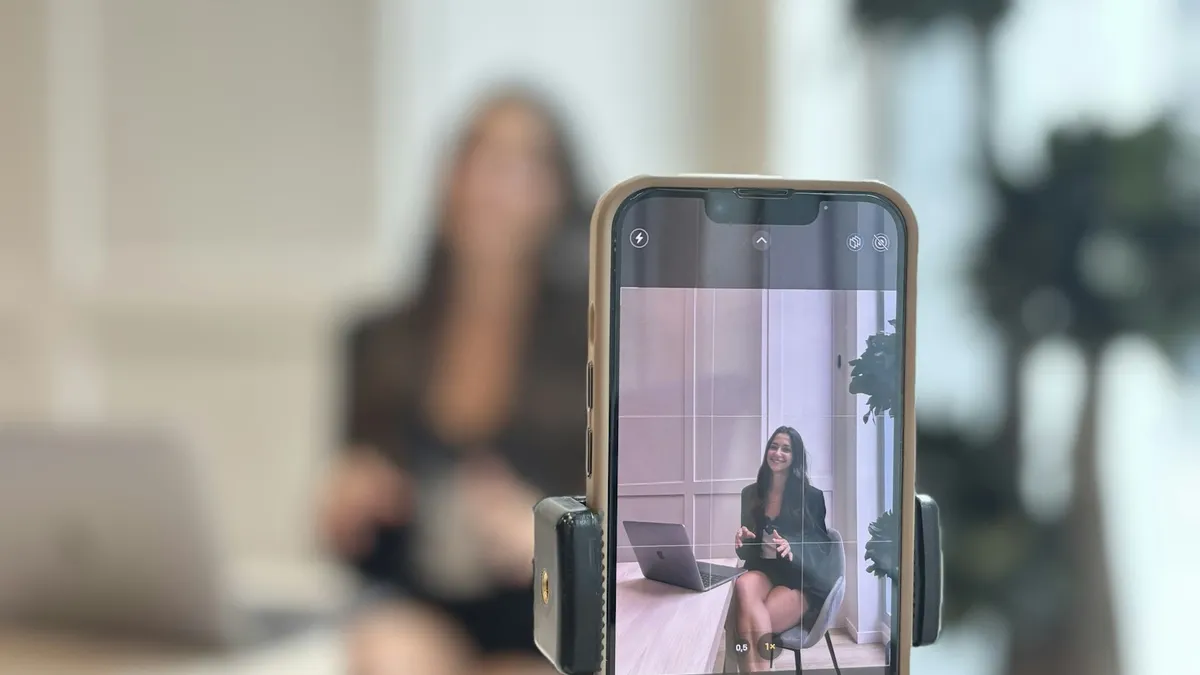
Photo by Afffect on Unsplash
Reaction videos usually need two apps and some editing: one to play the clip and one to film your face. Android 17 puts both in the screen recorder on Pixel. Google calls it Screen reactions in its announcements and Show selfie camera in the help page, and it is the same thing. Below are the exact steps, the rule that stops it from working for many people, and what to check if the option is missing.
What are Pixel Screen reactions?
Google describes Screen reactions as a way to make reaction videos without switching apps or setting up a green screen. In a few taps you record yourself and your screen at the same time, so your face sits on top of a video, a comment section or anything else you want to react to. Google's June 2026 post says it is a Pixel first experience that started rolling out to Pixel phones that month.
How to record your screen with the selfie camera
These steps come from Google's Pixel Phone Help page. Your Quick Settings may look slightly different on your Pixel.
Record the screen and selfie camera together
- 1
Swipe down twice from the top of the screen to open Quick Settings.
- 2
Tap Screen record.
If it is not there, swipe right or tap Edit, then touch and hold Screen record and drag it into your Quick Settings.
- 3
Choose to record your entire screen.
This matters. Google says Screen reactions are only available when screen recording is set to record the entire screen.
- 4
Turn on Show selfie camera. Turn on Record device audio and Record microphone if you want sound.
- 5
Tap Start and wait for the countdown.
Once recording starts the menu disappears. Tap the recording indicator in the status bar to bring it back.
- 6
To stop, swipe down and tap the Screen recorder notification.
From there you can edit, delete or share the recording.
What do the three switches record?
The Screen record menu has three separate switches, and people often turn on the wrong one.
- Record device audio: sound that plays from the phone, such as the clip you are reacting to.
- Record microphone: your voice, through the phone's microphone.
- Show selfie camera: your face, in the bubble on the screen.
For a reaction video you usually want all three. If the clip is silent in the finished video, device audio was off. If the clip is fine but we cannot hear you, the microphone was off. If your face is missing, check that you chose the entire screen.
How to record just one app instead
The same Google page covers single app recording, which is what you want when you are not making a reaction video and want to keep the rest of the screen out of it.
Record a single app
- 1
Start a screen recording from Quick Settings.
- 2
When asked, tap A single app, then Start recording.
- 3
Tap the app you want in the app selector.
- 4
Tap Stop to end the recording.
Why does it only work when you record the entire screen?
Google does not explain the reason. Its blog post simply states the rule, and the help page lets you choose between a single app and the entire screen. If you pick A single app, your selfie camera will not appear in the video, so choose Entire screen when you want your face in it. This is the most likely reason the option seems not to work.
How to move, resize and turn off the selfie camera
- Resize: pinch the selfie bubble.
- Move: drag it to a new position while you record.
- Change the look: Google says you can change the background color and the shape of the bubble.
- Turn it off during a recording: tap the recording indicator, tap Settings, then turn off Show selfie camera.
What limits does Google list?
- The selfie feature does not support front camera zoom.
- Large video files may not be shareable through some services. Google suggests sharing a link from the Photos app instead.
- The help page does not list an Android version or Pixel model. Google's blog says Screen reactions need Android 17 or newer.
Where is the recording saved?
Open the Photos app, tap Collections, tap On this device, then tap Movies. You can edit, trim and share it from there. If you want to keep the video private, check who the share link is visible to before you send it.
The option is missing: what to check
- Check your Android version. Open Settings, tap About phone and look at Android version. Screen reactions need Android 17 or newer. Our guide on an Android 17 update that does not show covers the waiting game.
- Update the phone. Open Settings, tap System, then System update. See how to update an Android phone.
- Record the entire screen. A single app recording does not include the selfie camera.
- Look in the right place. The control is inside the Screen record menu in Quick Settings, not in the camera app.
- Restart the phone. A restart clears many Quick Settings glitches, though Google's page does not list it as a fix.
Tips for a clean reaction video
- Turn on Do Not Disturb first. A screen recording captures what appears on screen, including notifications.
- Use headphones if you play audio. Recording device audio and your microphone together can pick up the speaker twice.
- Keep your face in good light. The selfie camera is a normal front camera, so a dim room will look noisy.
- Place the bubble away from the action. Drag it to a corner that does not cover subtitles or buttons.
A simple way to make a reaction video
- Turn on Do Not Disturb so no notification appears in the recording.
- Open the clip you want to react to and pause it at the start.
- Open Quick Settings, tap Screen record and choose the entire screen.
- Turn on device audio, the microphone and Show selfie camera, then tap Start.
- Wait for the countdown, press play on the clip and react.
- Stop the recording from the notification, open it in Photos and trim the start and the end.
Plan for a short clip. Long recordings make large files, and Google warns that some services cannot share very large videos. Sharing a link from Photos is the fix Google gives.
Common problems and quick fixes
Google's help page has no troubleshooting section, so these are general suggestions rather than official fixes.
- The selfie bubble covers the clip. Drag it to a corner, or pinch it smaller.
- Your face looks dark. Face a window or a lamp. The front camera works in the same light you do.
- The recording will not start. Free up storage space, then try again. A recording needs room to save.
- The video is too big to send. Share a link from Photos instead of the file.
Some apps block screen recording
Google's pages do not list apps that refuse to be recorded. In general, some streaming and banking apps block screen capture on purpose, and you may see a black area or an error. If the clip you want to react to will not record, play it in a browser instead, or check the app's own rules. Only record content you have the right to use.
Is it only for Pixel phones?
Google calls Screen reactions a Pixel first feature, and its pages talk about Pixel phones. Whether other Android makers add it is not stated on the pages we read. Samsung phones have their own recorder, and our guide to screen recording on a Samsung shows how it works. This page covers Pixel only.
Privacy: what ends up in the video
A screen recording with a selfie camera records your face, your voice if the microphone is on, and anything shown on screen. Check the screen for names, messages and account details before you share the file. If you want to keep a call private instead, see how recording a call works on Android.
Frequently asked questions
What are Screen reactions on Pixel?
Screen reactions let you record your screen and your selfie camera at the same time, so your face appears over what you are showing. Google describes it as a Pixel first feature in Android 17.
How do I turn on the selfie camera in a Pixel screen recording?
Swipe down twice, tap Screen record, then turn on Show selfie camera and tap Start. During the recording you can tap the status bar indicator to open the settings and turn it off again.
Why do Screen reactions not work when I record one app?
Google says screen reactions are only available when screen recording is set to record the entire screen. Choose Entire screen instead of A single app before you tap Start.
Where are Pixel screen recordings saved?
Open the Photos app, tap Collections, then On this device, then Movies. Google also suggests sharing a link from Photos when a file is too big to send directly.
What to try next
Sources
Official pages these steps are based on. Menus can differ by software version.
People also ask
Where do Samsung screen recordings go?
In the Gallery app, in the Screen recordings album. The files are stored in Internal storage › DCIM › Screen recordings.
Read the full guide: Screen record on SamsungCan you record a call on any Android phone?
No. Recording needs a supported phone, carrier and region, a recent Phone app, and Android 9 or later. If you do not see a Record button, your phone or carrier may not support it.
Read the full guide: Record a call on AndroidWhy is my iPhone screen recording silent?
Screen recording captures app sound but not your voice by default. Press and hold the Screen Recording button in Control Center and turn on Microphone. Also check the phone is not in Silent mode, which mutes some app sounds.
Read the full guide: Screen record on iPhoneHow do I turn an app into a bubble on Android 17?
Long press the app icon on your Home Screen or taskbar and tap the Bubble option in the menu. The app opens in a floating window that you can shrink into a bubble.
Read the full guide: Android 17 bubblesRelated guides
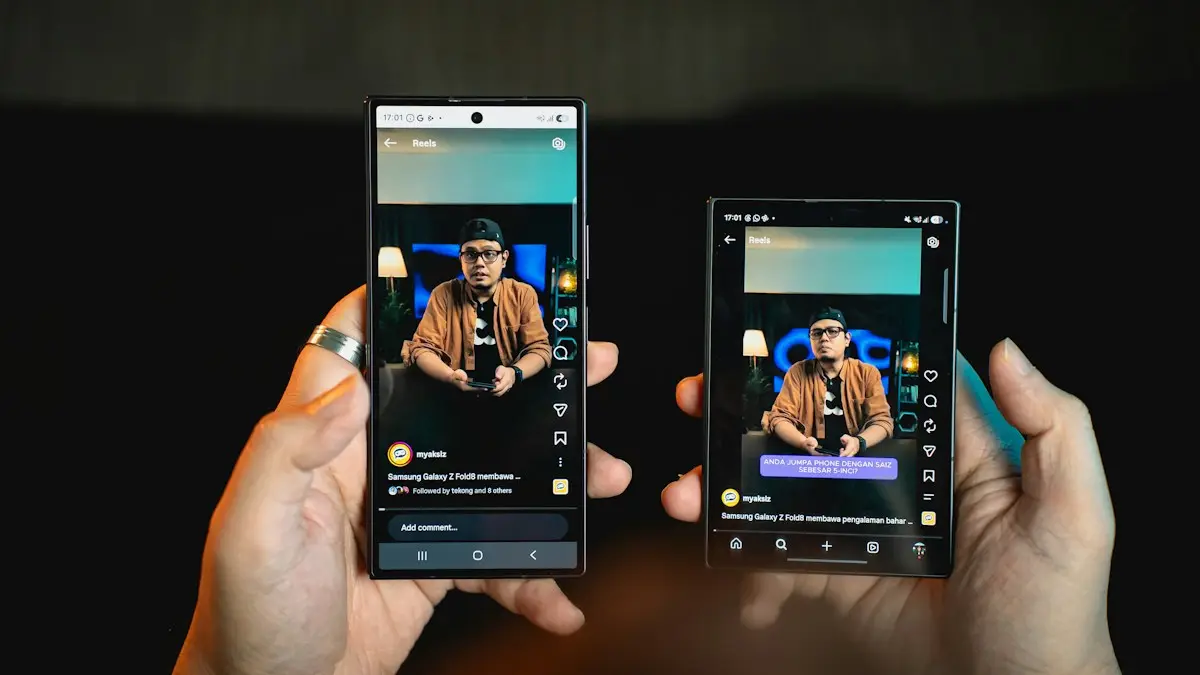
Screen record on Samsung
Screen record on your Samsung Galaxy with the built-in Screen recorder. Record sound or your voice, add a selfie video and find your recording in Gallery.

Record a call on Android
Learn how to record a call on Android with the Phone app on Pixel, Samsung and other phones, where recordings are saved, and the consent laws to know first.
Screen record on iPhone
Screen record on your iPhone in seconds. Add the button to Control Center, record your voice with the microphone, and find and trim your video in Photos.
Android 17 bubbles
Android 17 bubbles let you float almost any app over what you are doing. Learn how to start a bubble, move and close it, and fix a missing Bubble option.
More guides you may need
Pixel Wi-Fi low quality
Pixel says your Wi-Fi is low quality even with full bars? Learn what the warning measures, why the phone jumps to mobile data and how to make it stay on Wi-Fi.
Samsung Call Brief
Samsung Call Brief shows useful details on your call screen with One UI 9. See which Galaxy phones Samsung lists, how to turn it on and why it may be missing.