

Android Auto says device not supported? Check these 6 things
The message usually means your phone, country, car or cable does not meet Google's current requirements. Start with the Android version, because the minimum has moved up.
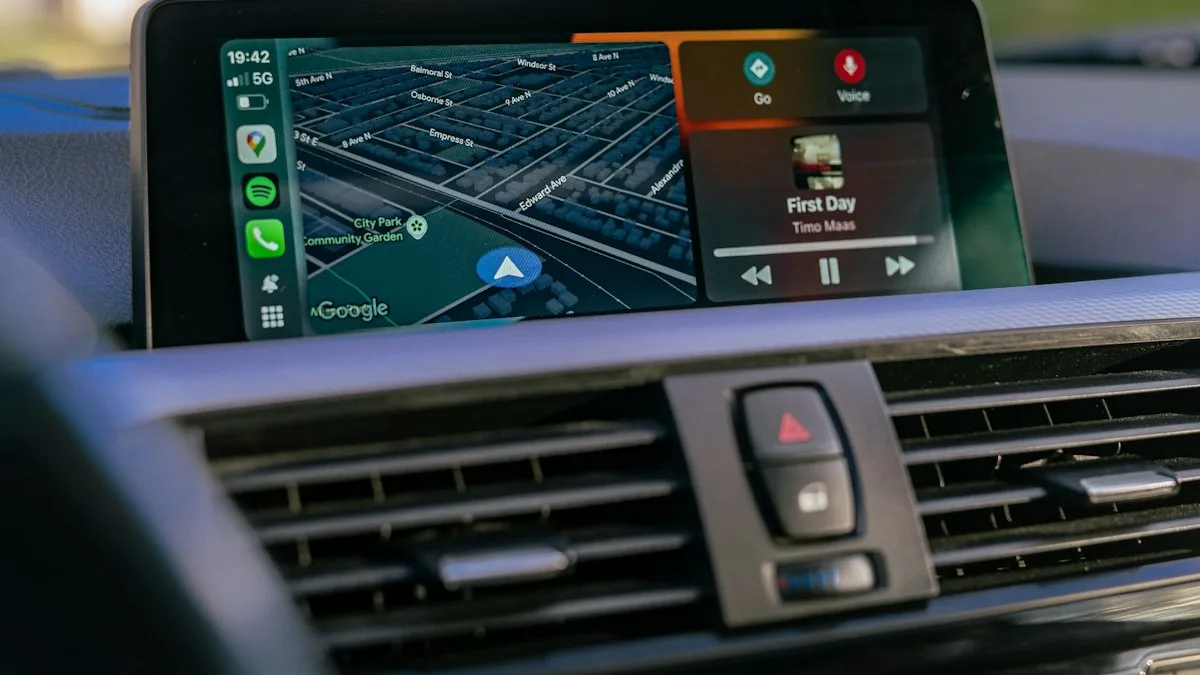
Photo by Vadym Kudriavtsev on Unsplash
You plug in your phone, the car screen wakes up, and then it tells you that your device is not supported. Or the phone tells you it is not compatible. A cable that worked last month, a phone that is only a few years old, and a car that is clearly compatible do not seem like they should fail.
The fix
6 checks, in order
- 1
Check your Android version.
Google's pages say you need Android 11.0 or higher. On most phones you can check it in Settings › About phone › Software information. If you are below 11, update, or the phone may no longer qualify.
- 2
Make sure it is not an Android (Go edition) phone.
Google says Android Auto is not available on those devices.
- 3
Confirm your country and your car.
Google lists about 45 supported countries, including the United States, and says most features will not work outside them. It also says Android Auto will not work on all cars with a USB port.
- 4
Replace or change the USB cable.
Use the cable that came with the phone, under 3 feet (1 meter), with no hubs or extensions. Google says that if it worked before and stopped, a new cable will likely fix it.
- 5
Turn Android Auto on in the car and restart its system.
Google says to check that Android Auto is turned on in the car's infotainment system and to restart it.
- 6
Forget all cars and set up again.
Unplug the phone. Open Settings › Connected devices › Connection preferences › Android Auto › Previously connected cars, tap the menu at the top right, tap Forget all cars, then plug in again.
Android 11 is the number that matters now
Google's help page says to make sure you have an Android phone running Android 11.0 or higher, with a data plan. Its Get started page repeats it for wired use and says wireless projection works with any compatible phone with 5 GHz Wi-Fi support running Android 11. A Tech Advisor report dated November 11, 2026 says Google raised the minimum from Android 9 to Android 11. We did not read that article in full, but it matches what Google's own pages say today.
Many guides online still list Android 8 or Android 9 as the minimum. If you follow one of them, you may think your phone qualifies when it does not. A phone stuck on Android 10 or older will get the unsupported message and no setting will fix it. Check for an update first, and if there is none, see our guide to updating an Android phone.
| What you see | Likely cause | Try first |
|---|---|---|
| Device not supported, phone is old | Android below 11 | Check Settings › About phone, update |
| Not available at all | Android (Go edition) or unsupported country | Check the edition and Google's country list |
| Worked before, now unsupported | Cable or a stale car record | New cable, forget all cars |
| Only in one car | Car or head unit | Restart the head unit, check firmware |
| Wireless fails, wired works | Wireless needs 5 GHz Wi-Fi support | Check the phone supports it |
The cable fixes more than people expect
Google's help page spends the most space on cables, and for good reason. Not all USB cables work with all cars. A thin charging cable can power the phone but not carry data reliably. Google's advice is to use a high-quality cable, one that is under 3 feet (1 meter) long, and no USB hubs or extensions. It says to try the cable that came with the phone. Cables from independent makers can be a good choice if they meet standards of the USB Implementers Forum.
A frayed cable, a loose port and a cable you bought at a checkout counter are the usual suspects. Try a different port in the car as well. If the phone is plugged into a port meant only for charging, Android Auto will not start. For deeper connection problems, see our guide to Android Auto that will not connect.
Do you have a data plan?
Google's pages list an active data plan in the requirements, for wired and wireless use. If your phone is on a plan with data turned off, or a prepaid line has run out, Android Auto may not work as expected. Check that mobile data is on and that you have data left, in Settings › Network & internet. If you use a second line or a travel eSIM, make sure the line with data is the one selected.
How to find out which Android version and edition you have
- Open Settings and scroll to About phone.
- Tap Software information, or Android version on some phones.
- Read the Android version number. You need 11 or higher according to Google.
- Check Settings › System › Software update for a newer version.
- If your phone shipped with Android (Go edition), the About screen or the phone's box will usually say Go. Android Auto is not available on those.
Menu names differ between Samsung, Pixel and other makers. If you cannot find an entry, type the name into the Settings search box. A phone that no longer receives updates will stay on its current Android version for good, and that version is then the limit.
Is your car or stereo the problem?
Google says that Android Auto will not work on all cars equipped with a USB port, and it links to a page where you can check whether your car or stereo is compatible. For aftermarket receivers such as Pioneer or Kenwood, Google says to check the manufacturer's website for a firmware update. A firmware update is worth trying, because an old receiver can fail to recognize a newer phone.
A simple test is to try another Android phone in the same car. If it works, the car is fine and your phone or cable is the issue. If it fails, look at the car or the receiver. If you only have one phone, try the phone in another car, such as a friend's or a rental, with the same cable.
Wireless Android Auto has extra requirements
Google's Get started page lists the wireless requirements: a compatible Android phone with an active data plan and 5 GHz Wi-Fi support, with Android 11.0. The car must also support wireless projection. If the car supports only the wired connection, a wireless attempt will fail even on a perfect phone. Try the cable, and if that works, the wireless part is the cause.
If the message appeared after an app update
In the past, phone not compatible errors appeared after Android Auto app updates, and the fix was a later update. We saw reports of this in news coverage from 2022 and did not confirm whether it applies today. If your phone meets every requirement above and the error started right after an update, check the Play Store for a newer version of Android Auto, restart the phone, and try again. Since Android Auto is built into recent phones and does not need a download, updates can come through system updates too.
What to do if your phone cannot run Android 11
If your phone is stuck below Android 11 and has no update, no setting will bring Android Auto back. You have three honest options. Use the car's Bluetooth for calls and music, keep using your phone's own navigation on a mount, or get a phone that meets the requirement. Do not install files from websites that promise to bypass the check. They are a common route for malware, and they cannot change what Google's service accepts.
Still stuck?
If you have checked the version, country, car, cable and car records and the message remains, restart the phone and the car, and test the phone in Safe mode to rule out an app. Our guide to using Safe mode to test an Android phone shows how. Then contact the phone maker, or ask Google through the Android Auto Help forum, with your phone model, Android version and car model ready.
Frequently asked questions
What Android version does Android Auto need?
Google's help pages now say an Android phone running Android 11.0 or higher with a data plan. Wireless Android Auto also needs 5 GHz Wi-Fi support. Older guides that say Android 8 or 9 are out of date.
Why does Android Auto say my phone is not compatible?
Usually the phone runs a version below the current minimum, is an Android (Go edition) phone, or the car or country is not supported. Google does not publish a page that explains the message itself.
Can a cable cause a device not supported message?
Google says a worn or poor cable is a common reason for Android Auto to stop working. Use the cable that came with the phone, under 3 feet, with no hubs or extensions.
Does Android Auto work on Android Go phones?
No. Google's Get started page says Android Auto is not available on devices that run Android (Go edition).
What to try next
Sources
Official pages these steps are based on. Menus can differ by software version.
People also ask
Where is the Android Auto app on my phone?
On Android 10 and later, Android Auto is built in rather than a separate app. Find it in Settings by searching for Android Auto, or under Connected devices › Connection preferences › Android Auto.
Read the full guide: Android Auto not connectingDo I need to download Android Auto?
On Android 10 and later it is built in. On older phones, install Android Auto from the Google Play Store.
Read the full guide: Set up Android AutoWhy is Android Auto stuck in night mode during the day?
Common reports point to the car's head unit set to night, a light sensor that thinks it is dark, the phone's own dark mode on some Samsung phones, or a bug in a recent update. Google's pages do not say which applies to you.
Read the full guide: Android Auto stuck in night modeWhat happens when Google storage is full?
Your 15 GB is shared between Gmail, Google Drive and Google Photos. When it is full, new emails are returned to the sender and you stop receiving mail until you free up space or buy more storage.
Read the full guide: Gmail not receiving emailsRelated guides
Android Auto not connecting
Android Auto not connecting to your car or keeps disconnecting? Swap the cable, check USB mode, forget the car and fix battery settings with these 10 fixes.
Set up Android Auto
Set up Android Auto for the first time with a USB cable or wirelessly, grant the right permissions, and customize which apps show on your car’s screen.
Android Auto stuck in night mode
Android Auto stuck in night mode or too bright at night? Check the car's day and night setting, update Android Auto and Maps, forget the car and test the cable.
Gmail not receiving emails
Gmail not receiving emails? Check Spam, All Mail and your Google storage, then fix filters, blocked addresses, forwarding and app sync with these 9 checks.
More guides you may need
Android Auto stuck in night mode
Android Auto stuck in night mode or too bright at night? Check the car's day and night setting, update Android Auto and Maps, forget the car and test the cable.
Delete Snapchat account
Delete your Snapchat account at accounts.snapchat.com or from the app settings. Save your Memories first, cancel Snapchat+, and know the 30 day window.