

CarPlay says enable Siri? Why it asks and how to fix it
CarPlay treats Siri as a prerequisite, so it will not start when the Siri settings are off or have switched themselves back off. Here is the checklist and what to do if Siri already looks on.
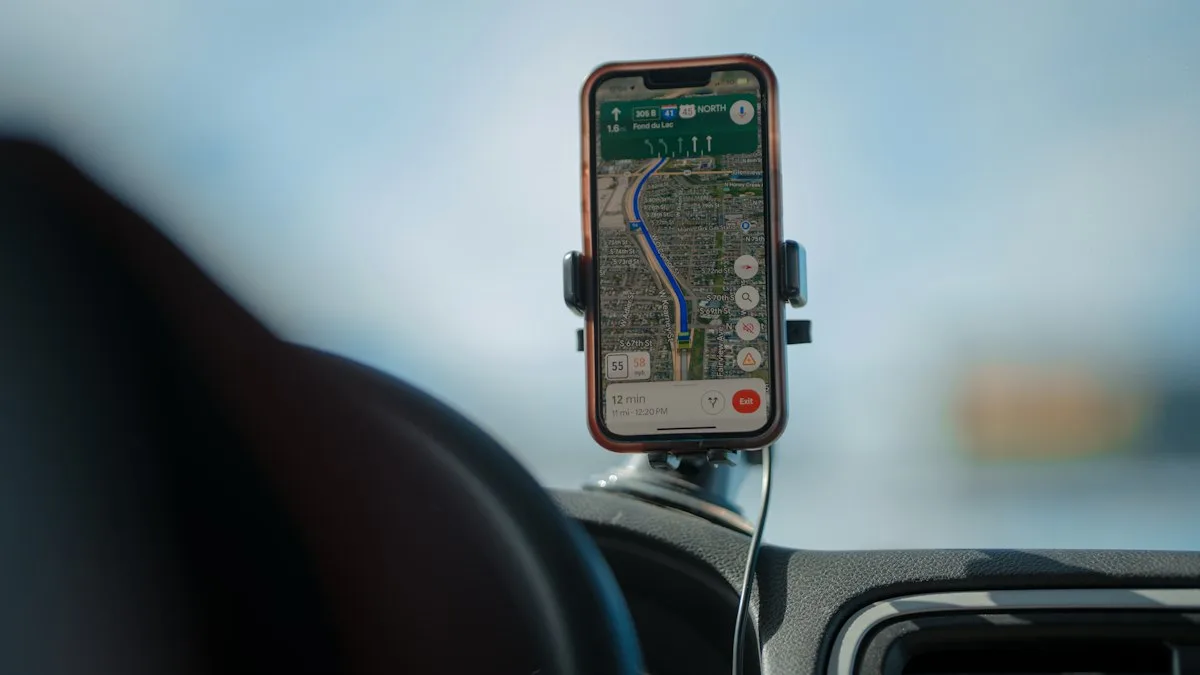
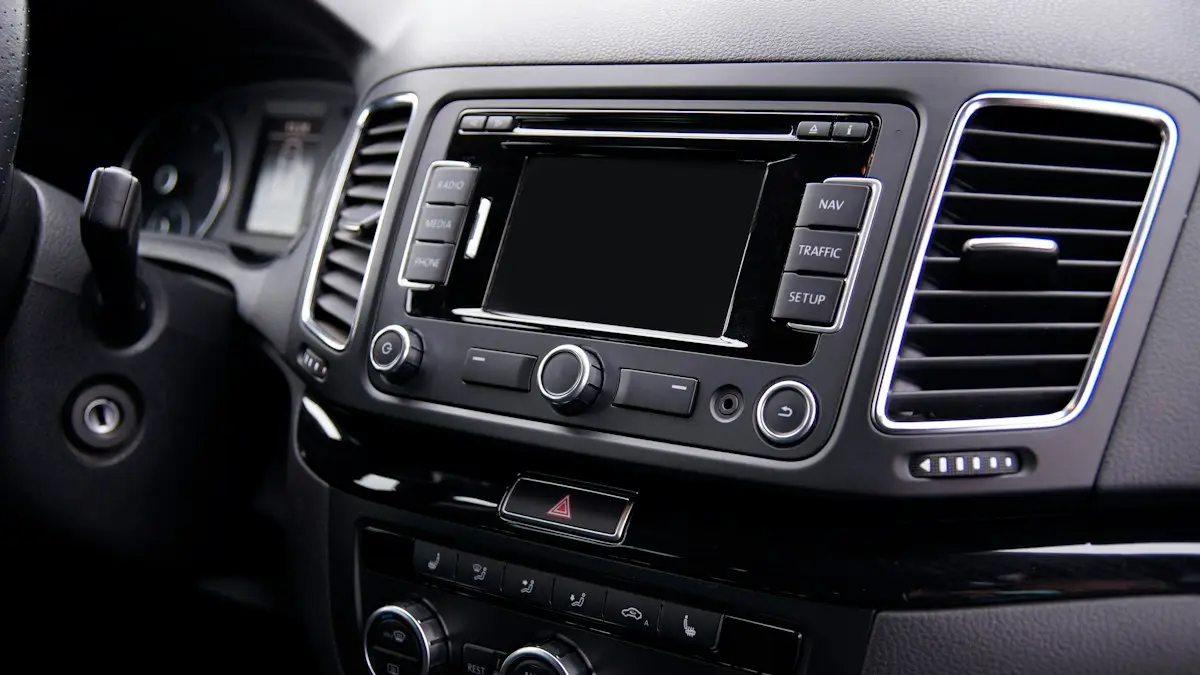
Photo by William Hadley on Unsplash
You start the car, the CarPlay screen wakes up, and instead of your maps it asks you to enable Siri. You check, and Siri looks fine. Or you never use Siri and you would like it to stay off. Either way, the car will not let you pass.
The fix
6 fixes, in order
- 1
Turn Siri on.
Open Settings and tap Siri (Siri & Search, or Apple Intelligence & Siri, depending on your iOS version). One guide lists Listen for Hey Siri, Press Side Button for Siri and Allow Siri When Locked as the switches to enable.
- 2
Check that they stayed on.
Some owners report the toggles switching back off by themselves. Leave Settings, come back and look again before you reconnect.
- 3
Restart the iPhone and the car.
Turn the car off, restart the iPhone, then start the car and reconnect.
- 4
Turn off any VPN.
Reports say a VPN or profile can stop Siri from working. Disconnect it, reconnect CarPlay and test. See our guide to using a VPN on iPhone if you are not sure what is on.
- 5
Add the car again.
Open Settings › General › CarPlay, tap your car, and choose Forget This Car. Reconnect with the cable or wirelessly and set it up again.
- 6
Update iOS.
Open Settings › General › Software Update and install anything waiting. Several reports tie the prompt to specific updates.
Why does CarPlay need Siri at all?
CarPlay is built around voice. Apple's CarPlay page says Siri can help you make calls, send messages and get directions, and that you press and hold the voice control button on the steering wheel to activate it. In a car, you should not be tapping a screen. So CarPlay treats Siri as part of the system, and if it is off, the car asks you to turn it on.
Owners on Apple Community say that after recent updates the prompt appeared where it had not before, including after iOS 18.3.1 and iOS 26. A MacRumors thread says Siri has been folded into Apple Intelligence, which leaves no way to enable Siri just for CarPlay. We cannot confirm that Apple changed the rule. We can say that no thread we read found a way around it.
| What you see | Likely cause | Try first |
|---|---|---|
| The prompt appears and Siri is off | Siri settings are off | Turn on the Siri switches |
| The prompt appears but Siri looks on | A toggle reset, or a stale session | Toggle off and on, restart both |
| It started after an update | Update changed Siri settings | Recheck Siri settings, update again |
| It happens only with a VPN | VPN profile blocking Siri | Turn the VPN off |
| No CarPlay entry in Settings | Siri off, or car not paired | Enable Siri, then reconnect |
Siri looks on, but CarPlay still asks
This is the most common thread on Apple Community. One owner found Siri enabled in Settings and the car still prompted for it. Another found the toggles switching back off on their own. In one report, the CarPlay entry appeared under Settings › General only after Siri was enabled. The pattern says the iPhone and the car disagree about the state of Siri.
- Turn each Siri switch off, wait a few seconds, then turn them on.
- Close Settings and open it again to confirm they are still on.
- Disconnect the cable, restart the iPhone, then reconnect.
- Forget the car under Settings › General › CarPlay and set it up again.
Wired and wireless CarPlay
As we read Apple's connect guide, for a wired connection you use an Apple USB cable and plug the iPhone into the car's USB port. For wireless CarPlay you go to Settings › General › CarPlay and select your car, with the stereo in wireless or Bluetooth mode. If the Siri prompt appears only on one type of connection, try the other to see whether the car or the phone is the problem. A bad cable can cause odd messages too, so test with a good one. Our guide to CarPlay that will not work at all covers those checks.
Can you use CarPlay with Siri turned off?
Many people ask, because they do not want an assistant listening. In the threads we read, owners with recent iPhones say they could not find a way to use CarPlay without Siri, and some say they stopped using CarPlay. Apple's pages that we could read give no such option either. If you do not want Siri to listen, you can try turning off Allow Siri When Locked and keeping the other switches as CarPlay needs them, but we cannot promise that CarPlay will accept it.
Fix it while parked, not while driving
Do all of this with the car stopped. Changing Siri settings, forgetting the car and reconnecting all take attention that belongs on the road. If the prompt appears while you are driving, ignore it until you park, and use your voice or the steering wheel button for calls and directions if the system lets you. It is better to arrive late than to fiddle with Settings at a red light.
What to check on the car side
The prompt comes from the car's screen, but the cause is usually the phone. Still, three car-side checks cost nothing. First, make sure the car's infotainment system is in the right input mode for wired or wireless CarPlay. Second, try a different USB port, since some ports only charge and do not carry data. Third, look at the car maker's support page or ask a dealer whether a software update for the head unit is available. Apple's guide, as we read it, also tells you to use an Apple USB cable for the wired connection, so test with one.
If the car connects fine to another iPhone and shows no Siri prompt, the problem is in your phone's settings. If it prompts every phone you try, the car is the issue.
Test that Siri works in the car after the fix
Once CarPlay loads, check that Siri actually answers. Apple's CarPlay page says to press and hold the voice control button on the steering wheel to activate Siri, and lists calls, messages and directions among the things Siri can do. Try one simple request while parked, such as asking for directions to a nearby place. If Siri does not respond, the problem is Siri and not CarPlay, and our guide to Siri that does not respond is the next stop. If you hear Siri but the car still shows the prompt next time, run through the checklist again, because a setting may have reset.
If it still fails
If you have tried every step, test with another cable, another USB port in the car and, if you can, another iPhone. If another iPhone connects, the issue is in your phone's settings. If no iPhone connects, the car's head unit may need an update, and the car maker or dealer can help. When Siri itself will not respond, read Siri that does not respond. If CarPlay connects and then drops, see CarPlay that keeps disconnecting.
Frequently asked questions
Why does CarPlay ask me to enable Siri?
Apple's setup guide treats Siri as a prerequisite for CarPlay, so the car prompts you when Siri is off or blocked. Turn Siri on in Settings, then reconnect.
CarPlay says enable Siri but Siri is already on. What now?
Toggle the Siri settings off and on, restart the iPhone, and reconnect. Some owners report the toggles switching back off on their own, or a VPN profile blocking Siri.
Can I use CarPlay without Siri?
We found no confirmed way. Apple Community and MacRumors threads from owners with recent iOS versions say they could not find one, and Apple's pages we read give none.
Did an iOS update cause this?
Reports tie the prompt to updates such as iOS 18.3.1 and iOS 26, and say Siri became part of Apple Intelligence. Apple does not confirm that, so use the checklist and keep iOS current.
What to try next
Sources
Official pages these steps are based on. Menus can differ by software version.
People also ask
Why does CarPlay need Siri?
CarPlay is built around voice control for safety, so you can send messages and get directions without touching the phone. If Siri is turned off, CarPlay will not start. Turn on Siri in Settings › Siri (or Siri & Search).
Read the full guide: CarPlay not workingWhich iPhones can use Siri AI?
Apple lists iPhone 15 Pro and later, iPhone 16 and later, and iPhone Air on iOS 27. Its main page also lists iPhone Duo.
Read the full guide: How to get Siri AIWhy does Siri not respond when my iPhone is face down?
By default, iPhone does not listen for “Siri” when it is face down or covered, to avoid accidental activations. Turn it face up, or change this in Accessibility › Siri with Always Listen for “Siri”.
Read the full guide: Siri not workingWhy does wireless CarPlay keep disconnecting?
Wireless CarPlay uses a direct Wi-Fi link to the car. If your iPhone auto-joins another network, such as public Wi-Fi at a gas station, the link drops. Turn off auto-join for those networks.
Read the full guide: CarPlay keeps disconnectingRelated guides
CarPlay not working
Apple CarPlay not working or not connecting? Check Siri, Screen Time, the cable and your car’s settings, then re-pair your iPhone with these 10 fixes.
How to get Siri AI
How to get Siri AI on iPhone: update to iOS 27, tap Try Siri AI (Beta) in Settings and join the waitlist. See supported iPhones, languages and regions.
Siri not working
Siri not working or not responding to “Hey Siri”? Check Siri settings, the microphone, Screen Time and your connection with these 10 fixes for iPhone.
CarPlay keeps disconnecting
CarPlay keeps disconnecting and reconnecting? Swap the cable, clean the port, stop your iPhone joining public Wi-Fi and try 6 more fixes for a steady link.
More guides you may need

FaceTime sensitive content warning
FaceTime paused your call with a sensitive content warning? Learn what triggers it, how it works on your iPhone, and where to turn it off in Settings.
Forgot Notes password
Forgot notes password on iPhone? Reset it in Settings, learn why old locked notes stay locked, and see the few ways to get back in or avoid this next time.