

iPhone says accessory not supported? 8 fixes, even with nothing plugged in
This alert usually points to a damaged or uncertified cable, or a dirty port. When nothing is plugged in, a blocked or damaged port is the most likely cause.
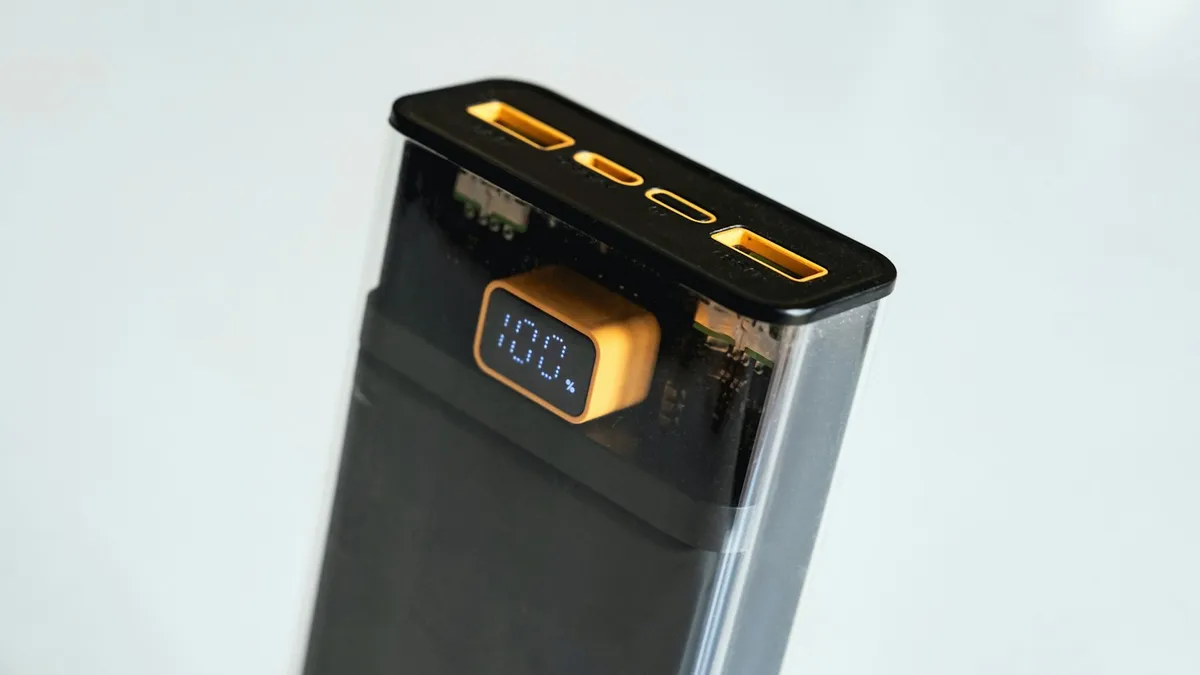
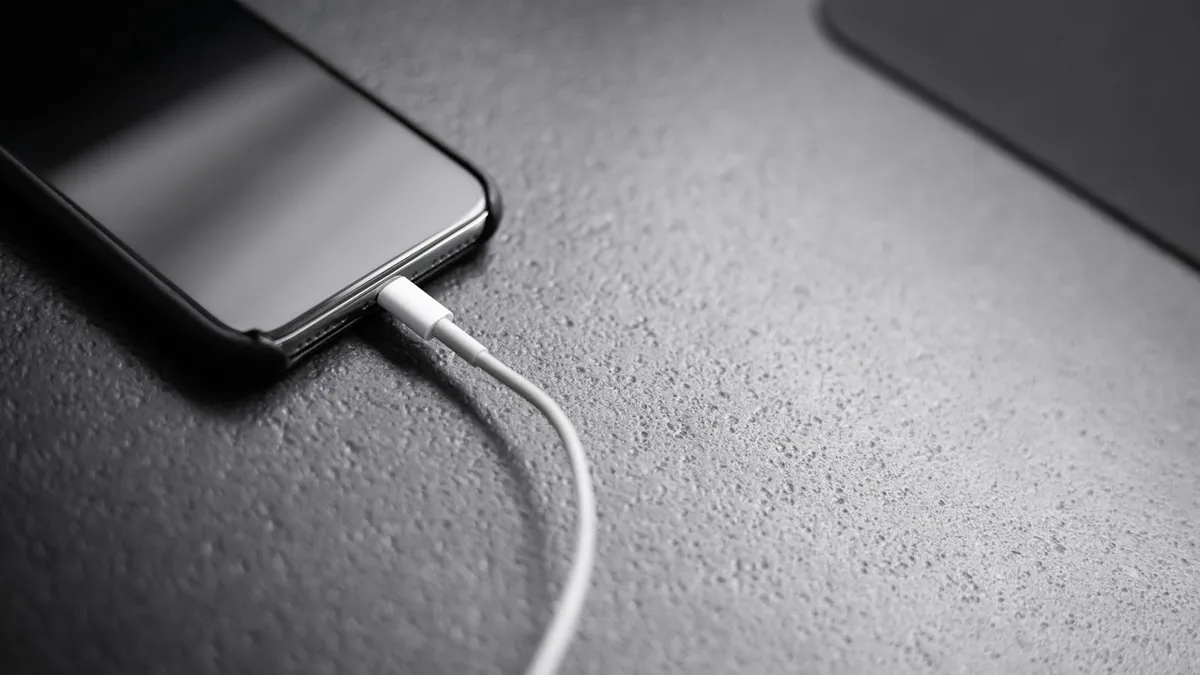
Photo by Rahul Chakraborty on Unsplash
A message pops up that says This accessory may not be supported, and you tap Dismiss. Then it comes back. Sometimes you have a cable in the phone. Sometimes you have nothing plugged in at all, and the alert still shows up every few minutes.
The alert is more common than it looks, and it has a short list of causes. The steps below start with the cheap ones, a cable and a dirty port, and end with the repair route and what it may cost. They apply to Lightning iPhones and to USB-C iPhones, from the iPhone 15 on.
Why does the iPhone show this alert?
- A damaged or uncertified accessory. Apple lists this first. Frayed cables, cheap adapters and fake chargers are common triggers.
- An accessory that does not work with your model. Some accessories only work with certain iPhones.
- Dirt, lint or debris in the port. Pocket lint packs into the charging port and blocks the contacts.
- Moisture in the port. A little water or humidity can make the phone think something is connected.
- A damaged port. Bent or worn contacts cause the alert, with or without a cable.
- A software glitch. Less common, and it can follow an iOS update.
Fix 1: Disconnect and reconnect the accessory
Apple's first step is the simplest one. Tap Dismiss, pull the accessory out and plug it in again. Push it in firmly, and straight, not at an angle. If the alert is gone and does not return, a loose connection was the cause. If it comes back, go on.
Fix 2: Inspect the cable and the accessory
Look at both ends of the cable. You are checking for bent or missing pins, dark or green marks on the metal, frayed insulation near the connector and a loose plug. Try a different cable that you know works, ideally one made for your iPhone and certified by Apple. If the other cable works with no alert, the first one was the problem, and you can throw it away.
Also remove anything between the iPhone and the charger. Apple's charging advice says to connect straight to the charger, without adapters or extra equipment in the middle. Hubs, car adapters and cheap multi-port docks are all worth taking out of the test.
Fix 3: Check that the accessory works with your iPhone
If the alert appears the first time you use a new accessory, check the box or the maker's site to see which iPhones it supports. Some accessories only work with Lightning or only with USB-C. If you have an iPhone 15 or later, it uses USB-C. An older Lightning accessory will not fit without an adapter, and a cheap adapter is a common cause of the alert.
Fix 4: Clean the charging port
Apple tells you to look at the connectors for damage or debris, and to gently remove any debris from the iPhone's port. Lint from a pocket is the most common culprit, and it builds up for months before it causes a problem.
- 1
Turn the iPhone off.
- 2
Shine a flashlight into the port and look for lint, dust or anything solid.
- 3
Use a dry, non-metal tool to lift the debris out.
A wooden or plastic toothpick works if you are gentle. Slide it along the bottom of the port and scoop outward. Do not use a metal pin, a needle or a paper clip. They can bend the contacts or short the port.
- 4
Do not use liquids or alcohol.
Water or cleaner in the port can cause a worse problem than the alert.
- 5
Turn the iPhone on and plug in a good cable.
Most cases of the alert with nothing plugged in end here. It is common to find a small plug of lint that has been packed in by years of cable pushing.
Fix 5: Restart your iPhone
A restart can clear a false alert. Hold the side button and a volume button until the slider appears, drag it, wait half a minute and turn the iPhone back on. If your iPhone has been on for weeks, this alone can fix it.
Fix 6: Update iOS
Apple says to make sure you have the latest version of iOS. Open Settings › General › Software Update. Install anything that is waiting, with the iPhone plugged into a certified charger or above 50 percent charge. New versions fix bugs that confuse the port or the accessory check.
Fix 7: Dry the port if it may be wet
If the iPhone got wet, or you carried it in the rain or a steamy bathroom, moisture may be causing the alert. Do not charge it while the port is wet. Let it sit with the port facing down, in a dry place, for several hours. Do not put it in rice, and do not use a hair dryer. If a separate message says Liquid Detected in the connector, see our guide to liquid detected on iPhone.
Fix 8: Get the port looked at
Apple's page is blunt about the nothing-plugged-in case: if the alert appears and you have no accessories connected, you might need service. If you have done every step above and the alert still comes back, the port may be damaged or its contacts worn.
- Check your coverage first. Our guide to checking a phone warranty shows how to look it up by serial number.
- If you have AppleCare, service for a faulty port may cost little or nothing. If you do not, read whether AppleCare is worth it before you decide.
- Ask Apple or an authorized provider for a quote. Compare it with the age of the phone. On an older iPhone, a new battery and port at the same time can be more sensible than a single repair.
- If the iPhone also drains fast, read about whether a battery replacement is worth it.
Which fix should you try first?
- Alert appears only with one cable: replace the cable with an Apple-certified one.
- Alert appears with every cable: clean the port, then restart.
- Alert appears with nothing plugged in: clean the port, dry it, then book service if it stays.
- Alert appears after the phone got wet: stop charging, let it dry, then see the liquid guide.
- Alert and slow charging together: see our guide to the slow charger message.
How to stop the alert from coming back
- Use certified cables and chargers, and replace any that are frayed.
- Clean the port every few months, especially if you keep the iPhone in a pocket.
- Plug cables in straight, and do not pull them out by the cord.
- Keep the iPhone away from steam, sinks and pools.
- Install iOS updates when they appear.
Frequently asked questions
Why does my iPhone say this accessory may not be supported?
Apple says the alert can appear when the accessory is damaged or not certified for your iPhone, or when your iPhone has a damaged or dirty port. Disconnect it, check both ends for debris and try again.
Why does it say accessory not supported when nothing is plugged in?
Debris or moisture in the charging port, or a damaged port, can make the iPhone think something is attached. Apple says that if the alert appears with no accessory connected, the iPhone might need service.
Can I use a cheap cable on my iPhone?
Often yes for charging, but uncertified cables are a common cause of the alert and can charge slowly or stop working. A cable made for your iPhone, and certified by Apple, avoids most of these problems.
How much does it cost to fix an iPhone charging port?
It depends on the model and where you go. Check your warranty or AppleCare coverage first, then ask Apple or an authorized provider for a quote before you pay for a repair.
What to try next
People also ask
How long does it take for the liquid detected alert to go away?
Apple says to wait at least 30 minutes before trying again, and that it can take up to 24 hours for the port to dry fully. Leave the iPhone in a dry place with some airflow in the meantime.
Read the full guide: iPhone liquid detectedWhy does my iPhone stop charging at 80%?
That is usually deliberate. Optimized Battery Charging, or the charge limit on iPhone 15 and later, holds the charge at 80% to reduce battery wear. The phone also pauses charging when it gets too warm.
Read the full guide: iPhone not chargingWhat does Liquid or debris in USB port mean on a Pixel?
The phone has detected moisture or dirt in the USB-C port and disables it for safety. Google says to unplug everything, check the port and wait until it shows OK to use USB port.
Read the full guide: Pixel liquid or debris in USB portWhy does my iPhone say headphones are connected when they are not?
It may still be routing audio to a Bluetooth device nearby, or the charging port may be detecting an accessory because of debris or moisture. Check both.
Read the full guide: iPhone stuck in headphone modeRelated guides
iPhone liquid detected
iPhone liquid detected alert even when it is dry? Learn why it happens, how long to wait, when Emergency Override is safe and 7 fixes to charge again.
iPhone not charging
iPhone not charging, charging slowly or stuck at 80%? Work through 7 fixes, from the cable and a dirty port to charging messages, software and battery health.
Pixel liquid or debris in USB port
Pixel says Liquid or debris in USB port or Unplug charger? Unplug, dry the port, wait for OK to use USB port and clear the cache. 6 fixes from Google.
iPhone stuck in headphone mode
iPhone stuck in headphone mode with no sound from the speaker? Check Bluetooth, the audio output, the charging port and Silent mode. 8 fixes that work.
More guides you may need

iPhone auto brightness not working
iPhone auto brightness not working or the screen keeps changing? Check the Accessibility switch, light sensor, Low Power Mode and heat, then try 3 more fixes.
iPhone back tap not working
iPhone back tap not working or not detected? Check the action, your model, the case and how you tap, then update and reset. 8 fixes for double and triple tap.