

Android Auto stuck in night mode? Or stuck in day mode? 6 fixes
Android Auto switches between a light and a dark screen on its own, and the trigger can be the car, the phone or an app update. Here is how to find which one is stuck.
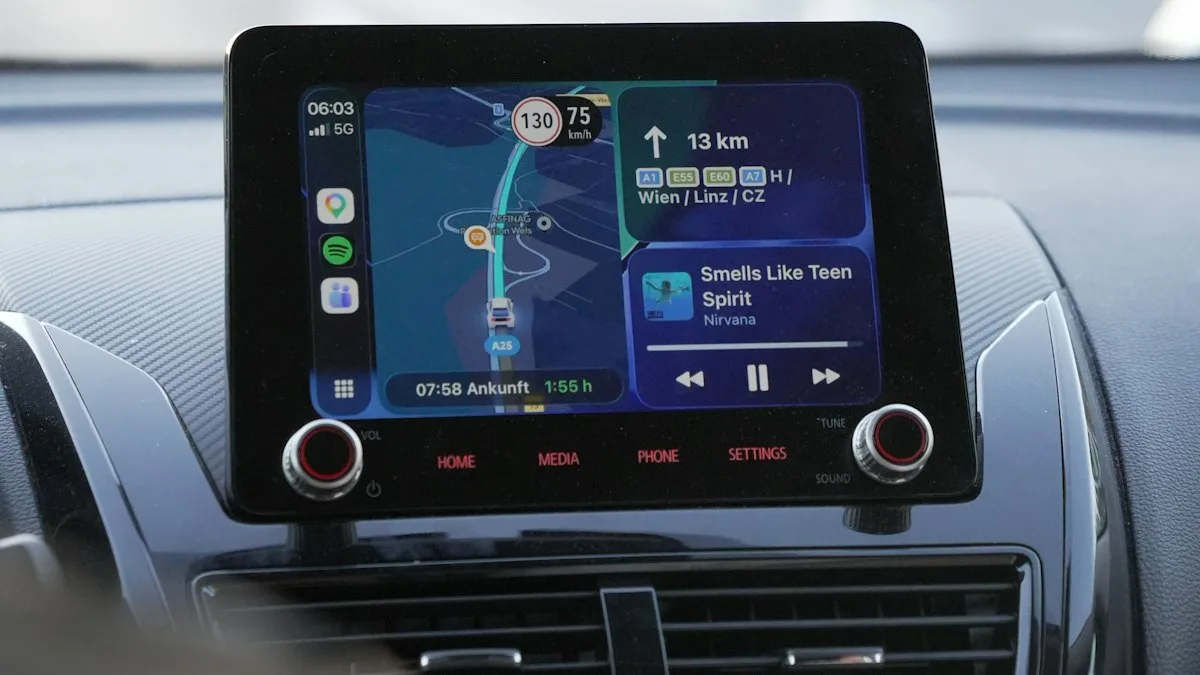
Photo by Julian Gojani on Unsplash
It is noon and the screen in your car is black. Or it is midnight and your map is glowing like a lighthouse. Android Auto is supposed to change by itself, and when it does not, it is annoying and a little unsafe. The cause is rarely the phone alone.
The fix
6 fixes, in order
- 1
Check the car's day and night setting.
Park, open the head unit's display or Android Auto settings, and look for a day, night or automatic option. Reports say a head unit set manually to Day or Night stops Android Auto from switching.
- 2
Update Android Auto and Google Maps.
Open the Play Store and install any update. A June 2026 report ties a stuck light theme to a beta update, so a later release may fix it.
- 3
Check the color scheme in Maps.
In Google Maps, look in Settings › Navigation settings for a color scheme with automatic, day and night options. Menu names vary by version, so search Settings if you cannot find it.
- 4
Turn off the phone's dark mode as a test.
Some reports, including a 2019 Android Police article about Samsung's One UI, say the phone's night mode forced Android Auto into dark. If it helps, you will know the phone was involved.
- 5
Forget all cars and set up again.
Unplug the phone. Open Settings › Connected devices › Connection preferences › Android Auto › Previously connected cars, tap the menu at the top right, tap Forget all cars, then plug in again.
- 6
Restart both, and test the cable.
Restart the phone and the car's infotainment system, which Google suggests. Use the cable that came with the phone, under 3 feet, with no hubs or extensions.
Stuck in night mode or stuck in day mode?
| What you see | Likely cause | Try first |
|---|---|---|
| Dark in daytime | Head unit set to Night, light sensor, phone dark mode | Check the car setting, test with phone dark mode off |
| Bright at night | Head unit set to Day, or a Maps theme bug | Check the car setting, update Maps |
| Switches at the wrong time | Sensor or clock off | Check the car's clock and headlight sensor |
| Changed after an update | Bug in a release | Install the next update |
| Only in one car | That car's head unit | Restart it, check firmware |
The car may be in charge
Many people assume the phone decides when it is dark. Reports suggest the car can decide, using a light sensor or the headlights. If the sensor is dirty, blocked or miscalibrated, the car may never tell Android Auto that it is night. If the head unit has a manual mode, such as Day, the car may override the automatic switch. One forum user said they could break out of a stuck mode by parking, switching the car's display to night mode, saving, and then switching back to day. They called it impractical to do all the time, but it is a useful test.
Check the car with a different phone, if you can. If the other phone switches correctly, the problem is on your phone or its apps. If both phones stay stuck, look at the car. For connection problems rather than theme problems, read Android Auto that will not connect.
A ten minute test to find the culprit
Guessing between the car, the phone and an update wastes time. Do this while parked, and note what changes after each step.
- Connect the phone and note whether the screen is light or dark and what time it is.
- Change the car's display setting between Day, Night and Auto, if it has them. If the screen follows your choice, the car can control the theme.
- Open Google Maps on the phone and change the color scheme. If the car screen follows, Maps is part of it.
- Turn the phone's dark mode on and off and reconnect. If it follows, the phone was driving it.
- Try a second phone. If the second phone works, the first phone has the problem.
After this test you will usually know which of the three is responsible. If more than one changes the screen, set them all to automatic and see whether the problem returns after the next drive. Write down what you did, so that if you need to ask for help, you can say exactly what you tried.
The phone's dark mode can interfere
In 2019, Android Police reported that on some Samsung phones the One UI night mode made Android Auto think it was always night. That is an old report, and we do not know if it still applies, but it is cheap to test. Switch the phone's dark mode off in Settings › Display, reconnect to the car and look. If the problem goes away, you can keep dark mode off in the car, or look for an app setting that stops it from forcing the theme.
When a Maps or Android Auto update is to blame
9to5Google reported in June 2026 that a bug left some Android Auto users with directions stuck in a bright light theme at night, and said reports on Google's forums and Reddit pointed to a beta update. We do not know whether it was fixed for you. If the problem started right after an update, install any newer version of Android Auto and Google Maps. If you joined a beta program, consider leaving it until the bug is resolved, as new beta builds can bring new problems. See our guide to updating an Android phone for system updates too.
Check the basics Google lists
Google's help page says that if Android Auto worked before and no longer works, replacing the USB cable will likely fix the issue. It also advises using a cable under 3 feet with no hubs or extensions, trying the cable that came with the phone, restarting the car's infotainment system, and, for aftermarket receivers, checking the maker's site for a firmware update. These checks are for connection trouble, but a cable that drops data can also cause odd display behavior, so rule it out.
If nothing changes the theme
If the screen is still stuck after every step, note your phone model, Android version, Android Auto version and car model, and post them on Google's Android Auto Help forum, where staff and other owners compare reports. Also see whether your car maker has a head unit update, since a car-side bug can only be fixed there. Meanwhile, if the glare is a safety issue at night, lower the brightness on the car's display, and avoid fiddling with settings while driving. If your phone shows the message that it is not supported, read the device not supported message.
Frequently asked questions
Why is Android Auto stuck in night mode during the day?
Common reports point to the car's head unit set to night, a light sensor that thinks it is dark, the phone's own dark mode on some Samsung phones, or a bug in a recent update. Google's pages do not say which applies to you.
Why is Android Auto too bright at night?
The same causes apply in reverse. 9to5Google reported in June 2026 that a bug left some users with Maps stuck in a light theme at night, and a head unit set to Day mode can block the switch.
Who decides between day and night: the phone or the car?
We found no Google page that says. Reports suggest it can depend on the car's setting or sensor, and on the app. Test both the car's day and night option and the Maps color scheme.
Will forgetting the car fix it?
It sometimes clears a stale setup. Google's path is Settings, Connected devices, Connection preferences, Android Auto, Previously connected cars, then Forget all cars.
What to try next
Sources
Official pages these steps are based on. Menus can differ by software version.
People also ask
What Android version does Android Auto need?
Google's help pages now say an Android phone running Android 11.0 or higher with a data plan. Wireless Android Auto also needs 5 GHz Wi-Fi support. Older guides that say Android 8 or 9 are out of date.
Read the full guide: Android Auto device not supportedWhere is the Android Auto app on my phone?
On Android 10 and later, Android Auto is built in rather than a separate app. Find it in Settings by searching for Android Auto, or under Connected devices › Connection preferences › Android Auto.
Read the full guide: Android Auto not connectingDo I need to download Android Auto?
On Android 10 and later it is built in. On older phones, install Android Auto from the Google Play Store.
Read the full guide: Set up Android AutoWhy does my iPhone say headphones are connected when they are not?
It may still be routing audio to a Bluetooth device nearby, or the charging port may be detecting an accessory because of debris or moisture. Check both.
Read the full guide: iPhone stuck in headphone modeRelated guides
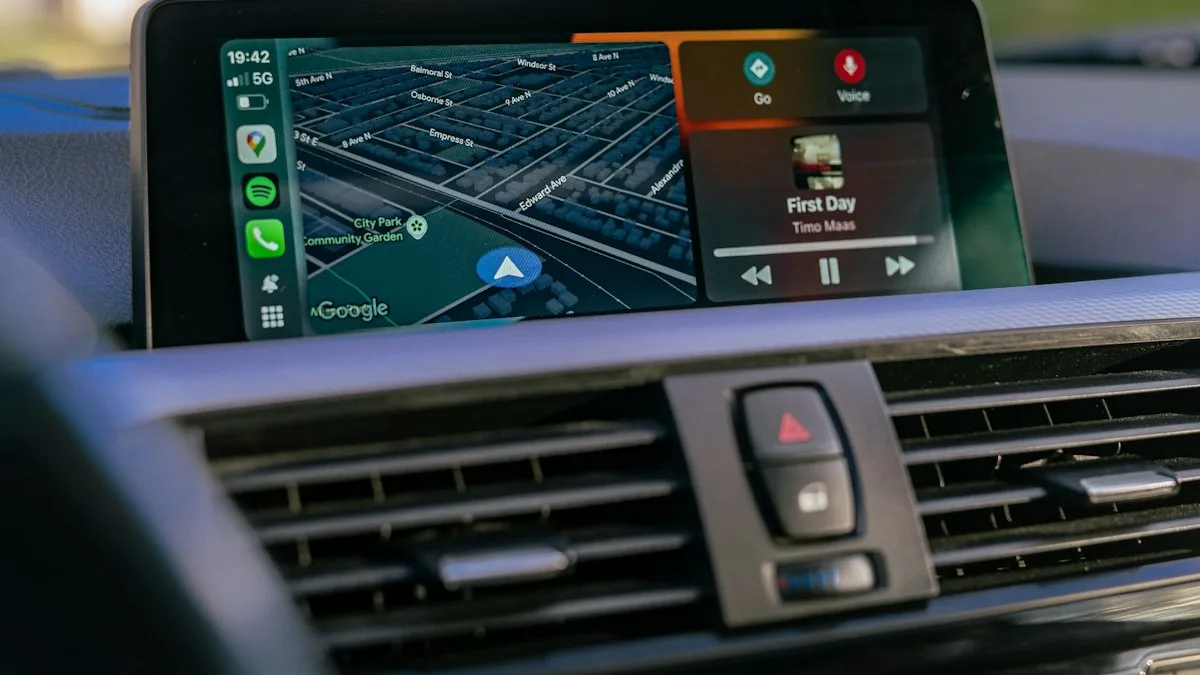
Android Auto device not supported
Android Auto says device not supported? Google now lists Android 11 or higher. Check your Android version, country, car and USB cable, then forget old cars.
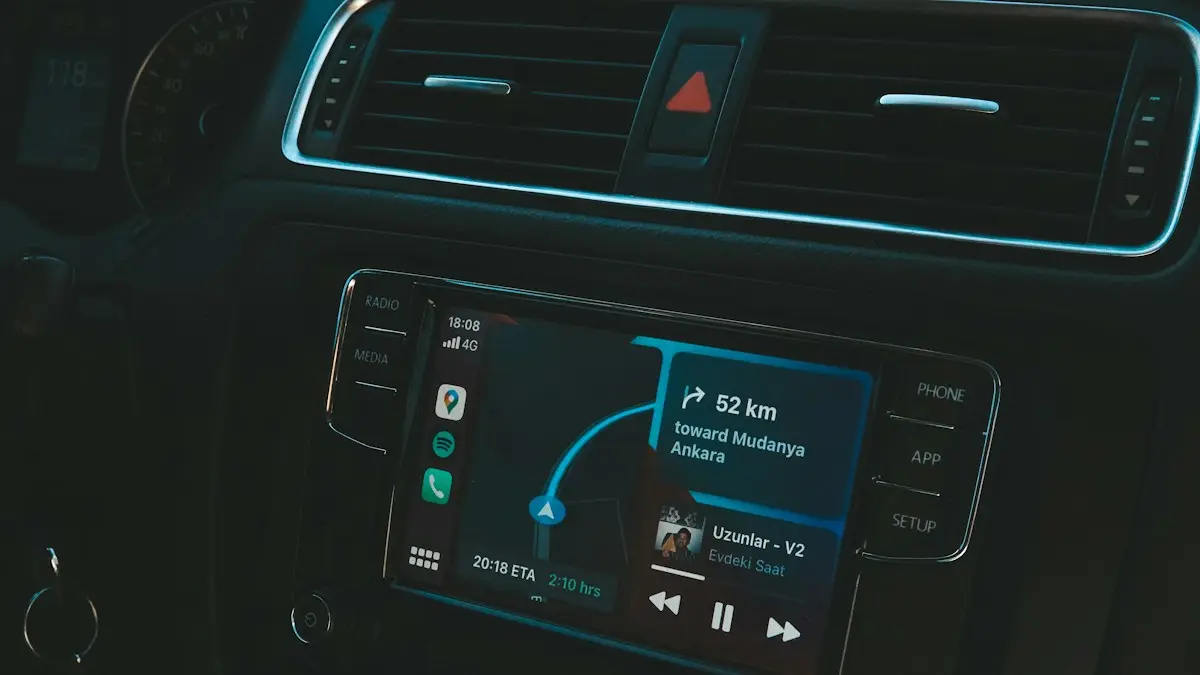
Android Auto not connecting
Android Auto not connecting to your car or keeps disconnecting? Swap the cable, check USB mode, forget the car and fix battery settings with these 10 fixes.
Set up Android Auto
Set up Android Auto for the first time with a USB cable or wirelessly, grant the right permissions, and customize which apps show on your car’s screen.
iPhone stuck in headphone mode
iPhone stuck in headphone mode with no sound from the speaker? Check Bluetooth, the audio output, the charging port and Silent mode. 8 fixes that work.
More guides you may need
Change your name on Facebook
Change your name on Facebook in Accounts Center on your phone or computer. Learn the 60-day rule, Facebook’s name policy and how to add a nickname instead.
Delete Snapchat account
Delete your Snapchat account at accounts.snapchat.com or from the app settings. Save your Memories first, cancel Snapchat+, and know the 30 day window.