

Indexing in Progress on iOS 27: how long it takes and how to finish it
After updating to iOS 27, Settings shows a banner that seems to never go away. It is normal, it is not a bug, and you do not need to pay for any tool to fix it. Here is what it is doing and how to help it finish.
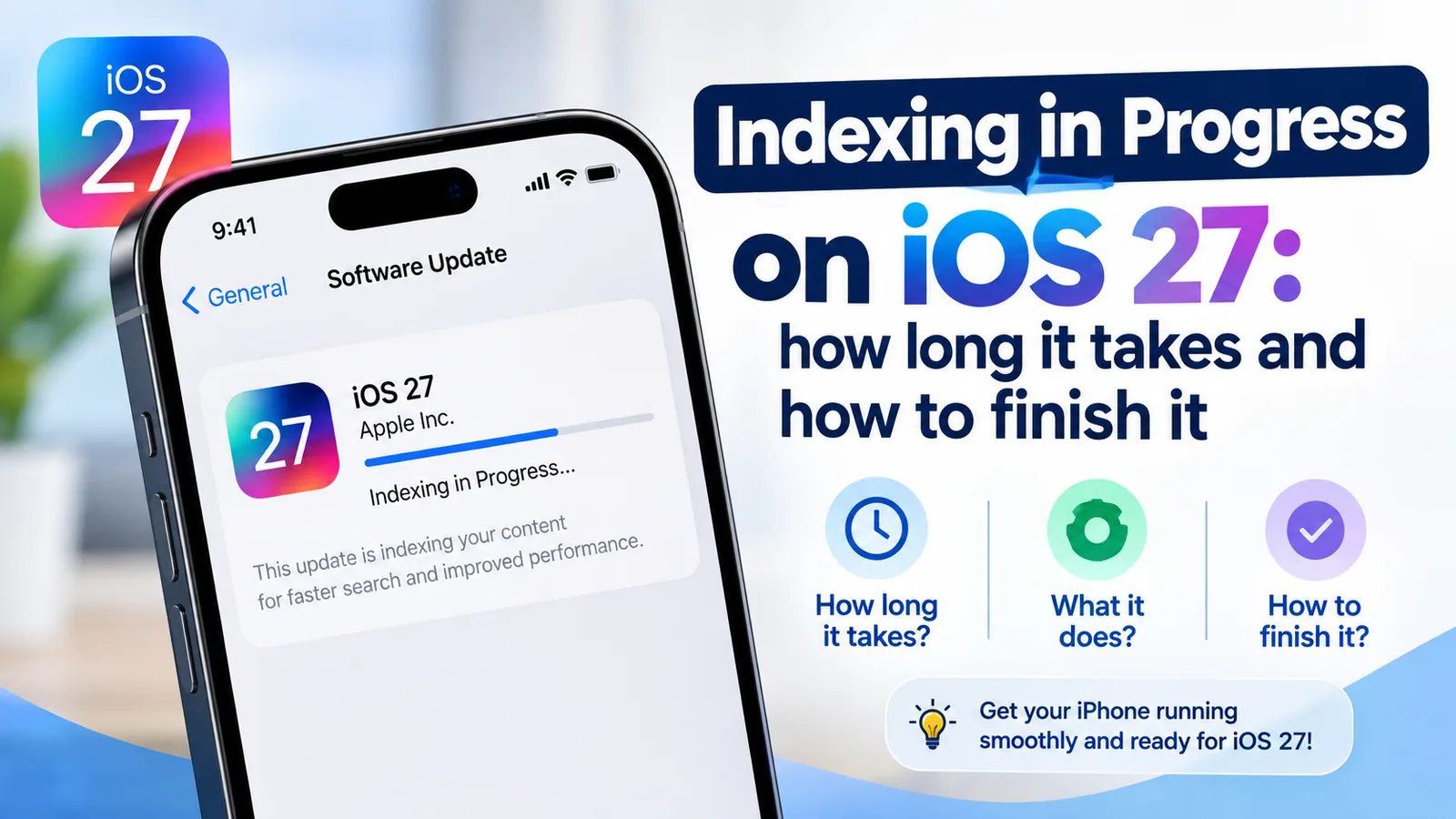
Apple rebuilt search from the ground up for iOS 27. The new version understands what you mean, not just the exact words you type, and it is what the new Siri uses to find things in your messages, photos, mail and notes. To make that work, your iPhone has to go through everything stored on it again and build a fresh index. That is the job this banner is tracking.
On a phone with a few years of photos and messages, that is a lot of work. It runs in the background, mostly while the phone is idle and charging, which is why it can seem to take forever if your iPhone is rarely left alone.
Indexing in Progress or Optimizing Search and Siri?
They are the same thing with two names. During the iOS 27 beta, the banner at the top of Settings said Indexing in Progress, with the note: “You can use your iPhone as you normally would. Indexing improves search and can take a while. Longer charging sessions help indexing go faster.”
Apple later renamed it Optimizing Search and Siri, which is what most people see on the released iOS 27. On many iPhones the banner now shows a percentage and a “last updated” time, so you can see it moving. Whatever your banner says, the steps below are the same.
How long does iOS 27 indexing take?
Apple does not give a fixed time. Its guidance is that indexing can take anywhere from a couple of hours to a few days, depending on how much data is on the device. In practice, what you store and how you charge matter most:
- Light use, charged overnight: often done within a day or two.
- Years of photos, videos and chats: several days is common. Tens of thousands of photos and long message histories are the biggest load.
- Rarely left charging, or often on Low Power Mode: a week or longer, because the work mostly happens when the phone is idle and plugged in.
- Older iPhones: slower chips take longer to process the same library.
So if a friend's phone finished in a day and yours is on day five, that does not mean something is wrong. It usually means your phone has more to get through, or less quiet charging time to do it in.
How to make indexing finish faster
Give your iPhone the conditions it needs
- 1
Plug it in overnight.
This is the one tip Apple puts in the banner itself: longer charging sessions help. A full night on the charger does far more than several short top-ups during the day.
- 2
Connect to Wi-Fi.
Indexing works alongside iCloud syncing, which slows down or waits on cellular data. Stay on your home Wi-Fi while it charges. If your iPhone keeps dropping Wi-Fi, fix that first with our guide to an iPhone that will not stay connected to Wi-Fi.
- 3
Turn off Low Power Mode.
Low Power Mode cuts back background work, and indexing is background work. Turn it off in Control Center or under Settings › Battery (on some models it sits under Power Mode) until indexing is done. See what Low Power Mode pauses.
- 4
Lock the phone and leave it alone.
Your iPhone gives priority to whatever you are doing. Scrolling, gaming or streaming while it charges means less time for indexing. Face it down on the nightstand and let it work.
- 5
Free up some storage.
A nearly full iPhone struggles with every background task. Check Settings › General › iPhone Storage. If you have less than a few gigabytes free, clear out old videos and apps you do not use. Our guide to making room on your iPhone walks through the quickest wins.
- 6
Install any iOS 27 update.
Apple usually fixes early bugs in the first small updates after a big release. Check Settings › General › Software Update and install anything offered.
Why is my iPhone stuck at 95% (or 33%)?
A percentage that barely moves is the most common worry, and there are good reasons for it.
iOS 27 indexes your most recent data first, so the things you search for most start working early. The last stretch is your oldest content: years-old photos, old email and long message threads. There is a lot of it, and it often lacks the details that make newer items quick to process. So the final 10% can take as long as the first 80%. A number sitting in the high 80s or 90s for a day is expected, not stuck.
Look at the last updated time next to the percentage rather than the number itself. If that time keeps changing, your iPhone is still working. If the percentage and the time have not changed for two or three days, even after full nights on the charger with Wi-Fi, work through the next section.
No percentage showing at all?
Not every iPhone shows a number. Some only show the banner, and on others the percentage appears after the phone has spent some time charging. It does not mean indexing has stalled. Keep charging overnight and check again in the morning. If the banner has disappeared entirely, indexing is finished.
Still not finishing after a week? Try this
The fix
Next steps if progress has truly stopped
- 1
Check that iCloud is signed in and syncing.
Open Settings › [your name] › iCloud. If iCloud asks for your password or shows an error, sign in again. If iCloud keeps signing you out, see our guide to iCloud signing out on its own.
- 2
Remove email accounts you no longer use.
Every mailbox gets indexed. Old work accounts with years of mail add a lot. Go to Settings › Apps › Mail › Mail Accounts and remove any you do not need. You can add them back later.
- 3
Restart once, then charge overnight again.
One normal restart (not a force restart) can clear a stuck background process. Then give it another full night on Wi-Fi and power.
- 4
Reset All Settings as a last step.
Go to Settings › General › Transfer or Reset iPhone › Reset › Reset All Settings. This resets settings such as Wi-Fi passwords and wallpaper, but keeps your photos, messages and apps. Only do this if nothing has moved for several days.
- 5
Contact Apple Support.
If it is still stuck after all of this, Apple Support can run diagnostics. Erasing and restoring the iPhone would restart indexing from zero, so it is not a shortcut. Make a backup of your iPhone before any major step.
Why is my battery draining and my iPhone warm?
Indexing uses the processor for hours, and it runs alongside other catch-up tasks after an update, such as re-analyzing photos, syncing iCloud and downloading new Siri and system files. Apple has said that after an update these background tasks can temporarily affect battery life and make the phone warmer. In Settings › Battery you may see an insight saying an iOS update is still being finished.
Give it about a week. Most post-update battery complaints fade once indexing ends, and many people find battery life is as good as or better than before. If the drain continues after the banner is gone, something else is causing it. Our guide to an iPhone battery that drains fast covers how to find it. If the phone gets too hot to hold, take it out of any case and off the charger for a while, and see why iPhones overheat.
What works differently while indexing is running?
Everything on your iPhone works as usual, with one exception: search results can be incomplete. Until indexing finishes, you may notice:
- Spotlight search missing apps, files or older messages you know are there.
- Searching Photos for people, places or things returning fewer matches than it should.
- Mail and Messages search skipping older conversations.
- Siri being less able to find personal details, such as a message someone sent you last year.
These fill in on their own as the index grows. If you need an old message right now, scroll to it in the conversation instead of searching.
Can you turn off indexing on iOS 27?
No. There is no switch to stop or skip it. Search, Siri and Photos search all depend on the index, so iOS will keep working on it until it is done. The only related controls are per app: open an app in Settings › Apps and look for its Siri and search options to hide that app's content from search. That removes it from your search results, so it is only worth doing for apps you never want to appear there.
What about the Mac Console trick?
During the early beta, some sites showed how to read an exact indexing percentage by connecting your iPhone to a Mac and using the Console app. That method stopped working in later betas. It is also unnecessary now that Settings shows progress on many iPhones.
Is indexing safe? Does Apple see my data?
The search index is built and stored on your iPhone. Apple describes it as a private, local index of the data on your device. Building it does not mean your messages or photos are being uploaded to Apple. iCloud syncing may run at the same time, but that is your normal iCloud backup and sync, which follows your existing iCloud settings.
It also has nothing to do with getting the new Siri. Access to the new Siri features is managed separately, and many people are on a waitlist regardless of their indexing progress. Once you have access, a finished index is what lets Siri find your personal information. If your phone has other issues since the update, see our roundup of iPhone problems after an update.
Frequently asked questions
How long does indexing take on iOS 27?
Apple says it can take from a few hours to a few days, depending on how much is on your iPhone. Phones with large photo and message libraries can take a week or more, especially if they are rarely left charging.
Is it bad if my iPhone is stuck on Optimizing Search and Siri?
No. It is a normal background task after the update, and your iPhone works as usual while it runs. It only means search results may be incomplete for now.
Can I turn off indexing in iOS 27?
No. There is no switch to stop it, because search, Siri and Photos search all depend on the index. The fastest way to be done with it is to leave the iPhone charging on Wi-Fi overnight.
Does finishing indexing turn on the new Siri?
Not by itself. Access to the new Siri features is handled separately, and many people see a waitlist. Indexing helps Siri find your personal information once you have access.
What to try next
People also ask
Which iPhones can use Siri AI?
Apple lists iPhone 15 Pro and later, iPhone 16 and later, and iPhone Air on iOS 27. Its main page also lists iPhone Duo.
Read the full guide: How to get Siri AIHow many years will an iPhone get updates?
Apple usually supports an iPhone with new iOS versions for around six or seven years, and with security updates for a while after. Check Apple's iOS compatibility list for your exact model.
Read the full guide: How long iPhones lastDoes the message mean my battery is damaged?
No. The message reflects higher usage since the update. Battery damage shows in Settings, Battery, Battery Health & Charging as a lower Maximum Capacity or a Service label.
Read the full guide: iPhone used more than usual since upgradingWhy does my battery drain faster after an iOS update?
After a major update, iOS rebuilds its search index, scans your photos and finishes app updates in the background. Settings › Battery may show an Ongoing iOS Update note while this runs. Drain usually settles within two or three days, faster if you leave the phone charging on Wi-Fi overnight.
Read the full guide: iPhone battery draining fastRelated guides
How to get Siri AI
How to get Siri AI on iPhone: update to iOS 27, tap Try Siri AI (Beta) in Settings and join the waitlist. See supported iPhones, languages and regions.
How long iPhones last
How long do iPhones last? Most last five to seven years if the battery and updates hold. Learn the signs to upgrade and how to make yours last longer.
iPhone used more than usual since upgrading
Your iPhone has been used more than usual since upgrading iOS and it may affect battery life? Here is what the message means, how long it lasts and 8 tips.
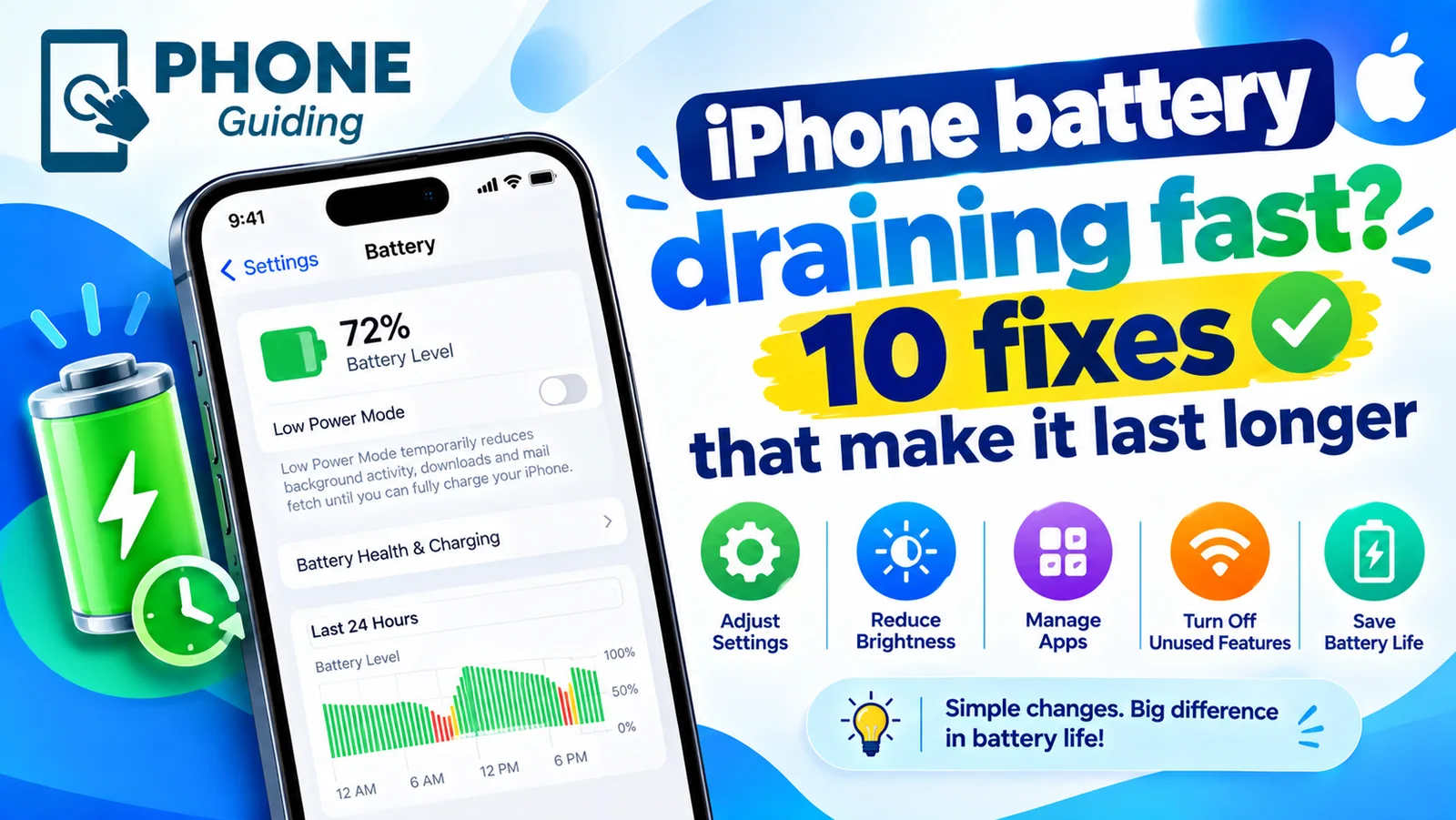
iPhone battery draining fast
iPhone battery draining fast? Find the app to blame in Battery settings, then try 10 fixes, from Adaptive Power to Background App Refresh and battery health.
More guides you may need
Screen black during calls
iPhone screen goes black during calls and will not wake? Clean the sensor, remove the screen protector, update iOS and reset settings. Plus how to hang up.
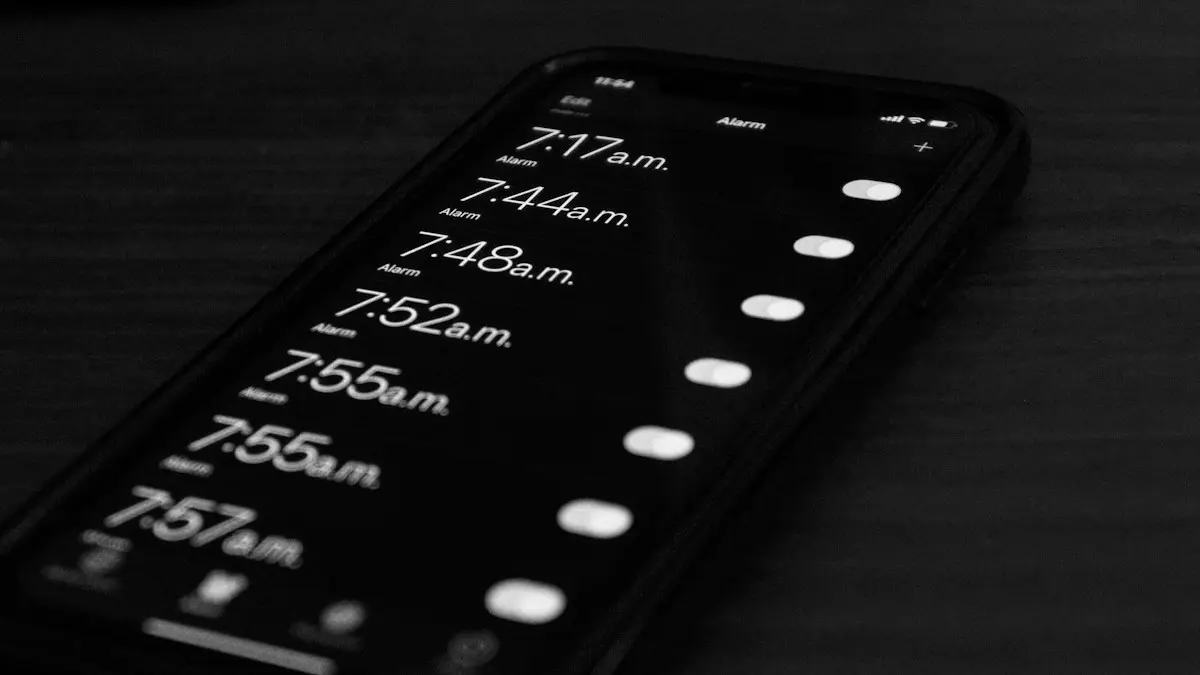
iPhone alarm not going off
iPhone alarm not going off, too quiet or only vibrating? Check the 10 settings that silence alarms, including the iOS 27 alarm volume, and stop oversleeping.