

Siri not working on iPhone? 10 fixes that bring it back
When Siri ignores you, it is usually a setting, the microphone or the connection. These fixes go from quickest to most involved.
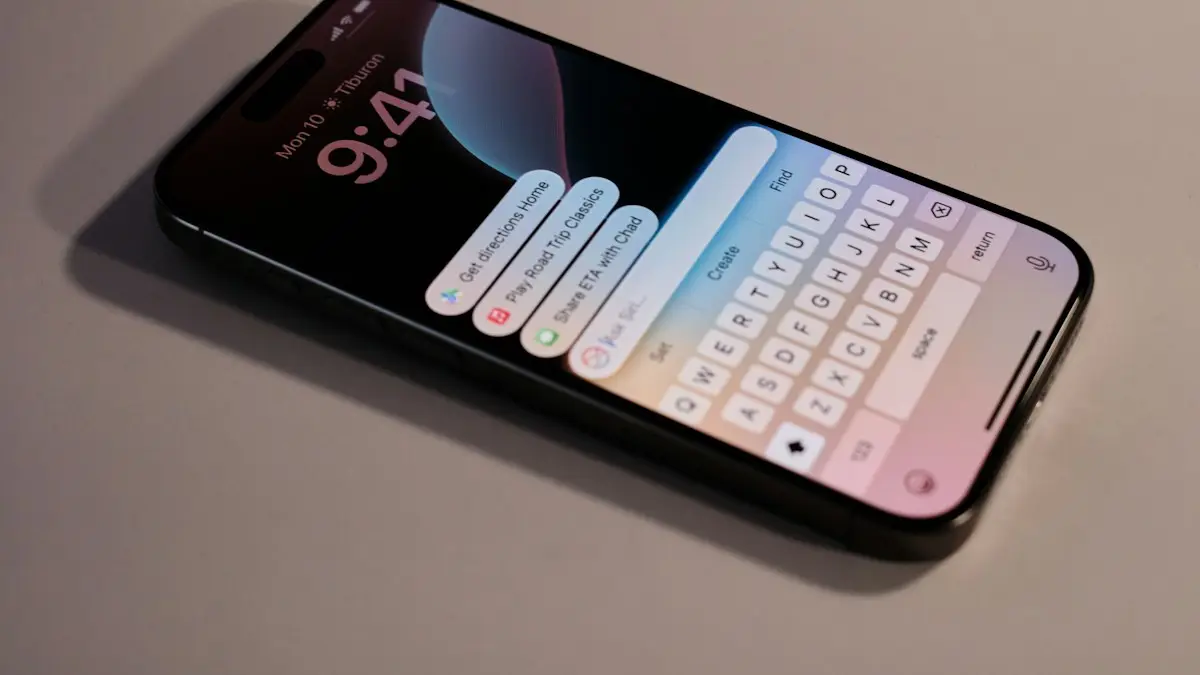
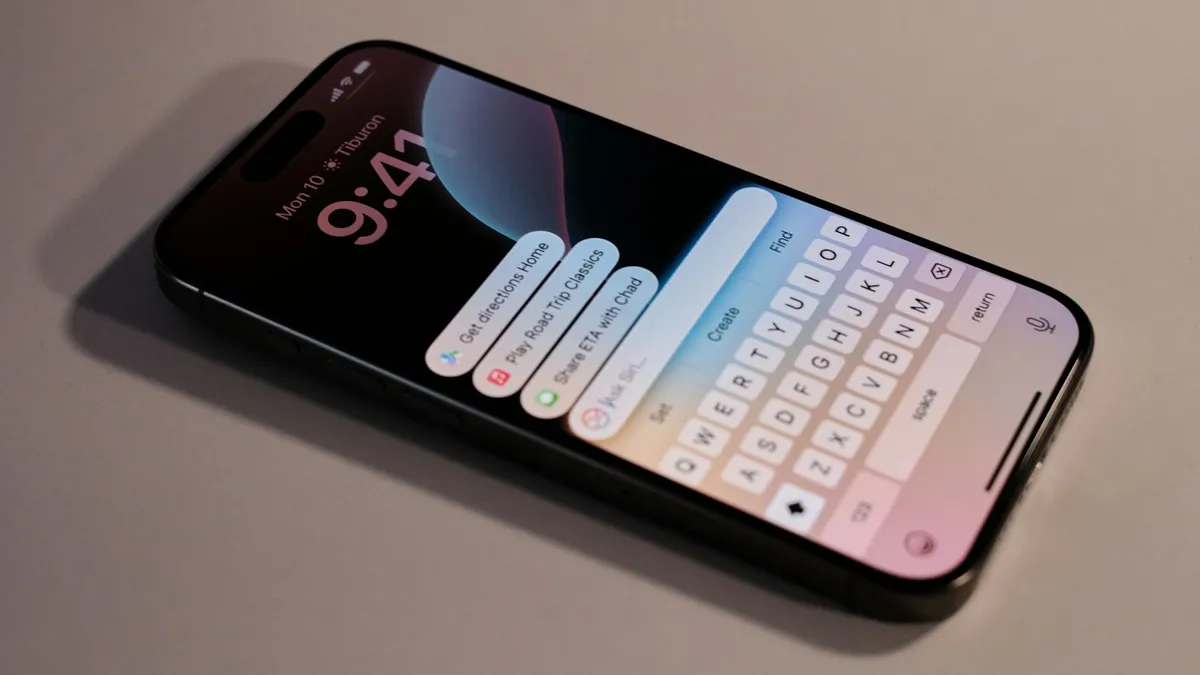
Photo by appshunter.io on Unsplash
Siri can fail in several ways. It may ignore “Hey Siri,” open and then say nothing, say it cannot connect, or hear you and give the wrong answer. Each points to a different cause. The list below goes from a switch you can check in seconds to the less common causes, such as language settings and a dirty microphone. Menu names changed on newer iPhones that have Apple Intelligence, and both are covered.
How to fix Siri on iPhone
The fix
Try these in order
- 1
Check Siri is turned on.
Open Settings › Siri (called Apple Intelligence & Siri on iPhone 15 Pro and later). Turn on the listening option and Press Side Button for Siri.
- 2
Turn Siri off and on again.
Switch the listening option off, restart the iPhone, then turn it back on and repeat the voice setup.
- 3
Keep the iPhone face up and uncovered.
iPhone ignores “Siri” when face down or covered unless Always Listen for “Siri” is turned on in Accessibility.
- 4
Check your internet connection.
Many Siri requests need Wi-Fi or cellular data. Toggle Airplane Mode on and off.
- 5
Make sure Siri is not restricted.
Go to Settings › Screen Time › Content & Privacy Restrictions › Allowed Apps & Features and check that Siri & Dictation is on.
- 6
Allow Siri when locked.
In Siri settings, turn on Allow Siri When Locked if Siri only fails on the Lock Screen.
- 7
Test the microphone.
Record a short clip in Voice Memos and play it back. If it sounds muffled, remove the case and clean the microphone openings gently with a soft, dry brush.
- 8
Check the language.
In Siri settings, make sure Language matches the language you speak to Siri.
- 9
Disconnect Bluetooth headphones.
Siri may be listening through AirPods or a car instead of the iPhone.
- 10
Update iOS and reset all settings.
Install updates in Settings › General › Software Update. If Siri still fails, go to Settings › General › Transfer or Reset iPhone › Reset › Reset All Settings. Your data stays.
Why is Siri not working on my iPhone?
Siri has to do three jobs. It must hear you, understand you and then reach Apple’s servers or the right app to answer. A failure in any of the three looks like Siri not working. A blocked or dirty microphone, a face-down phone and a wrong language break the first two. A poor connection, a Focus filter or a Screen Time limit breaks the third. A software bug after an update can break all three. Match the symptom to the step: if Siri never wakes, check the settings and the microphone. If it wakes but says it cannot connect, check the network and Apple’s status page.
Siri settings: Listen, side button and the new menu
On most iPhones, open Settings › Siri. On iPhone 15 Pro and later with Apple Intelligence, the page is called Apple Intelligence & Siri. Check three switches: Listen for “Siri” or “Hey Siri,” Press Side Button for Siri and Allow Siri When Locked. On iPhone models with a Home button, the option is called Press Home for Siri. If a switch is greyed out, Screen Time may be blocking it. If Siri asks you to set it up again, follow the prompts and speak clearly in a quiet room. This setup teaches Siri your voice, and a poor setup can cause missed wake-ups later.
Face down, covered or in a pocket
To avoid accidental activations, iPhone ignores “Siri” if it is face down or covered. This is a feature, not a fault. Turn the phone face up, take it out of a tight pocket and try again. If you want Siri to respond anyway, go to Settings › Accessibility › Siri and turn on Always Listen for “Siri.” The setting is meant for people who need hands-free use, and it may use more battery and trigger by mistake. A thick case or a screen protector that covers the microphone holes can also muffle your voice.
Siri says “I’m having trouble connecting”
This message points to the network. Check that Wi-Fi or cellular data works in Safari. Turn Airplane Mode on for ten seconds and off again, and restart the router if Wi-Fi is slow. Turn off any VPN or content filter and try again. If other apps work and only Siri fails, check Apple’s System Status page. A date and time that are off can also stop a secure connection, so set them to automatic in Settings › General › Date & Time. If it only fails on cellular data, make sure Siri has permission in Settings › Cellular.
Microphone problems and Bluetooth devices
Record a clip in Voice Memos and play it back. If it is faint, crackly or silent, the microphone is blocked or damaged. Remove the case, check for lint and clean the openings at the bottom edge with a soft, dry brush. Do not push anything sharp inside. If the clip is clear, the microphone is fine. Next, disconnect Bluetooth headphones, a car or a speaker, because Siri may be listening through them. For a deeper look at microphone trouble, read about a phone microphone that has stopped working.
Language, accent and voice settings
Siri works best when its language matches the one you speak. Open Settings › Siri › Language and pick the right one, including the region, such as English (United States). In the same menu you can change the Siri Voice and choose when Siri speaks, using Siri Responses. If Siri hears you but gets words wrong, speak a little slower, say names clearly and use Settings › Siri › My Information to tell Siri who you are. For contacts, add a pronunciation or a relationship, such as “my mom,” so Siri can find the right person.
Siri not working in the car, on AirPods or on the Lock Screen
- In the car: Siri over CarPlay needs Siri on and allowed on the Lock Screen. See CarPlay, which needs Siri to work.
- On AirPods: check that the microphone on the buds is clean, and turn on the Siri option in the AirPods settings.
- On the Lock Screen: turn on Allow Siri When Locked and check that Face ID or Touch ID is not preventing access to the content you asked for.
Siri hears you but gives the wrong answer
If Siri responds but does the wrong thing, speak in short, direct phrases, such as “Call Dad mobile” or “Set a timer for ten minutes.” Check that the contact has the name you say, and that the app you want, such as Music or Spotify, is installed and allowed. For third-party apps, open Settings › Siri › App Clip and Apps, or Settings › Apps and look for Siri settings for that app. Siri works with many apps only after you give them access, and a missing permission looks like a failed command.
Privacy: what Siri keeps
Siri sends requests to Apple to answer them, and you can control what is kept. Open Settings › Privacy & Security › Analytics & Improvements and check whether you share audio. To delete your Siri history, go to Settings › Siri › Siri & Dictation History and choose Delete. If you turn Siri off to protect privacy, you lose voice commands, but the rest of the phone works normally.
Update iOS and reset settings
Siri bugs often follow an update and get fixed in the next one. Open Settings › General › Software Update and install the newest version. Learn more about iPhone software updates. If Siri still fails, restart the phone, then reset all settings from Settings › General › Transfer or Reset iPhone › Reset › Reset All Settings. This does not erase your data, but you will set up some preferences again. As a last step, sign out of your Apple Account and back in. If Siri still does not respond, book a check with Apple, because the microphone or logic board may need repair.
When Siri does the opposite
If Siri pops up when you did not ask, the settings are too sensitive, or the side button is being pressed in a pocket. Read about Siri turning on by itself for steps to turn that down without turning Siri off for good.
Frequently asked questions
Why does Siri not respond when my iPhone is face down?
By default, iPhone does not listen for “Siri” when it is face down or covered, to avoid accidental activations. Turn it face up, or change this in Accessibility › Siri with Always Listen for “Siri”.
Why does Siri answer on screen but not out loud?
Siri’s spoken responses may be set to silent. Go to Settings › Siri (or Apple Intelligence & Siri) › Siri Responses and choose Automatic or Prefer Spoken Responses. Also check the phone is not in Silent mode.
Does Siri need internet?
Most requests do. A few, such as opening apps or setting timers, can work offline on newer iPhones, but search, messages and music need a connection.
Will resetting all settings delete my data?
No. It returns settings such as Wi-Fi, privacy and Siri to defaults, but your apps, photos and messages stay.
What to try next
Sources
Official pages these steps are based on. Menus can differ by software version.
People also ask
Which iPhones can use Siri AI?
Apple lists iPhone 15 Pro and later, iPhone 16 and later, and iPhone Air on iOS 27. Its main page also lists iPhone Duo.
Read the full guide: How to get Siri AIWhy can I hear the call but they can’t hear me?
The microphone may be blocked by dirt, set to the AirPod you are not wearing, or the app may not have microphone permission. Set Microphone to Automatically Switch AirPods and clean the mic openings.
Read the full guide: AirPods not working on callsWhy can people hear me on speaker but not normally?
Phones use a different mic for each mode. The bottom mic may be blocked or damaged. Clean it and test again.
Read the full guide: Phone microphone not workingWhy does CarPlay need Siri?
CarPlay is built around voice control for safety, so you can send messages and get directions without touching the phone. If Siri is turned off, CarPlay will not start. Turn on Siri in Settings › Siri (or Siri & Search).
Read the full guide: CarPlay not workingRelated guides
How to get Siri AI
How to get Siri AI on iPhone: update to iOS 27, tap Try Siri AI (Beta) in Settings and join the waitlist. See supported iPhones, languages and regions.
AirPods not working on calls
People can’t hear you on AirPods, or calls sound bad? Pick AirPods as the call audio, reset the Microphone setting, clean the mics and try 5 more fixes.

Phone microphone not working
People can’t hear you on calls? Test your phone microphone with a voice memo, disconnect Bluetooth, check permissions, clean the mic holes and try 5 more fixes.
CarPlay not working
Apple CarPlay not working or not connecting? Check Siri, Screen Time, the cable and your car’s settings, then re-pair your iPhone with these 10 fixes.
More guides you may need
iPhone keyboard not showing up
iPhone keyboard not showing up in Messages, Safari or another app? Disconnect Bluetooth, remove extra keyboards, reset the dictionary and try 5 more fixes.
iPhone Mail not updating
iPhone Mail not updating or not syncing new emails? Check Fetch settings, Background App Refresh, Low Power Mode and storage, then re-add the account. 8 fixes.