

How to get Siri AI on iPhone: requirements, waitlist and why it is not available
Siri AI is in beta and starts with a waitlist. Here are the steps to join, which iPhones can use it, the language and region rules, and what to check if you do not see it in Settings.
Photo by Aerps.com on Unsplash
You updated to iOS 27 because you heard about Siri AI, the redesigned assistant that Apple began to roll out in September. You open Settings and cannot find it. Or you find a button but nothing happens. Or a friend has it and you do not. This is the most common confusion about Siri AI, and it has a simple explanation: it is in beta, it starts with a waitlist, and it has requirements about the device, the language and the region. Apple has two support pages that cover this. This guide puts them together, gives the exact steps, and adds a checklist for the case where the button is missing.
What is Siri AI?
Siri AI is Apple's new assistant for iOS 27 and the other 27 releases. Apple describes it as a beta that rolls out in stages. It needs you to turn it on and join a waitlist. We do not go into what it can do here, since Apple's support pages are about getting access. This guide is only about getting it working.
How to get Siri AI on your iPhone
Turn on Siri AI (Beta)
- 1
Update to iOS 27.
Open Settings, tap General, then Software Update. Apple says you need the iOS 27 update.
- 2
Open Settings and tap Siri.
If Siri is off, tap Turn On Siri first.
- 3
Tap Try Siri AI (Beta).
This is the button that starts the process.
- 4
Follow the onscreen steps.
You pick a voice, complete voice enrollment and review privacy settings.
- 5
Wait for the waitlist to finish.
Apple says you are added to a waitlist, wait times vary, and Siri AI downloads automatically when your wait ends.
You do not need to do anything after step 5. If you want to check on it, open Settings, tap Siri and look at the status. If you are not on the newest version, see how to update an iPhone.
Which iPhones support Siri AI?
Apple's list for iOS 27 differs slightly between its two pages, so here is both. The main page, How to get Siri AI, lists iPhone 15 Pro and later, iPhone 16 and later, iPhone Duo and iPhone Air. The requirements page lists iPhone 15 Pro models, iPhone 16 models or later, and iPhone Air, and does not name the iPhone Duo. The Duo is covered by Apple's newer launch pages, which say Siri AI works on it, so we treat it as supported. If you are not sure, check your model against Apple's page. An iPhone 15 or an older iPhone is not on the list.
| Device | What Apple lists |
|---|---|
| iPhone (iOS 27) | iPhone 15 Pro and later, iPhone 16 and later, iPhone Air, and iPhone Duo on the main page |
| iPad (iPadOS 27) | iPad mini (A17 Pro) and iPad with M1 or later |
| Mac (macOS 27) | Mac with Apple silicon, including MacBook Neo (A18 Pro) |
| Apple Watch (watchOS 27) | Series 9 or later, Ultra 2 or later and SE 3, with an iPhone nearby that has Siri AI turned on |
| Apple Vision Pro | Any model with visionOS 27 |
What language and region do you need?
- Language: your device language and your Siri language must be the same supported language. Apple says that is English for now. At launch Apple said French, Japanese, Korean, Portuguese and Spanish were coming in October, so check Settings for new languages.
- EU: Apple says Siri AI is not available on iOS, iPadOS or watchOS in the EU. On Mac and Vision Pro it works in the EU if your Apple Account region is in the EU and both languages are English.
- China: Apple says Siri AI will not work if your Apple Account region is in mainland China.
- Traveling: once Siri AI is on, Apple says it keeps working when you travel to other regions.
Why can't you see Try Siri AI (Beta)?
Work through these checks in order. Apple's page does not give troubleshooting steps beyond the requirements, so this checklist follows them.
- Is your iPhone on the list? Settings, General, About shows the model name.
- Is iOS 27 installed? Settings, General, About shows the iOS version. If it is older, update.
- Are both languages English? Check Settings, General, Language and Region for the device language, and Settings, Siri for the Siri language. Menu names can vary a little by version.
- Is your Apple Account region eligible? A region in the EU on iPhone, or in mainland China, is excluded.
- Are you waiting on the list? If you already tapped Try Siri AI (Beta), the download starts when your wait ends.
What happens during setup?
Apple says the setup asks you to pick a voice, complete voice enrollment and review privacy settings. Voice enrollment trains the assistant to recognize your voice, so do it in a quiet room, and read the privacy screen rather than tapping through it. You can come back to the Siri settings afterward to review what you chose. If you share the phone with family, keep in mind that voice settings belong to your device and your account.
Does Siri AI work on other Apple devices?
Apple's page lists support across its platforms: iPhone with iOS 27, iPad with iPadOS 27, Mac with macOS 27, Apple Watch with watchOS 27 and Apple Vision Pro with visionOS 27. The path is the same idea on each: open Settings, choose Siri and tap Try Siri AI (Beta). Apple Watch needs an iPhone nearby that has Siri AI turned on. Apple also says that expressive voices need a certain on-device model and are available on certain devices with at least 12GB of unified memory, so not every device gets every voice.
What should you do while you wait?
- Keep your iPhone on the latest iOS 27 update so the download can start when your turn comes.
- Leave Wi-Fi on and keep the phone charged, since a large download may start without warning.
- Check that your languages still match after any update.
- Do not turn Siri off and on repeatedly, which is not a step Apple recommends and may not help your place.
- Look in Settings, Siri now and then for new languages that Apple adds.
Is there an age limit or usage limit?
Apple's iPhone Duo page says Siri AI is subject to daily usage limits and is not available to users under 13. Those notes appear on that page, not on the two Siri AI support pages, so treat them as Apple's launch statements and check the current terms in Settings.
How much storage does Siri AI need?
Apple's two Siri AI support pages do not state a storage amount, so we do not give a number. Because Siri AI downloads automatically after the wait, a phone that is nearly full may delay it. If your storage is tight, free some space first. See how to free up iPhone storage.
How do you turn Siri AI off?
The Apple page we used does not describe how to turn Siri AI off, so we cannot give you an official step. The Siri settings are the place to look. Open Settings, tap Siri, and review what is switched on. If you cannot find an option, use the search box in Settings.
Why is the phone busy or warm after the update?
After a big update such as iOS 27, an iPhone works in the background for a few days. That can use battery and make the phone feel warm. It is not Siri AI itself. See our guides on post-update indexing and on the battery message after upgrading if you see either.
Still no Siri AI?
If every check passes and you are not on the waitlist, restart the iPhone, check for a newer iOS version and try again. Apple Support can check whether your Apple Account region is the cause. If the update itself will not install, our guide on the iOS 27.0.1 update covers the latest release and how to install it.
Frequently asked questions
Which iPhones can use Siri AI?
Apple lists iPhone 15 Pro and later, iPhone 16 and later, and iPhone Air on iOS 27. Its main page also lists iPhone Duo.
Why do I not see Try Siri AI (Beta)?
Check that you installed iOS 27, that your device language and Siri language are both English, that your Apple Account region is eligible, and that your iPhone is a supported model.
Is Siri AI available in the EU?
Apple says it is not available on iOS, iPadOS or watchOS in the EU. It is available on macOS 27 and visionOS 27 if your Apple Account region is in the EU and both languages are English.
How long is the waitlist?
Apple says wait times vary. Siri AI downloads automatically when your wait ends, so you do not need to check back.
What to try next
Sources
Official pages these steps are based on. Menus can differ by software version.
People also ask
Why does Siri not respond when my iPhone is face down?
By default, iPhone does not listen for “Siri” when it is face down or covered, to avoid accidental activations. Turn it face up, or change this in Accessibility › Siri with Always Listen for “Siri”.
Read the full guide: Siri not workingHow long does indexing take on iOS 27?
Apple says it can take from a few hours to a few days, depending on how much is on your iPhone. Phones with large photo and message libraries can take a week or more, especially if they are rarely left charging.
Read the full guide: iOS 27 indexing in progressWhy does my new iPhone say no backups available?
Usually because you signed in with a different Apple Account than the one that made the backup, or the old phone never completed a backup. A weak Wi-Fi connection can also hide the list.
Read the full guide: No backups availableWhy does Siri open when I tap the bottom of the screen?
That is Type to Siri, which opens when you double-tap the bottom of the screen on iOS 18 and later. Turn it off in Siri settings under Talk & Type to Siri, or in Accessibility › Siri.
Read the full guide: Siri keeps turning on by itselfRelated guides
Siri not working
Siri not working or not responding to “Hey Siri”? Check Siri settings, the microphone, Screen Time and your connection with these 10 fixes for iPhone.
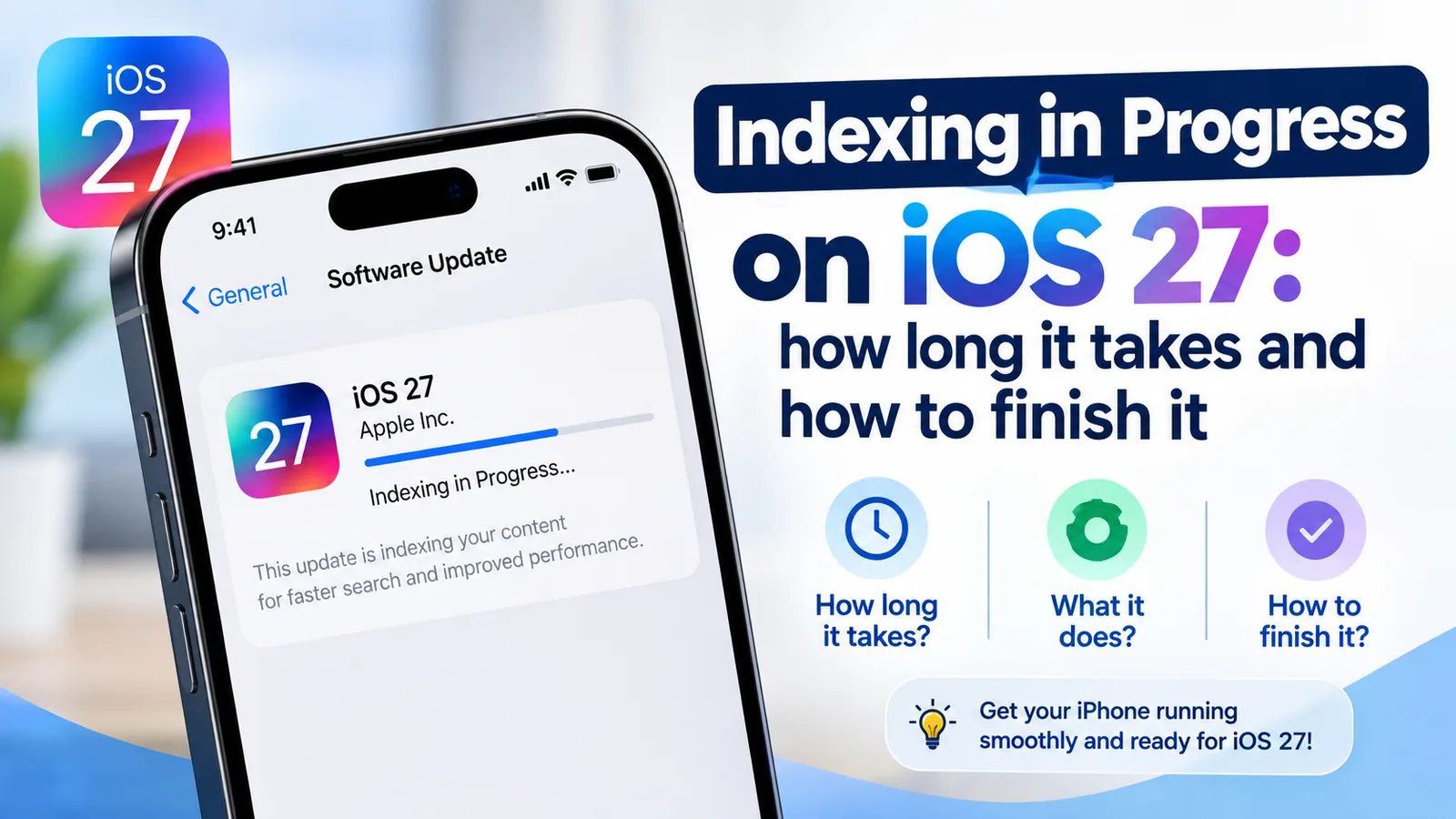
iOS 27 indexing in progress
Indexing in Progress on iOS 27 means your iPhone is rebuilding search. Most finish in hours to days. See how long yours takes and how to speed it up.
No backups available
Getting no backups available when you restore an iPhone? Check your Apple Account, Wi-Fi, iOS version and iCloud backup list to find the backup that is missing.
Siri keeps turning on by itself
Siri keeps turning on by itself or popping up? Find the trigger, from Type to Siri and the side button to your headphones, and stop it with these 7 fixes.
More guides you may need
iPhone ringer volume going down
Ringer gets quieter by itself? Turn off Attention Aware Features, fix Change with Buttons and check Bluetooth to keep your iPhone ringer at the level you set.
iPhone screen won't rotate
iPhone screen won't rotate with the lock off? Check Control Center, the app, Display Zoom and the Measure app Level test, then restart or reset it.