

How to factory reset an iPhone (and what to do first)
A factory reset erases everything and returns the iPhone to how it came out of the box. A few minutes of preparation first saves a lot of trouble.
Photo by Marcin Nowak on Unsplash
A factory reset wipes your apps, photos, messages, accounts and settings from the iPhone and reinstalls a clean copy of iOS. People do it before selling or trading in a phone, before sending it for repair, or as a last resort when a problem will not go away. It cannot be undone, so the few minutes of preparation below matter.
Before you reset: 5-point checklist
- Back up. Go to Settings › [your name] › iCloud › iCloud Backup and tap Back Up Now, or back up to a computer.
- Unpair your Apple Watch. In the Watch app, tap All Watches, tap the ⓘ and choose Unpair Apple Watch. This also backs up the watch.
- Plan for your eSIM. If you are moving to a new iPhone, transfer the eSIM first. If you delete it during the reset, you may need your carrier to issue a new one.
- Switching to Android? Turn off iMessage in Settings › Apps › Messages so texts from iPhone users reach your new phone.
- Know your Apple Account password. You need it to turn off Find My during the reset.
The fix
How to factory reset an iPhone from Settings
- 1
Open Settings and tap General.
- 2
Tap Transfer or Reset iPhone.
It is at the bottom of the General screen.
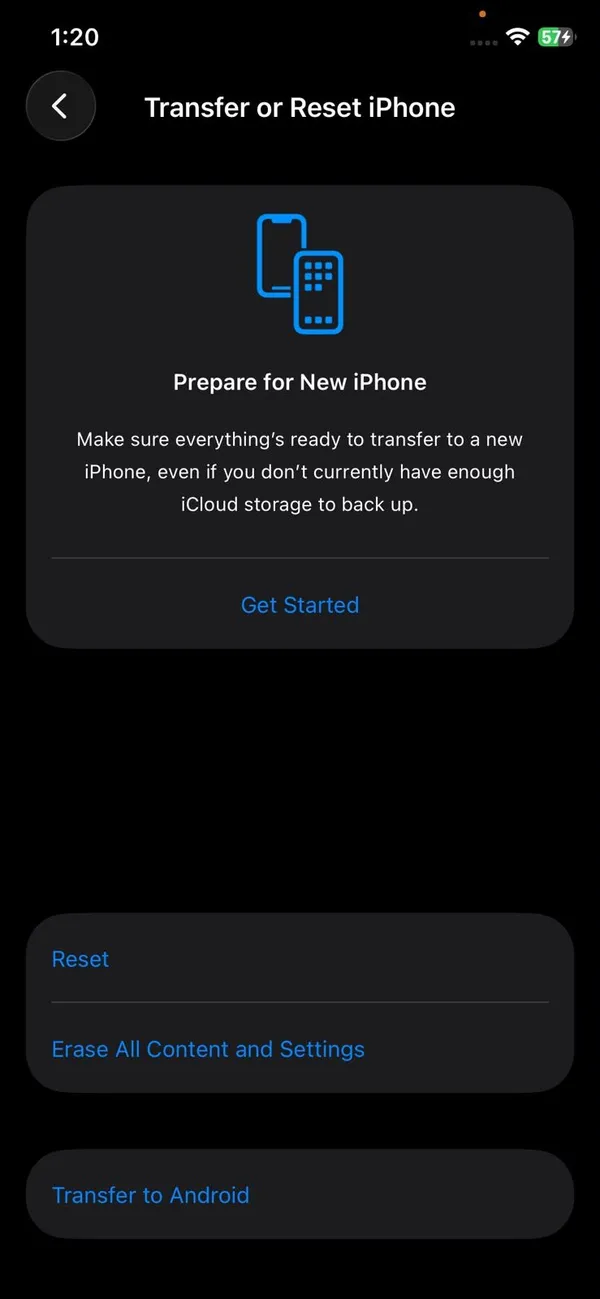
- 3
Tap Erase All Content and Settings.
- 4
Tap Continue and enter your passcode.
If you have an eSIM, you are asked whether to keep or delete it.
- 5
Enter your Apple Account password.
This turns off Find My and removes Activation Lock.
- 6
Wait for the Hello screen.
The iPhone restarts and shows the setup screen when it is done.
The fix
How to factory reset an iPhone with a computer
Use this if the iPhone is stuck, will not start, or you cannot open Settings.
- 1
Connect the iPhone to a Mac or a Windows PC with the Apple Devices app.
- 2
Select the iPhone in Finder or the Apple Devices app.
- 3
Click Restore iPhone.
If the iPhone is not recognized, put it in recovery mode first (see below) and choose Restore when the computer asks.
- 4
Confirm, and wait for the computer to download and install iOS.
How to put an iPhone in recovery mode
- iPhone 8 and later, including iPhone SE (2nd and 3rd generation): press and release volume up, press and release volume down, then hold the side button. Keep holding past the Apple logo until you see a computer and cable on the screen.
- iPhone 7 and 7 Plus: hold the side button and volume down together until the recovery screen appears.
- iPhone 6s and earlier, and iPhone SE (1st generation): hold the Home button and the side or top button together until the recovery screen appears.
Connect the cable to the computer before you press the buttons. If the download takes longer than 15 minutes, the iPhone leaves recovery mode on its own; repeat the button steps and the computer carries on.
Asked for Face ID and cannot use your passcode?
That is Stolen Device Protection. When it is on and the iPhone is away from familiar places like home or work, erasing the phone needs Face ID or Touch ID, with no passcode fallback. This stops a thief who has watched you type your passcode from wiping the phone. Do the reset at home, or turn the feature off first in Settings › Face ID & Passcode › Stolen Device Protection. Away from a familiar place, turning it off can involve a one-hour security delay.
What a factory reset deletes, and what it keeps
- Deleted from the iPhone: apps and their data, photos and videos stored on the phone, messages, saved Wi-Fi networks, Wallet cards, settings and your Apple Account sign-in.
- Kept in iCloud: anything that syncs to iCloud, such as iCloud Photos, contacts, calendars, notes and iCloud Drive, stays in your account and comes back when you sign in on any device.
- Kept in your backup: your last iCloud or computer backup is not touched, which is why backing up first matters.
- Not changed: the iOS version. The phone keeps whatever iOS version it had, so a reset does not undo an update.
Reset stuck on the progress bar?
Erasing usually takes 5 to 30 minutes, and the bar can sit still for a while. Leave it plugged in and wait. If it has not moved for more than an hour, force restart the iPhone and keep holding the side button until the recovery screen appears, then connect it to a computer and choose Restore.
Forgot your passcode?
On iOS 17 and later, enter the wrong passcode until the iPhone Unavailable screen appears, tap Forgot Passcode? at the bottom, then Start iPhone Reset, and enter your Apple Account password. The phone must be connected to Wi-Fi or cellular. You can also erase it from icloud.com/find, or with recovery mode on a computer. You will need your Apple Account password to set it up again. See our guide to resetting an iPhone without the passcode.
Erase a lost or stolen iPhone remotely
If you no longer have the phone, sign in at icloud.com/find or open Find My on another Apple device, select the iPhone and choose Erase This Device. The erase happens the next time the phone goes online. Erasing turns off location tracking, so only do it once you have given up on getting the phone back, and report it to your carrier and the police first.
Selling or trading in? Finish these steps
- After the reset, go to Settings › your name on your new device, scroll to the list of devices, tap the old iPhone and choose Remove from Account. This takes it off your trusted devices.
- Take out the physical SIM card, if it has one. The SIM belongs to your carrier plan, not the phone.
- Remove the iPhone from Apple Pay cards at icloud.com if you could not do it on the phone.
- Apple Trade In, carriers and sites like Swappa reject phones that still have Activation Lock. Check that the phone shows the Hello screen and asks for no Apple Account.
- If the phone is still being paid off through a carrier, it may be locked to that carrier. Check first with our guide to unlocking an iPhone from your carrier, because unlocked phones sell for more.
Two things a reset does not do: it does not remove a carrier lock, because that is recorded by the carrier against the phone’s IMEI, and it does not remove Activation Lock unless you entered your Apple Account password during the erase. If you erased the phone from a computer without signing out, the next owner will be asked for your password. Fix it by signing in at icloud.com/find, selecting the phone and choosing Remove This Device.
Should you reset to fix a problem?
Only as a last step. Try a restart, a software update and Reset All Settings first, because those keep your data. If you do erase to fix a problem, test the phone for a day before restoring your backup. If the problem comes back after you restore, it was in your data or an app. If it happens on a clean phone, it is likely hardware, and a repair is the next step.
After the reset
If you are keeping the iPhone, set it up and choose to restore from your iCloud or computer backup. A large backup can take an hour or more to download, so keep the phone on Wi-Fi and a charger while apps and photos return. If you are selling or trading it in, stop at the Hello screen and hand it over. It is no longer linked to you.
Frequently asked questions
Can you factory reset an iPhone with just the buttons?
No. Button combinations only force restart the iPhone or put it into recovery mode. To erase it, use Settings, or recovery mode with a computer.
Does a factory reset remove my Apple Account?
Yes. Erase All Content and Settings signs out of your Apple Account and turns off Find My, which removes Activation Lock so the next owner can set up the phone.
Does a factory reset delete iCloud photos?
No. A reset erases the copy on the iPhone only. Photos, contacts and notes stored in iCloud stay in your account and download again when you sign in. Deleting them from iCloud is a separate step.
How long does a factory reset take?
Usually 5 to 30 minutes from Settings. Restoring with a computer takes longer because it downloads iOS first.
What to try next
Sources
Official pages these steps are based on. Menus can differ by software version.
People also ask
What is Factory Reset Protection?
After a reset, the phone asks for the Google account that was on it before. It stops thieves from using a stolen phone. If you are selling, remove your Google and Samsung accounts before resetting.
Read the full guide: Factory reset a Samsung phoneWill a reset remove the Apple Account from the iPad?
Erase All Content and Settings signs out and removes Activation Lock when you enter the Apple Account password. A recovery mode restore does not, so the next user needs that password.
Read the full guide: Factory reset an iPadWhat happens after I factory reset my Android phone?
The phone restarts to the setup screen with no apps, accounts or personal files. To use it, sign in with the Google account that was on it before, because of Factory Reset Protection.
Read the full guide: Factory reset an Android phoneCan I unlock my iPhone without losing data?
Only if you changed the passcode in the last 72 hours and remember the old one. Otherwise the iPhone must be erased. Your data comes back from an iCloud or computer backup.
Read the full guide: Reset iPhone without passcodeRelated guides
Factory reset a Samsung phone
Factory reset your Samsung Galaxy from Settings or with the buttons in recovery mode. Back up first and avoid the Google lock that stops the next owner.
Factory reset an iPad
Factory reset your iPad from Settings, or with a computer if you forgot the passcode. Back up first and remove Activation Lock before selling or giving it away.
Factory reset an Android phone
Factory reset a Google Pixel, Motorola or other Android phone from Settings or with the buttons. Back up first and avoid the Google lock after the reset.
Reset iPhone without passcode
Forgot your iPhone passcode or see iPhone Unavailable? Reset it from the Lock Screen, with iCloud Find My or a computer, then restore your data from a backup.
More guides you may need
Find APN settings on iPhone
Find APN settings on your iPhone in Settings › Cellular › Cellular Data Network. Learn why the menu can be missing, what each field means and how to reset it.

Find your phone number
How to find your phone number on iPhone and Android in seconds. Check Settings, Contacts, your carrier app or a quick call, and fix a number that shows Unknown.