

How to factory reset an Android phone (Pixel, Motorola and more)
A factory reset erases the phone and returns it to its original settings. Here is how to do it on Pixel and other Android phones, safely.
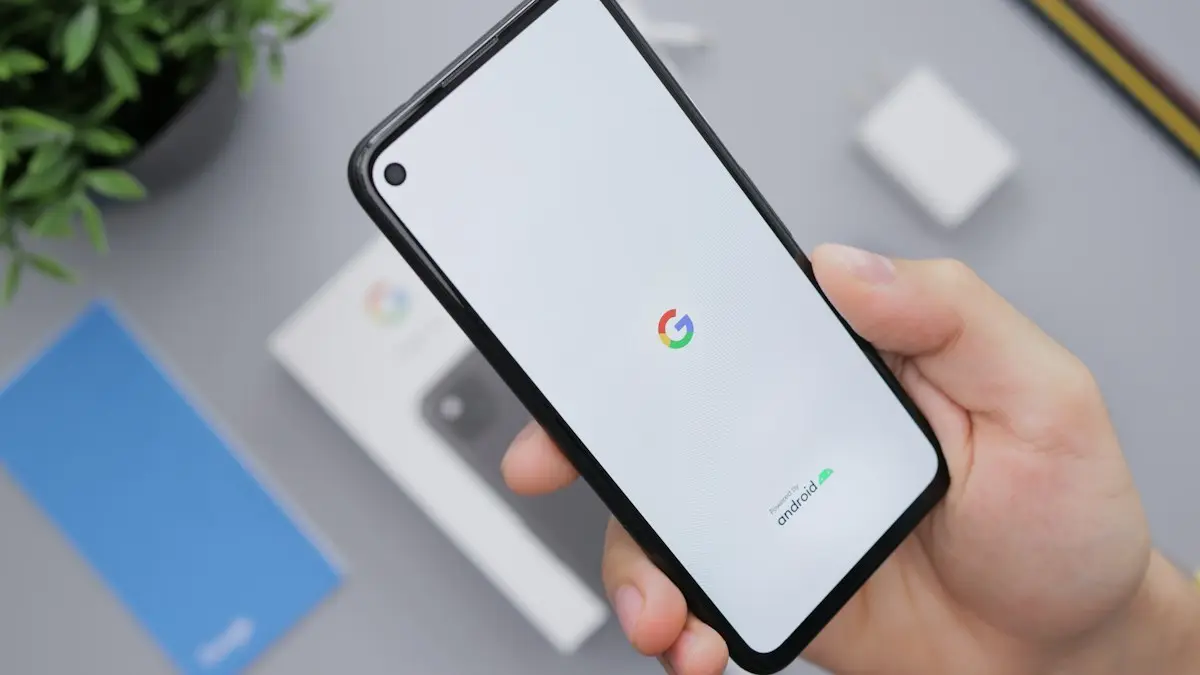
Photo by Daniel Romero on Unsplash
Resetting an Android phone wipes it clean and takes it back to the first setup screen. It is the last step for stubborn problems, and the first step before selling or handing a phone down. The process takes only minutes, but a few things done beforehand make the difference between a smooth fresh start and lost photos or a phone that nobody can set up. Read the checklist first, even if you are in a hurry. This guide covers Google Pixel, Motorola, OnePlus and most other Android phones. For Galaxy phones, see the separate Samsung factory reset guide.
Pixel reset options: pick the right one
- Reset Mobile Network Settings and Reset Bluetooth & Wi-Fi: for connection problems; your data stays.
- Reset app preferences: restores disabled apps, defaults and permissions; your data stays.
- Erase downloaded SIMs: removes eSIMs only.
- Erase all data (factory reset): removes everything.
The names vary a little by Android version, but all are in Settings › System › Reset options. Try a lighter option first if you are fixing a problem rather than selling the phone, because those keep all your apps, photos and accounts in place.
Before you reset
- Back up with Google One: Settings › System › Backup › Back up now.
- Make sure you know your Google account password. You need it after the reset.
- Selling the phone? Remove your Google account in Settings › Passwords & accounts first.
The fix
Reset from Settings
- 1
Open Settings and tap System.
- 2
Tap Reset options.
- 3
Tap Erase all data (factory reset).
- 4
Tap Erase all data and enter your PIN, pattern or password.
- 5
Confirm. The phone restarts to the setup screen when done.
The fix
Reset with the buttons (Pixel 6 and later)
Use this if the phone is frozen or you cannot reach Settings.
- 1
Turn the phone off, or hold the power button for 30 seconds if frozen.
- 2
Hold volume down and the power button together until the Fastboot screen appears.
- 3
Use the volume keys to select Recovery mode and press power.
- 4
When you see “No command”, hold power and press volume up once.
- 5
Select Wipe data/factory reset, then Factory data reset, and press power to confirm.
- 6
Choose Reboot system now when it finishes.
During a Pixel reset, you may be asked whether to also erase downloaded SIMs. Keep your eSIM if you are keeping the phone. Erase it only after your line is active on another phone.
Erase it remotely with Find Hub
- 1
On a computer or another phone, go to google.com/android/find and sign in with the phone’s Google account.
- 2
Select the phone from the list.
- 3
Choose Factory reset device and confirm.
If the phone is offline, the reset happens the next time it connects.
This is useful for a lost or stolen phone, or one you cannot unlock. After a remote reset, Find Hub can no longer locate the phone. For a forgotten PIN, see how to unlock an Android phone if you forgot the PIN first.
Check these backups before you erase
- Google backup: Settings › System › Backup shows when the last backup ran. Tap Back up now if it is old.
- Photos: open Google Photos and check that recent pictures show a cloud icon, not a crossed-out one.
- Chats: WhatsApp, Signal and similar apps have their own backups inside each app.
- Two-factor codes: set up your authenticator app on the new phone first, or turn on its cloud sync.
- Files in Downloads or Documents: copy them to Google Drive or a computer, since they are not included in the Google backup.
Will resetting fix my phone?
A reset clears software problems: years of leftover files, a misbehaving app, adware, broken settings and most crashes. It cannot fix hardware: a worn battery, cracked screen, failing charging port or weak signal at your home. If a problem comes back right after you restore everything, an app in your backup is likely the cause, so reset again and reinstall apps one at a time from the Play Store. For a slow phone, try the speed-up steps for Android before erasing anything.
OnePlus, Motorola and other recovery menus
On Motorola, turn the phone off, hold volume down and power until the bootloader menu appears, choose Recovery mode with the volume keys and power, then select Wipe data/factory reset. OnePlus phones open their recovery with volume down and power, then offer a language choice and a Format data or Wipe data option. Menus differ between models, so if a step does not match, use the reset in Settings, or the remote reset from Find Hub, which works the same on every Android phone.
Selling or trading in: checklist
- 1
Move your data and eSIM to your new phone.
- 2
Unpair your Pixel Watch or other smartwatch in its app, and forget earbuds.
- 3
Remove cards from Google Wallet.
- 4
Remove your Google account in Settings › Passwords & accounts.
- 5
Take out any physical SIM card and microSD card.
- 6
Run Erase all data, including downloaded SIMs, and check the phone shows the welcome screen.
Removing your Google account first means the buyer will not hit Factory Reset Protection, which otherwise asks for your password after the reset. Trade-in programs, including Google Store’s, check for this lock.
After the reset: set up again
Follow the setup screens, connect to Wi-Fi and sign in with your Google account. Choose Copy apps & data to restore from your Google backup, or from another phone with a cable. Your apps, contacts, call history, texts and settings return, and Google Photos brings back photos that were backed up. Apps keep downloading in the background, so leave the phone on Wi-Fi and charging for a while. See backing up an Android phone for what each backup includes.
Resetting a child’s or parent’s phone
If a child’s phone is supervised with Google Family Link, the child’s Google account is still needed after the reset, and you will set up supervision again during setup. Keep that account’s password handy. For an older relative, write down their Google account email and password before you start, check their photos are backed up, and plan to stay with them through setup, since the phone asks several questions in a row. Reinstall the few apps they actually use rather than everything, which keeps the phone simpler and faster.
How long does it take?
The reset itself usually takes a few minutes. Setup takes about 10 to 15 minutes, and restoring apps and photos continues in the background for longer, depending on your internet speed and how much you have. Plan a reset for a time when you can leave the phone on Wi-Fi and charging afterwards.
Is the old data really gone?
Yes. Current Android phones encrypt their storage, and a factory reset throws away the encryption keys, so the old data cannot be recovered by a buyer or by recovery software. A standard reset from Settings is enough before selling. A microSD card is separate and may not be encrypted, so remove it or format it.
Reset stuck or will not start?
- Charge the phone to at least half before resetting, or keep it plugged in.
- Give a slow reset up to an hour on phones with a lot of storage before interrupting.
- If Settings freezes, use recovery mode with the buttons instead.
- If the phone belongs to a work or school account, management rules may block the reset; ask your IT administrator.
Frequently asked questions
What happens after I factory reset my Android phone?
The phone restarts to the setup screen with no apps, accounts or personal files. To use it, sign in with the Google account that was on it before, because of Factory Reset Protection.
Does a factory reset remove viruses?
It removes apps and files stored on the phone, including almost all malware. Do not restore suspicious apps from your backup afterward.
Can I factory reset an Android phone remotely?
Yes. Sign in at google.com/android/find with the phone’s Google account, select the phone and choose Factory reset device. It erases when the phone is next online.
Should I erase my eSIM when resetting?
Only if you are selling or giving away the phone and have already moved your line to a new phone. If you are keeping the phone, keep the eSIM so you do not need a new one from your carrier.
What to try next
People also ask
What is Factory Reset Protection?
After a reset, the phone asks for the Google account that was on it before. It stops thieves from using a stolen phone. If you are selling, remove your Google and Samsung accounts before resetting.
Read the full guide: Factory reset a Samsung phoneWill a reset remove the Apple Account from the iPad?
Erase All Content and Settings signs out and removes Activation Lock when you enter the Apple Account password. A recovery mode restore does not, so the next user needs that password.
Read the full guide: Factory reset an iPadCan you factory reset an iPhone with just the buttons?
No. Button combinations only force restart the iPhone or put it into recovery mode. To erase it, use Settings, or recovery mode with a computer.
Read the full guide: Factory reset an iPhoneCan I unlock my iPhone without losing data?
Only if you changed the passcode in the last 72 hours and remember the old one. Otherwise the iPhone must be erased. Your data comes back from an iCloud or computer backup.
Read the full guide: Reset iPhone without passcodeRelated guides
Factory reset a Samsung phone
Factory reset your Samsung Galaxy from Settings or with the buttons in recovery mode. Back up first and avoid the Google lock that stops the next owner.
Factory reset an iPad
Factory reset your iPad from Settings, or with a computer if you forgot the passcode. Back up first and remove Activation Lock before selling or giving it away.
Factory reset an iPhone
How to factory reset an iPhone from Settings or a computer, plus the checklist to follow first so you keep your data and the next owner can use it.
Reset iPhone without passcode
Forgot your iPhone passcode or see iPhone Unavailable? Reset it from the Lock Screen, with iCloud Find My or a computer, then restore your data from a backup.
More guides you may need

Connect Galaxy Buds to iPhone
Connect Galaxy Buds to your iPhone through Bluetooth in under a minute. How to put each model in pairing mode, which features work and the Galaxy Buds app.
Delete Gmail emails by sender
Delete all emails from one sender in Gmail at once on a computer, or in the phone app. Plus a filter that trashes their future emails automatically.