

How to set up a new iPhone: setup steps and a first-day checklist
Setup takes about 30 minutes if you prepare first. The steps are simple, but a few early choices are hard to change later.
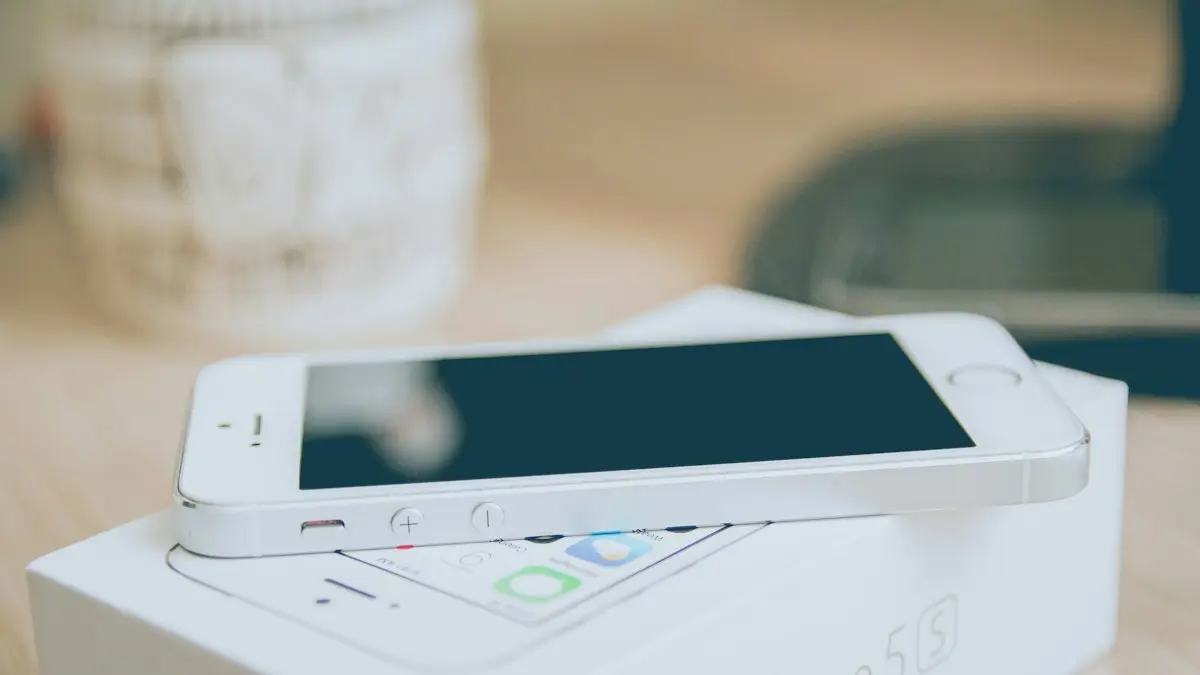
Photo by Alvaro Reyes on Unsplash
A new iPhone walks you through setup, but a few choices early on shape how the first week goes: how your data comes over, which SIM line is active and which security settings you keep. A little preparation also saves a lot of waiting. This guide gives the full order, from what to do before you turn the phone on to the settings worth changing on day one. If you only want the details of moving data, see the separate guide linked below.
Before you start
- 1
Back up the old iPhone.
Use iCloud or a computer. See how to back up an iPhone.
- 2
Update the old iPhone.
A newer iOS on the old phone makes Quick Start smoother.
- 3
Know your Apple Account password.
You will need it, and a verification code on another device or phone number.
- 4
Find a strong Wi-Fi network and a charger.
Setup and restoring use a lot of data and battery.
- 5
Have your carrier details ready.
If you use an eSIM, you may need the carrier app or a QR code. Keep the old phone until the new one is on the network.
Step 1: turn it on and choose the basics
Hold the side button until the Apple logo appears. Swipe up or tap to begin, then choose your language and country or region. If you use VoiceOver or other accessibility tools, you can turn them on from the start. The phone then offers Quick Start if you have another iPhone or iPad nearby.
Step 2: Quick Start or manual setup
The fix
With your old iPhone (Quick Start)
- 1
Put the old iPhone next to the new one.
A card appears on the old phone that says Set Up New iPhone.
- 2
Tap Continue and use the old phone's camera to scan the animation on the new one.
- 3
Enter the old phone's passcode on the new one.
- 4
Sign in with your Apple Account, and set up Face ID or Touch ID.
- 5
Choose how to bring your data.
Options include transferring directly from the old iPhone, or restoring from an iCloud backup.
The fix
Without the old iPhone (manual setup)
- 1
Tap Set Up Manually, then connect to Wi-Fi.
- 2
Choose to restore from an iCloud backup, from a Mac or PC, or to move data from Android.
Or choose Don't Transfer Apps & Data to set up as new.
- 3
Sign in with your Apple Account.
Enter the verification code sent to your other device or phone number.
- 4
Pick the backup you want and wait for it to restore.
The restore continues in the background after the phone starts. Keep it on Wi-Fi and plugged in. See how to restore an iPhone from backup if it stalls, and how to transfer data to a new iPhone for a deeper look at the data options. Coming from Android? See how to move from Android to iPhone.
Step 3: security screens
- Face ID or Touch ID: scan your face or fingerprint when asked. You can add more later in Settings › Face ID & Passcode.
- Passcode: pick six digits or a custom alphanumeric code. Avoid birthdays and repeated numbers.
- Apple Account and iCloud: sign in so your photos, contacts and Find My are active.
- Find My iPhone: keep it on, so you can find and lock the phone if it is lost.
Step 4: activate your line
Your carrier line comes over with Quick Start in many cases, using an eSIM transfer, or you may need to activate a new eSIM or insert a SIM card. Check that you see bars and your carrier name at the top of the screen, and test a call and a text. If the line is not active, open Settings › Cellular and follow the prompts, or use your carrier's app. For eSIM moves, see how to transfer an eSIM to a new iPhone.
Step 5: finish the setup screens
The phone then asks about Siri, Screen Time, Apple Pay, iCloud Keychain, analytics and the look of the screen. You can skip most of them and come back later. Choose Set Up Later in Settings for Apple Pay and Screen Time if you are not ready. Pick Light or Dark appearance and a text size that you like, and tap Get Started.
First-day checklist
- 1
Let the restore finish.
Apps and photos continue downloading after setup. Do not turn the phone off.
- 2
Check Settings › General › Software Update.
Install any update available for the new phone.
- 3
Add your cards to Apple Pay.
- 4
Check iCloud and backup.
In Settings › [your name] › iCloud, make sure iCloud Backup is on.
- 5
Set up voicemail and your contacts.
Open the Phone app, tap Voicemail, and follow the prompts.
- 6
Turn on Stolen Device Protection.
Open Settings › Face ID & Passcode and turn it on, so a thief who knows your passcode cannot change your account.
- 7
Sign in again to apps.
Banking, messaging and streaming apps often ask you to sign in on a new device.
Settings worth changing on day one
- Auto-Lock: Settings › Display & Brightness › Auto-Lock sets how soon the screen turns off.
- Battery: Settings › Battery › Charging, turn on Optimized Battery Charging.
- Notifications: review which apps can send alerts, and silence the rest.
- Screen Time and parental controls, if the phone is for a child.
- Privacy: review Location Services and app permissions in Privacy & Security.
- Back Tap, Action Button and Control Center, if you want shortcuts.
What to do with the old iPhone
Do not erase it until you have checked that everything moved: photos, messages, contacts, your eSIM and your two-factor codes. Then decide to trade it in, sell it or keep it as a spare. See how to sell your iPhone safely for the steps in the right order.
If something goes wrong during setup
- Stuck on the Apple logo or a progress bar: wait longer, keep it plugged in and try again after a restart. Large restores can take hours.
- Cannot activate: check Wi-Fi, try another network and confirm that the carrier line is active.
- Apple Account verification fails: use another trusted device, or reset your account password.
- Not enough iCloud storage to restore: free up space or upgrade temporarily, or restore from a computer.
Coming from Android?
During setup, on the Transfer Your Apps & Data screen, choose From Android. Install the Move to iOS app on your Android phone, enter the code shown on the iPhone, and choose what to copy: contacts, messages, photos, calendars and more. Keep both phones on charge and close together. Our guide on moving from Android to iPhone covers every step.
What does not transfer
- Apps bought on Android. Free versions can be downloaded again from the App Store.
- Some app data, such as game progress not tied to an account.
- WhatsApp chats need their own transfer, offered during or right after setup.
- Passwords saved in an Android browser, unless you use a password manager or Google Password Manager that works on iPhone.
Moving your eSIM
If your old iPhone has an eSIM, setup offers to transfer it. Keep the old iPhone nearby and unlocked. If transfer is not offered, your carrier can activate the eSIM through its app or a QR code. Do not erase the old phone until the new one makes calls.
Accessibility during setup
Triple click the side button on the Hello screen to open accessibility options like VoiceOver and Zoom, or tap the accessibility icon. You can set larger text and other options before setup continues, which helps older relatives set up a phone they can read.
Frequently asked questions
How long does it take to set up a new iPhone?
The setup screens take about 10 to 15 minutes. Restoring your apps and photos from a backup can take an hour or more, depending on your Wi-Fi and how much you have.
Can I set up a new iPhone without my old one?
Yes. Choose Set Up Manually and restore from an iCloud backup or from a computer, and sign in with your Apple Account. You need your passwords and a way to receive verification codes.
Do I need a SIM card for a new iPhone?
Not for setup. You can finish the setup on Wi-Fi. Newer iPhones use an eSIM that your carrier activates, and older ones use a physical SIM.
Should I restore from a backup or set up as new?
Restore if you want your apps, settings and messages. Set up as new if the old phone had problems and you want a clean start, and then add what you need.
What to try next
People also ask
I already set up my new iPhone. Can I still transfer?
Yes, but you must erase it first. Go to Settings › General › Transfer or Reset iPhone › Erase All Content and Settings, then use Quick Start when setup starts again.
Read the full guide: Transfer data to a new iPhoneWhy does my iPhone say it is unable to complete the data transfer?
The link between your old and new iPhone dropped, or one of them has old software, a weak Wi-Fi connection or low battery. Restarting both phones and trying again fixes many cases.
Read the full guide: iPhone unable to complete data transferHow long does Preparing to Transfer take on an iPhone?
Anywhere from a few minutes to a few hours, depending on how much data you have and your Wi-Fi speed. If there is no change at all after about two hours, treat it as stuck.
Read the full guide: iPhone stuck on Preparing to TransferWhat does Reconnecting mean when I set up a new iPhone?
The new iPhone lost its connection to the old one or to the internet during setup and is trying to join again. A short pause is normal, but a screen that stays for many minutes means it is stuck.
Read the full guide: iPhone stuck on ReconnectingRelated guides
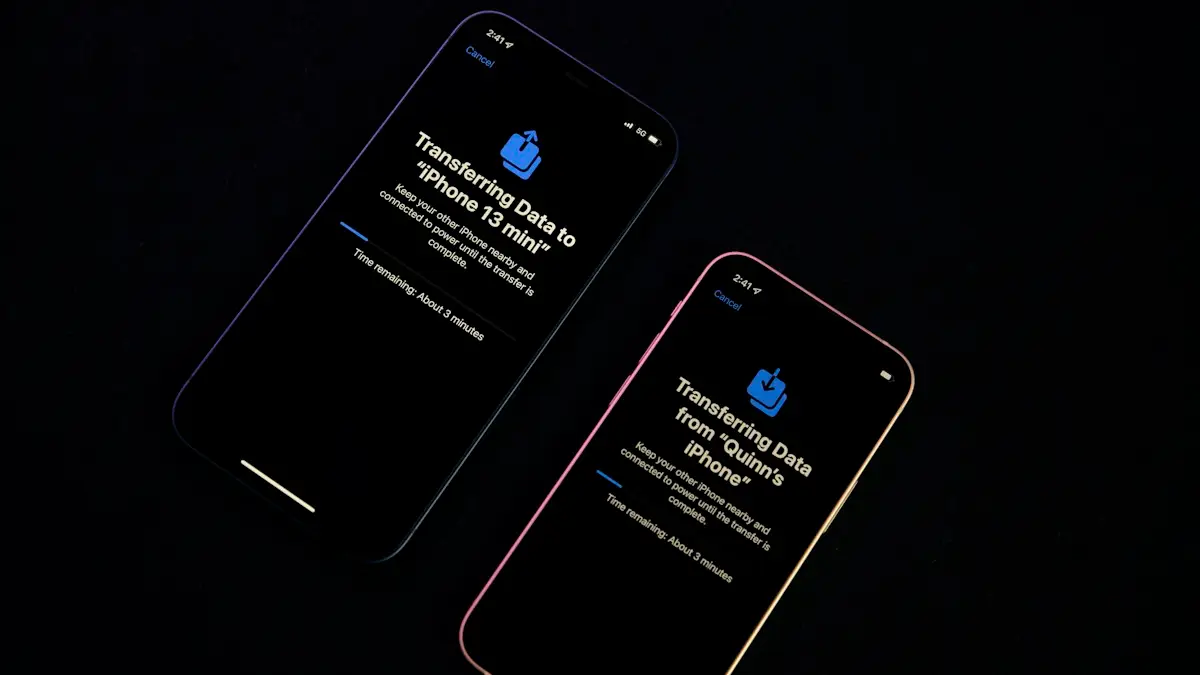
Transfer data to a new iPhone
Move everything to your new iPhone with Quick Start, an iCloud backup or a computer. Keeps apps, photos, messages and settings, plus your eSIM and WhatsApp.
iPhone unable to complete data transfer
iPhone unable to complete data transfer in setup? Restart both phones, update, switch to a cable or iCloud, and fix an Apple logo stall. 7 fixes.
iPhone stuck on Preparing to Transfer
iPhone stuck on preparing to transfer during setup? Learn how long to wait, what to check on both phones and how to use iCloud or a computer instead.
iPhone stuck on Reconnecting
iPhone stuck on reconnecting while setting up a new iPhone? Keep both phones close, check Wi-Fi and Bluetooth, restart, then use a cable or backup.
More guides you may need
iPhone keyboard not showing up
iPhone keyboard not showing up in Messages, Safari or another app? Disconnect Bluetooth, remove extra keyboards, reset the dictionary and try 5 more fixes.
iPhone Mail not updating
iPhone Mail not updating or not syncing new emails? Check Fetch settings, Background App Refresh, Low Power Mode and storage, then re-add the account. 8 fixes.