

Galaxy Watch Keeps Opening Samsung Pay: Why It Happens and How to Stop It
The watch shows your card again and again, sometimes every minute, and the battery drains. In most reports the real culprit is the Back button, not the app.
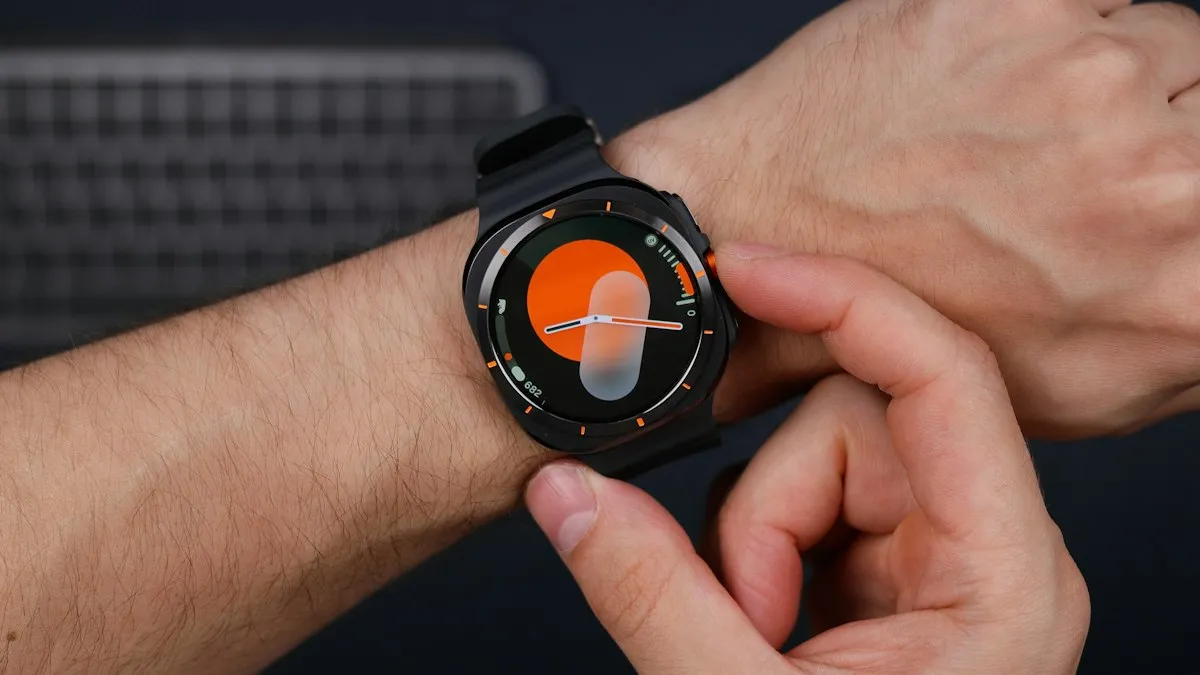
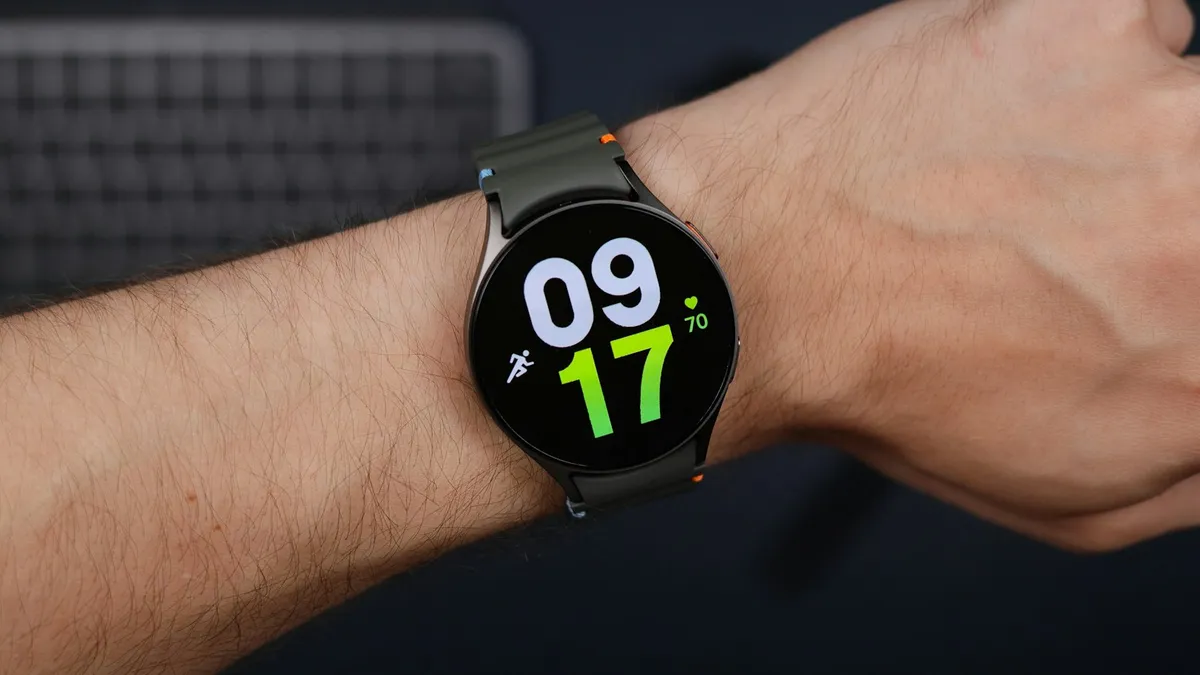
Photo by Daniel Romero on Unsplash
Your Galaxy Watch lights up and shows a card. You swipe it away. A minute later it comes back. Some owners say the app reopens about every minute, even after a reset, and the battery drains faster than before.
Samsung has no help page for the loop, so this guide combines Samsung's own shortcut information with what owners on Samsung Community have reported. Menu names change by model, so look for the nearest match on your watch.
Why does it keep opening?
Samsung's guide to paying with the watch says to press and hold the Back button to open Samsung Wallet. AT&T's Galaxy Watch support pages say the same. Older guides call the same shortcut Samsung Pay, because the app was renamed. So anything that looks like a long press on that button can open the app.
- A stuck or dirty button. Sweat, soap, sunscreen and grit can hold the button down.
- A strap, sleeve or case pressing on it. A tight case or cuff can press the Back button on every wrist movement.
- A failing button. In one 2025 thread, a moderator suggested the Back button itself may be failing.
- A software glitch after an update. Some owners saw the problem start after an update.
Fix 1: Check the Back button first
Test the button
- 1
Take off any case or bumper and loosen the strap.
- 2
Rinse the watch with fresh water if it has been in soap or sweat, then dry it.
Only do this if your model is water resistant. Check Samsung's rating for your watch.
- 3
Press the Back button a few times.
It should click back at once. A button that feels soft, sticky or slow is a warning sign.
- 4
Watch for a few minutes.
If the app stops opening with the case off, the case or strap was the cause.
Fix 2: Restart the watch and the phone
Samsung moderators in the threads recommend a restart of both the watch and the phone, then an update check. Hold the Home button until the power menu appears and tap Restart. Then open Galaxy Wearable on the phone, open Watch software update and install anything waiting.
Fix 3: Look at your button shortcuts
Open Settings on the watch, then Advanced features, then Customize buttons. Older guides show this path and list Double press and Press and hold for each button. Reports differ on whether the press and hold action of the Back button can be changed on your model, because that is the Wallet shortcut. If your watch lets you change it, assign something harmless. If it does not, move on.
A different shortcut, such as a double press on the Home button, may also open Wallet on some models. Check what each button does on your watch.
Fix 4: Force stop or disable the app, with care
Owners report that Samsung Community experts suggested force stopping or disabling the app from the Galaxy Wearable app: open Galaxy Wearable on the phone, go to Apps, select Samsung Pay or Wallet, then choose Force stop or Disable.
You cannot uninstall the app. A Samsung Members expert said that uninstalling Samsung Pay is not an option on Galaxy Watch models. If you want a different payment app, one owner was told to install it and assign it to a button.
Fix 5: Reset the watch
If a clean button, a restart and an update do not stop the loop, Samsung's usual next step is a reset. A reset erases personal data from the watch, so back up with Galaxy Wearable first. Some owners say the loop returned after a reset, which points to the button rather than the software.
When it is a hardware fault
Signs of a failing button: it feels stuck, the watch goes back to the Wallet screen after a restart, or the button reacts slowly. At that point, no setting will help. Our guide to checking your phone warranty shows how to find out whether Samsung will repair it for free. Samsung support may ask for the model code and serial or IMEI number.
Do not confuse it with the phone
Wallet can also pop up on a Galaxy phone when you swipe up from the bottom edge. That is a separate setting on the phone. If your phone, not your watch, keeps showing your cards, read Samsung Wallet popping up on a Galaxy phone.
Which fix fits your situation?
- It opens when you move your arm: check the case, strap and sleeve against the Back button.
- It opens every minute on its own: clean the button, restart, then update.
- It started after an update: restart both devices, then install any newer update.
- The Back button feels stuck: get it checked under warranty.
- You never use Wallet on the watch: disable it from the apps list, but expect the Back button to change.
Frequently asked questions
Why does Samsung Pay keep opening on my Galaxy Watch?
On current Galaxy Watch models, pressing and holding the Back button opens Samsung Wallet, which older guides call Samsung Pay. If the button sticks or is pressed by your strap, sleeve or case, the watch keeps launching it.
Can I uninstall Samsung Pay from my Galaxy Watch?
A Samsung Members expert said that uninstalling Samsung Pay is not an option on Galaxy Watch models. You can force stop it and, in some cases, disable it, but you cannot remove it.
Is it safe to force stop Samsung Pay?
Be careful. One owner reported the Back button stopped working after force stopping the app. Try the button check and the watch restart before you force stop.
Does this drain the battery?
Yes, owners report it can. A screen that wakes every minute to show a card uses power. That is a reason to fix the cause rather than live with it.
When should I get the watch repaired?
If it keeps opening after a restart, a clean button and an update, and the Back button feels stuck or unresponsive, the button may have failed. Ask Samsung about repair, especially while the watch is under warranty.
What to try next
People also ask
Why does Samsung Wallet open when I swipe up?
Samsung Wallet has a Quick access gesture that opens your cards when you swipe up from the small handle at the bottom of the screen. It sits right where you swipe to go home, so it is easy to trigger by accident.
Read the full guide: Stop Samsung Wallet popping upWhy does my Apple Watch keep going back to Compass?
The watch reopens the last app you used when you raise your wrist. If Compass was the last app, or it is still running a session such as Backtrack, it keeps coming back.
Read the full guide: Apple Watch keeps opening CompassWhat does "authentication required" mean on a Galaxy Watch?
It means an app on the watch that uses your Google account, such as the Play Store, Gmail or Wallet, no longer has a valid sign-in. The watch needs to confirm your account again before the app works.
Read the full guide: Galaxy Watch authentication requiredWhy does my Galaxy Watch not buzz when I use my phone?
Smart device selection hides watch alerts while you use the phone. Set Phone notifications on watch to Always show on both if you want alerts on both devices.
Read the full guide: Galaxy Watch not getting notificationsRelated guides
Stop Samsung Wallet popping up
Samsung Wallet keeps popping up when you swipe up? Turn off the swipe up gesture in a few taps, stop pocket triggers and switch to Google Wallet if you prefer.
Apple Watch keeps opening Compass
Apple Watch keeps opening Compass or will not leave it? Change Return to Clock, turn off Return to App, end Backtrack and check the Action button. 7 easy fixes.
Galaxy Watch authentication required
Galaxy Watch says authentication required in Play Store, Gmail or Wallet? It lost its Google sign-in. Remove and re-add your account from the phone to fix it.
Galaxy Watch not getting notifications
Galaxy Watch not getting notifications from your phone? Check Phone notifications on watch, app switches, Do Not Disturb and battery limits. 9 fixes.
More guides you may need
Samsung moisture detected
Samsung moisture detected warning won't go away? Dry the port, clean it safely, charge wirelessly, restart and fix a false alarm. Know when to get it repaired.

Samsung My FanCam
Samsung My FanCam uses Galaxy AI to follow one person in a video and crop around them. See the steps, which phones Samsung lists, the limits and why it fails.