

Samsung Wallet keeps popping up? How to turn off the swipe up
You swipe up to go home and your payment cards slide onto the screen instead. The culprit is one gesture setting inside the Wallet app. Here is how to switch it off, fully or only where it bothers you.
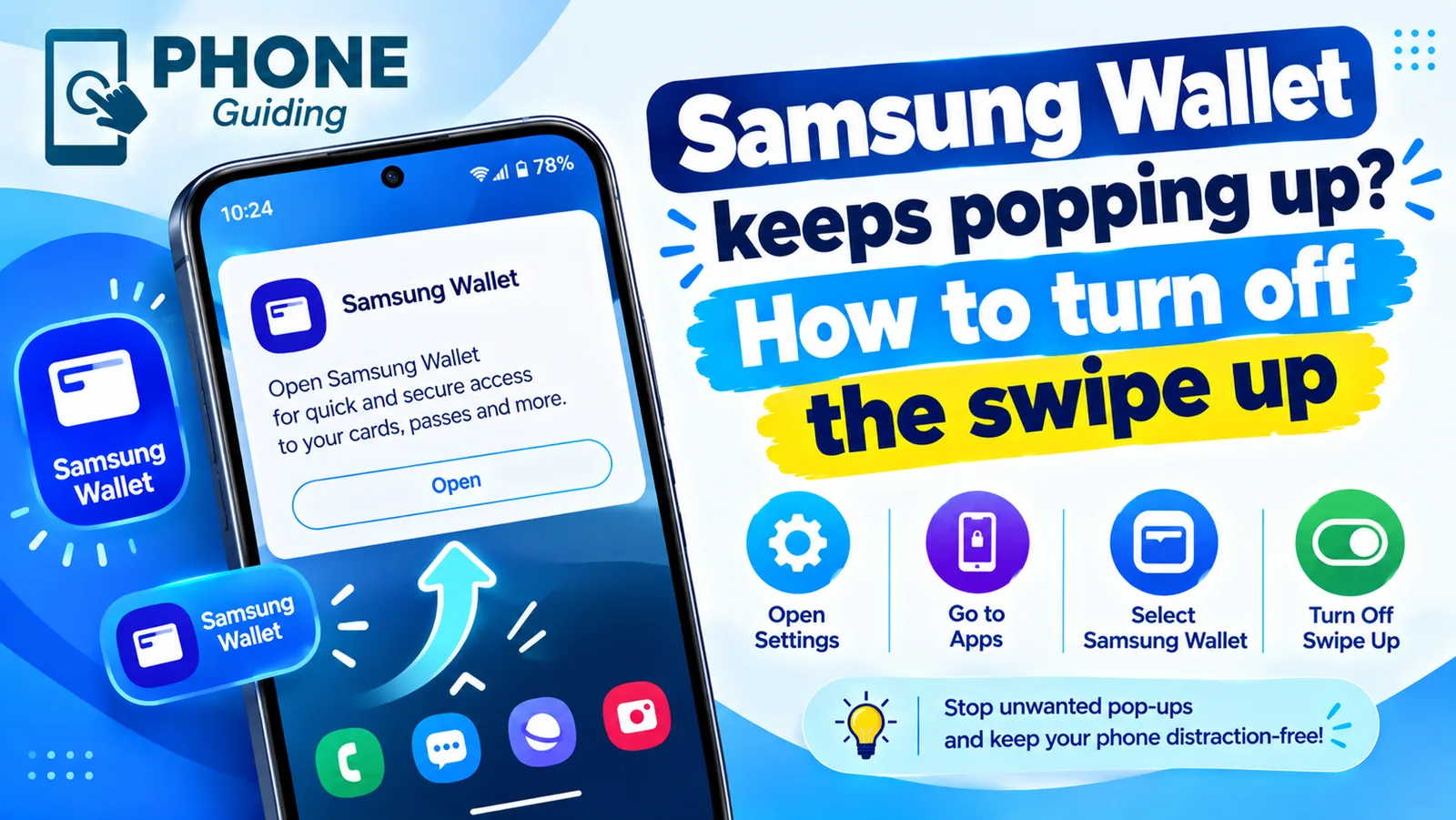
Samsung Wallet (the app that replaced Samsung Pay) has a shortcut called Quick access. A thin handle sits at the bottom of your screen, and a swipe up from it opens your payment cards so you can pay fast at a store.
The problem is where that handle lives. With gesture navigation, swiping up from the bottom edge is also how you go to your Home screen. Swipe a little too far to the middle and your cards slide up instead. Leave the Screen off option on and it can even open in your pocket or during a workout. The fix is inside the Wallet app itself, not in your phone's main Settings, which is why many people cannot find it.
How to stop Samsung Wallet from opening when you swipe up
Turn off the Quick access swipe up gesture
- 1
Open the Samsung Wallet app.
Find it in your app drawer. You do not need to unlock any cards to change this setting.
- 2
Open the Wallet menu.
Depending on your Wallet version, tap the three-dot menu in the top right, or tap All at the bottom and then the three dots. Tap Settings.
- 3
Tap Quick access.
On some versions this is called Access locations and default card. It is the same screen.
- 4
Tap Swipe up gesture.
You will see three switches: Lock screen, Home screen and Screen off.
- 5
Turn off all three switches.
The full path is Samsung Wallet › Menu › Settings › Quick access › Swipe up gesture. Once all three are off, the handle disappears from the bottom of the screen and swiping up only takes you home.
Keep the gesture, but only where you want it
You do not have to turn it all off. Each switch controls one place, so you can keep fast payments and still stop the pop-ups that annoy you most.
If that did not work
Home screen: turn this off first
This is where most accidental opens happen, because you swipe up from the bottom to go home dozens of times a day. Turning off just this one fixes the problem for most people.
Screen off: turn off if it opens in your pocket
With this on, a swipe on a dark screen opens Wallet. Fabric, a hand or sweat against the screen can do that. If Wallet pops up when you take the phone out of your pocket, or while running or at the gym, this is the switch.
Lock screen: fine to keep on
Paying from the Lock screen is the main reason the gesture exists. Swiping up from the handle there opens your cards, but you still need your fingerprint, face or PIN to pay. Keep this on if you pay with your phone in stores.
Also on the Swipe up gesture screen there is a Handle transparency slider. It only changes how visible the handle is. It does not make the gesture harder to trigger, so it will not stop the pop-ups on its own.
Why does Samsung Wallet keep opening by itself?
If Wallet opens even when you are sure you did not swipe, one of these is usually behind it:
- Pocket and bag touches. The Screen off gesture reacts to movement against the screen. Turn it off, and turn on Settings › Display › Accidental touch protection, which blocks touches when the phone is somewhere dark like a pocket.
- The side button shortcut. Some Galaxy phones can open Wallet with a double press of the side button. If you press it twice to wake the phone, you may be opening Wallet. Check Settings › Advanced features › Side button and change Double press to Quick launch camera or turn it off.
- A thick case or screen protector. A raised lip at the bottom edge can make your swipes start higher up the screen, right on the handle. Swiping from the very edge helps.
- Your hand while exercising. Sweat and a loose grip on a treadmill or bike can register as swipes. The Screen off and Home screen switches are the ones to turn off.
If your phone also unlocks, calls people or opens other apps in your pocket, the cause is broader than Wallet. Our guide to a Samsung that keeps unlocking in your pocket covers Extend Unlock and the other pocket settings.
Want Google Wallet instead of Samsung Wallet?
Many people search for a way to change the swipe up so it opens Google Wallet. That is not possible: the gesture belongs to Samsung Wallet and only opens Samsung Wallet. You can still make Google Wallet your main way to pay, and give it an equally fast shortcut.
Make Google Wallet your default payment app
- 1
Install Google Wallet and add a card.
Get it from the Play Store and add at least one card before you switch.
- 2
Open NFC and contactless payments.
Go to Settings › Connections › NFC and contactless payments and make sure NFC is on.
- 3
Choose Google Wallet as the default.
Tap Contactless payments, then under Payments pick Google Wallet. Tapping your phone at a card reader now uses Google Wallet.
- 4
Add a quick shortcut.
In Settings › Advanced features › Side button, turn on Double press and choose Open app, then pick Google Wallet. Now a double press opens it from anywhere.
- 5
Turn off the Samsung Wallet gesture.
Follow the steps at the top of this page so the two apps do not compete.
Wallet notifications popping up instead?
Sometimes “popping up” means notifications, not the card screen: offers, points reminders or transit messages from Samsung Wallet. These have nothing to do with the swipe gesture. To turn them down, press and hold one of the notifications and tap the settings icon, or go to Settings › Notifications › App notifications › Samsung Wallet. Turn off the categories you do not want, such as marketing or events, and keep payment and security alerts on. Those tell you when a card is used, which is worth knowing.
Inside the Wallet app, the Settings screen may also have its own notification or marketing options. Turning off marketing there stops promotions at the source.
Swipe up keeps turning back on?
A few people find the handle comes back after a phone or app update. If that happens, work through these:
The fix
Make the change stick
- 1
Update Samsung Wallet.
Open the Galaxy Store, tap Menu › Updates, and install any Wallet update. Then turn the switches off again.
- 2
Restart the phone.
Press and hold the side button and volume down together until the power menu appears, tap Restart, and check the setting once the phone is back on.
- 3
Clear the Wallet app cache.
Go to Settings › Apps › Samsung Wallet › Storage › Clear cache. This does not remove your cards. Avoid Clear data, which signs you out of Wallet. Our guide to clearing app cache on Android explains the difference.
- 4
Check for a One UI update.
Go to Settings › Software update › Download and install. Gesture bugs are often fixed in system updates rather than app updates.
Is the swipe up gesture a security risk?
Not really. Opening the Quick access screen only shows your cards. To actually pay, Samsung Wallet asks for your fingerprint, face or PIN. Someone who picks up your locked phone can see which cards you have, but they cannot spend with them.
If even that bothers you, turning off the Lock screen switch removes the handle from your Lock screen completely. Losing your phone is a bigger worry, so make sure you know how to find and lock a lost Android phone. That lets you lock it and wipe it if it goes missing.
Frequently asked questions
Why does Samsung Wallet open when I swipe up?
Samsung Wallet has a Quick access gesture that opens your cards when you swipe up from the small handle at the bottom of the screen. It sits right where you swipe to go home, so it is easy to trigger by accident.
Will turning off the swipe up gesture remove my cards?
No. Your cards, passes and IDs stay in Samsung Wallet. You just open the app from its icon, or with a side button shortcut, instead of swiping up.
Can I make swipe up open Google Wallet instead?
No. The swipe up gesture is part of Samsung Wallet and only opens Samsung Wallet. You can set Google Wallet as your default payment app and open it with a double press of the side button instead.
Can I delete Samsung Wallet?
It depends on your model and carrier. If Uninstall is missing or grayed out in Settings › Apps › Samsung Wallet, it is built in. Turning off the gesture stops the pop-ups either way.
What to try next
People also ask
Why does Samsung Pay keep opening on my Galaxy Watch?
On current Galaxy Watch models, pressing and holding the Back button opens Samsung Wallet, which older guides call Samsung Pay. If the button sticks or is pressed by your strap, sleeve or case, the watch keeps launching it.
Read the full guide: Galaxy Watch keeps opening Samsung PayWhy does Samsung Wallet say I am too young?
Samsung Wallet checks the age tied to your Samsung account. If the birth date on the account is wrong, or the account belongs to a minor or a child account, the app can refuse to open or add cards.
Read the full guide: Samsung Wallet too youngWhy does my Samsung turn off at 20 percent?
A worn battery cannot deliver enough power under load, so the phone shuts down early. Check the battery in Samsung Members and replace it if it is weak.
Read the full guide: Samsung keeps turning offIs it a virus?
Usually it is adware, an app that shows ads outside itself. It is annoying rather than dangerous, but remove it, since some also collect data.
Read the full guide: Pop up ads on AndroidRelated guides
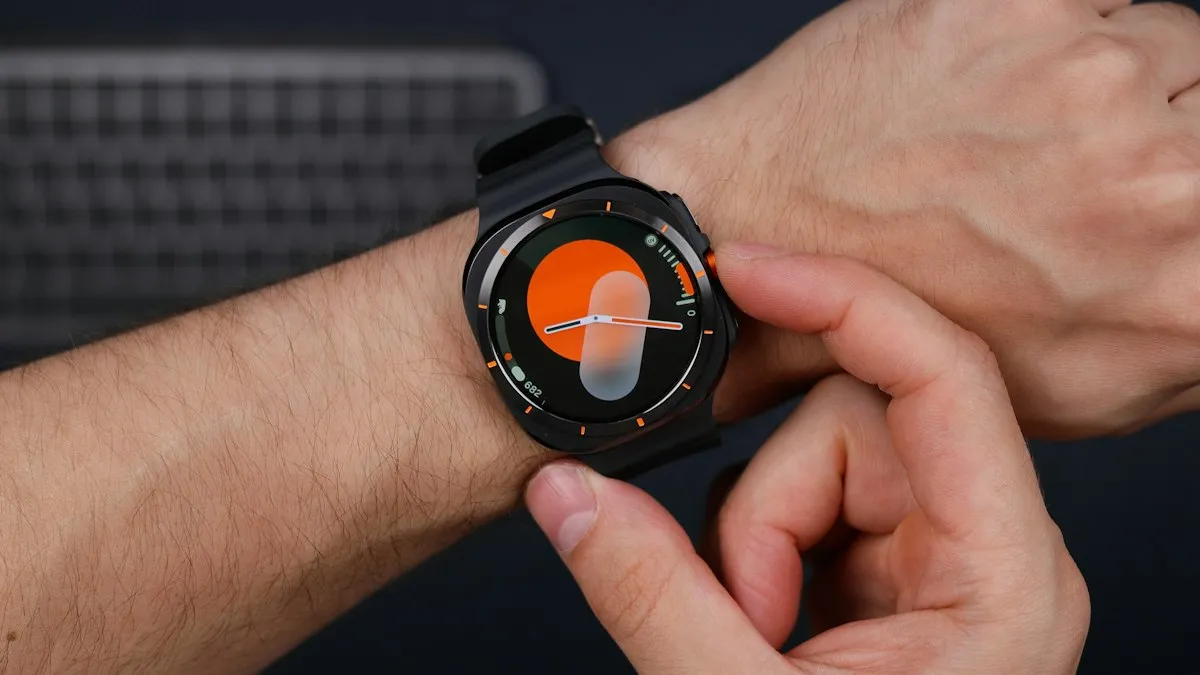
Galaxy Watch keeps opening Samsung Pay
Samsung Pay or Wallet keeps opening on your Galaxy Watch? A pressed or failing Back button is the usual cause. Check the button first, then the apps list.
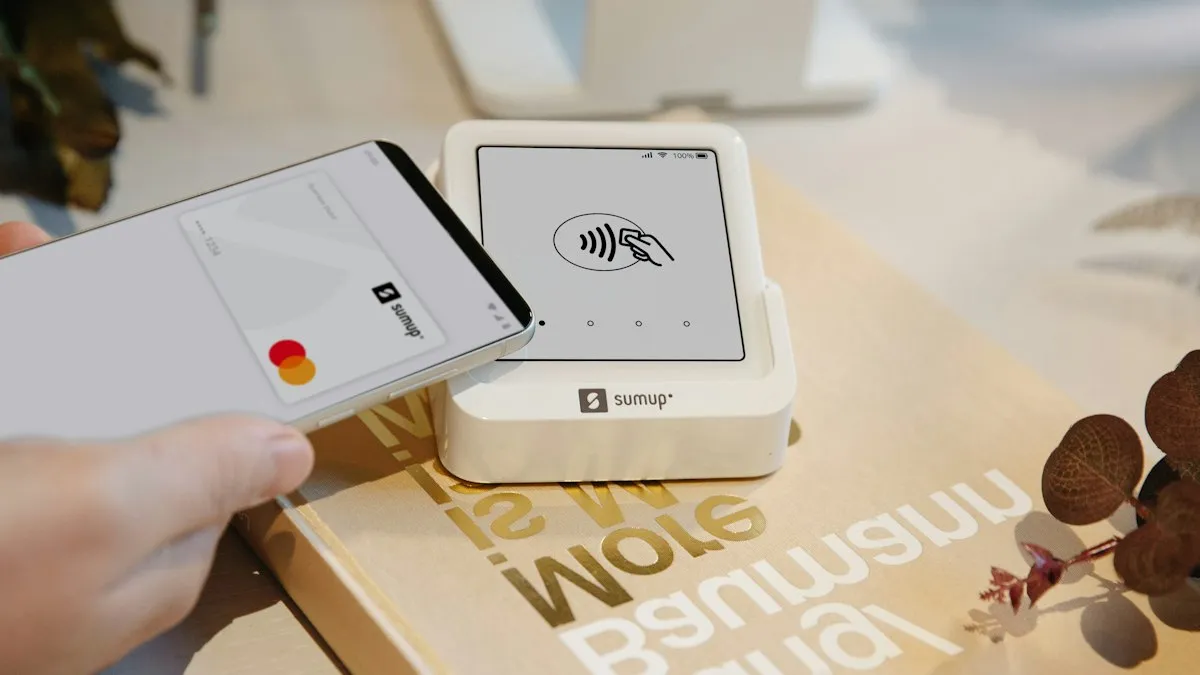
Samsung Wallet too young
Samsung Wallet says you are too young or must be 21? Check the birth date on your Samsung account first. Here is what is confirmed, and your options.
Samsung keeps turning off
Samsung phone keeps turning off by itself, even with battery left? Check the battery in Samsung Members, remove the case, test safe mode and try 6 more fixes.
Pop up ads on Android
Android phone keeps popping up ads on the home screen? Find the app behind them, turn off Display over other apps, block Chrome notifications and remove adware.
More guides you may need
Android black screen
Android phone black screen but it still rings or vibrates? Charge it, force restart it, raise the brightness and try safe mode before blaming the screen.
Android hotspot not working
Android hotspot not working or connected with no internet? Check your plan, switch to 2.4 GHz, turn off data saver and the timeout, and try 5 more fixes.