

Galaxy Watch not getting notifications? 9 fixes that work
When your Galaxy Watch stops showing notifications, the fix is usually a setting. Nine fixes in order: Phone notifications on watch, per app switches, Do Not Disturb, battery limits and reconnecting.
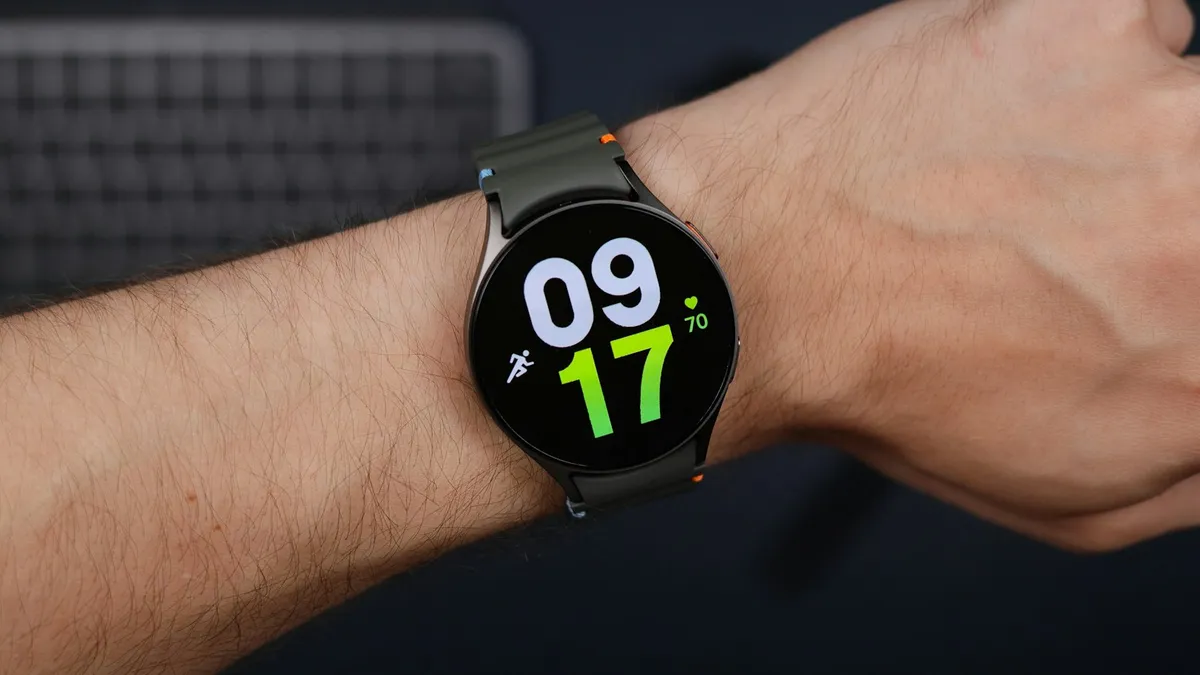
Photo by Daniel Romero on Unsplash
Your phone buzzes with a new message. Your Galaxy Watch stays quiet. Or the watch worked yesterday and today it shows nothing from WhatsApp, Gmail or texts. Missing notifications are one of the most common Galaxy Watch complaints, and they are usually caused by a setting and not by a faulty watch. Samsung's own support page lists the settings that control them, and the rest comes from fixes that users report. Below are nine fixes, in the order that clears most cases, from the quick checks to a full re-pair.
Why is your Galaxy Watch not getting notifications?
- A setting hides them. Samsung's Smart device selection can hide watch alerts while you use your phone.
- The app is switched off. Each app has its own notification switch for the watch.
- A silent mode is on. Do Not Disturb, Theater mode and Goodnight mode can mute the watch.
- The watch is not connected. Bluetooth or Wi-Fi may have dropped, or the phone's Galaxy Wearable app may have been stopped.
- Battery limits. The phone may restrict the Galaxy Wearable app in the background.
- Old software. A bug in an old version can stop alerts.
Fix 1: Check that the watch is connected
Open the Galaxy Wearable app on your phone and look at the connection status. It should say Connected. On the watch, swipe down from the top of the watch face and check that the Bluetooth icon is blue. If the watch is disconnected, turn Bluetooth off and on again on the phone and on the watch, then wait a few seconds. If it keeps dropping, our guide on Bluetooth that keeps disconnecting helps. Notifications cannot arrive without a connection.
Fix 2: Change Phone notifications on watch
This is the setting that catches most people. Samsung's page says to check Phone notifications on watch. The option Smart device selection hides watch notifications while you use your phone, which can look like the watch has stopped working. To get alerts on both, choose Always show on both, which sounds and vibrates on both devices.
Show notifications on the watch and phone
- 1
Open the Galaxy Wearable app on your phone.
- 2
Tap Watch settings, then Notifications.
Make sure the top switch is on.
- 3
Tap Phone notifications on watch.
On older versions, look for Show while using phone.
- 4
Choose Always show on both.
Smart device selection is the option that hides alerts when you are using the phone.
Fix 3: Turn on each app under App notifications
A watch only shows alerts for apps that are switched on. In the Galaxy Wearable app, go to Watch settings, tap Notifications, then App notifications. Use the dropdown and choose All, since the watch apps and phone apps are in separate lists. Switch on the app you are missing, or use the switch next to Allow all. Apps that have notifications turned off on the phone appear under Apps with notifications turned off on phone at the bottom. If an app is listed there, turn its notifications on in the phone's own settings first.
You can also check from the watch. Open Settings, tap Notifications, tap App notifications, then tap an app and use its switch. Menu names can differ on older Galaxy Watch models and with the Samsung Galaxy Watch app for iPhone, so look for the Notifications section if a name does not match.
Fix 4: Turn off Do Not Disturb, Theater mode and Goodnight mode
Silent modes are a common reason for a quiet watch. Swipe down on the watch face and check the quick panel. Turn off Do Not Disturb, Theater mode and Goodnight mode if any is on. Also check Do Not Disturb and sleep schedules on the phone, because a mode on the phone can follow the watch. Samsung's notification page does not describe these modes, but many community answers name them as the cause.
Fix 5: Check the notification options on the phone
The watch only mirrors what the phone receives. Open the phone's Settings, tap Notifications and make sure the app you want is allowed. Then check the special access list. The Galaxy Wearable app needs access to notifications, and the exact menu varies by One UI version: look in Settings, Apps, the three dot menu, Special access, Notification access, and make sure Galaxy Wearable is on. If you have trouble with alerts on the phone itself, see our guide on Android notifications not showing.
Fix 6: Turn on the screen and details options
Sometimes the alert arrives but you do not notice it. Under Watch settings, Notifications, Advanced settings, Samsung lists options such as Turn on screen when notifications received, Show details automatically when checking notifications and a New notification indicator on watch face. Turn them on so the screen wakes and the alert is easy to see. Note that muted notifications do not wake the screen. One community user fixed missing Google Messages alerts by switching off the per app Custom watch notification style, so try that if only one app is silent.
Fix 7: Remove battery limits on the Galaxy Wearable app
To save power, the phone can stop apps from running in the background, which cuts the link to the watch. Open the phone's Settings, tap Apps, tap Galaxy Wearable, tap Battery and choose Unrestricted, or the option that lets the app run in the background. Do the same for the Galaxy Watch plugin if you see it listed. The menu names vary, and community answers also suggest a quick toggle of notification sync off and on.
Fix 8: Restart both devices and update
Restart the watch from its power menu and restart the phone. Then check for updates. In the Galaxy Wearable app, open Watch settings, tap Watch software update. Update the Wearable app and the watch plugin in the Play Store as well. Software bugs can cause alerts to stop, and an update may fix them. See our guide on how to update an Android phone if the phone itself is behind.
Fix 9: Re-pair the watch (last resort)
If nothing else works, disconnect and set up the watch again. This removes the pairing and can fix a stuck connection. In the Galaxy Wearable app, open the menu, remove or disconnect the watch, and then set it up again. You may need to restore watch faces and some settings, so back up first if the app offers it. A full factory reset of the watch is the final step, and only if re-pairing fails. If the watch asks you to authenticate, see Galaxy Watch authentication required.
Do you need the phone nearby to get notifications?
Yes, for most setups. The watch gets alerts through the phone, so it needs a connection to it. Bluetooth works over a short distance, and a model with Wi-Fi or LTE can keep the link going when you walk away, as long as the phone is on and online. If you leave the phone at home with Bluetooth only, the alerts stop until you are back in range. On a watch that has its own mobile plan, check that the plan is active. If alerts stop whenever you walk to another room, look at Bluetooth range and at any battery saving settings that turn off Wi-Fi on the watch.
Why does only one app not show on the watch?
If WhatsApp, Gmail or Messages is missing while others work, the problem is that app's settings. Check that the app is on in the Wearable app list, that its notifications are allowed on the phone, and that you have not muted the chat or the conversation inside the app. Some apps also ignore the watch when you are looking at the phone screen. If it still does not work, clear the app's cache on the phone or reinstall it.
Still not getting notifications?
Try a different app on the same watch to learn whether it is one app or all. Check whether the problem started after an update, and look for a newer one. If your watch buzzes for calls but not for messages, check the messaging app's settings on the phone. If you still get nothing, Samsung Support can look at the watch, and its community threads often mention a fix for your exact model. If the watch also keeps opening payment screens, see Galaxy Watch keeps opening Samsung Pay.
Frequently asked questions
Why does my Galaxy Watch not buzz when I use my phone?
Smart device selection hides watch alerts while you use the phone. Set Phone notifications on watch to Always show on both if you want alerts on both devices.
Where do I choose which apps send notifications to my watch?
In the Galaxy Wearable app, open Watch settings, tap Notifications, then App notifications. Use the switch next to each app, or turn on Allow all.
Do Do Not Disturb or Theater mode block watch alerts?
Yes. Silent modes such as Do Not Disturb, Theater and Goodnight can mute the watch, so check them before you change other settings.
Should I re-pair the watch?
Only as a last step. It resets the connection, so you may need to set up your watch faces and some settings again.
What to try next
People also ask
Why does Samsung Pay keep opening on my Galaxy Watch?
On current Galaxy Watch models, pressing and holding the Back button opens Samsung Wallet, which older guides call Samsung Pay. If the button sticks or is pressed by your strap, sleeve or case, the watch keeps launching it.
Read the full guide: Galaxy Watch keeps opening Samsung PayWhat does "authentication required" mean on a Galaxy Watch?
It means an app on the watch that uses your Google account, such as the Play Store, Gmail or Wallet, no longer has a valid sign-in. The watch needs to confirm your account again before the app works.
Read the full guide: Galaxy Watch authentication requiredWhat does the red iPhone icon on my Apple Watch mean?
The watch is disconnected from your iPhone. Bring them close together and check that Bluetooth and Wi-Fi are on.
Read the full guide: Apple Watch not connectingWhy does Bluetooth disconnect when my screen turns off?
Battery optimization is putting Bluetooth or the device’s app to sleep. Set both to Unrestricted in their battery settings.
Read the full guide: Android Bluetooth disconnectingRelated guides
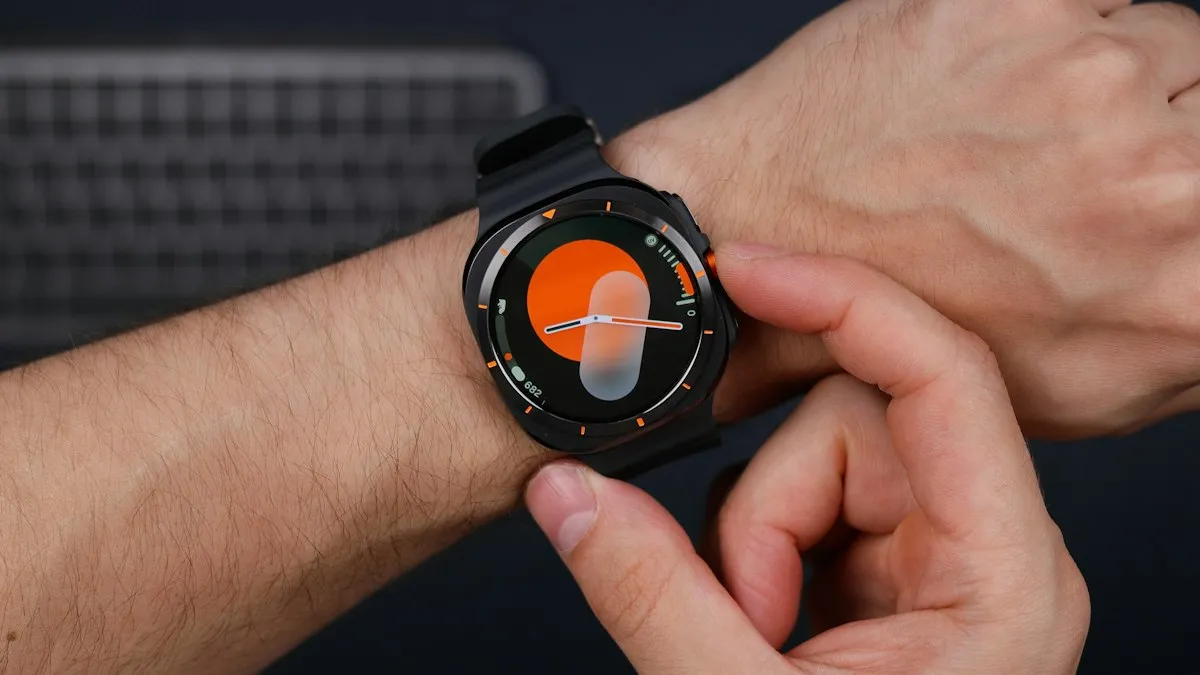
Galaxy Watch keeps opening Samsung Pay
Samsung Pay or Wallet keeps opening on your Galaxy Watch? A pressed or failing Back button is the usual cause. Check the button first, then the apps list.
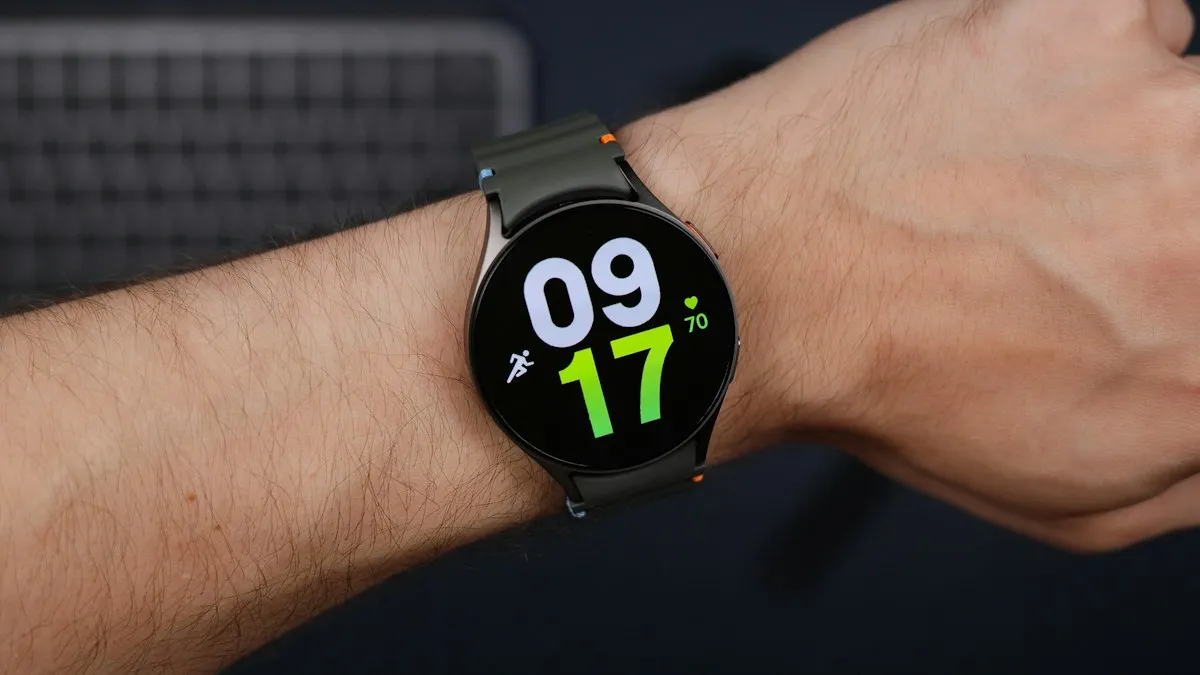
Galaxy Watch authentication required
Galaxy Watch says authentication required in Play Store, Gmail or Wallet? It lost its Google sign-in. Remove and re-add your account from the phone to fix it.
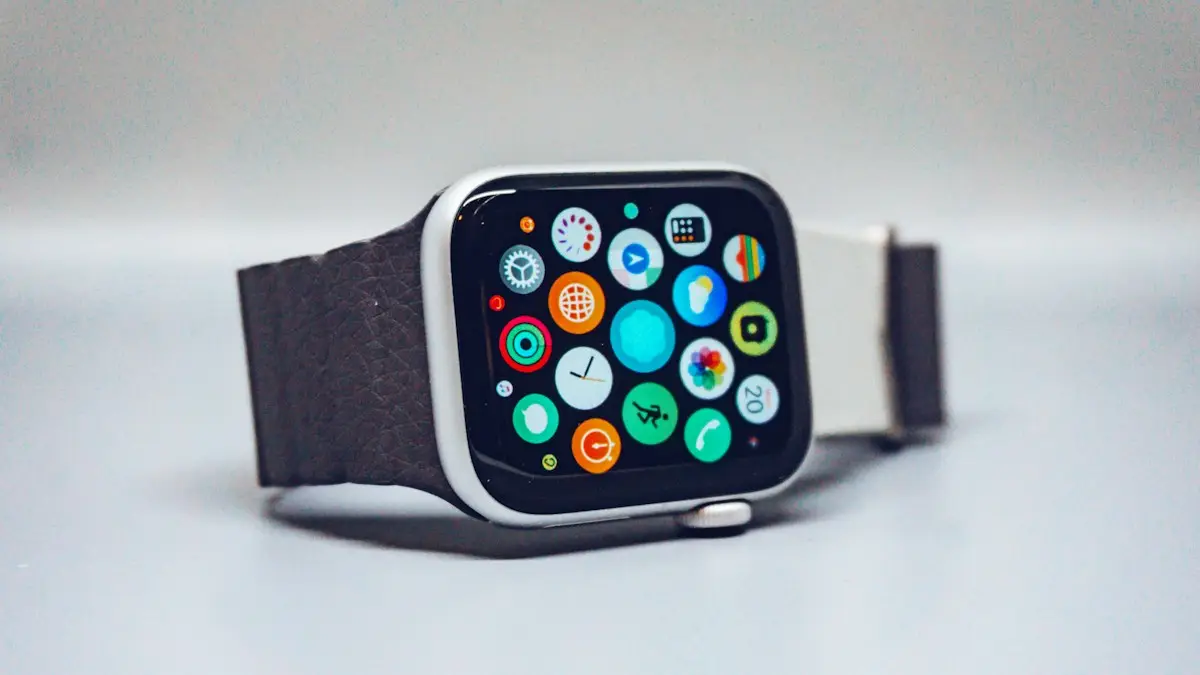
Apple Watch not connecting
Apple Watch not connecting to iPhone or showing a red iPhone icon? Check Bluetooth and Airplane Mode, restart both, update, and re-pair without losing data.
Android Bluetooth disconnecting
Android Bluetooth keeps disconnecting from headphones, car or watch? Stop battery saving from cutting it, pair again, clear the Bluetooth cache and more.
More guides you may need
Pixel Wi-Fi low quality
Pixel says your Wi-Fi is low quality even with full bars? Learn what the warning measures, why the phone jumps to mobile data and how to make it stay on Wi-Fi.

Record a call on Android
Learn how to record a call on Android with the Phone app on Pixel, Samsung and other phones, where recordings are saved, and the consent laws to know first.