

How to record a call on Android (Pixel, Samsung and others)
Most Android phones can record a call from the Phone app. Here is the Record button on Pixel, Samsung and others, where files are saved, how automatic recording works, and the consent rules to check first.

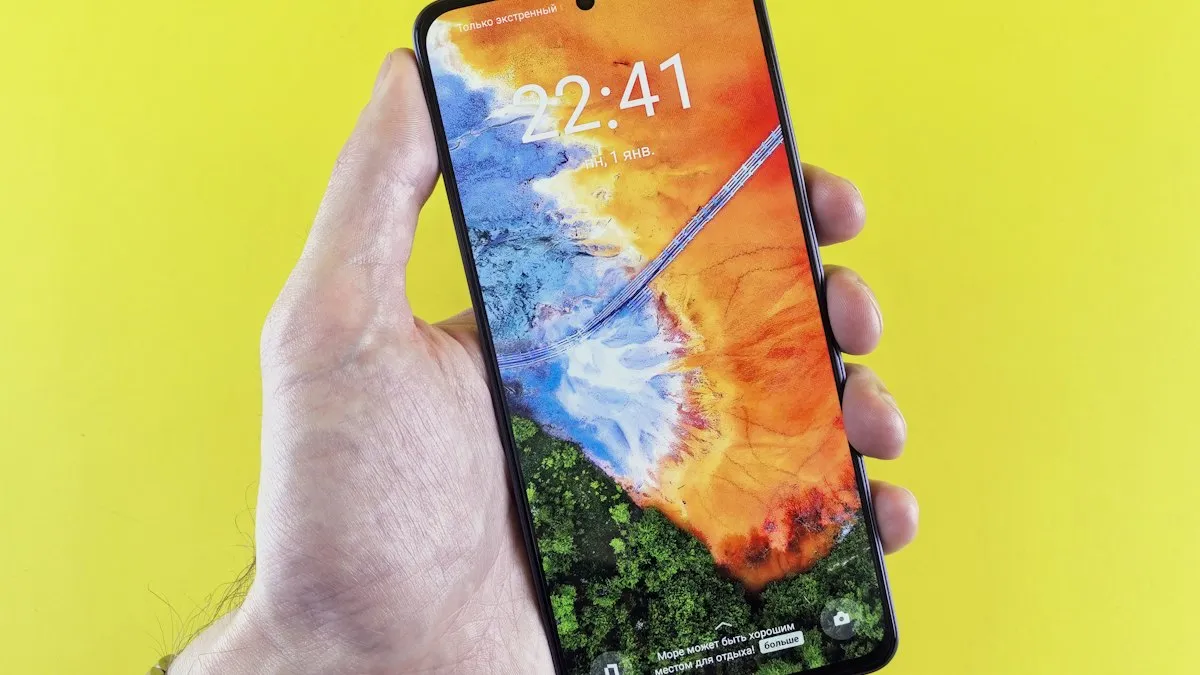
Photo by Paul Einerhand on Unsplash
You are on a call and you need a record of it: the details of a repair quote, the terms of a refund, an address that someone is reading out. Taking notes is slow, and you may not want to put the call on speaker and use another device. Many Android phones can record a call in the Phone app with a single tap. The catch is that the feature depends on your phone, your carrier, your country and the law where you live. This guide shows how to record a call on Pixel, Samsung and other Android phones, how to turn on automatic recording, where the files go, and what to check before you press the button.
Can your Android phone record calls?
Call recording is part of the Google Phone app, which comes on Pixel phones and many other Android phones. According to Google's help page, the requirements are these:
- Non-Pixel phones: Android 9 or later and the latest version of the Phone app.
- Pixel phones: a Pixel 6 or later running Android 14 or later, with the latest Phone app.
- Region and carrier: recording has to be supported in your country or region, and only some devices and carriers support it.
Samsung Galaxy phones use their own Phone app, and many models include a recording option there. Samsung switches it off in some countries for legal reasons, and availability can change with software versions and carriers. The fastest test is to place a call and look at the call screen for a Record button.
How to record a call on Android with the Phone app
Record a call
- 1
Open the Phone app and place a call, or answer one.
Recording only starts after the other person answers.
- 2
Tap Record on the call screen.
On a Pixel, tap Call Assist and then Call Recording instead.
- 3
Listen for the notice.
In the Google Phone app, both people hear a message that the call is being recorded.
- 4
Tap Stop recording when you are done.
On a Pixel, tap Call Assist and then Stop. Ending the call also ends the recording.
You cannot record a call before it is answered, while it is on hold, or while you are building a conference call. If the Record button is missing during a call, it is not supported for that call. The rest of this guide covers the common reasons.
How to record a call on a Samsung Galaxy
Open the Phone app, place or answer a call, and look for a Record option on the call screen. If you do not see it, check the Phone app's settings: tap the three dots, tap Settings, and look for Record calls or Call recording. On some models, the option is under Advanced features or Call settings, and the menu names change between One UI versions. In some regions it is not offered at all. If it is not there, a Samsung support page for your model and carrier will tell you whether the feature is supported.
How to record calls automatically
Instead of tapping Record each time, you can have the Phone app record by itself. In the Google Phone app, the path is Phone, three dots, Settings, Call recording, Always record. You can then choose to record calls from unknown numbers, from selected contacts, or both. For a single contact, open the contact, tap Edit contact and turn on Always record calls. Automatic recording is not offered in every market, and the same disclosure still plays to both people.
Automatic recording is handy for business or for calls with companies, but think before you turn it on for everyone. Recordings take up space, and you will have to follow the same consent rules every time.
Where are your call recordings saved?
In the Phone app, open the Recents or Call history tab, tap a call and look for the recording. Google says recordings stay on your device and are not saved or backed up off the device. That matters in two ways. If you lose or reset the phone, the recordings are gone unless you copied them somewhere. And if you delete a call from your call log, its recording is deleted too. Copy anything important to your computer or to cloud storage before you clear your log. On a Samsung phone, recordings are usually found in the Phone app and in a folder named for call recordings in the My Files app, though the folder name varies.
Is it legal to record a call in the US?
This is the part people skip, and it is the part that matters. The rules depend on where you and the other person are. Federal law allows you to record a call when at least one person on the call agrees to it, and you can be that person. Many states follow that one-party rule. Some states require everyone on the call to agree. If you are not sure which rule applies, assume you need consent from everyone and say so at the start of the call.
Google's own help page puts the responsibility on you. The disclosure that plays when recording starts is meant to help, but it is not legal advice. Also remember that sharing a recording, posting it online or using it against someone can raise separate issues. For anything serious, such as a dispute or a legal matter, ask a lawyer before you rely on a recording.
Why is there no Record button on your Android phone?
- Your phone or carrier does not support it. The feature is limited to some devices, carriers and countries.
- The Phone app is old. Open the Play Store, search for Phone by Google and update it. Then restart.
- Android is too old. Non-Pixel phones need Android 9 or later, and Pixels need a Pixel 6 or later on Android 14 or later. Check Settings, then Software update.
- The call has not been answered yet. Wait until the other person picks up.
- It is a conference or held call. Recording is not available for those.
- You use another dialer. If you use a dialer from a third party, the Record option depends on that app.
What about third party call recorder apps?
Searching the Play Store brings up many call recorder apps. Be careful with them. Since Android 10, Google has limited what other apps can capture from a call, so many of these apps record only your side of the conversation, or they record from the speaker and sound bad. Some also ask for wide permissions and upload your audio to their servers. If the Phone app does not offer recording, a safer low tech option is to put the call on speaker and record with a second device, with the same consent rules applying. Google Voice can also record incoming calls to your Voice number, but it does not record outgoing calls.
How much space do call recordings use?
Voice audio is small, but long calls add up. A few short calls will not matter. If you turn on automatic recording for unknown numbers, the folder can grow without you noticing, so check it every few weeks and delete what you no longer need. Remember that deleting a call from the log also deletes its recording, so copy anything you want to keep first. If the phone is short on space, clear old files before an important call, so that the recording is not cut off.
Tips for a good recording
- Tell the other person at the start. It is polite, and in an all party consent state it can be required.
- Say the date, the company name and the topic out loud, so the file is easy to identify later.
- Check that you have free storage before a long call, because recordings take space.
- Play a few seconds back after the call to be sure it recorded.
- Copy important recordings to a computer or cloud storage the same day.
Still not working?
Restart the phone, update the Phone app and Android, and try a call to a friend. If the Record button still does not appear, your phone or carrier does not support it, and a second device is the practical option. If calls themselves are the problem, read how to check what your carrier supports before you contact support.
Frequently asked questions
Can you record a call on any Android phone?
No. Recording needs a supported phone, carrier and region, a recent Phone app, and Android 9 or later. If you do not see a Record button, your phone or carrier may not support it.
Does the other person know you are recording?
Yes. In the Google Phone app both sides hear a disclosure when recording starts and stops.
Where are call recordings saved on Android?
They stay on your phone and are not backed up off the device. Deleting a call from the call log also deletes its recording.
Is it legal to record a call in the US?
Federal law allows it when at least one person on the call agrees, and that can be you. Some states require everyone to agree, so check your state before you record.
What to try next
People also ask
Can someone still find a hidden app?
With simple hiding, yes: it still shows in Settings › Apps and sometimes in search. Apps in Secure Folder or Private space need your PIN or fingerprint.
Read the full guide: Hide apps on AndroidWhere do Samsung screen recordings go?
In the Gallery app, in the Screen recordings album. The files are stored in Internal storage › DCIM › Screen recordings.
Read the full guide: Screen record on SamsungWhy does my battery drain after an update?
The phone optimizes apps and indexes files for a day or two after a big update. If drain continues after that, check Battery usage for a misbehaving app.
Read the full guide: Android battery draining fastHow do I know if the screen is broken?
If the phone rings, vibrates and connects to a computer but the screen stays black after a force restart, the display or its cable is likely damaged.
Read the full guide: Android black screenRelated guides
Hide apps on Android
Hide apps on Android from the home screen, or lock them away in Samsung Secure Folder or Pixel Private space. Plus how to find and unhide them later.
Screen record on Samsung
Screen record on your Samsung Galaxy with the built-in Screen recorder. Record sound or your voice, add a selfie video and find your recording in Gallery.
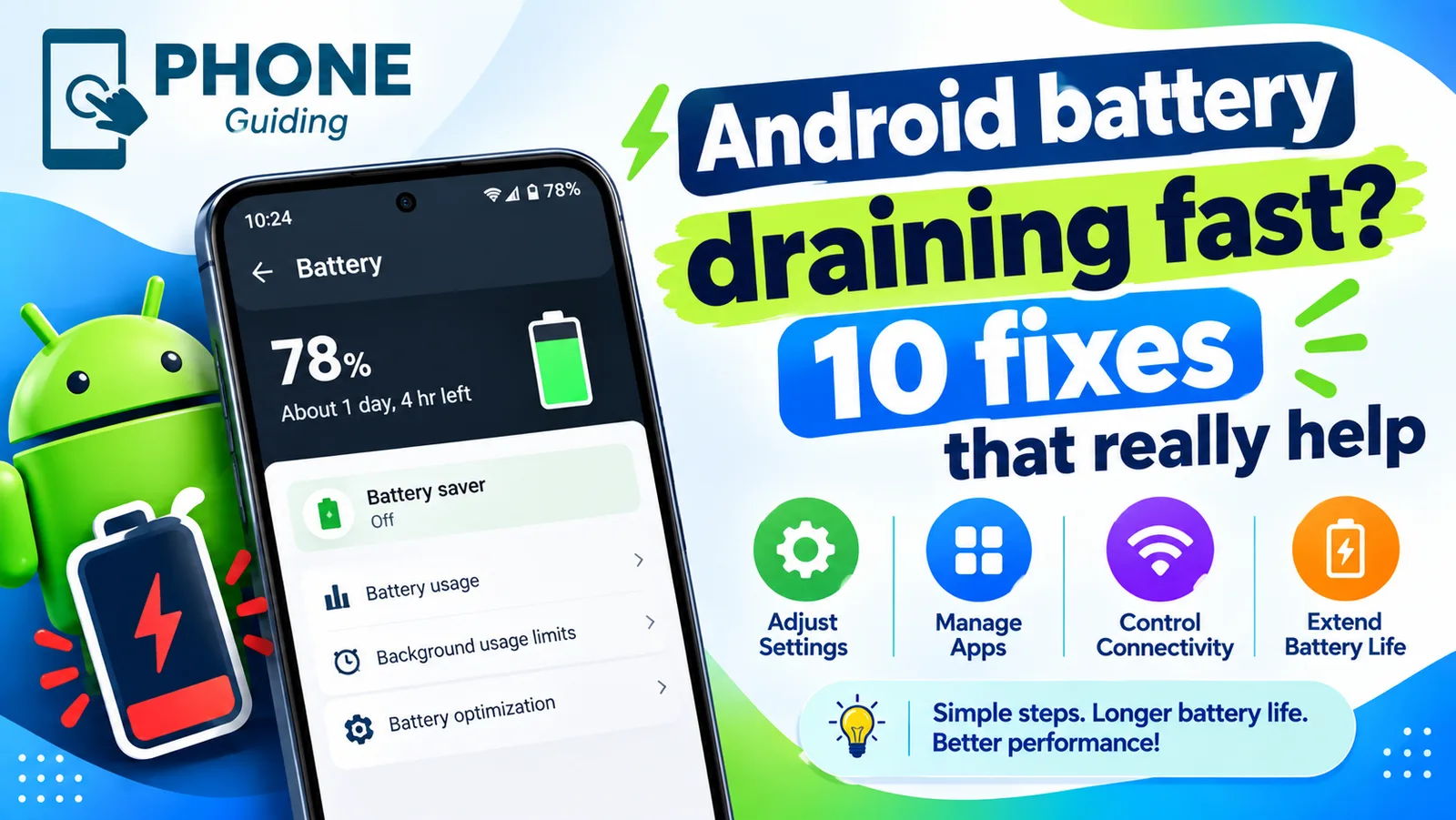
Android battery draining fast
Android battery draining fast? Find the app to blame in Battery usage, limit background apps, fix weak signal drain, lower the refresh rate and more.
Android black screen
Android phone black screen but it still rings or vibrates? Charge it, force restart it, raise the brightness and try safe mode before blaming the screen.
More guides you may need
Message blocking is active
Samsung shows message blocking is active and your texts will not send? Check blocked numbers, your carrier block and account settings with these steps.
Motorola losing network
Motorola phone keeps losing network or showing no service? Toggle Airplane mode, reseat the SIM, change network type, reset APN and network settings.