

Hotspot says Low Data Mode? Where to turn it off
Low Data Mode is set separately for cellular and for each Wi-Fi network, so a hotspot can show it on the device that joins even when the iPhone sharing it looks fine. Here is where to check.
Photo by Firmbee.com on Unsplash
You connect your laptop or tablet to your iPhone's hotspot and a small note says Low Data Mode. Downloads stall, photos do not back up and video looks grainy. Nothing is broken. A setting is saving data, and you only need to find which device has it on.
Hotspot says Low Data Mode: check the device that joined
Apple says Low Data Mode is a separate setting for each Wi-Fi network. A hotspot is a Wi-Fi network as far as the device joining it is concerned. So the laptop or tablet may have the setting switched on for your hotspot, even though your iPhone looks fine.
On an iPhone or iPad that joined the hotspot
- 1
Open Settings and tap Wi-Fi.
- 2
Tap the info button next to the hotspot network.
- 3
Turn off Low Data Mode.
- 4
Reconnect and test.
If the setting comes back, see the section on why it keeps turning on.
On other devices, such as a Windows laptop or an Android tablet, look for a similar "metered connection" or "data saver" setting for the network. Apple's page covers only iPhone and iPad, so menu names on other systems are different.
Then check the iPhone that is sharing
The iPhone has its own Low Data Mode for cellular data. Apple's steps are these.
| Your iPhone | Apple's path |
|---|---|
| 4G or LTE | Settings › Cellular › Cellular Data Options, then turn off Low Data Mode |
| 5G | Settings › Cellular › Cellular Data Options › Data Mode, then turn off Low Data Mode |
| Two SIMs | Settings › Cellular or Mobile Data, tap the number you use, then change the setting |
Apple notes that the options can vary by carrier. If your menu looks different, use the search box at the top of Settings and type Low Data Mode.
What Low Data Mode switches off
It helps to know what you gain back. Apple says Low Data Mode restricts background network use to save data. Expect it to stop using data when you are not actively using those apps, to turn off Background App Refresh, to lower streaming quality, to turn off automatic downloads and backups, and to pause updates for services such as iCloud Photos.
- App Store: video autoplay, automatic updates and automatic downloads off.
- Music: automatic downloads and high quality streaming off.
- Podcasts: feed updates limited, downloads only on Wi-Fi.
- iCloud: updates and automatic backups paused, iCloud Photos updates off.
- FaceTime: video optimized for lower bandwidth.
So if your photos did not upload on the hotspot, that is likely the reason. If you are on a limited data plan, leaving the mode on may be the better choice. Check how much you are using with our guide to checking your data usage.
Why does it keep turning back on?
Some people on Apple Community report that when an iPhone or iPad joins a personal hotspot from another iPhone, Low Data Mode switches itself on, and one user says it resets only after the connection has been idle for a long time. Apple's pages we read do not say that happens. If you see it, turn the setting off after you join, check it again later, and make sure the cellular setting on the sharing iPhone is off too. Apple says iCloud keeps your Wi-Fi network preferences synced across devices, so a change on one of your devices may show up on another.
If the hotspot itself is not working
If the connection fails or drops, as well as showing Low Data Mode, follow Apple's checks. Open Settings, Personal Hotspot and turn on Allow Others to Join. If you cannot find or turn on Personal Hotspot, check that your carrier has enabled it and that your plan supports it. Restart both devices, and update to the latest iOS.
On an iPhone 12 or later, Apple suggests turning on Maximize Compatibility in Settings, Personal Hotspot, and staying on that screen until the other device joins. It warns that this may reduce performance and Wi-Fi security for connected devices. If that fails, Apple's last step is Reset Network Settings under General, Transfer or Reset iPhone, Reset, which also erases saved Wi-Fi networks and passwords, cellular settings, and VPN and APN settings. For more, see a Personal Hotspot that will not work.
A quick way to find which device has it on
Because there are two separate settings, test one at a time. It takes two minutes and shows you which side is responsible.
- Connect the second device to the hotspot and note whether it says Low Data Mode.
- Turn it off on that device, in the Wi-Fi info screen, and check whether the note disappears.
- If it stays, open the iPhone's cellular setting and turn Low Data Mode off there as well.
- Disconnect and reconnect. If the note returns, you know the setting comes back at connection time.
- Start a small download or photo upload, and see whether it runs.
If the download runs after the first change, you found the culprit. If nothing works even with both settings off, the problem is not Low Data Mode. Your plan may have run out, the carrier may limit hotspot use, or the signal may be weak. Apple's hotspot page tells you to confirm that your carrier has enabled Personal Hotspot and that your plan supports it.
Low Data Mode, Maximize Compatibility and data limits are different things
These three get mixed up. Low Data Mode saves data by holding back background activity. Maximize Compatibility is a hotspot setting on iPhone 12 and later that Apple says can help devices connect, at the cost of some performance and security. A data limit is set by your carrier and your plan, and it can slow or stop hotspot data whatever your settings say. If you turn off Low Data Mode and the connection is still slow, check your plan before you change anything else.
Using a USB cable instead
A cable can be steadier than Wi-Fi. Apple's steps for a Mac are to update macOS, connect the iPhone with a cable, trust the device if asked, confirm it appears in Finder, then make the iPhone USB network service inactive and active again. Apple also warns to turn Personal Hotspot off when you are done, because a computer charging the phone may auto-connect and use your data.
Saving hotspot data without losing what you need
You can keep the benefits of saving data and still get your work done. Leave Low Data Mode on for the everyday browsing, then switch it off briefly when you need to upload photos, join a video meeting or download a file you really need. Do those jobs, and switch it back on. On the joining device, pause automatic cloud sync and large updates while you are on the hotspot, since those are the usual surprise users of data. If you travel, check what your carrier includes for hotspot use before you leave, because some plans count it separately from phone data.
Should you leave Low Data Mode on?
If your plan is small, or you are traveling and paying for every gigabyte, leave it on while you use the hotspot. It stops big background jobs that would eat your allowance. If you have plenty of data and you need uploads, backups or good video, turn it off on both devices and switch it back on afterward. Our guide on how much data you need can help you decide.
Frequently asked questions
Why does my hotspot say Low Data Mode?
Low Data Mode is set separately for cellular and for each Wi-Fi network. The device that joined your hotspot may have it on for that network, or the iPhone's cellular setting may be on.
How do I turn off Low Data Mode on a hotspot connection?
On the device that joined, open Settings, tap Wi-Fi, tap the info button next to the hotspot network and turn off Low Data Mode. Check the iPhone's cellular setting too.
Does Low Data Mode slow my hotspot?
Apple does not say it affects a hotspot. It restricts background use on the device where it is on, such as downloads, backups and streaming quality, which can make things feel slower.
Why does Low Data Mode keep turning on?
Community reports say an iPhone or iPad can turn it on automatically when it joins another iPhone's hotspot. Apple's pages we read do not confirm that.
What to try next
Sources
Official pages these steps are based on. Menus can differ by software version.
People also ask
Why is Personal Hotspot greyed out or missing?
Your plan may not include hotspot, or cellular data is off. Turn on Cellular Data, install a carrier settings update, and ask your carrier to enable it.
Read the full guide: iPhone hotspot not workingWhere is Data Roaming on iPhone?
Open Settings › Cellular, tap Cellular Data Options and switch on Data Roaming. On a dual SIM iPhone, tap the line first.
Read the full guide: Turn on data roaming on iPhoneDoes the iPhone reset data usage every month?
No. Current Period counts from the last time you tapped Reset Statistics. Reset it on your billing date each month, or use your carrier’s app for the billing cycle.
Read the full guide: Check data usage on iPhoneWhy does my phone keep starting in safe mode?
A stuck Volume Down button or a tight case pressing it. Take off the case and press the button a few times.
Read the full guide: Android safe modeRelated guides
iPhone hotspot not working
iPhone hotspot not working, not showing up or disconnecting? Turn on Maximize Compatibility, keep the hotspot screen open, turn off Low Data Mode and more.
Turn on data roaming on iPhone
Turn data roaming on or off on iPhone in Settings › Cellular › Cellular Data Options. Check your plan first to avoid charges, and fix it if it won't connect.
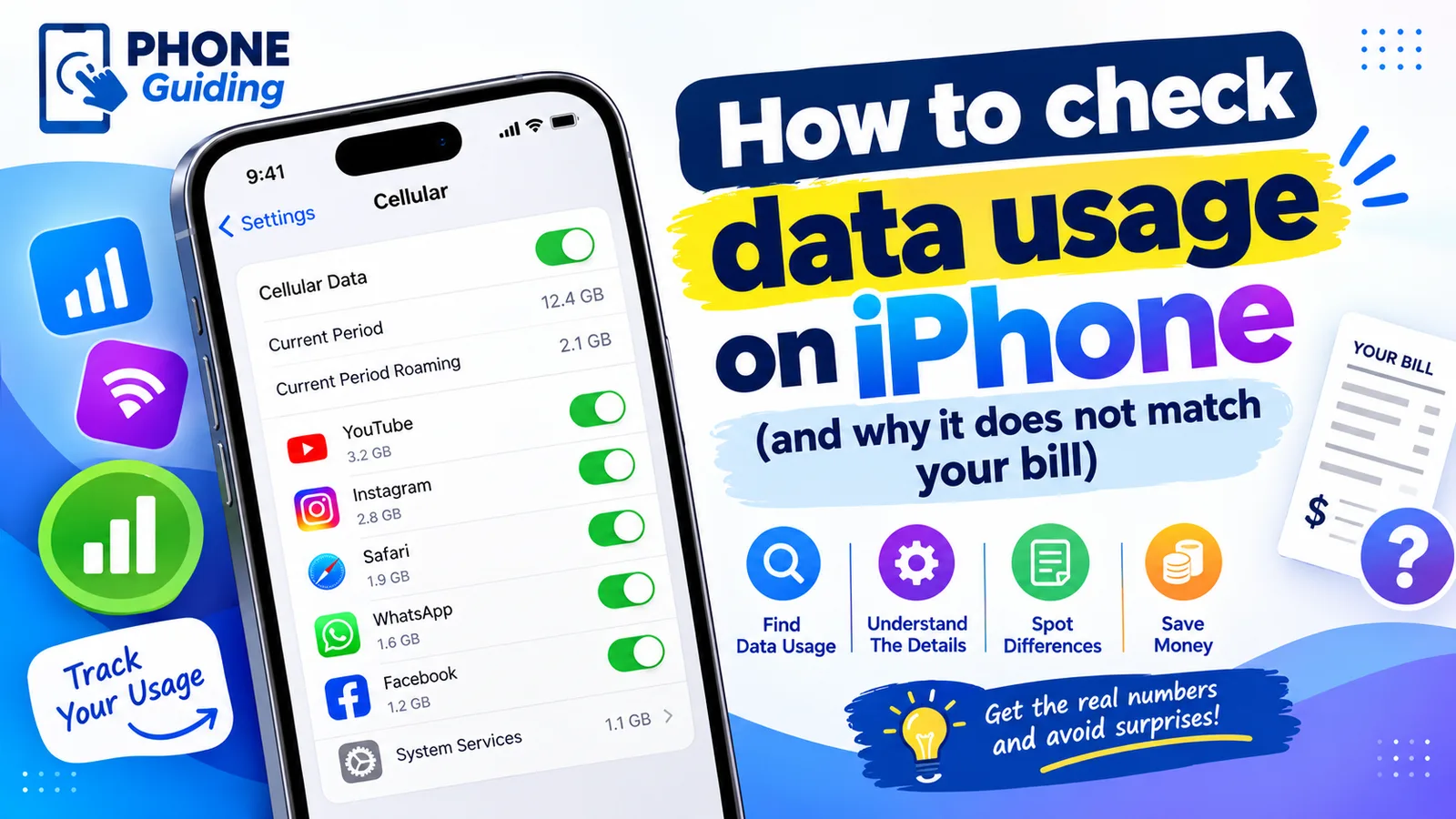
Check data usage on iPhone
Check your cellular data usage on iPhone in Settings › Cellular, see which apps use the most, reset it on your billing date, and cut data use without Wi-Fi.
Android safe mode
Safe mode starts Android with only built-in apps so you can find a bad app. How to turn it on, how to turn it off, and what to do if your phone is stuck in it.
More guides you may need
Is 128GB enough for iPhone
Is 128GB enough for an iPhone? Check what your current phone really uses in Settings, see when 128GB works and when to pick 256GB or more, and what to do if full.
Notifications silenced
Seeing notifications silenced under a text on iPhone? It means a Focus is on. Learn who sees it, how to stop sharing it, and how to let a message through.