

How to hide apps on iPhone (and lock them with Face ID)
iOS 18 and later can hide an app completely behind Face ID. Older tricks only take it off the Home Screen.
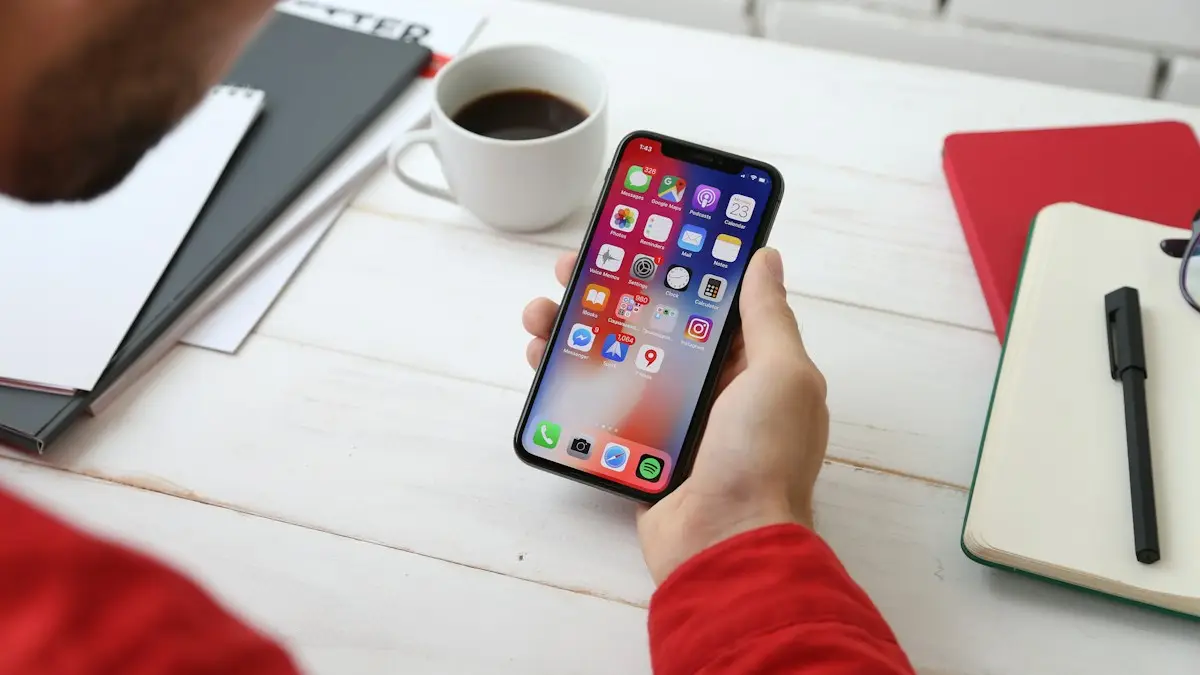
Photo by Yura Fresh on Unsplash
The fix
Hide and lock an app
- 1
Touch and hold the app on the Home Screen.
- 2
Tap Require Face ID (or Touch ID or Passcode).
- 3
Tap Hide and Require Face ID, then Hide App.
The fix
Open or unhide a hidden app
- 1
Swipe left to the App Library and scroll to the bottom.
- 2
Tap Hidden and unlock it.
- 3
Touch and hold the app and tap Don’t Require Face ID to unhide it.
The fix
Only take it off the Home Screen
- 1
Touch and hold the app and tap Remove App.
- 2
Choose Remove from Home Screen. It stays in the App Library.
Which method should you choose?
- Hide and Require Face ID (iOS 18 and later): best for privacy. The app leaves the Home Screen and search and needs Face ID to open.
- Remove from Home Screen: tidies a page, but the app stays in the App Library and search.
- Hide a Home Screen page: hides a whole page of apps from view.
- Screen Time limits: blocks an app at set times or always.
- Delete the app: the only way to fully remove it.
How to hide a whole Home Screen page
Touch and hold an empty part of the Home Screen until the icons wiggle, then tap the row of dots near the bottom. Untick the pages you want to hide. The apps on them stay installed and appear in the App Library. This is quick, but anyone can show the page again the same way, so use it for tidiness, not privacy.
Hide apps that are not in the Hidden folder
Some apps cannot go in the Hidden folder, and system apps like Settings, Camera and Maps are among them. For those, you can limit what they show. Turn off notifications and previews under Settings › Notifications, and turn off Show App in Search and Show on Home Screen in each app's Siri settings (Settings › Apps › [app name] › Siri). For apps that handle private data, check whether the app has its own lock in its settings, such as a PIN or Face ID.
Keep notifications private
Hiding the icon does not hide notifications. Go to Settings › Notifications, pick the app and set Show Previews to When Unlocked or Never, and turn off Lock Screen alerts. For a hidden app, you may prefer to turn notifications off. Otherwise a message preview can appear on your Lock Screen and give away more than the icon.
Find a hidden app and see what is installed
Swipe left past your last Home Screen page to the App Library, scroll to the bottom and open Hidden. Unlock it with Face ID, Touch ID or your passcode. To see everything installed, open Settings › General › iPhone Storage. It lists every app, hidden or not. This is also where to look if you cannot find an app after an update. A hidden app does not show up in Spotlight search, so use the Hidden folder.
Hide purchases in the App Store
Open the App Store, tap your picture, then Purchased (or Apps), swipe left on an app and tap Hide. It leaves your purchase list but stays on the phone if it is already installed. Hidden purchases remain in your account and can be unhidden in your account settings. Family Sharing members may still see purchases shared with the group.
If you share a phone with family or a child
Hiding is a light cover. A person who knows your passcode can reach everything, and a child can often find the Hidden folder. For a child, use Screen Time, App Limits and Content & Privacy Restrictions instead. See Screen Time limits that stop working and setting up an iPhone for a child. To lock the phone to one app for a short time, use Guided Access.
Android users
The steps differ on Android, where hiding relies on the launcher, Secure Folder or Private space. See hiding apps on Android for the Samsung and Pixel steps.
Hide apps on older iOS versions
The Hidden folder arrived in iOS 18. If your iPhone runs an older version, you cannot lock an app behind Face ID in the same way. You can still remove apps from the Home Screen, hide pages and turn off search suggestions. To update, go to Settings › General › Software Update, and if your phone does not support iOS 18, use the older methods. Third-party apps that claim to hide apps are usually just folders with a name, so be careful with them, and never give them your Apple Account password.
Hide the app from search and Siri suggestions
Open Settings, scroll to the app (or open Settings › Apps) and tap Siri. Turn off Show App in Search, Show Content in Search, Suggest App and Show on Home Screen. After this, the app stops appearing in Spotlight and suggestions, though it remains on the phone. This is helpful for apps that you do not use in front of other people, such as a health or finance app.
Turn off notifications and widgets that reveal an app
- Settings › Notifications › [app] › turn off Allow Notifications, or hide previews.
- Remove widgets of the app from the Home Screen and Lock Screen.
- Turn off the app's Live Activities in its settings.
- Check Control Center for shortcuts that belong to the app.
- Remove the app from Focus modes that show Lock Screen apps.
Are hidden apps really private?
They are private from casual viewing, not from someone who has your unlocked phone and your Face ID or passcode. If a family member can open your phone, they can open the Hidden folder too, unless you use a different Face ID for the folder, which is not offered. For banking, health or messaging apps, use the app's own lock where it exists. A strong passcode, Find My and a short Auto-Lock time protect the phone more than hiding. See checking an iPhone for spyware if you worry that someone else has access.
Common questions about hiding apps
- Can I hide an app and still get its notifications? Yes, unless you turn them off.
- Does a hidden app still use storage and battery? Yes, it behaves like any other app.
- Will updates still install? Yes, app updates continue as normal.
- Can I hide the Hidden folder? No. It stays at the bottom of the App Library.
Unhide an app that disappeared
If an app vanished after you tried to tidy up, check the App Library, then the Hidden folder at the bottom, then Settings › General › iPhone Storage. If it is not listed there, it was deleted and you can download it again from the App Store. Look under Purchased in your account. If it is not there, see if the App Store hid the purchase.
Tidy your Home Screen without hiding anything
- Make folders for similar apps, such as Banking or Travel.
- Move rarely used apps to the App Library with Remove from Home Screen.
- Use the Search bar or App Library to open them.
- Group apps by Focus mode, so only the apps for work or home show at the right time.
Tidying makes the phone easier to use and often solves the real reason people want to hide apps.
What about hiding messages and photos?
Apps are only one part of privacy. Photos has its own Hidden album that you can lock with Face ID, and Notes can lock a note with a password. Messages can filter unknown senders. Turn on the Lock for Hidden and Recently Deleted albums in Settings › Apps › Photos. Check Settings › Privacy & Security for apps that can see your photos and location.
If you only want fewer distractions, try a Focus mode that shows a clean Home Screen page for work or sleep. It hides apps for a while without any lock, and it switches on a schedule.
Frequently asked questions
Where do hidden apps go?
Into the Hidden folder at the bottom of the App Library. It opens with Face ID, Touch ID or your passcode.
Why can I not hide some apps?
Built in apps like Settings, Camera, Maps and Calculator cannot be hidden, only locked or removed from the Home Screen.
Can someone see my hidden apps in iPhone Storage?
Yes. Settings › General › iPhone Storage lists every installed app, so hiding is about the Home Screen and search, not about the whole phone.
Will a hidden app still send notifications?
It can. Turn off notifications or previews for the app in Settings › Notifications.
Sources
Official pages these steps are based on. Menus can differ by software version.
People also ask
Can someone still find a hidden app?
With simple hiding, yes: it still shows in Settings › Apps and sometimes in search. Apps in Secure Folder or Private space need your PIN or fingerprint.
Read the full guide: Hide apps on AndroidWhy did this start after I dropped my iPhone?
A drop can shift or damage the TrueDepth parts behind the notch or Dynamic Island. If cleaning and a reset do not help, it needs repair.
Read the full guide: Face ID move iPhone lowerWhat does “Face ID is not available” mean?
It usually means the iPhone cannot talk to the TrueDepth camera. If a restart does not clear it, it is a hardware problem, often after a drop, water damage or a screen repair.
Read the full guide: Face ID not workingIs the iPhone 18 Pro Face ID problem hardware or software?
Apple fixed it with software in iOS 27.0.1, so for most people no repair or replacement should be needed. If Face ID still fails or the phone still restarts after installing the update, ask Apple to run diagnostics.
Read the full guide: iPhone 18 Pro Face ID bugRelated guides
Hide apps on Android
Hide apps on Android from the home screen, or lock them away in Samsung Secure Folder or Pixel Private space. Plus how to find and unhide them later.
Face ID move iPhone lower
Face ID keeps saying move iPhone lower or higher? Clean the camera area, remove the screen protector, restart and reset Face ID, then know when it is hardware.
Face ID not working
Face ID not working or saying “Face ID is not available”? Learn what the message means and try 10 fixes, from cleaning the camera to resetting Face ID.
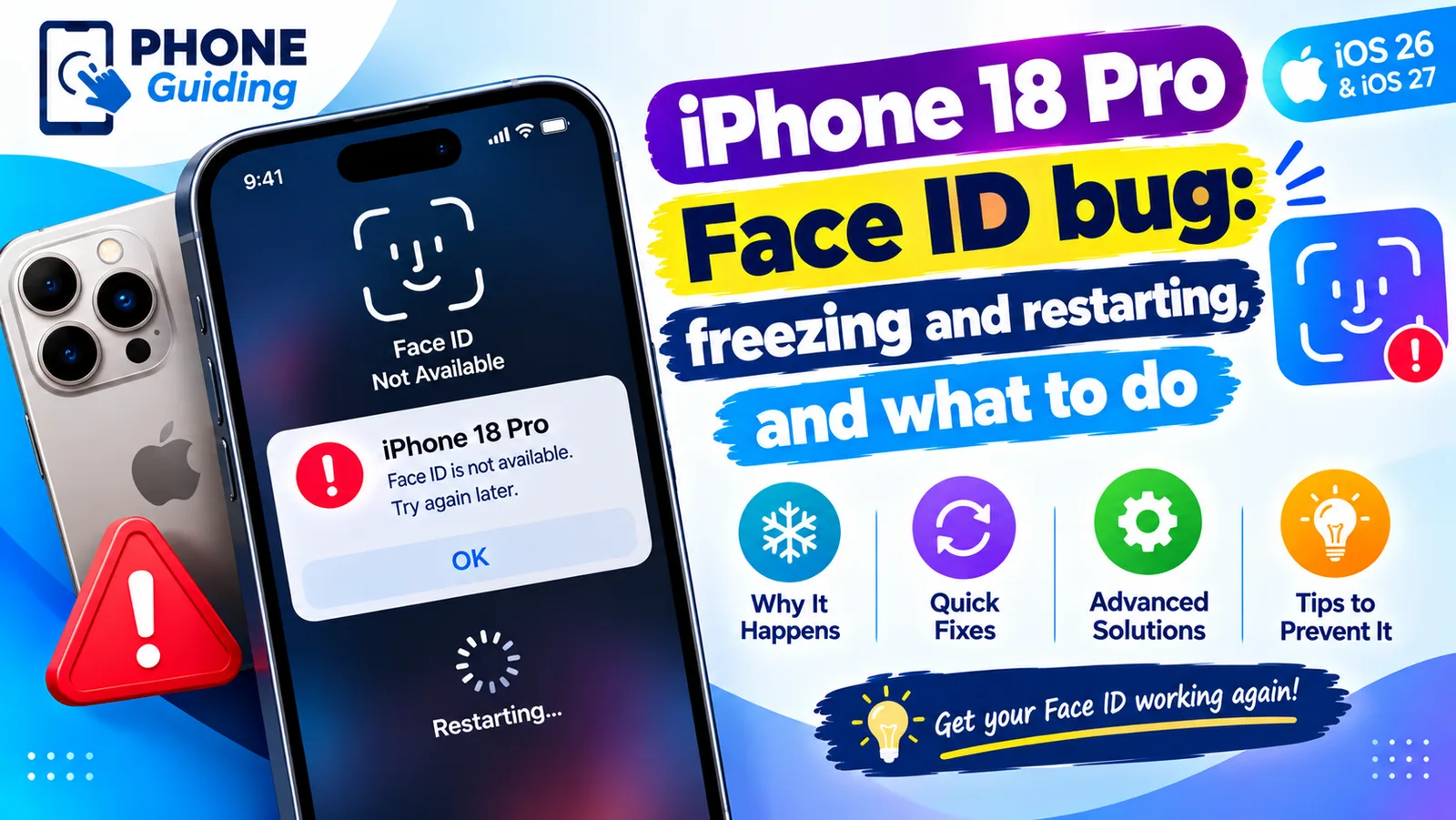
iPhone 18 Pro Face ID bug
iPhone 18 Pro or Pro Max freezing and restarting after Face ID fails? Here is what triggers the bug, a safe workaround, and the iOS 27.0.1 update that fixes it.
More guides you may need
Clean a SIM card on iPhone
Clean an iPhone SIM card and tray safely with a dry lint free cloth. Learn what to avoid, how to test the SIM, and when to replace it if you see No SIM.
Download and install WhatsApp on iPhone
How to download and install WhatsApp on iPhone from the App Store, verify your number and restore chats. Fixes if the code never comes or install fails.