

How to change the alarm sound on iPhone (tones, songs and volume)
Every alarm can have its own sound, from built-in tones to songs from your library. Volume is set separately in Sounds & Haptics.
Photo by omid armin on Unsplash
The fix
Change an alarm’s sound
- 1
Open the Clock app and tap Alarms.
You can also swipe down on the Home Screen and search for Clock, or ask Siri to open it.
- 2
Tap the alarm you want to change, or tap + to create a new one.
If tapping does nothing, tap Edit in the top-left corner first, then tap the alarm.
- 3
Tap Sound.
It shows the name of the current sound, such as Radar. The Snooze, Label and Repeat options are on the same screen.
- 4
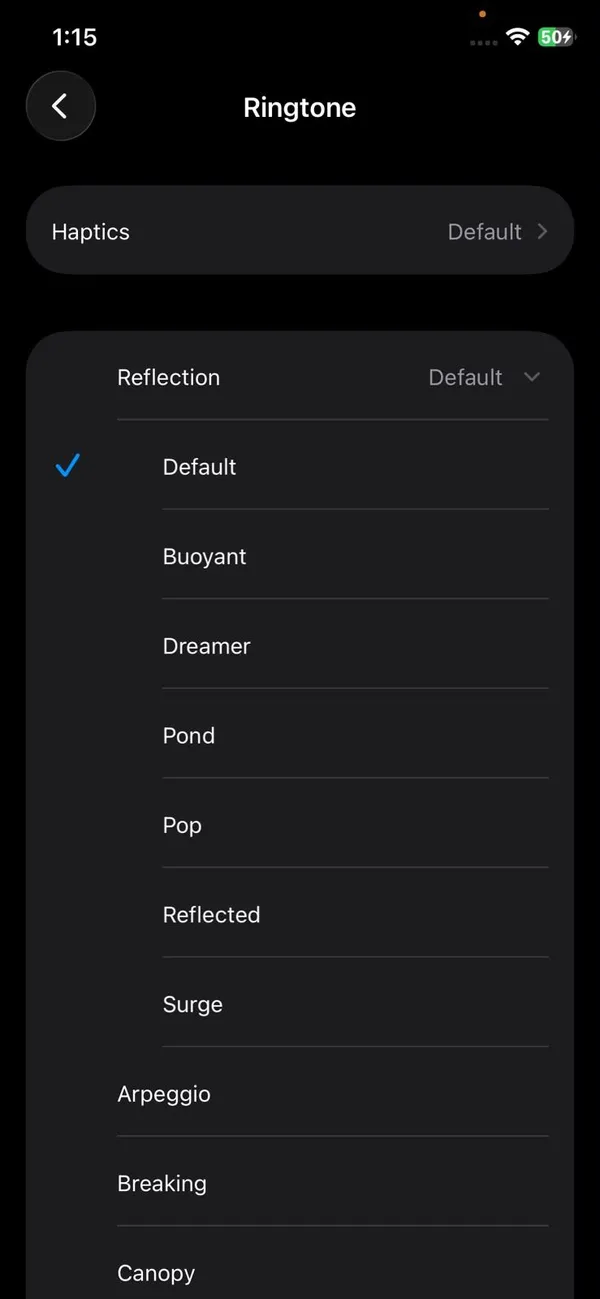
Choose a sound.
Pick one of the ringtones, or tap Pick a Song under Songs to use music from your library. Tapping a tone plays a preview at your alarm volume, so you can hear how loud it will be. Classic tones from older iPhones are in the Classic folder at the bottom of the list.
- 5
Change the vibration if you like.
At the top of the Sound screen, tap Haptics and choose a pattern, or None.
- 6
Tap Back, then Save.
The new sound applies only to that alarm. Repeat for each alarm you want to change.
Each alarm keeps its own sound, so you can have a gentle tone on weekends and a loud one on workdays. There is no setting that changes the sound of every alarm at once, and new alarms start with the default tone, so set the sound as you create each one.
The fix
Change the alarm volume
- 1
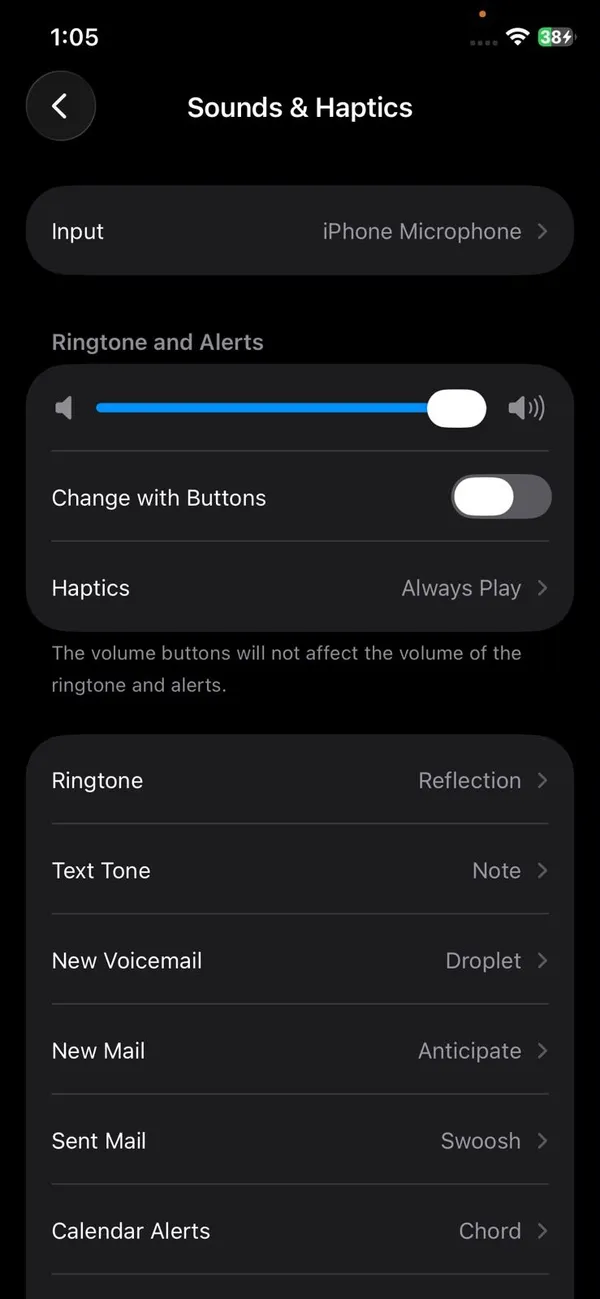
Open Settings › Sounds & Haptics.
- 2
On iOS 27, set the alarm volume on its own.
Under Alarms and Timers, turn off Match Ringtone Volume and drag the alarm slider up. Now your alarm can be loud while calls and texts stay quiet. If this slider is low, the alarm is quiet even with the ringtone at full volume.
- 3
On iOS 26 and older, drag Ringtone and Alert Volume.
Alarms follow this slider. The volume buttons only change it if Change with Buttons is on.
Why the alarm is too quiet
Alarm volume is never the media volume you use for music and videos. On iOS 26 and older it follows Ringtone and Alert Volume; on iOS 27 it can have its own slider. You can have videos loud and alarms almost silent at the same time. On Face ID iPhones, Attention Aware Features also lower the alarm as soon as the phone sees you looking at it. A thick case or a phone lying face down on a soft mattress can muffle the speaker as well.
- Raise the alarm slider in Settings › Sounds & Haptics (Alarms and Timers on iOS 27, Ringtone and Alert Volume on older versions).
- Turn off Change with Buttons if the side buttons keep lowering it.
- Turn off Attention Aware Features in Settings › Face ID & Passcode if the alarm fades when you look at it.
Vibration-only alarm
To wake up without disturbing anyone, open the alarm, tap Sound, scroll to the top of the list of tones and choose None, then tap Haptics and pick a strong vibration pattern. Keep the phone under your pillow or on the bed so you feel it. A paired Apple Watch in Silent mode does the same job on your wrist and is easier to notice.
You can also make your own vibration. In the alarm’s Sound screen, tap Haptics, then Create New Vibration, and tap the screen in the rhythm you want. Tap Save and give it a name. It then appears under Custom for every alarm.
Label and snooze
While you edit an alarm, tap Label to name it, for example Gym or Medication. The label shows on the Lock Screen when the alarm rings, which helps when you have several. The Snooze switch on the same screen decides whether a Snooze button appears. Turn it off for alarms you must not sleep through.
Pick a Song not working?
- Make sure you are signed in to the Music app with your Apple Account, and that the song is in your library, not just playing from search.
- Songs you bought from the iTunes Store also work without an Apple Music subscription.
- If Pick a Song shows nothing, open Settings › Apps › Music and check that Sync Library is on.
- Music from Spotify, YouTube Music or other apps cannot be used in the Clock app.
Choosing a sound that actually wakes you
- Pick a tone with a sharp start, such as Radar or Beacon, if you sleep deeply. Soft tones and songs with long intros are easy to sleep through.
- Change the sound every few months. People get used to a sound they hear every morning and start sleeping through it.
- Put the phone across the room so you have to get up to stop it, and keep it plugged in so it never runs flat overnight.
- Test a new sound at full volume before bed by setting an alarm for two minutes later, then set the real one.
Change the timer sound too
Timers have their own sound, set separately from alarms. In the Clock app, tap Timers, then tap When Timer Ends and choose a tone. There is also Stop Playing at the bottom of that list, which turns a timer into a sleep timer that stops your music or podcast instead of ringing.
Wake Up alarm from your Sleep schedule
The alarm at the top of the Alarms list, marked Sleep | Wake Up, comes from your Sleep schedule. Tap Change next to it, then scroll to Alarm Options to pick its sound. You can also change it in the Health app under Sleep. This alarm has its own volume slider in Alarm Options, so if it is quiet while your other alarms are loud, check that slider.
Using a song as your alarm
- Download the song to your iPhone first, so it plays even without an internet connection.
- Songs play from the start. Pick one that begins loudly enough to wake you.
- If the song is later removed from Apple Music, the alarm falls back to a default tone.
- If your Apple Music subscription ends, songs from it stop working as alarms, so pick a tone for important alarms.
Alarm not making any sound?
- Make sure the alarm’s Sound is not set to None.
- Check the alarm is switched on and set for the right AM or PM and days.
- On iOS 27, check the separate alarm volume in Sounds & Haptics.
- Restart your iPhone after a software update if alarms stop working.
For every other cause, see our full guide to an iPhone alarm that does not go off. If you snooze too often, you can also change how long snooze lasts.
Alarms on Apple Watch and iPad
Alarms you set on the iPhone can also go off on a paired Apple Watch, which taps your wrist. When the watch is in Silent mode it only vibrates, which suits a shared bedroom. On iPad, the Clock app works the same way as on iPhone, with its own alarms and sounds.
Frequently asked questions
Why is my iPhone alarm silent?
The alarm sound may be set to None, the alarm volume may be very low, or a Bluetooth speaker or headphones may be connected. On iOS 27, check the separate alarm volume in Sounds & Haptics. Silent mode does not silence alarms.
Can I use a song as my alarm?
Yes. In the alarm’s Sound menu, tap Pick a Song to choose music from your Apple Music library. Songs downloaded to the iPhone are the most reliable.
Why does my alarm get quieter when I look at my phone?
Attention Aware Features lower it once you look at the screen. Turn them off in Settings › Face ID & Passcode.
Can I use a Spotify song as an alarm?
Not in the Clock app. It only uses tones, purchased sounds and Apple Music songs. Some alarm apps can play Spotify.
Sources
Official pages these steps are based on. Menus can differ by software version.
People also ask
Can I change the notification sound for Instagram or Snapchat?
Usually not. The app decides its own sound. Check the app's notification settings in case it offers a choice, and use WhatsApp's own settings for WhatsApp.
Read the full guide: iPhone sound settingsDoes Silent mode stop my iPhone alarm?
No. Apple confirms that Silent mode, the Ring/Silent switch and Do Not Disturb do not affect alarms from the Clock app. If your alarm was silent, the cause is the alarm sound, the volume or another setting.
Read the full guide: iPhone alarm not going offWhy does my iPhone camera go back to 4:3?
The Camera app resets to its default each time unless Preserve Settings is on. Go to Settings › Camera › Preserve Settings and turn on Creative Controls.
Read the full guide: Change aspect ratio on iPhoneWhy is my iPhone screen recording silent?
Screen recording captures app sound but not your voice by default. Press and hold the Screen Recording button in Control Center and turn on Microphone. Also check the phone is not in Silent mode, which mutes some app sounds.
Read the full guide: Screen record on iPhoneRelated guides
iPhone sound settings
Change iPhone sound settings in one place: text tones, vibration, quiet alerts, voicemail ring time and alarm snooze, with steps for iOS 26 and older.
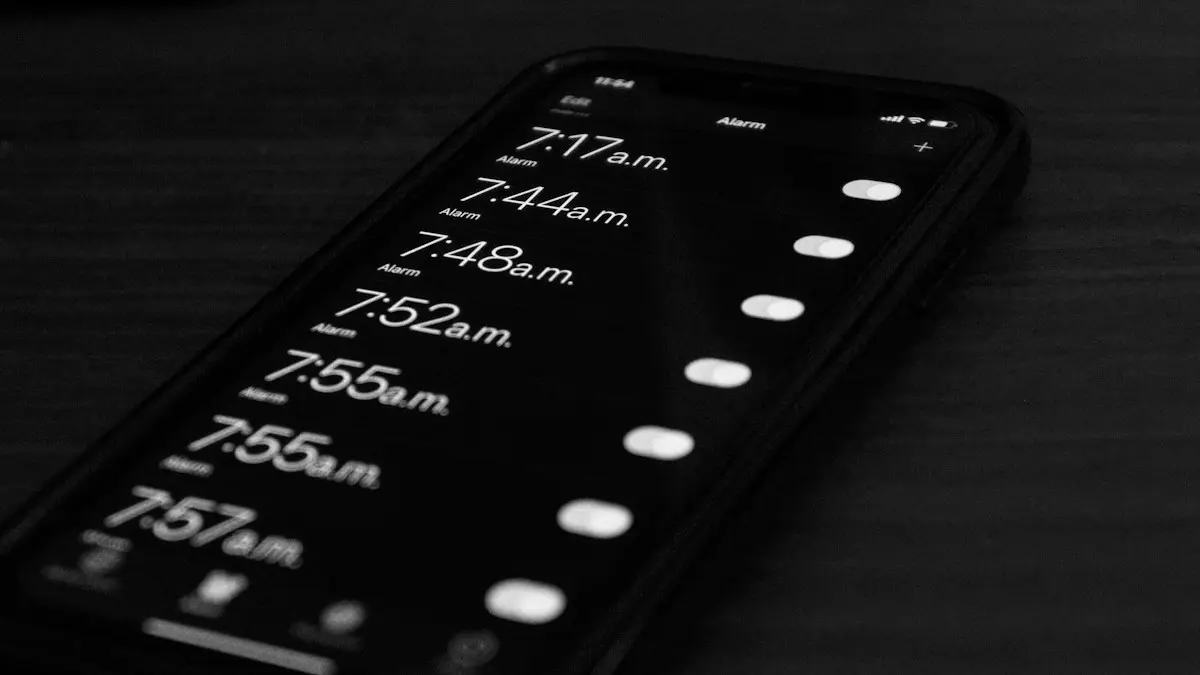
iPhone alarm not going off
iPhone alarm not going off, too quiet or only vibrating? Check the 10 settings that silence alarms, including the iOS 27 alarm volume, and stop oversleeping.
Change aspect ratio on iPhone
Change your iPhone camera aspect ratio to 16:9, 4:3 or square, pin the control to the top bar in iOS 27, keep it as default, and reshape photos you took.
Screen record on iPhone
Screen record on your iPhone in seconds. Add the button to Control Center, record your voice with the microphone, and find and trim your video in Photos.
More guides you may need
Set up Android Auto
Set up Android Auto for the first time with a USB cable or wirelessly, grant the right permissions, and customize which apps show on your car’s screen.
Set up voicemail on Android
Set up voicemail on any Android phone by pressing and holding 1, creating a PIN and recording a greeting. Plus visual voicemail on Samsung and Pixel.