

iPhone sound settings: tones, vibration, quiet alerts and snooze
Tones and vibration live in Sounds & Haptics. Quiet alerts live in Notifications. Voicemail ring time is set by your carrier.
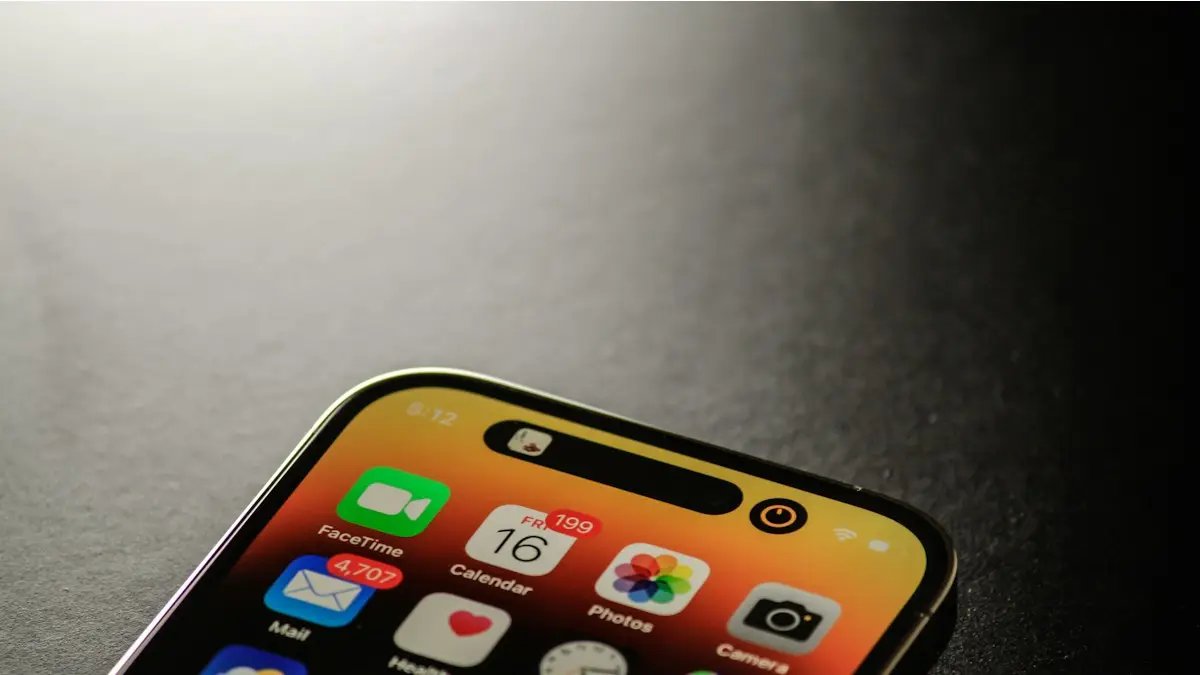
Photo by James Yarema on Unsplash
Sound is spread across several apps on an iPhone, which makes simple changes hard to find. This guide covers the five settings people look for most: notification tones, vibration patterns, quiet notifications, how long the phone rings before voicemail and how long an alarm snoozes. Menu names can differ a little between iOS versions, so use the search field at the top of Settings if something is missing.
How to change the notification sound on iPhone
The fix
Change the sound for Apple apps
- 1
Open Settings › Sounds & Haptics.
- 2
Tap Text Tone, New Mail, Calendar Alerts or Default Alerts.
- 3
Pick a sound, listen to it, then go back.
The same menu has Ringtone, Voicemail, Sent Mail and other alert sounds. If you only want one person to sound different, open Contacts and pick them, tap Edit, then Text Tone or Ringtone, choose a sound and tap Done. That is useful for a partner, a parent or a work number you never want to miss.
Third-party apps decide their own sounds. WhatsApp lets you pick one in WhatsApp › Settings › Notifications, but many apps, including Instagram and Snapchat, do not offer a choice at all. If you want a custom sound, buy one in the Tone Store, or make one in GarageBand and export it as a ringtone. It then appears in the tone list. If your phone is silent for calls, read this fix for an iPhone that does not ring.
How to change vibration on iPhone
The fix
Change or create a vibration pattern
- 1
Open Settings › Sounds & Haptics.
- 2
Tap Ringtone or Text Tone, then Haptics.
- 3
Pick a pattern, or tap Create New Vibration.
- 4
Tap the screen to record a rhythm, then tap Stop and Save.
Under Sounds & Haptics you can also choose when the phone vibrates: always, only in silent mode, or never. For one contact, set a pattern in their contact card in the same way as a tone. Stronger vibration is not a setting. A pattern such as Alert or Heartbeat feels stronger than a short tap, and a custom pattern made of long taps feels stronger still.
To turn off all vibration, open Settings › Accessibility › Touch › Vibration. Be careful: this also turns off vibration for emergency alerts. If your iPhone does not vibrate even though you want it to, check the same switch, then confirm Haptics is not set to Never, and make sure Silent mode is not hiding the vibration you expect.
Turn off Deliver Quietly (Delivered Quietly) and alerts that make no sound
Deliver Quietly sends an app's notifications to Notification Center without a sound, banner or badge. It is handy for noisy apps, and a problem when you want to hear an app and cannot work out why you do not. On newer iOS versions the Deliver Quietly button was removed. The same result now comes from turning off sounds and banners for an app. To turn it off for an app, use the steps below so it alerts normally again. If you saw Delivered Quietly under a message you sent, that is different: the other person had a Focus on. See why an iMessage shows Delivered Quietly.
The fix
Make an app alert normally again
- 1
Open Settings › Notifications and tap the app.
- 2
Turn on Lock Screen, Notification Center and Banners.
- 3
Turn on Sounds and Badges.
- 4
Turn off any Focus in Control Center, since a Focus can silence apps too.
If only one chat is silent, Hide Alerts is on for that chat. In Messages, swipe left on the conversation and tap the bell to bring alerts back. On older iOS, you can also swipe left on a quiet notification, tap Options or Manage and choose Deliver Prominently. For a specific messaging app that stays quiet, such as WhatsApp alerts that never arrive, check its own settings and battery rules as well.
How to change the number of rings before voicemail
There is no iPhone setting for this. Your carrier controls how long the phone rings, and the iPhone only follows. On AT&T, T-Mobile and many other carriers that use the GSM system, you can change it with a code. On Verizon, the codes do not work, and you need to contact customer service.
The fix
AT&T, T-Mobile and other GSM carriers
- 1
Open the keypad, dial *#61# and tap Call to see your voicemail number.
- 2
Write down the voicemail number shown.
- 3
Dial *61*, then that number, then *11*30# and tap Call. Use any time from 5 to 30 seconds. 30 is about six rings.
- 4
Wait for the confirmation message.
If you get an error, your carrier may not support the code, or the voicemail number is wrong. Call the carrier and ask them to change the no answer time for you. Longer than 30 seconds is usually not allowed. If callers never reach voicemail at all, or you cannot set it up, read about setting up voicemail on iPhone and changing your voicemail greeting. Missing calls entirely is a different problem, covered in calls that do not come through.
How to change snooze time on iPhone
On iOS 26 and later, each alarm has its own snooze length. Open the Clock app, tap Alarms, tap the alarm or the plus button for a new one, make sure Snooze is on, tap Snooze Duration and choose anything from 1 to 15 minutes. Tap Save. Snooze Duration is set per alarm, so change it on each one.
On iOS 18 and earlier, the snooze is fixed at 9 minutes and cannot be changed. The workaround is to turn Snooze off on your main alarm and add extra alarms a few minutes apart, such as 5 minutes. If you are not sure which version you have, open Settings › General › About, or see how to update your iPhone. To change what an alarm sounds like, read how to change the alarm sound.
Why your iPhone sound settings seem not to work
- Check the silent switch or Silent mode first. It changes vibration and ringer behavior, even if your sound choices are right.
- Check Focus. A scheduled Focus can mute apps without telling you.
- Test with a contact that has no custom tone, since a custom tone set to None overrides your default.
- Restart the iPhone and install the latest update.
- If every sound is distorted or silent, even in music, the speaker may be blocked or damaged. A repair quote is worth getting before you replace the phone.
Other sound and haptic switches worth knowing
Beyond tones, Settings › Sounds & Haptics holds a few switches that explain a lot of puzzling behavior. The Ringer and Alerts slider sets the volume for calls and alerts. Change with Buttons decides whether the volume buttons also move that slider, which is why the ringer can be too quiet even when media volume is high. System Haptics turns the small taps you feel on the screen on or off. Keyboard Feedback lets you add click sounds or a tap to typing, and Lock Sound plays a sound when you lock the phone.
Most iPhones have a Ring/Silent switch on the side. Newer models with an Action button can use it for Silent mode instead. When Silent mode is on, the phone stays quiet for calls and alerts, but it can still vibrate if Haptics allows it. If you wear AirPods or another Bluetooth device, sound may play there instead of the phone, so disconnect them for a test call.
Which sound problem do you have?
- Calls are silent: check Silent mode, the Ringer and Alerts slider, Focus and any Bluetooth device.
- Texts are silent: check the Text Tone, the chat's Hide Alerts setting and the app's notification settings.
- One person sounds different or silent: check their contact card for a custom tone or vibration set to None.
- The phone rings too long or too short: that is a carrier setting, so use the voicemail code section above.
- The alarm snooze is too long: set the Snooze Duration on iOS 26, or add extra alarms on older versions.
What to try next
Frequently asked questions
Can I change the notification sound for Instagram or Snapchat?
Usually not. The app decides its own sound. Check the app's notification settings in case it offers a choice, and use WhatsApp's own settings for WhatsApp.
Why does my iPhone not vibrate at all?
Vibration may be off in Settings › Accessibility › Touch, or Haptics may be set to Never in Settings › Sounds & Haptics. Turn both on and test again.
Why is iPhone snooze 9 minutes?
It copies old mechanical alarm clocks. On iOS 18 and earlier it cannot be changed, but iOS 26 lets you pick 1 to 15 minutes for each alarm.
What is the longest time a phone can ring before voicemail?
Usually 30 seconds, which is about six rings. Carriers do not allow longer.
People also ask
Why is my iPhone alarm silent?
The alarm sound may be set to None, the alarm volume may be very low, or a Bluetooth speaker or headphones may be connected. On iOS 27, check the separate alarm volume in Sounds & Haptics. Silent mode does not silence alarms.
Read the full guide: Change alarm sound on iPhoneDoes Silent mode stop my iPhone alarm?
No. Apple confirms that Silent mode, the Ring/Silent switch and Do Not Disturb do not affect alarms from the Clock app. If your alarm was silent, the cause is the alarm sound, the volume or another setting.
Read the full guide: iPhone alarm not going offWhy does my Samsung vibrate when there is no notification?
Common causes are a notification reminder that buzzes about old alerts, the alert when phone picked up feature, system vibration for taps and gestures, or an app that sends silent alerts. Cards stored in a phone case can also set off the NFC reader.
Read the full guide: Samsung vibrating for no reasonWhy is my Apple Watch not vibrating for texts?
The most common reasons are Haptic Alerts set to Off, a Focus or Do Not Disturb that is on, or your iPhone being unlocked so the text appears there instead. Messages notifications can also be set to custom or off in the Watch app.
Read the full guide: Apple Watch not vibratingRelated guides
Change alarm sound on iPhone
Change your iPhone alarm sound to a new tone or a song in the Clock app, set the alarm volume and vibration, and fix an alarm that makes no sound.
iPhone alarm not going off
iPhone alarm not going off, too quiet or only vibrating? Check the 10 settings that silence alarms, including the iOS 27 alarm volume, and stop oversleeping.
Samsung vibrating for no reason
Galaxy phone buzzing with no call or message? Turn off the settings that cause random vibration, test in Safe Mode and learn when the motor is the problem.
Apple Watch not vibrating
Apple Watch quiet for texts, calls or notifications? Check haptic alerts, Focus, the iPhone unlock rule and per-app settings before you reset or repair it.
More guides you may need
iPhone Safari settings
Change iPhone Safari settings in one place: default browser, search bar position, SafeSearch, autofill address, DNS and IP address, for iOS 18 and iOS 26.
Verification codes on iPhone
Verification codes on iPhone: how OTP and 2FA codes arrive, how to AutoFill them from Messages and Mail, use Passwords, and fix codes that don't come.