

iPhone stuck in headphone mode? 8 fixes to get sound back
When an iPhone thinks headphones are still connected, the speaker stays silent. Eight fixes in order: audio output, Bluetooth, the port, Silent mode, restart and service, with Apple's own checks.
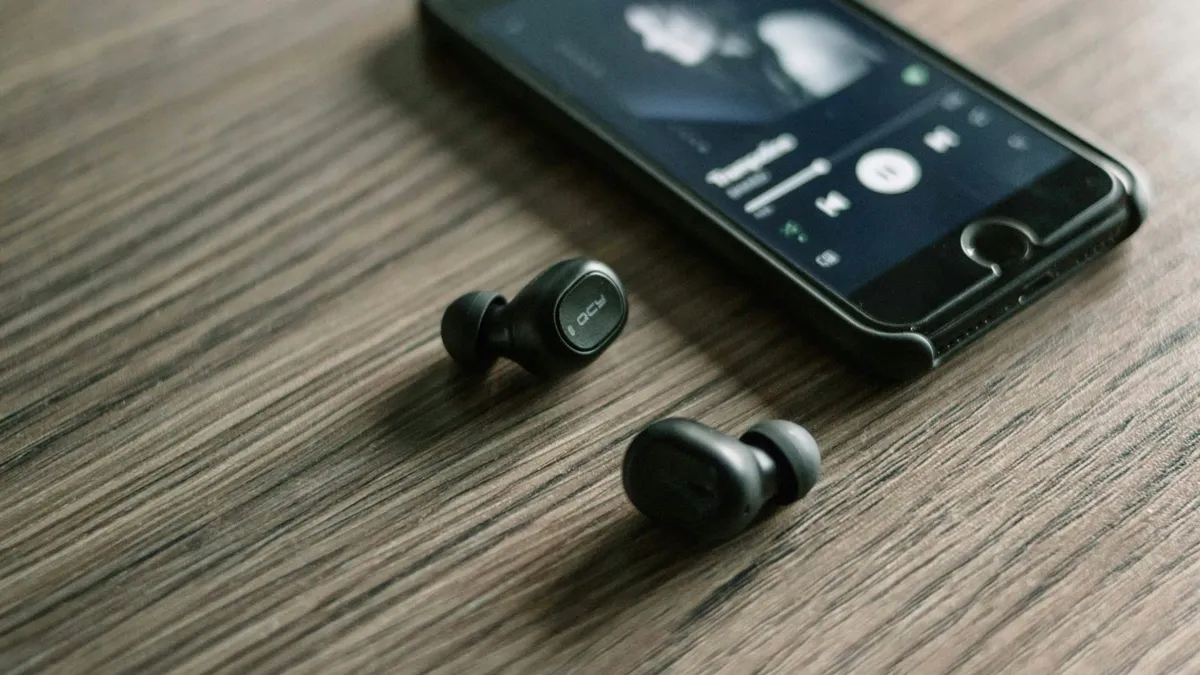
Photo by Zarak Khan on Unsplash
You unplug your earphones or switch off your AirPods and the sound does not come back. The speaker is silent, calls are quiet, and a small headphone icon sits in the volume bar or in Control Center. Your iPhone is behaving as if something is still connected. This is a known annoyance, and it has two usual causes: the audio is still being sent to a Bluetooth device, or the port is reporting an accessory that is not there. Apple has no single page for this state, but its pages on speakers and headphones give a solid set of checks. Below are eight fixes, from the quickest to the last resort.
Why is your iPhone stuck in headphone mode?
Your iPhone chooses where to play sound: the speaker, wired headphones or a Bluetooth device. Normally it switches back to the speaker when you disconnect the accessory. When it does not, one of these is usually the reason.
- It is still paired and connected by Bluetooth. A pair of earbuds in a case, a speaker, a car or a watch nearby can hold the audio.
- The audio output is set to another device. A call or an app may have chosen it and not switched back.
- The charging port sees an accessory. Debris, lint or moisture can make the port think something is plugged in. This is commonly reported, and Apple does not describe it in these pages.
- The Ring/Silent switch or a Focus is hiding the sound. This looks like headphone mode but is not.
- A software glitch. Sometimes a restart or an update clears it.
- A hardware fault. A damaged speaker or port is the last cause to assume.
Fix 1: Check the Ring/Silent switch and Focus
This is the first check on Apple's page for a silent speaker. Make sure the Ring/Silent switch does not show orange, or that your Action button is not set to Silent. Then open Settings, tap Focus, and confirm Do Not Disturb is off. Apple says to make sure that Do Not Disturb is off. A phone in Silent mode can look as if it is stuck on headphones when it is only quiet.
Fix 2: Choose iPhone as the audio output
Switch the audio back to the iPhone
- 1
Open Control Center.
Swipe down from the top right corner on an iPhone with Face ID, or up from the bottom on one with a Home button.
- 2
Press and hold the music or sound card, then tap the audio output icon.
It looks like a set of rings with a triangle.
- 3
Choose iPhone from the list.
Pick iPhone, not a speaker, a car or a pair of earbuds.
- 4
Play a sound and check the volume.
Use the volume buttons to turn it up.
Fix 3: Turn Bluetooth off and unplug everything
Swipe down to Control Center and tap the Bluetooth icon to turn it off. This disconnects every Bluetooth device in one step. Then unplug any wired accessory, adapter, charger or cable. Wait a few seconds and test the speaker. If the sound returns, Bluetooth was holding the audio. Turn Bluetooth back on, then open Settings, tap Bluetooth and look at the list. If an old device is listed as connected, tap its info button and tap Forget This Device, then pair again later. If AirPods are the problem, see our guide on Bluetooth problems on iPhone.
Fix 4: Check the port for debris
Apple's page on headphones that do not work tells you to check the headphone port for debris, and to gently brush openings with a small, soft-bristled brush that is clean and dry. On modern iPhones the charging port is the place to look. Shine a light in the port. If you see lint, brush it out gently with a small, soft-bristled brush that is clean and dry. Do not push anything metal into the port, such as a paper clip or a pin, because it can damage the contacts. If debris is packed deep, let an Apple Store or authorized service provider clean it. Do not blow into the port with your mouth, because moisture can make things worse. If the phone shows a message about liquid, stop and read our guide on water in the speaker.
Fix 5: Test the speaker properly
Apple's speaker page describes two tests. Open Settings, tap Sounds & Haptics, and drag the Ringtone and Alerts slider back and forth. If you hear nothing, or the speaker button is dimmed, Apple says your speaker might need service. Then make a call and turn on speakerphone. If you still hear nothing or hear static, the network or the reception may be the cause, so try again later or from another place. These two tests tell you if the speaker works at all, which separates a software routing problem from a broken speaker.
Fix 6: Remove the case, and clean the speaker openings
Apple tells you to remove all screen protectors, films and cases, and to check the speaker opening to see if it is blocked or dirty. Brush the opening with a small, soft-bristled brush that is clean and dry. A case can cover the speaker or press on a button, and a film can block the receiver. Test again with everything off.
Fix 7: Restart and update iOS
Apple's headphones page begins with this step: make sure the iPhone has the latest version of iOS, then restart it. Open Settings, tap General, tap Software Update and install any update. Then restart the iPhone by holding the side button and either volume button and sliding to power off. If a software glitch caused the stuck state, this usually clears it. See how to update an iPhone if you need the steps.
Fix 8: Reset settings, then book service if needed
If the speaker passed the test in Fix 5 but the iPhone still acts as if headphones are connected, reset the settings. This does not erase your data. Open Settings, tap General, tap Transfer or Reset iPhone, tap Reset and choose Reset All Settings. It resets things such as Wi-Fi networks and privacy choices, so back up first. If the sound is still stuck, or the speaker failed the test, contact Apple Support or visit an Apple Store or authorized service provider. Tell them which of the tests passed. That shortens the visit.
What if the sound works for calls but not for music?
Then the speaker is fine, and an app or a setting is the cause. Check the volume with the buttons while the music plays, because call volume and media volume are separate. Check that the app is not set to play to another device, and look at the audio output picker in Fix 2. A Bluetooth device may be connected as a media output even when it is not in use.
How can you stop it from happening again?
- Eject or disconnect Bluetooth earbuds and speakers properly, and keep them out of range when you are done with them.
- Check the audio output icon in Control Center after a call in the car, since cars and speakers often keep the connection.
- Keep the charging port clean. Lint from a pocket builds up over months.
- Do not charge or use the phone with wet ports. Dry it first and let a liquid alert clear.
- Install iOS updates, which fix many audio routing bugs.
Does iOS 27 change anything here?
Menu names and icons can move between iOS versions, so the Control Center layout in your phone may differ a little from the steps. The ideas stay the same: choose the right audio output, disconnect accessories, check the port, test the speaker, restart and update. If something looks different, use the search box in Settings to find Bluetooth or Sounds & Haptics.
Still stuck in headphone mode?
Try a different pair of headphones. Apple's headphones page says that if a second pair works, the first pair needs replacing from the maker, and if it does not, to contact Apple Support. Look at the AirPods, speakers and car systems in range, since they may be reconnecting on their own. If you use AirPods, read our guide on an AirPods microphone that does not work and on headphone settings. A persistent problem after all of this is worth a service visit.
Frequently asked questions
Why does my iPhone say headphones are connected when they are not?
It may still be routing audio to a Bluetooth device nearby, or the charging port may be detecting an accessory because of debris or moisture. Check both.
How do I switch the sound back to the iPhone speaker?
Open Control Center, press the music card or the audio output icon, and choose iPhone. Turning Bluetooth off for a moment also forces the sound back.
Is it safe to clean the iPhone charging port myself?
Apple suggests using a small, soft-bristled brush that is clean and dry for openings. Do not push metal objects into the port.
When should I get the iPhone repaired?
If the speaker stays silent after a restart and after a speaker test in Settings, or you see a water alert, contact Apple Support.
What to try next
Sources
Official pages these steps are based on. Menus can differ by software version.
People also ask
Why does my iPhone 15 bottom speaker not work but the top one does?
The bottom loudspeaker may be blocked by lint, covered by a case, wet, or damaged. Clean the grille gently, remove the case and test with a ringtone. If only the top works after that, the bottom speaker needs a repair.
Read the full guide: Phone speaker not workingWhy does my iPhone not show battery percentage?
The Battery Percentage switch may be off, or your model may not offer it. Apple says to open Settings, tap Battery and turn on Battery Percentage. On an iPhone with Face ID the number appears inside the battery icon.
Read the full guide: iPhone battery percentage not showingWhy did my iPhone contacts disappear?
The most common causes are a hidden list or account, iCloud or Gmail Contacts turned off, signing out of your Apple Account, or deleting contacts by mistake. An update or a restore can also change which account is shown.
Read the full guide: iPhone contacts missingCan I unlock it without losing data?
Only with the correct passcode, or a passcode you changed in the last 72 hours using Enter Previous Passcode. Otherwise erase it and restore your backup.
Read the full guide: iPhone UnavailableRelated guides
Phone speaker not working
Phone speaker not working? Check volume, Silent mode, Bluetooth and Do Not Disturb, clean the speaker safely and try 4 more fixes on iPhone or Android.
iPhone battery percentage not showing
iPhone battery percentage not showing in the status bar? Turn on Battery Percentage, check your model, use Control Center or a widget. 7 ways to see the number.
iPhone contacts missing
iPhone contacts missing or disappeared? Check your Lists, iCloud and Gmail sync, then restore contacts from iCloud.com or a backup. 7 ways to get them back.
iPhone Unavailable
iPhone Unavailable or Security Lockout after wrong passcodes? Wait out the timer, try your old passcode, or erase it from the lock screen and restore a backup.
More guides you may need
iPhone camera unknown part
iPhone camera unknown part message after an update or repair? Learn what Unknown, Genuine and Used mean, how to check, and when it is worth fixing.
iPhone contacts missing
iPhone contacts missing or disappeared? Check your Lists, iCloud and Gmail sync, then restore contacts from iCloud.com or a backup. 7 ways to get them back.