

iPhone notifications not showing on lock screen? 8 fixes
When alerts vanish from the Lock Screen, a per-app switch, the Display As setting or a Focus is usually hiding them. The alert often still exists, just out of sight.
Photo by Brian J. Tromp on Unsplash
You pick up your iPhone and the Lock Screen is empty. Later you open Messages and there are a dozen texts waiting. Nothing is wrong with the phone. One of a few notification settings is hiding the alerts.
The tricky part is that the alert may still exist. It can sit in Notification Center, wait in a summary, or show only as a count. The fixes below go from the most common cause to the least, so you can stop as soon as the alerts come back.
iPhone notifications not showing on lock screen: why it happens
- Lock Screen is off for the app. Each app has three places to show alerts: Lock Screen, Notification Center and Banners.
- Display As is set to Count. You see a number, not the alerts.
- A Focus is on. Focus can silence apps and even hide the badges.
- Scheduled Summary. Alerts are held back and delivered at set times.
- Another device has your attention. An Apple Watch on your wrist can get the alert first.
- A software glitch. A restart or update clears it.
Fix 1: Turn on Lock Screen for the app
This is the most common cause when one app is missing. Apple's own notification settings let you pick where each app can show alerts. If Lock Screen is unchecked, the app will never appear when the phone is locked.
- 1
Open Settings › Notifications.
- 2
Scroll to the app and tap it.
- 3
Turn on Allow Notifications if it is off.
- 4
Under Alerts, make sure Lock Screen is selected.
The circles should be filled in for Lock Screen, Notification Center and Banners if you want all three.
- 5
Lock the phone and send yourself a test alert.
Tap Sounds on the same page and check that the alert sound is not set to None. A badge on the icon and an alert sound are separate switches.
Fix 2: Change Display As to Stack or List
Open Settings › Notifications and look at Display As at the top. It has three choices: Count, Stack and List. With Count, the Lock Screen shows only a number at the bottom, such as 5 Notifications. Tap it or swipe up to expand them, or switch to Stack or List so alerts appear on the Lock Screen all the time.
Fix 3: Turn off Focus or Do Not Disturb
Swipe down from the top right corner to open Control Center. If you see a Focus name or the moon icon, tap it to turn it off. A Focus can quiet an app, and with some options it can also hide notification badges or dim the Lock Screen. Check the schedules too. A Sleep or Work Focus that turns on by time or location can run without you noticing.
- Open Settings › Focus, tap the active Focus and look at People and Apps. Notifications from apps not on the allowed list are silenced.
- Check Options in that Focus for settings that hide badges or dim the Lock Screen.
- Under Time Sensitive, you can let urgent alerts through while the Focus is on.
Our guide to how Do Not Disturb works on iPhone goes through the allowed people and apps.
Fix 4: Check Scheduled Summary
Scheduled Summary collects non urgent alerts and delivers them at times you choose, for example 8 AM and 6 PM. If an app is in the summary, its alerts will not appear on the Lock Screen when they arrive. They show later, as a group.
- 1
Open Settings › Notifications › Scheduled Summary.
- 2
Turn the summary off, or scroll down to Apps in Summary.
- 3
Switch off the apps you want to see right away.
Fix 5: Look at Show Previews and Face ID
Show Previews is under Settings › Notifications. If it is set to When Unlocked or Never, the alert still appears, but the text is hidden. You will see only the app name and a line such as Notification. It is a privacy choice, so it may not be a fault.
With Face ID, the preview can show after your phone recognizes you. If you wear a mask, sunglasses or hold the phone at a sharp angle, Face ID may fail to see you and the content stays hidden. Look straight at the screen and try again.
Fix 6: Check your Apple Watch and other devices
If you wear an Apple Watch and it is unlocked on your wrist, alerts usually go to the watch and not to the iPhone. That is by design. Take the watch off and test again. If the alerts then show on the iPhone, nothing is broken.
If you are signed in on a Mac or iPad that is awake, it can take the alert first too. Lock those devices, or close them, and test again.
Fix 7: Turn off Low Power Mode and restart
Low Power Mode cuts back background activity to save battery, so some apps check for new content less often. Turn it off under Settings › Battery and test. See Low Power Mode explained for the full list.
Then restart the iPhone. Press and hold the side button and a volume button, slide to power off, wait 30 seconds and turn it back on. A restart clears a stuck notification process, and it takes a minute. Next, open Settings › General › Software Update and install anything that is waiting. Our guide to how to update iOS has the details.
Fix 8: Reset the app or reset all settings
If one app is still silent, delete it and install it again from the App Store, then allow notifications when it asks. For many apps at once, reset all settings. Back up first, as a precaution.
- 1
Open Settings › General › Transfer or Reset iPhone.
- 2
Tap Reset, then Reset All Settings.
Do not choose Erase All Content and Settings, which wipes the phone.
- 3
Enter your passcode and confirm.
- 4
Open your main apps and allow notifications again.
Take a moment to back up your iPhone first if you have not lately.
Which symptom points to which fix?
- One app missing: the app's Lock Screen switch, then Scheduled Summary.
- Only a number shows: Display As.
- Everything missing at certain times: a Focus schedule.
- Alerts show but are blank: Show Previews and Face ID.
- Alerts arrive late: Low Power Mode, Scheduled Summary or the connection.
- Nothing after all of this: restart, update, reset all settings.
How to keep Lock Screen alerts working
- Pick Stack or List for Display As, so alerts are visible.
- Keep your important apps out of Scheduled Summary.
- Review your Focus schedules after a trip or a time change.
- Allow notifications when an app asks, and change it later in Settings if you regret it.
- Keep iOS and your apps updated.
- If the iPhone does not ring either, see an iPhone that stays silent.
Frequently asked questions
Why are my iPhone notifications not showing on the Lock Screen?
Usually the Lock Screen option is off for that app, Display As is set to Count, a Focus is hiding alerts, or the alert went to the Scheduled Summary. Check Settings › Notifications and the app's own entry.
Why do I only see a number at the bottom of my Lock Screen?
Display As is set to Count. Go to Settings › Notifications and choose Stack or List to see the alerts themselves.
Do notifications show when the iPhone is unlocked?
They appear as banners at the top instead of on the Lock Screen. If you do not see banners either, check the Banners option for the app.
Will Reset All Settings delete my data?
No. Apple says it resets settings such as network, keyboard dictionary, Home Screen layout and privacy settings to their defaults. Your data and media are not deleted. You will need to allow notifications again for some apps.
What to try next
People also ask
Why does Do Not Disturb keep turning on by itself?
A schedule or automation is turning it on, or Share Across Devices is copying it from your iPad, Mac or Apple Watch. Check Set a Schedule in Settings › Focus › Do Not Disturb, and turn off Share Across Devices in Settings › Focus if needed.
Read the full guide: Change Do Not Disturb on iPhoneDoes notifications silenced mean I was blocked?
No. It means the other person has a Focus on and shares their Focus status. The message is delivered and waits for them.
Read the full guide: Notifications silencedWhy is my iPhone keyboard not showing up?
The common reasons are a Bluetooth keyboard that is still connected, a third party keyboard that is stuck, or a frozen app. Disconnect Bluetooth accessories, switch to the Apple keyboard and force close the app.
Read the full guide: iPhone keyboard not showing upWhy are my Android notifications not showing on the lock screen?
The lock screen setting may be set to hide notifications, or Hide silent notifications may be on. On a Pixel, check Settings › Notifications › Notifications on lock screen. On a Samsung phone, check Settings › Notifications › Lock screen notifications.
Read the full guide: Android notifications not showingRelated guides
Change Do Not Disturb on iPhone
Change Do Not Disturb on iPhone: turn it on or off, let family and repeated calls through, set a schedule, and stop it from turning on by itself.
Notifications silenced
Seeing notifications silenced under a text on iPhone? It means a Focus is on. Learn who sees it, how to stop sharing it, and how to let a message through.
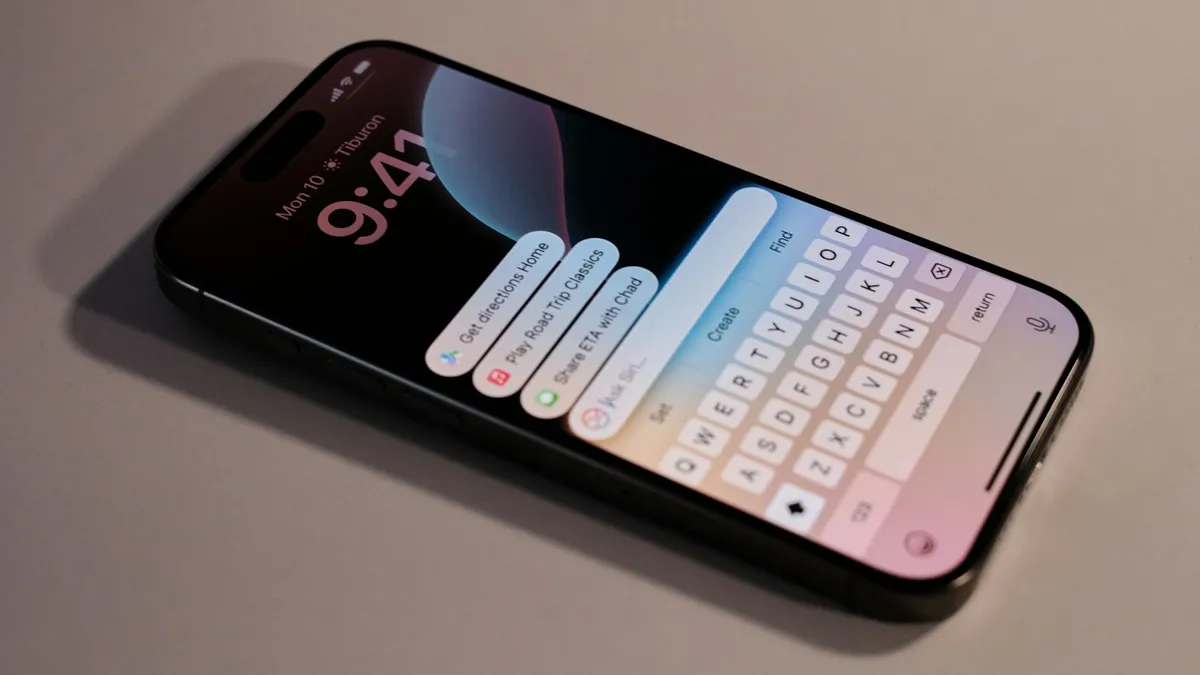
iPhone keyboard not showing up
iPhone keyboard not showing up in Messages, Safari or another app? Disconnect Bluetooth, remove extra keyboards, reset the dictionary and try 5 more fixes.
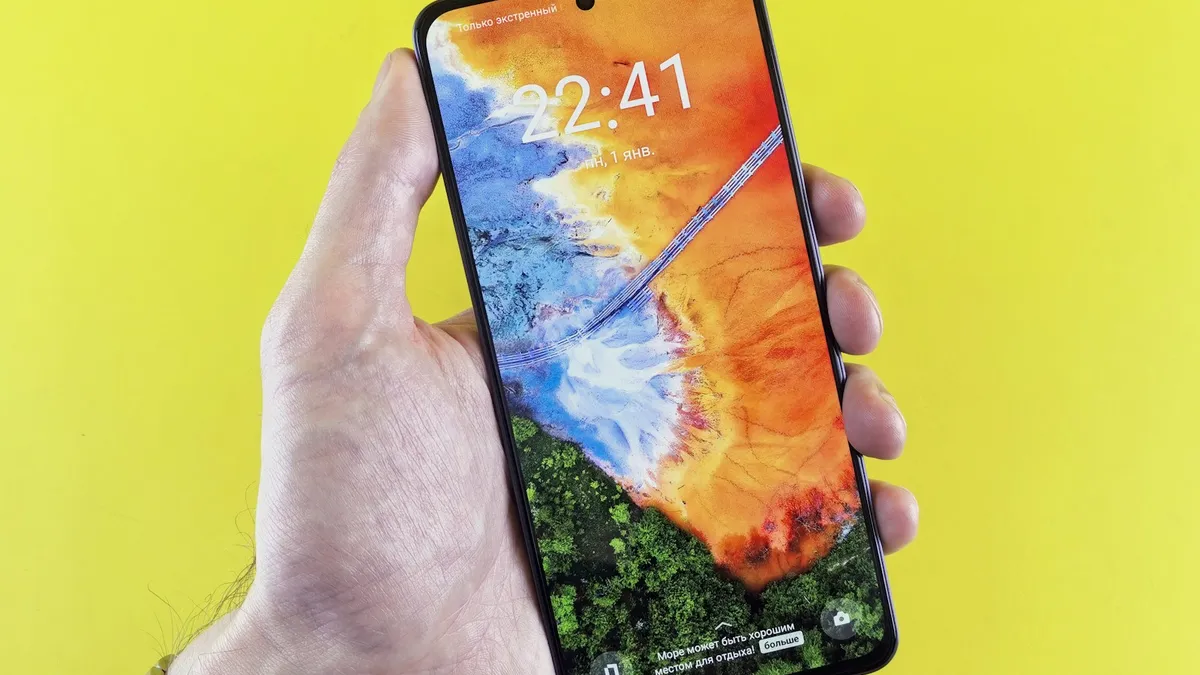
Android notifications not showing
Android notifications not showing on the lock screen or late? Check app permission, Do Not Disturb, battery limits and sleeping apps on Samsung and Pixel.
More guides you may need
Photos stuck restoring from iCloud
Photos stuck restoring from iCloud on your iPhone? Learn how long it takes, then fix it with Wi-Fi, power, Low Power Mode, cellular and iCloud Photos settings.
Safari wrong location
Safari showing the wrong city or state on your iPhone? Find out why sites guess your location from your IP address and how to fix it with a few settings checks.