

Apple Watch not vibrating? 8 fixes for texts, calls and alerts
When an Apple Watch stays still for alerts, haptics are off, a Focus is on, or your iPhone is unlocked and getting the alert instead. Hardware is rarely the cause.
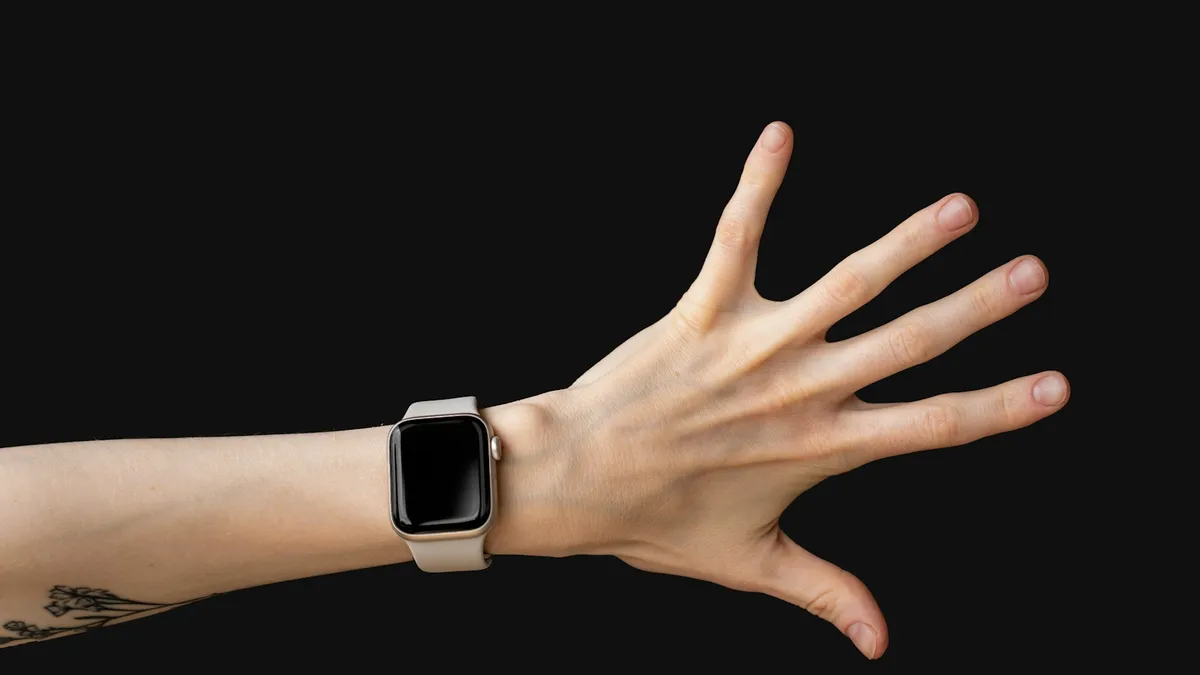
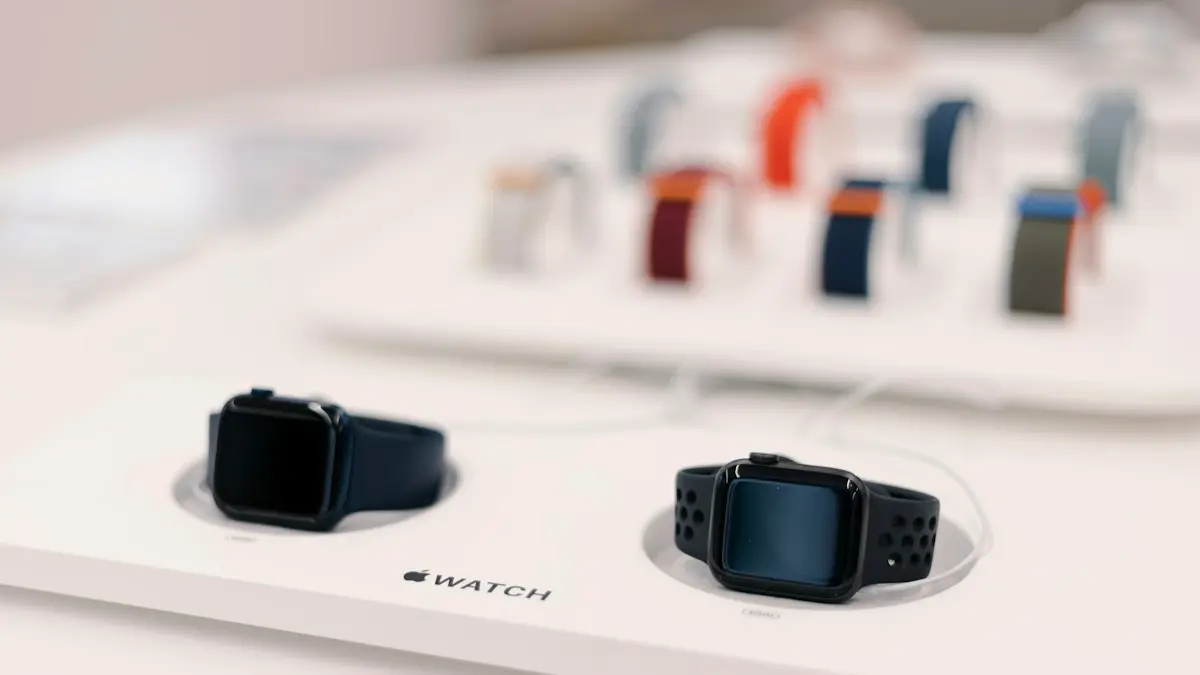
Photo by Anastasiya Badun on Unsplash
Your phone buzzes with a text, but your wrist stays quiet. Or the watch shows the alert on its screen and does nothing else. It is easy to blame a broken Taptic Engine, which is the part that makes the tap, but in most cases it is a setting.
Apple Watch decides what to do with an alert in several steps. Your iPhone, the watch, the Focus and each app can all say no. The fixes below follow that chain, from the quick checks to the repair. Most people solve it in the first three steps.
Why would an Apple Watch stop vibrating?
- Haptics are off. The Haptics setting can be Off, Default or Prominent.
- A Focus or Do Not Disturb is on. These keep alerts from sounding or lighting up the screen.
- Your iPhone is awake and unlocked. Alerts usually go to the phone you are using, and not to the watch.
- App notification settings. An app can be set to custom or off for the watch.
- A loose fit. A haptic tap is hard to feel on a loose band.
- A connection problem. The watch and iPhone are not talking.
- Hardware. A failed Taptic Engine is the rarest cause.
Fix 1: Turn Haptic Alerts on
This is where Apple points first. On the watch, open Settings › Sounds & Haptics › Haptics. You will see three choices, Off, Default and Prominent. Prominent adds an extra tap that pre-announces some of your other haptic alerts, which helps if you miss the normal tap.
- 1
On the watch, press the Digital Crown and open Settings.
- 2
Scroll to Sounds & Haptics and tap Haptics.
- 3
Choose Default or Prominent, not Off.
- 4
Send yourself a text and wait for it.
Lock your iPhone first, so the alert goes to the watch.
You can also do this from the iPhone. Open the Apple Watch app, tap My Watch and then Sounds & Haptics. The same options appear there.
Fix 2: Turn off Do Not Disturb and Focus
Press the side button to open Control Center on the watch. Look at the Do Not Disturb button, and at the Focus icon at the top. Apple says Do Not Disturb keeps calls and alerts, except alarms, from sounding or lighting up the screen. A Focus that you set up for work or sleep can do the same, and it can run on a schedule you forgot.
- Tap the icon and turn the Focus off.
- Check your iPhone too. A Focus on the iPhone can share to the watch.
- If you want a Focus but still want some alerts, set the people and apps that are allowed through.
Our guide to Do Not Disturb on iPhone explains how the Focus rules work.
Fix 3: Remember that Silent Mode is not the problem
Many people turn on Silent Mode and then think it killed the haptics. It did not. Apple says that when you turn on Silent Mode from Control Center, you can still receive haptic notifications. Silent Mode only stops the sound. If the watch is quiet and does not buzz, look for something other than Silent Mode.
Fix 4: Lock your iPhone and test again
In general, your watch gets an alert when your iPhone is locked or asleep. If the iPhone is awake and unlocked, the alert shows on the phone, and the watch stays still. That is on purpose, so you do not get the same alert twice.
If your watch stays quiet only when you are using your phone, there is nothing to fix. To test, lock the iPhone and set it down. Ask someone to text you, or send a text from another device. The watch should buzz within a few seconds.
Fix 5: Check the notification setting for the app
If the watch does not vibrate for one app, such as Messages, Mail or WhatsApp, but does for others, the app is the problem. On your iPhone, open the Apple Watch app and tap My Watch › Notifications. Tap the app and look at the choices.
- Mirror my iPhone: the watch copies the iPhone's alert settings. If the iPhone is set to no sound or banners, the watch can be quiet.
- Custom: the watch has its own settings. Check that Allow Notifications is on, and that the alert style is not set to None.
- Off: no alerts come to the watch at all. Switch to Mirror or Custom.
Also open Settings › Notifications on the iPhone and check the app there. An app that is silenced on the iPhone can be silent on the watch too.
Fix 6: Wear it snug and check the connection
The Taptic Engine taps against your wrist. If the band is loose, the watch can be buzzing and you cannot feel it. Wear it so it is snug but comfortable, and move it a little higher on the wrist, above the bone. Take off bands or covers that add padding.
Then check the link to your iPhone. Open Control Center on the watch and look at the connection icon. A red iPhone symbol means the watch cannot reach the phone, so it cannot pass on alerts. Turn Bluetooth and Wi-Fi on for both, and bring them close together. If they will not connect, see our guide to an Apple Watch that will not pair.
Fix 7: Restart the watch and the iPhone
Restart both. On the watch, hold the side button, tap the power icon and drag the Power Off slider, then wait 30 seconds and hold the side button to turn it on. Restart the iPhone too. Then install updates: Settings › General › Software Update on the iPhone, and the Watch app › General › Software Update for the watch. A small bug in watchOS can break haptics, and an update often repairs it.
Fix 8: Reset or repair the watch
If you have tried everything and the watch never taps for any alert, an alarm or a timer, the Taptic Engine may have failed. A good test is to start a timer for a few seconds on the watch. If you do not feel the tap at the end, the haptics are not working at all.
- Try a full reset first. Our guide to resetting an Apple Watch shows how to unpair and set it up again.
- If it still does not tap, book service with Apple or an authorized provider.
- Check your coverage before you pay. Our guide on what AppleCare+ covers explains what it covers.
Which fix helps with which symptom?
- No vibration for anything: check Haptics, Focus and the fit, then restart.
- No vibration only for texts: check the Messages notification setting and whether your iPhone is unlocked.
- No vibration only for calls: check Focus rules and the phone's call settings.
- Vibrates, but only sometimes: look at the connection and the fit of the band.
- Never vibrates, even for a timer: reset, then service.
How to keep the haptics working
- Leave Haptics on Default or Prominent.
- Check your Focus schedules now and then, especially after a trip or a time change.
- Keep the watch and iPhone updated.
- Wear the watch snug, and keep the back of it clean.
- Restart the watch if it has been behaving oddly for a few days.
Frequently asked questions
Why is my Apple Watch not vibrating for texts?
The most common reasons are Haptic Alerts set to Off, a Focus or Do Not Disturb that is on, or your iPhone being unlocked so the text appears there instead. Messages notifications can also be set to custom or off in the Watch app.
Does Silent Mode stop the Apple Watch from vibrating?
No. Apple says that with Silent Mode on, you can still receive haptic notifications. Do Not Disturb is different, because it keeps calls and alerts from sounding or lighting up the screen.
Where do I turn haptic alerts on?
On the watch, open Settings › Sounds & Haptics › Haptics and choose Default or Prominent. On your iPhone, open the Apple Watch app, go to My Watch and tap Sounds & Haptics.
Does the watch need to touch my skin to vibrate?
A snug fit helps you feel the taps. If the band is loose, the haptics can be hard to feel even though the watch is working. Wear it a little tighter and test again.
What to try next
People also ask
Why does my iPhone not vibrate in Silent mode?
The Haptics setting may be set to not play in Silent Mode. Open Settings, tap Sounds & Haptics, tap Haptics and choose an option that plays in Silent Mode.
Read the full guide: iPhone not vibratingWhy does my Apple Watch keep going back to Compass?
The watch reopens the last app you used when you raise your wrist. If Compass was the last app, or it is still running a session such as Backtrack, it keeps coming back.
Read the full guide: Apple Watch keeps opening CompassWhy does my Apple Watch stop charging at 80%?
Optimized Battery Charging or Optimized Charge Limit is holding the charge at 80% to reduce battery wear. It finishes charging when it expects you to need it. You can change this in the watch’s Battery settings.
Read the full guide: Apple Watch not chargingWhat does the red iPhone icon on my Apple Watch mean?
The watch is disconnected from your iPhone. Bring them close together and check that Bluetooth and Wi-Fi are on.
Read the full guide: Apple Watch not connectingRelated guides
iPhone not vibrating
iPhone not vibrating for calls, texts or alerts? Check System Haptics, the Haptics setting, Vibration in Accessibility, Focus and Silent mode. 8 fixes.
Apple Watch keeps opening Compass
Apple Watch keeps opening Compass or will not leave it? Change Return to Clock, turn off Return to App, end Backtrack and check the Action button. 7 easy fixes.
Apple Watch not charging
Apple Watch not charging, stuck at 80% or showing a red lightning bolt? Clean the back, check the charger and force restart with these 8 simple fixes.
Apple Watch not connecting
Apple Watch not connecting to iPhone or showing a red iPhone icon? Check Bluetooth and Airplane Mode, restart both, update, and re-pair without losing data.
More guides you may need
AirPods one side not working
Fix AirPods when one side is silent, quiet or louder than the other. Check balance, clean the mesh, reset the pair and learn when a single bud needs replacing.
AirPods says Not Your AirPods
AirPods says not your AirPods? Learn what it means, check the serial number, remove old owners in Find My and reset secondhand or swapped AirPods.