

iPhone keyboard not showing up? 8 fixes when it won't pop up
When the keyboard will not appear, a connected Bluetooth keyboard, a third party keyboard or a frozen app is usually the reason. The fixes take a few minutes.
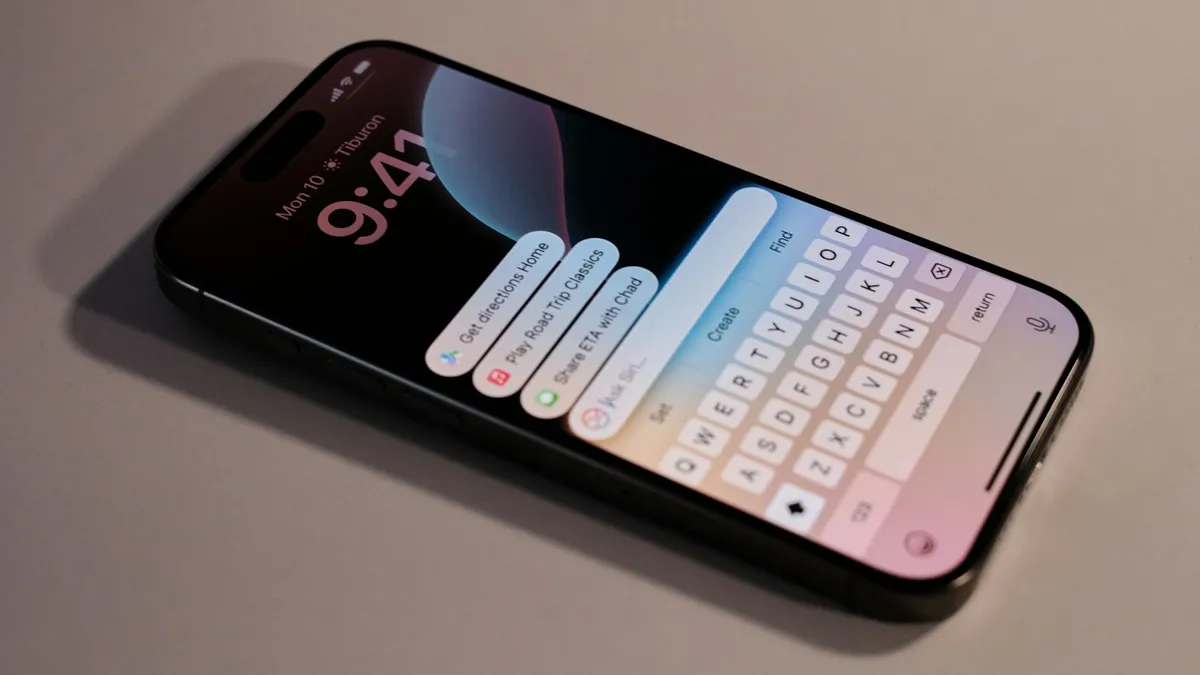
Photo by appshunter.io on Unsplash
You tap the message box and nothing slides up. Or the keyboard appears for half a second and disappears. You cannot type a password, a search or a reply, and it feels like the phone has failed.
In most cases it has not. The keyboard is a piece of software that can be hidden, replaced or frozen. The fixes below start with the one that explains the most cases, which is a Bluetooth keyboard that is still connected, and move on to the less common ones.
iPhone keyboard not showing up: why it happens
- A hardware keyboard is connected. The iPhone hides the on-screen one when it senses a Bluetooth keyboard.
- A third party keyboard. A keyboard you added can freeze or lack permission.
- A frozen app. The app lost track of the text field.
- One-handed mode or a hidden bar. The keyboard is there but shrunk or moved.
- A software bug. Often after an update.
- Screen trouble. The keyboard shows but touches do not register.
Fix 1: Disconnect a Bluetooth keyboard
This is the one people miss. If a Bluetooth keyboard, a case with a keyboard, or a car system is connected, the iPhone assumes you are typing on that. The software keyboard stays hidden. A paired keyboard that is in range and still connected is enough.
- 1
Open Settings › Bluetooth.
- 2
Look under My Devices for a keyboard, a case or an accessory that is Connected.
- 3
Tap the i next to it and choose Disconnect.
Or turn Bluetooth off for a minute as a test.
- 4
Go back to the app and tap the text box.
If the keyboard comes back, forget the accessory, or turn off its power when you are not using it, so that it does not take over again.
Fix 2: Tap again and look for the hidden keyboard
Tap the text field once, wait a second, and tap it again. Some apps need a second tap to bring up the keyboard. In Safari, tap the address bar and then the search field.
- Touch and hold the emoji or globe icon in the bottom corner. If you see Keyboard Settings and the one-handed layouts, pick the centered keyboard.
- Rotate the phone sideways and back.
Fix 3: Force close the app
If the keyboard is missing in one app only, the app is the problem. Swipe up from the bottom edge and pause in the middle of the screen, then swipe the app up to close it. Open it again and tap the text box. On an iPhone with a Home button, double press the Home button first.
Then update it from the App Store. If it still fails, delete the app and install it again. Make sure you can sign back in before you delete it.
Fix 4: Remove or switch the third party keyboards
Keyboards from other companies, such as Gboard, can freeze or fail to load. Apple's keyboard works as a fallback, so remove the extras and test.
- 1
Open Settings › General › Keyboard › Keyboards.
- 2
Swipe left on a third party keyboard and tap Delete.
Keep the standard English keyboard, and any language you use.
- 3
Tap Add New Keyboard and add it back if you need it.
For a third party one, tap it afterward and check whether Allow Full Access is needed. Only allow it for keyboards you trust.
- 4
Test in Notes or Messages.
Some fields, such as password boxes, force the Apple keyboard on purpose. That is normal. For the rest of the typing options, see our guide to iPhone keyboard and Messages settings.
Fix 5: Reset the keyboard dictionary
A damaged dictionary can cause lag, odd suggestions and sometimes a keyboard that will not appear. Resetting removes the words your iPhone learned, which means you lose custom spellings and have to teach it again. It does not delete contacts, photos or messages.
- 1
Open Settings › General › Transfer or Reset iPhone.
- 2
Tap Reset, then Reset Keyboard Dictionary.
- 3
Enter your passcode and confirm.
Fix 6: Restart or force restart
Restart first. Hold the side button and a volume button, slide to power off, wait 30 seconds and turn it on. If the screen is frozen, a force restart works on a Face ID iPhone: press and release volume up, press and release volume down, then hold the side button until the Apple logo appears.
If the phone restarts again and again, see an iPhone stuck restarting.
Fix 7: Update iOS
Keyboard bugs come and go with versions of iOS, and Apple fixes many of them in small updates. Open Settings › General › Software Update and install what is offered. If your keyboard broke right after an update, read about iPhone problems after an update, and wait for the next release if no other fix works.
Fix 8: Check the screen and reset all settings
If the keyboard appears but the keys do not respond, the issue is touch, not the keyboard. Clean the screen, take off the protector and try again. Our guide to an iPhone touch screen that is not working covers that.
As a last software step, open Settings › General › Transfer or Reset iPhone › Reset › Reset All Settings. It restores system settings without erasing your data. Back up first, and do not pick Erase All Content and Settings unless you mean to wipe the phone. Our iPhone backup guide shows how.
When the keyboard shows up, but looks wrong
Sometimes the keyboard is there, but not the one you expect. Check these before you reset anything.
- Pushed to one side: that is the one-handed keyboard. Touch and hold the globe or emoji icon, then tap the centered keyboard icon.
- Wrong language or layout: tap the globe icon to switch, or remove languages in Settings › General › Keyboard › Keyboards.
- No suggestions bar: touch and hold the globe icon, tap Keyboard Settings and check Predictive.
- Only numbers or symbols: tap 123 or ABC at the bottom left to switch back.
Passwords, websites and search boxes
A few places are known to be fussy. A password box in one app can ask for the Apple keyboard, and a web page may hide the keyboard until you tap the field a second time. If you cannot type in only one website in Safari, close the tab, open it again and tap the box. If the keyboard fails on one site only, the page code is the problem, and you cannot fix it from the phone.
If you type by voice instead while you sort this out, tap the microphone icon on the keyboard, if it shows, or on a Home button iPhone use Siri. It is only a workaround, but it keeps you moving.
Which symptom points to which fix?
- No keyboard in any app: Bluetooth, then restart, then reset settings.
- Missing in one app: force close, update, reinstall.
- Keyboard is tiny or on one side: the one-handed layout.
- Appears, then vanishes: third party keyboards and the dictionary.
- Shows but will not type: touch screen.
- Nothing helps: service.
How to keep it from happening again
- Turn off, or forget, Bluetooth keyboards you no longer use.
- Keep only the keyboards you need.
- Update iOS and your apps.
- Restart the phone now and then.
- Keep a backup, so a reset is never a worry.
Frequently asked questions
Why is my iPhone keyboard not showing up?
The common reasons are a Bluetooth keyboard that is still connected, a third party keyboard that is stuck, or a frozen app. Disconnect Bluetooth accessories, switch to the Apple keyboard and force close the app.
Does a Bluetooth keyboard hide the on-screen keyboard?
Yes. When a hardware keyboard is connected, the iPhone treats it as your keyboard and hides the one on the screen. Turn off Bluetooth or disconnect the keyboard to bring it back.
Will Reset Keyboard Dictionary delete my contacts?
No. It only removes the words your iPhone learned from your typing, such as names and slang. Your contacts, messages and photos stay put.
How do I get the keyboard back in one app only?
Force close the app, update it and tap inside the text box again. If it still fails, delete the app and install it again, since the keyboard works in other apps.
What to try next
People also ask
Why are my iPhone notifications not showing on the Lock Screen?
Usually the Lock Screen option is off for that app, Display As is set to Count, a Focus is hiding alerts, or the alert went to the Scheduled Summary. Check Settings › Notifications and the app's own entry.
Read the full guide: iPhone notifications not showing on lock screenWhy won't my iPhone screen rotate when the lock is off?
The app may not support landscape. Apple says some apps do not support rotation, so the screen might not turn even if Portrait Orientation Lock is off. Test in Safari or Calculator to check.
Read the full guide: iPhone screen won't rotateWhy can't I name a group chat?
The group is SMS or MMS, usually because someone uses Android without RCS. Only iMessage and RCS groups can be named.
Read the full guide: iPhone keyboard settingsIs the "New tag scanned" message a virus?
No. It is a normal NFC message. It appears when your phone reads an NFC chip and has no app set up to handle it. Nothing is installed by the message itself.
Read the full guide: Android new tag scannedRelated guides
iPhone notifications not showing on lock screen
iPhone notifications not showing on lock screen? Check the app's Lock Screen switch, Display As, Focus and Scheduled Summary, then try 4 more fixes.
iPhone screen won't rotate
iPhone screen won't rotate with the lock off? Check Control Center, the app, Display Zoom and the Measure app Level test, then restart or reset it.
iPhone keyboard settings
Change iPhone keyboard settings fast: turn off autocorrect, add a keyboard, edit a contact, rename a group chat and hide or change your caller ID on any iOS.
Android new tag scanned
Android new tag scanned keeps popping up? It means your phone touched something with an NFC chip. Find the cause and stop it without losing tap to pay.
More guides you may need
iPhone keeps asking to trust this computer
iPhone keeps asking to trust this computer every time you plug in? Learn the three real causes and Apple's six-step fix to make the alert stop for good.
iPhone Mail not updating
iPhone Mail not updating or not syncing new emails? Check Fetch settings, Background App Refresh, Low Power Mode and storage, then re-add the account. 8 fixes.