

iPhone touch screen not working? 8 fixes to try
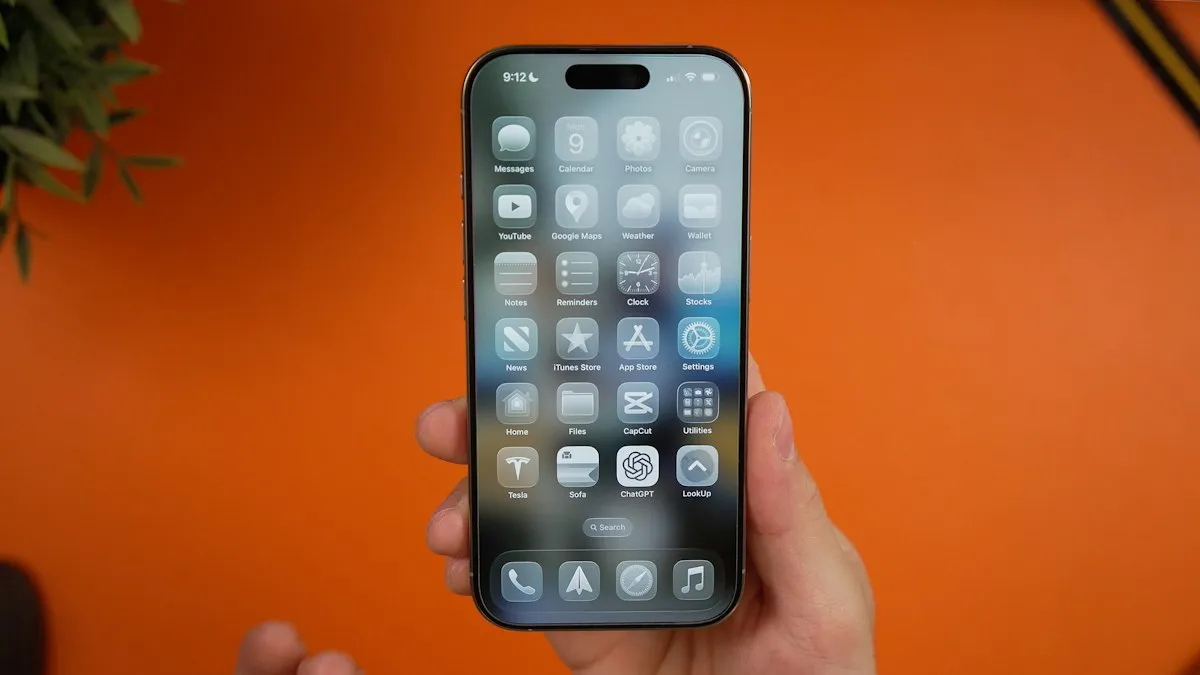
A frozen or unresponsive screen is often software. A force restart uses only buttons, so it works even when touch does not.
Photo by Martin Sanchez on Unsplash
An iPhone that ignores your taps feels broken, but a frozen screen is often just frozen software, and the most important fix needs no touch at all. Start with the force restart below. If the screen responds afterward, work through the rest of the list to stop it happening again. If it never responds, the later sections cover how to save your data and what a repair involves.
What your symptom tells you
- Whole screen frozen, picture still showing: usually software. A force restart fixes most cases.
- Only one app ignores touch: the app has crashed or has a bug. Close it and update it.
- Touch is slow, jumpy or misses taps: moisture, a screen protector, a cheap charger, cold weather or an accessibility setting.
- Taps things by itself: ghost touch, from moisture, a faulty charger or damage.
- A strip, corner or area never responds: almost always physical damage to the display, especially after a drop.
How to fix iPhone touch screen not working
The fix
8 fixes, in order
- 1
Force restart.
iPhone 8 and later, including iPhone SE (2nd and 3rd generation): press and release Volume Up, press and release Volume Down, then hold the side button until the Apple logo appears. iPhone 7: hold Volume Down and the side button. iPhone 6s and earlier: hold Home and the side button. This does not delete anything.
- 2
Clean and dry the screen and your fingers.
Water, sweat, lotion or grease confuse the touch sensor, and even a thin film is enough to cause missed taps. Wipe the screen with a soft, dry, lint-free cloth. Gloves block touch unless they are made for touch screens.
- 3
Remove the screen protector and case.
A thick, cracked or badly fitted protector, or one with a bubble, can stop touches in one area. A case that presses on the edges can also cause phantom taps.
- 4
Unplug the charger and try again.
Cheap or damaged chargers can cause jumpy or ghost touches while plugged in. If touch works unplugged, replace the charger.
- 5
Let a very cold or hot phone return to room temperature.
In freezing weather the screen can respond slowly or not at all. In heat, the iPhone may slow down to protect itself.
- 6
Update or reinstall the app if only one app is affected.
Swipe up to close it, then check the App Store for an update. If it still freezes, delete and reinstall it.
- 7
Update iOS, using a computer if you cannot tap.
If you can use the screen, go to Settings › General › Software Update. If not, connect the iPhone to a Mac with Finder or a PC with the Apple Devices app. If it shows up, choose Update, which keeps your data.
- 8
Restore the iPhone or book a screen repair.
If touch is still dead after an update, a restore rules out software for good, but it erases the phone. Back up first if you can. Otherwise, the display needs repair.
Find dead spots with a quick test
Open the Notes app, start a new note, tap the pen icon to draw, and slowly drag one finger in lines across the whole screen, top to bottom and side to side. Anywhere the line breaks or jumps is a dead or faulty area. Try the same with the screen protector off. If the gaps stay in the same place every time, the touch layer is damaged and needs repair.
Ghost touch: the iPhone taps by itself
- Unplug the charger. Uncertified chargers and damaged cables are a common cause.
- Dry the screen and the edges. Moisture trapped under a protector causes phantom taps.
- Take off the case and protector, since pressure at the edges can register as touches.
- If it happens with nothing plugged in and no protector, and especially after a drop, the display is faulty.
After a drop or water
If touch stopped working right after a drop, even with no visible crack, the display cable or the touch layer may be damaged inside. After water, turn the iPhone off, dry the outside and let it air dry for at least a day before trying again; touch problems that start after liquid often get worse as corrosion spreads, so book a check soon.
iPhone 18 Pro screen freezing?
In September 2026, Macworld reported that some iPhone 18 Pro owners saw the screen briefly stop responding to touch while scrolling in apps, separate from a Face ID bug on the same models. Apple has confirmed a software fix is coming for the Face ID issue. If your new iPhone 18 Pro freezes, install every update as it arrives before booking a repair. See what we know about iPhone 18 Pro launch bugs.
Use the iPhone while the screen is broken
If part of the screen still works, or you can speak to your iPhone, you may be able to get important things done before a repair. Hold the side button and ask Siri to call someone, send a message or read your notifications. If Voice Control is already on, you can control the whole phone by saying things like “tap Settings” or “swipe up”. You can also ask Siri to turn on Voice Control. If the top of the screen works but the bottom does not, AssistiveTouch, in Settings › Accessibility › Touch, adds a floating button you can place wherever the screen still responds.
Choosing a screen protector that does not cause problems
- Buy one made for your exact model. iPhone sizes and camera cutouts change every year, and a protector for another model will not fit properly.
- Tempered glass with a proper cutout for the Dynamic Island keeps touch and Face ID working.
- Avoid very thick or privacy protectors if touch or Face ID start to fail after fitting one.
- Fit it in a steamy bathroom or use the alignment frame in the box, so no dust or bubbles get trapped.
Save your data before a repair
- Check the last iCloud backup date on another device at Settings › your name › iCloud › Manage Storage › Backups. If it is recent, your data is safe.
- If you have trusted your computer before, connect the iPhone and back up in Finder or the Apple Devices app without touching the screen.
- Photos in iCloud Photos are already safe; sign in at icloud.com to see them.
- Tell the repair shop if your data is not backed up, since some repairs replace the whole phone with a new one.
Screen repair options
Apple and Apple Authorized Service Providers use genuine screens and keep features like True Tone and Face ID working properly. With AppleCare+, screen damage is repaired for a service fee far below the normal price. Independent shops are often cheaper, but a non-genuine screen can have worse color and touch, and the iPhone will list it as an unknown part in Settings › General › About › Parts and Service History. Ask for a genuine part if you plan to sell the phone later.
A screen repair usually takes an hour or two at an Apple Store with an appointment, and a few days if the phone is sent away. Book through the Apple Support app, which also shows your warranty and AppleCare+ status before you go.
Frequently asked questions
Why does only part of my screen not work?
A dead strip or corner usually means damage to the touch layer, often after a drop. A screen protector with a bubble or a crack can also cause it.
Why does my iPhone tap things by itself?
Ghost touches come from moisture, a cheap charger, a bad protector or screen damage. Unplug it, dry the screen and remove the protector.
Can I back up my iPhone if the screen does not work?
Yes, if it has backed up to iCloud recently, or if you have connected it to your computer before and tapped Trust. Otherwise, a repair shop can often restore touch long enough to back it up.
Is it worth fixing an iPhone screen?
Usually yes on a phone less than four years old, especially with AppleCare+, which covers screen damage for a small fee. On an older phone, compare the repair quote with its trade-in value first.
What to try next
People also ask
Why does my screen touch things by itself only while charging?
Electrical noise from a cheap or damaged charger. Use the original charger and cable, or another certified one.
Read the full guide: Android touch screen not workingWhere is the Auto-Brightness setting on iPhone?
Open Settings › Accessibility › Display & Text Size and scroll to the bottom. Auto-Brightness is the last switch. It is not in Display & Brightness, which is why many people cannot find it.
Read the full guide: iPhone auto brightness not workingHow much does AppleCare+ charge for a cracked screen?
In the US, AppleCare+ has charged a flat service fee for screen or back glass damage, far below the out-of-warranty price. The fee depends on your plan and model, so check your coverage in Settings › General › About › Coverage.
Read the full guide: iPhone screen replacement costHow do I hang up if the screen stays black?
Press the side button once to end the call. Turn on this option in Settings › Accessibility › Touch › Lock to End Call if needed.
Read the full guide: Screen black during callsRelated guides
Android touch screen not working
Android touch screen not working or touching by itself? Force restart, clean the screen, remove the protector, adjust touch sensitivity and test in safe mode.

iPhone auto brightness not working
iPhone auto brightness not working or the screen keeps changing? Check the Accessibility switch, light sensor, Low Power Mode and heat, then try 3 more fixes.
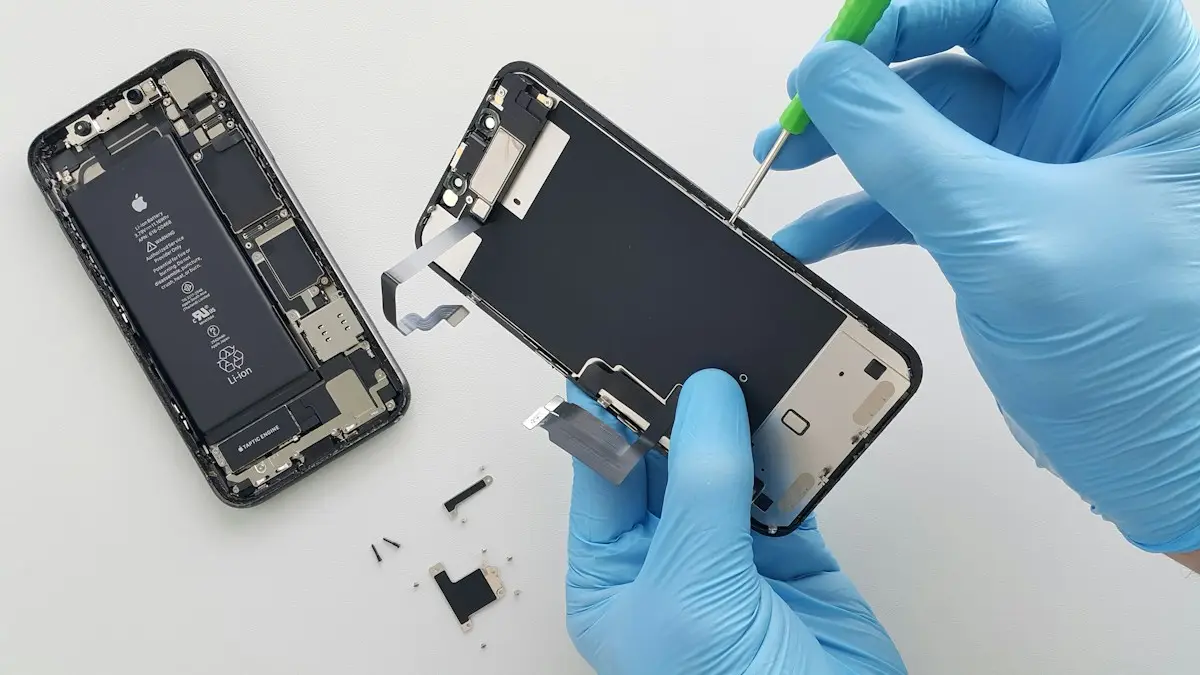
iPhone screen replacement cost
What an iPhone screen replacement costs and why prices vary. Compare Apple, Best Buy, AppleCare+ and repair shops, and decide whether to fix or replace.
Screen black during calls
iPhone screen goes black during calls and will not wake? Clean the sensor, remove the screen protector, update iOS and reset settings. Plus how to hang up.
More guides you may need
iPhone stuck on Update Requested
iPhone stuck on update requested and not downloading? Check Wi-Fi and storage, delete the update, reset network or update from a computer. 7 fixes.

iPhone water eject
Water in your iPhone speaker? Learn if the Water Eject shortcut and speaker cleaner apps work, how to use them safely, and what to do if sound stays muffled.