

iPhone auto brightness not working? 7 fixes for a dim or bright screen
When the screen will not adjust to the room, the switch is off, the light sensor is covered, or heat and Low Power Mode are dimming it. Here is how to tell which.
Photo by pxslc on Unsplash
You walk outside and the screen is hard to see. Or you lie in bed and it blasts your eyes. Auto-Brightness is supposed to handle both, and when it does not, you end up pulling down Control Center all day.
The feature itself is simple. A small sensor measures the light around you, and iOS raises or lowers the screen to match. If the switch is off, the sensor is blocked or something else is dimming the display, it seems broken. The fixes below go in the order that solves it most often.
iPhone auto brightness not working: what causes it
- The switch is off. It is buried in Accessibility, so an update or a tap can turn it off without you noticing.
- The sensor is covered. A screen protector, a case, a sticker or grime can block the ambient light sensor.
- Low Power Mode. It lowers brightness and shortens Auto-Lock.
- Heat. A hot iPhone dims itself to protect the hardware.
- Reduce White Point. An accessibility setting that makes bright colors less intense.
- A software bug. Common after a big update.
- A hardware fault. The sensor itself is the rarest cause.
Fix 1: Turn Auto-Brightness off and on
Auto-Brightness is not under Display & Brightness. Apple puts it in Accessibility. Toggling it resets the feature, and it also tells you quickly whether it was off.
- 1
Open Settings › Accessibility › Display & Text Size.
- 2
Scroll to the bottom of the page.
- 3
Turn Auto-Brightness off, and wait 10 seconds.
- 4
Restart the iPhone, then turn Auto-Brightness back on.
Hold the side button and a volume button, slide to power off, wait, then turn it on.
- 5
Test by covering the top of the screen with your hand.
The brightness should drop within a few seconds. In a bright place it should go up.
Fix 2: Clean the sensor and check your screen protector
The ambient light sensor is near the front camera at the top of the screen. If a protector sits over it, or has a thick edge, or a case lip covers it, the sensor cannot see the room. Sweat, oil and lint can do the same thing.
- Wipe the top of the screen with a soft, dry microfiber cloth.
- Take off the case and see whether the behavior changes.
- Peel off the screen protector, or check that it has a proper cutout for the sensor.
- Avoid cheap, dark or privacy protectors. They are the ones that fool the sensor most often.
Fix 3: Turn off Low Power Mode
Low Power Mode saves battery by reducing things such as screen brightness, and by locking the screen sooner. Open Settings › Battery and turn it off, or tap the yellow battery icon. If your brightness returns to normal, that was the reason. See what Low Power Mode does if you would like to keep it but with fewer side effects.
Fix 4: Let a hot iPhone cool down
When an iPhone gets too hot, it protects itself. It can dim the display, slow down charging, and show a temperature warning. If the screen dims in the sun, in a car or while charging, heat is the cause, and not Auto-Brightness.
- Move the phone out of the sun and take off the case.
- Stop charging for a while.
- Close games and the camera.
- Wait until it feels normal, then test brightness again.
Our guide to why your iPhone gets hot covers the causes in detail.
Fix 5: Check Reduce White Point, True Tone and Night Shift
Three other settings change how the screen looks, and they are often mistaken for a brightness fault.
- Reduce White Point: in Settings › Accessibility › Display & Text Size. When it is on, the screen can look dim even at full brightness. Turn it off or lower the percentage.
- True Tone: in Settings › Display & Brightness. It changes the color of the screen to match the light, so the screen can look warmer or cooler. Turn it off to compare.
- Night Shift: in the same menu. It shifts colors toward amber at night, which can make the display look weaker.
Fix 6: Update iOS and reset settings
If it started after an update, install the next one. Open Settings › General › Software Update. Apple tends to fix display bugs in small updates.
If not, open Settings › General › Transfer or Reset iPhone › Reset › Reset All Settings. This restores system settings without deleting your data. Do not choose Erase All Content and Settings. After the reset, set up Auto-Brightness again from Fix 1.
Fix 7: Repair the sensor or the screen
If brightness never reacts to light, even with the switch on, the sensor clean and a reset done, the hardware may be damaged. Drops, water and a bad screen replacement are the usual reasons. A flicker or a line on the screen points the same way, so read about an iPhone screen that flickers.
- Back up the phone first.
- Ask Apple or an authorized provider for a quote. See iPhone screen replacement costs.
- Check your coverage before you pay. Our guide says buying AppleCare+.
- Be careful with third party screens. A non original display can lose features such as True Tone.
How auto brightness is meant to behave
It helps to know what normal looks like. The screen goes brighter in a bright room or outside, and dimmer in the dark. The change is gradual, and it can take a few seconds. If you expect an instant jump, you may think it is broken.
- Hold your hand over the top of the screen and watch it dim. That is the test most people use.
- Even at the maximum setting, the screen in direct sun can look weak. That is the limit of the display, not a fault.
- Moving the slider by hand does not turn Auto-Brightness off. The setting in Accessibility stays on.
If the screen dims while you are using it
A screen that dims after a short time, even when you are reading, is often not a brightness fault at all. Check Settings › Display & Brightness › Auto-Lock and pick a longer time. The screen dims a little before it locks, which looks the same as a drop in brightness.
Face ID phones also have Attention Aware Features in Settings › Face ID & Attention. When it is on, the phone dims the display if it does not see you looking at it. Turn it off to see whether that is the cause.
Which symptom points to which fix?
- Too dim everywhere: Low Power Mode, Reduce White Point, heat.
- Too bright at night: Auto-Brightness off, or a blocked sensor.
- Keeps changing on its own: a protector over the sensor, or a shadow from your hand.
- Dim only when charging or outside: heat.
- Dim after a screen repair: ask the repair shop about the sensor.
- Never reacts: reset, then service.
How to keep brightness working
- Leave Auto-Brightness on, and adjust the slider only when you need to.
- Choose a screen protector with a cutout or clear area for the sensor.
- Keep the phone out of hot cars and direct sun.
- Keep iOS updated.
- Review the rest of your iPhone display settings once in a while.
Frequently asked questions
Where is the Auto-Brightness setting on iPhone?
Open Settings › Accessibility › Display & Text Size and scroll to the bottom. Auto-Brightness is the last switch. It is not in Display & Brightness, which is why many people cannot find it.
Why does my iPhone screen keep getting dim?
It may be Auto-Brightness reacting to the room, Low Power Mode, Auto-Lock, or heat. An iPhone that gets hot dims its screen to protect itself, so let it cool and try again.
Where is the ambient light sensor on iPhone?
It sits near the front camera at the top of the screen. A screen protector or case that covers that spot can stop auto brightness from reading the room correctly.
Is it bad to turn Auto-Brightness off?
It is not harmful, but Apple notes that turning it off might affect battery life and long term display performance. You will also need to set the brightness by hand.
What to try next
People also ask
Why is my iPhone screen flickering at low brightness?
OLED iPhones dim by switching pixels on and off very fast, which some people see as flicker at low brightness. Raise the brightness, turn off Auto-Brightness and True Tone to test, and try Reduce White Point in Accessibility.
Read the full guide: iPhone screen flickeringWhere is screen lock time on iPhone?
Open Settings › Display & Brightness › Auto-Lock. Apple calls the screen lock time Auto-Lock. Pick 30 Seconds, 1 to 5 Minutes, or Never.
Read the full guide: Change screen lock time on iPhoneWhy does only part of my screen not work?
A dead strip or corner usually means damage to the touch layer, often after a drop. A screen protector with a bubble or a crack can also cause it.
Read the full guide: iPhone touch screen not workingWhy is my iPhone screen dim even at full brightness?
Reduce White Point may be on, Low Power Mode may be active, or the phone may be hot. Check Settings › Accessibility › Display & Text Size, then Settings › Battery.
Read the full guide: iPhone display settingsRelated guides

iPhone screen flickering
Fix an iPhone screen that flickers, flashes or shows lines. Check brightness and display settings, restart, update, restore and learn when it is a repair.
Change screen lock time on iPhone
Change how long your iPhone screen stays on before it locks. Use Auto-Lock, fix it when it is greyed out or stuck at 30 seconds, and keep the screen on longer.
iPhone touch screen not working
iPhone touch screen not working or not responding? Force restart with the buttons, remove the screen protector, dry the screen and try 5 more fixes by symptom.
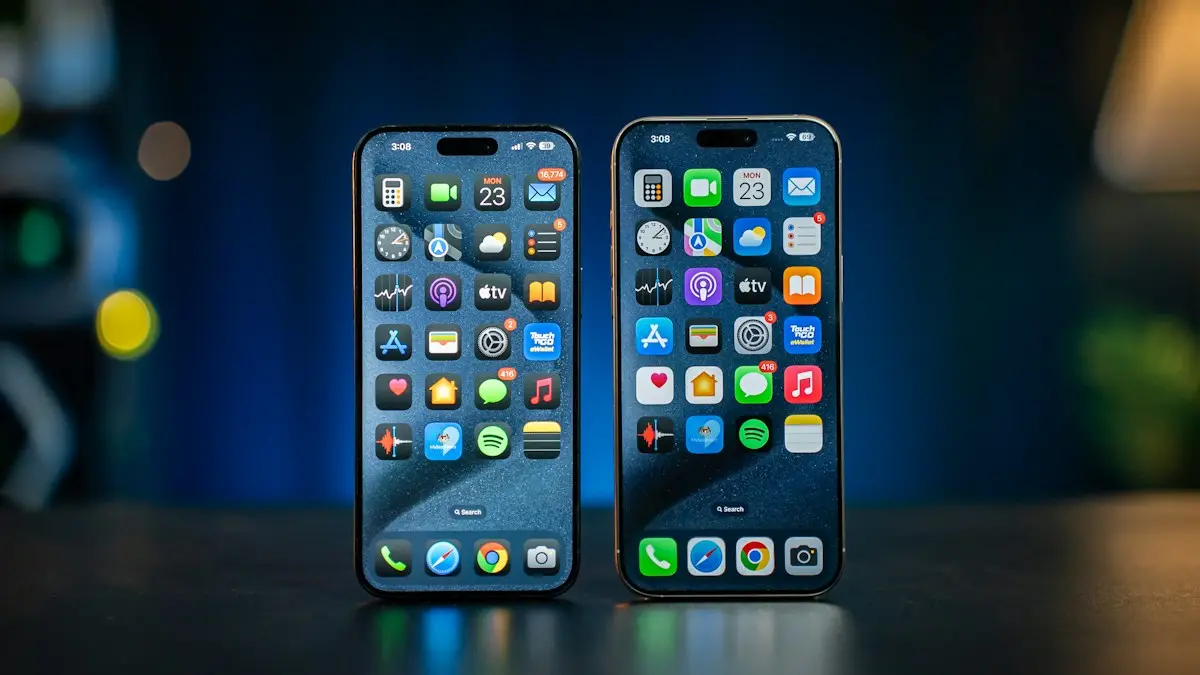
iPhone display settings
Find every iPhone display setting in one place: brightness, Auto-Lock, text size, color filters, wallpaper, app icons, rotation, Home button and iPhone name.
More guides you may need
iPhone camera unknown part
iPhone camera unknown part message after an update or repair? Learn what Unknown, Genuine and Used mean, how to check, and when it is worth fixing.
iPhone contacts missing
iPhone contacts missing or disappeared? Check your Lists, iCloud and Gmail sync, then restore contacts from iCloud.com or a backup. 7 ways to get them back.