

iPhone battery percentage not showing? 7 ways to get it back
A missing battery percentage is usually a switch you never turned on, or a model that does not have the option. Seven ways to see the number again, and what to do when it jumps around.
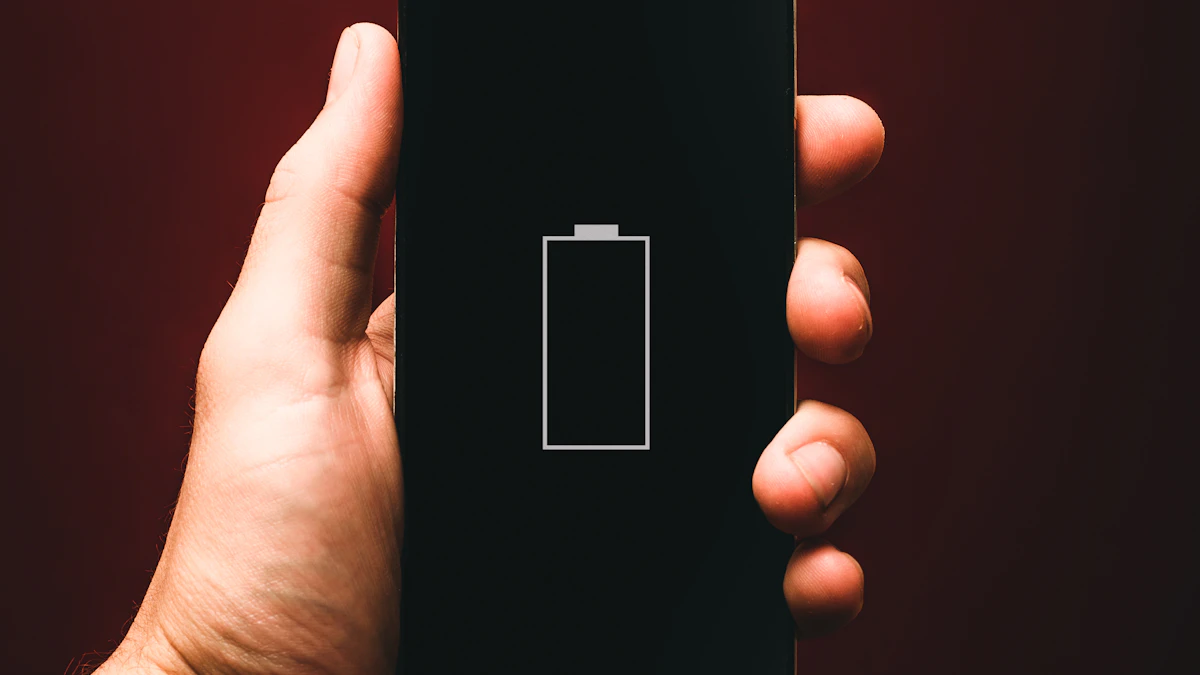
Photo by Alexander Andrews on Unsplash
You glance at the top of the screen to see how much charge is left and all you get is a plain battery shape. No number. It is a small thing, but it matters when you are deciding whether to leave the house, start a video call or hold out until you are home. The good news is that this is rarely a fault. In most cases a switch is off, the option never existed on your model, or an update changed how the status bar looks. This guide shows where the number lives on each kind of iPhone, how to get it back in seven steps, and what to do if the percentage you see jumps around in a way that makes no sense.
Why is my iPhone battery percentage not showing?
Apple changed how the percentage appears more than once, so what is normal depends on your iPhone and your iOS version. Here are the causes in the order they come up:
- The switch is off. Battery Percentage is a setting, and a reset or a new phone set up from scratch can leave it off.
- Your model does not have the option. Gadget Hacks reports that the switch is not available on the iPhone XR, iPhone 11, iPhone 12 mini and iPhone 13 mini. On those models you use Control Center or a widget instead.
- Your iPhone has Face ID and runs an older iOS. The same report says iOS 15 and older left the switch out for iPhones with Face ID, and iOS 16 brought it back for models that support it.
- You are looking in the wrong place. On Face ID models the number is inside the battery icon, and it has no percent sign.
- A software glitch after an update. Status bar items can hide until you restart.
- A worn battery or a faulty reading. This does not hide the number, but it makes the number unreliable.
Fix 1: Turn on Battery Percentage
The fix
Turn on the battery percentage
- 1
Open Settings.
Tap the gray gear icon on your Home Screen.
- 2
Tap Battery.
- 3
Turn on Battery Percentage.
It sits near the top, under the battery level graph on some versions.
- 4
Look at the top right of the screen.
On an iPhone with Face ID, Apple says the percentage appears inside the battery symbol on the status bar.
If the switch was off and is now on, you are done. If it was already on and you still see no number, the next fixes are for you. If you cannot find the switch at all, check the model note above and jump to Fix 4.
Fix 2: Look inside the battery icon, not beside it
On iPhones from the iPhone X onward, the number is drawn inside the battery shape, and there is no percent sign. People who remember the older layout, where the number sat to the left of the icon, often think the percentage is missing when it is just in a new place. Zoom in on the top right corner and look for a plain number such as 78 inside a white or gray battery. When the battery is very low the icon turns red, and when Low Power Mode is on it turns yellow, so check the colors too. If you see a battery with a number in it, nothing is wrong.
Fix 3: Restart the iPhone
Status bar items can freeze or hide after an update, a restore or a long uptime. Press and hold the side button and either volume button until the power off slider appears, then drag it. Wait about 30 seconds and press the side button to turn the phone back on. After it starts, open Settings, tap Battery and check that Battery Percentage is still on. A restart fixes more of these small display problems than people expect, and it costs nothing.
Fix 4: Read the percentage in Control Center
Apple's guide says that on an iPhone with Face ID you can swipe down from the top right corner of the screen to see the battery percentage in Control Center. This works even when the status bar shows no number, which makes it the best workaround for models without the switch. On an iPhone with a Home button, swipe up from the bottom edge instead. The percentage sits in the top right of Control Center. If you use it often, you will get used to the swipe within a day.
Fix 5: Add a Batteries widget
A widget gives you the number without any swipe at all. Touch and hold an empty area of your Home Screen, tap the plus button at the top left, search for Batteries and choose a size. The widget shows the charge of your iPhone and of connected devices such as AirPods or an Apple Watch. You can also add it to the Lock Screen: touch and hold the Lock Screen, tap Customize, tap the area under the clock and add the Batteries widget. This is the cleanest fix for the iPhone XR, 11, 12 mini and 13 mini, where the status bar switch may not exist.
Fix 6: Update iOS and check your settings again
If the percentage disappeared right after an update, a later update may bring it back. Open Settings, tap General, tap Software Update and install anything waiting. Then reopen Settings, tap Battery and look at the Battery Percentage switch again. If you want the steps in full, see how to update an iPhone. On a new iOS version, give the phone a day or two to finish its background work before you judge the display. Our guide on indexing in progress on iOS 27 explains why a phone can act oddly just after an update.
Fix 7: Reset all settings as a last resort
If nothing above worked and your model does support the switch, you can reset all settings. This does not erase your photos or apps, but it resets things like Wi-Fi networks, wallpaper and privacy choices, so use it last. Open Settings, tap General, tap Transfer or Reset iPhone, tap Reset and choose Reset All Settings. After the restart, go back to Settings, Battery and turn Battery Percentage on. Back up your iPhone first if you have not lately, as a precaution.
Why does the percentage jump or drop suddenly?
A number you can see but cannot trust is a different problem. If the percentage falls from 40 to 10 in a few minutes, jumps up while the phone is idle or the iPhone shuts down at 30 percent, the reading is out of step with what the battery can actually deliver. That points to a worn battery, not a display glitch. Open Settings, tap Battery, then tap Battery Health & Charging and look at Maximum Capacity. Our guide to checking your iPhone battery health explains what the numbers mean and when Apple considers a battery worn. Cold weather also makes the percentage drop faster for a while, and it usually recovers when the phone warms up.
| Your iPhone | Status bar switch | Best way to see the number |
|---|---|---|
| Face ID models with the switch | Settings, Battery, Battery Percentage | Inside the battery icon, or Control Center |
| iPhone XR, 11, 12 mini, 13 mini (per Gadget Hacks) | Not available | Control Center or a Batteries widget |
| Home button models | Settings, Battery, Battery Percentage | Beside the battery icon |
| Any iPhone | Not needed | Batteries widget on the Home Screen or Lock Screen |
Is a missing battery percentage a sign of a bad battery?
No. A hidden number is a display issue, not a health issue. What matters for the battery is how it behaves: how long a charge lasts, whether the phone shuts down early and what Maximum Capacity says. If your battery is under about 80 percent, or the phone dies without warning, a replacement is worth pricing. Our guide to iPhone battery replacement compares the cost with buying a new phone, and the AppleCare cost question covers whether coverage pays off. If the phone drains faster than before, start with why an iPhone battery drains fast.
Still not showing?
If you have tried every step, your model most likely does not offer the status bar number, and the workarounds are your answer. Use Control Center for a quick look, or add a Batteries widget so the number is always on screen. If the switch is there, on and the number still never appears after a restart and a reset, contact Apple Support. Tell them which iPhone you have, which iOS version it runs and that the Battery Percentage switch is on without effect. That gives them what they need to check for a software fault.
Frequently asked questions
Why does my iPhone not show battery percentage?
The Battery Percentage switch may be off, or your model may not offer it. Apple says to open Settings, tap Battery and turn on Battery Percentage. On an iPhone with Face ID the number appears inside the battery icon.
How do I see the battery percentage on an iPhone without the switch?
On a Face ID iPhone, swipe down from the top right corner to open Control Center and read the percentage there. You can also add a Batteries widget to the Home Screen or Lock Screen.
Why is there no percent sign on my iPhone battery?
On Face ID models the percentage sits inside the battery icon as a plain number, so the percent sign is left out to save space. That is normal and not a fault.
Does the battery percentage disappear in Low Power Mode?
It should not. If the number vanishes, check that Battery Percentage is still on in Settings, Battery, then restart the iPhone. A glitch after an update can switch it off.
What to try next
Sources
Official pages these steps are based on. Menus can differ by software version.
People also ask
Why did my iPhone contacts disappear?
The most common causes are a hidden list or account, iCloud or Gmail Contacts turned off, signing out of your Apple Account, or deleting contacts by mistake. An update or a restore can also change which account is shown.
Read the full guide: iPhone contacts missingWhy does my iPhone say headphones are connected when they are not?
It may still be routing audio to a Bluetooth device nearby, or the charging port may be detecting an accessory because of debris or moisture. Check both.
Read the full guide: iPhone stuck in headphone modeCan I unlock it without losing data?
Only with the correct passcode, or a passcode you changed in the last 72 hours using Enter Previous Passcode. Otherwise erase it and restore your backup.
Read the full guide: iPhone UnavailableWhy are my Android notifications not showing on the lock screen?
The lock screen setting may be set to hide notifications, or Hide silent notifications may be on. On a Pixel, check Settings › Notifications › Notifications on lock screen. On a Samsung phone, check Settings › Notifications › Lock screen notifications.
Read the full guide: Android notifications not showingRelated guides
iPhone contacts missing
iPhone contacts missing or disappeared? Check your Lists, iCloud and Gmail sync, then restore contacts from iCloud.com or a backup. 7 ways to get them back.
iPhone stuck in headphone mode
iPhone stuck in headphone mode with no sound from the speaker? Check Bluetooth, the audio output, the charging port and Silent mode. 8 fixes that work.
iPhone Unavailable
iPhone Unavailable or Security Lockout after wrong passcodes? Wait out the timer, try your old passcode, or erase it from the lock screen and restore a backup.
Android notifications not showing
Android notifications not showing on the lock screen or late? Check app permission, Do Not Disturb, battery limits and sleeping apps on Samsung and Pixel.
More guides you may need
iPhone camera unknown part
iPhone camera unknown part message after an update or repair? Learn what Unknown, Genuine and Used mean, how to check, and when it is worth fixing.
iPhone contacts missing
iPhone contacts missing or disappeared? Check your Lists, iCloud and Gmail sync, then restore contacts from iCloud.com or a backup. 7 ways to get them back.