

iPhone screen won't rotate? 7 fixes when landscape won't work
Most of the time the lock is on, or the app simply does not support landscape. Here is how to tell a setting from a fault, and what to do about each.
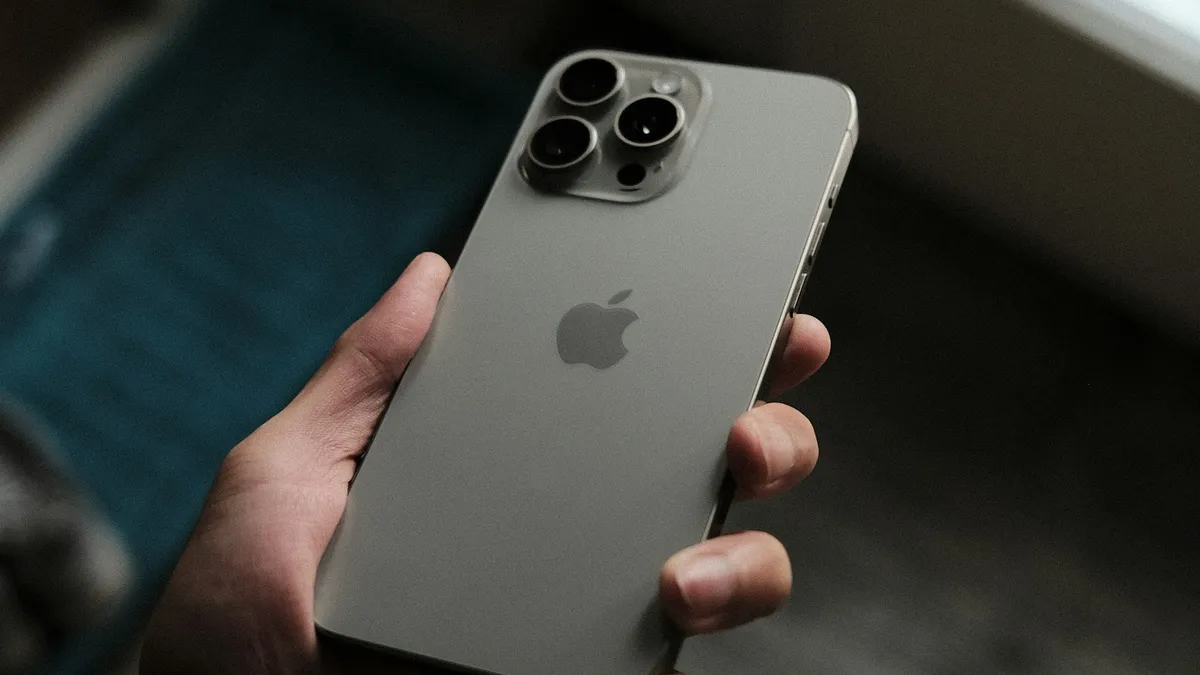
Photo by Pascal Brändle on Unsplash
You turn the phone sideways to watch a video or read a wide table, and the screen stays upright. It is a small thing that gets annoying fast. The cause is usually one of three: the lock is on, the app does not rotate, or a glitch has frozen the sensor.
The fixes below start with the checks that take five seconds. Apple says that not all apps rotate, so the order matters. Follow it, and you will know whether it is a setting or a repair.
Why your iPhone screen won't rotate
- Portrait Orientation Lock is on. It is the number one reason.
- The app does not support it. Many apps and games lock to portrait or landscape.
- The Home Screen does not rotate. It rotates only on some models.
- A frozen app or process. A restart usually clears it.
- Display Zoom. It changes how the Home Screen behaves on large models.
- A hardware fault. A failed motion sensor, which is rare.
Fix 1: Turn off Portrait Orientation Lock
On an iPhone with Face ID, swipe down from the top right corner of the screen to open Control Center. Look for the Portrait Orientation Lock button, a padlock inside an arrow. If it is white or highlighted, the lock is on. Tap it to turn it off, close Control Center and turn the phone sideways.
On an iPhone with a Home button, swipe up from the bottom edge instead. A small padlock icon in the status bar also tells you the lock is on.
One more point: the iPhone has no physical rotation switch. The side switch, or the Action button, controls silent mode. People sometimes mix them up, and it is worth a glance if your phone stays silent as well.
Fix 2: Try an app that supports landscape
Apple says that some apps do not support rotation, so your screen might not rotate even when Portrait Orientation Lock is off. The company points to Calculator and Safari as apps that you can use to test. Open one of them, hold the iPhone upright and then turn it sideways.
- If it rotates in Safari but not in your app, the app is the limit, not your phone.
- Update the app in the App Store. A new version may add landscape.
- Look inside the app for a full screen or rotate option. Video players often have a button for it.
- Some games lock to one orientation on purpose.
Fix 3: Check the Home Screen and Display Zoom
If the apps rotate but the Home Screen does not, nothing is broken. On most iPhones the Home Screen stays in portrait. A landscape Home Screen is limited to Plus and Max sized models. The look can also depend on Display Zoom.
- 1
Open Settings › Display & Brightness.
- 2
Scroll to Display Zoom, under the brightness controls, and tap View.
- 3
Choose Standard, then tap Set.
Standard is the default view. Zoomed makes everything larger, and on some models it keeps the Home Screen from rotating.
- 4
Let the iPhone restart if it asks, and test again.
Fix 4: Use the Measure app to test the sensor
Apple suggests a quick test to find out whether the phone senses movement. Open the Measure app, tap Level at the bottom, and hold the iPhone against a wall, a book or the edge of a table. The numbers and the circle should move when you tilt it.
- It moves: the sensor works, so the cause is software or the app.
- It does not move at all: the sensor, or the software that reads it, has a problem. Keep going down the list, and book service if the later fixes do not help.
- Can't find Measure? Search for it in the App Library, or download it from the App Store. It is a free Apple app.
Fix 5: Force close the app and restart the iPhone
A frozen app or process can stop rotation. Swipe up from the bottom of the screen and pause in the middle to see your open apps, then swipe the stuck app up and away. Open it again and try to rotate.
If that does nothing, restart. Press and hold the side button and either volume button until the slider appears, drag it, wait 30 seconds, then hold the side button to turn the iPhone on again. Apple lists a restart as the step to try if the screen still will not rotate. If the phone is frozen, iPhone restart loops may need different steps.
Fix 6: Update iOS and reset settings
If the trouble began after an update, a bug may be at fault, and the next update often fixes it. Open Settings › General › Software Update and install what is offered.
Still stuck? Reset all settings. Open Settings › General › Transfer or Reset iPhone › Reset › Reset All Settings. This puts system settings back to their defaults without deleting your photos, apps or messages. Do not pick Erase All Content and Settings.
Fix 7: Check for damage and get service
A drop, water or a cracked screen can damage the motion sensor. If the Level test does not move, rotation fails in every app, and a reset did not help, the hardware is the likely cause. Our guide to AppleCare+ plans explains what a repair might cost.
- Back up the iPhone first.
- Book service with Apple or an authorized provider.
- If the phone is old, compare the repair price with a new one before you pay.
Videos, games and the Camera
Video apps handle rotation their own way. In YouTube, Netflix and similar apps, the video often turns only after you tap the full screen button, and some of them follow the lock and some do not. If the player stays small with the lock off, tap full screen first, then turn the phone.
- Games usually pick one orientation and keep it. That is a choice by the developer, not a fault.
- The Camera app keeps the screen upright and rotates only the icons. The saved photo still has the right orientation, so this is normal.
- Websites in Safari rotate with the phone, so Safari is a reliable test.
- Apps that were made for an older iPhone can stay in portrait until the developer updates them.
If it stopped after a drop or a repair
The motion sensor sits on the main board. A hard fall, water or a screen replacement done with the wrong parts can disturb it. If rotation worked before the event and the Level test shows nothing, tell the repair shop that rotation and the Level tool fail, so they can test the sensor first. Do not open the phone yourself.
Which symptom points to which fix?
- Nothing rotates anywhere: the lock, then the Level test, then a restart.
- One app does not rotate: the app does not support it, or needs an update.
- The Home Screen stays upright: model limits and Display Zoom.
- Video stays small: tap the full screen button inside the player.
- It rotates by itself at odd times: check the lock and restart.
- Level never moves: service.
How to keep rotation working
- Check Control Center first whenever the screen stays upright.
- Keep iOS and your apps updated.
- Use a case that protects the phone from drops.
- Restart the phone now and then if it has been running for weeks.
- Look at the rest of your iPhone display settings if the screen looks off in other ways.
Frequently asked questions
Why won't my iPhone screen rotate when the lock is off?
The app may not support landscape. Apple says some apps do not support rotation, so the screen might not turn even if Portrait Orientation Lock is off. Test in Safari or Calculator to check.
Where is the rotation lock on iPhone?
Swipe down from the top right corner to open Control Center and look for the Portrait Orientation Lock button, a padlock inside a circular arrow. When it is highlighted, rotation is locked.
Why does my Home Screen not rotate?
On most iPhones the Home Screen stays in portrait. Landscape Home Screens are limited to Plus and Max models, and Display Zoom can change that.
Can a broken sensor stop the screen from rotating?
Yes, but it is rare. If the Level tool in the Measure app does not change as you tilt the phone, the motion sensor may have failed and the phone needs service.
What to try next
Sources
Official pages these steps are based on. Menus can differ by software version.
People also ask
Why is my iPhone keyboard not showing up?
The common reasons are a Bluetooth keyboard that is still connected, a third party keyboard that is stuck, or a frozen app. Disconnect Bluetooth accessories, switch to the Apple keyboard and force close the app.
Read the full guide: iPhone keyboard not showing upWhy does my iPhone restart by itself?
The most common causes are a software bug after an update, an app that crashes the system, a worn battery that cannot supply enough power, a faulty SIM card, or a hardware fault such as a damaged charging port.
Read the full guide: iPhone keeps restartingWhy won’t my iPhone turn on even when charging?
The cable or adapter may be faulty, the port may be blocked with lint, or the battery may be so drained it needs up to an hour before the screen responds. Try another cable and leave it on a wall charger for an hour.
Read the full guide: iPhone won't turn onWhy are my iPhone notifications not showing on the Lock Screen?
Usually the Lock Screen option is off for that app, Display As is set to Count, a Focus is hiding alerts, or the alert went to the Scheduled Summary. Check Settings › Notifications and the app's own entry.
Read the full guide: iPhone notifications not showing on lock screenRelated guides
iPhone keyboard not showing up
iPhone keyboard not showing up in Messages, Safari or another app? Disconnect Bluetooth, remove extra keyboards, reset the dictionary and try 5 more fixes.
iPhone keeps restarting
iPhone keeps restarting on its own or stuck in a restart loop? Find the cause with the panic log, then work through 9 fixes, from quick checks to repair.
iPhone won't turn on
iPhone won't turn on or stuck on a black screen? Charge it, force restart it the right way, and use recovery mode with these 7 fixes before paying for repair.
iPhone notifications not showing on lock screen
iPhone notifications not showing on lock screen? Check the app's Lock Screen switch, Display As, Focus and Scheduled Summary, then try 4 more fixes.
More guides you may need
iPhone coverage expired
iPhone says coverage expired in Settings? Learn what it means, how to check the real dates, when you can still renew AppleCare and what to do if it is wrong.

iPhone Duo screen cracking
iPhone Duo screen cracking reports are growing. See what Apple said on October 26, what owners report, repair costs, and what to do if your screen fails.