

What is Other storage on iPhone (System Data) and how to shrink it
That gray bar called System Data is a mix of caches, logs and leftovers. You cannot delete it directly, but you can make it smaller.
Photo by Georgiy Lyamin on Unsplash
Open Settings › General › iPhone Storage and you will see a colored bar. Apps, Photos and Messages have names, and then there is a gray block called System Data that can be a few gigabytes or sometimes more than 50. It is the most confusing part of iPhone storage, because Apple gives no list of what is inside. This guide explains what it contains, why it grows and eight things you can do to make it smaller, in order from easy to heavy.
What is System Data (Other) on an iPhone?
System Data is everything that iOS does not label as an app, a photo, media or a message. It includes cache files from apps and websites, logs and diagnostics, downloaded Siri voices and keyboard dictionaries, temporary update files, and the system's own working space. It is normal for it to grow when you use the phone, and it should shrink when iOS cleans up. Some items are needed and cannot be removed. Others are leftovers that iOS clears when it is low on space.
How to see how much you have
- 1
Open Settings › General › iPhone Storage.
Wait a few seconds for the bar to load. It can take a moment to calculate.
- 2
Read the colored bar.
Find the System Data label, and tap it if you can to see its size.
- 3
Compare it with the size of the phone.
If it is more than a fifth of the storage, or tens of gigabytes, it is worth trying the fixes below.
Why System Data gets so large
- Streaming and downloads: video and music apps cache a lot of data.
- Safari and app caches: websites and apps store files to load faster.
- A recent iOS update: update files and temporary data can remain for days.
- Messages and attachments: some of this shows up here, especially on older iOS versions.
- A bug or a stuck process: occasionally iOS fails to clean up, and System Data balloons for no clear reason.
- Being nearly full: when free space is very low, the phone cannot clear caches properly.
8 ways to shrink System Data
- 1
Restart the iPhone.
Hold the side button and a volume button, slide to power off and turn it on again. A restart clears temporary files and often drops System Data by a few gigabytes.
- 2
Install the latest iOS update.
Open Settings › General › Software Update. Updates fix storage bugs, and finishing an update lets the phone clear its update files.
- 3
Clear Safari history and website data.
Go to Settings › Apps › Safari (or Settings › Safari on older iOS) and tap Clear History and Website Data. You will be signed out of some sites. See how to clear cache on an iPhone.
- 4
Delete large message attachments.
Go to Settings › General › iPhone Storage › Messages, then Review Large Attachments. Delete videos and photos you do not need.
- 5
Offload or reinstall heavy apps.
In iPhone Storage, tap an app that uses a lot of space, then Offload App to remove the app but keep its data, or Delete App and reinstall it to clear its cache. Apps such as streaming, social and messaging apps are the usual culprits.
- 6
Remove downloaded music, podcasts and videos you do not need.
Check Settings › General › iPhone Storage › Music, and the downloads in your streaming apps.
- 7
Free up other space so iOS can work.
Delete old photos and videos and unused apps until you have a few gigabytes of free space. Phones clean up more when they have room. See clearing iPhone storage.
- 8
Back up and restore the iPhone as a last resort.
This wipes the leftover files and rebuilds the system. See below.
How to back up and restore to clear System Data
If System Data stays huge after the other steps, a backup and restore is the most reliable fix. First make a full backup to a computer or to iCloud, and check that it finished. See making an iPhone backup. Then erase the iPhone at Settings › General › Transfer or Reset iPhone › Erase All Content and Settings, and restore from the backup during setup, see how to restore an iPhone from backup. Do not skip the backup, and do not erase the phone before you are sure it is complete.
Things that do not work
- Apps that promise to clean Other storage with one tap. Most do nothing or sell you a subscription.
- Force quitting apps. It does not clear storage.
- Resetting all settings. It does not remove System Data, and it clears useful settings.
- Waiting for a month. Some System Data clears itself, but a stuck cache will not.
System Data is large right after an update
After a major iOS update, System Data is often much bigger than normal. The phone keeps copies of files while it installs, and it indexes photos, messages and other content in the background. This can take a day or more, especially on an older iPhone. Leave the phone plugged in on Wi-Fi overnight with the screen locked, and restart it in a day or two. If it is still huge after a week, use the steps above.
When the problem is the phone's size, not the system
If you have a 64 GB or 128 GB iPhone and keep running out of space, the real answer may be to move photos and videos off the phone. Turn on iCloud Photos with Optimize iPhone Storage, or copy photos to a computer. If you do not have enough iCloud space, see how much iCloud storage you need. A phone with at least a tenth of its space free runs better and gives iOS room to clean up after itself.
Messages and Safari can hide in System Data
Some of what looks like System Data is really cached data from apps that iOS has not yet sorted. Message attachments are the most common. Set Settings › Apps › Messages › Keep Messages to 1 Year instead of Forever, and review large attachments under Settings › General › iPhone Storage › Messages. For Safari, clear history and website data in Settings › Apps › Safari.
Streaming apps cache a lot
Spotify, Netflix, YouTube, TikTok and Instagram keep large caches to load faster. Downloads you forgot about count too. Open each app's settings and clear its cache or downloads, or delete and reinstall the app. Social apps can quietly grow to several gigabytes.
Turn on Offload Unused Apps and Optimize Photos
In Settings › Apps › App Store, turn on Offload Unused Apps. With iCloud Photos, turn on Optimize iPhone Storage in Photos settings so full size images stay in iCloud. Neither reduces System Data directly, but they free room so iOS can manage its own space and shrink caches.
Check again after a day
iOS cleans System Data on its own when it needs room, often overnight while charging. After you clear caches and free space, leave the iPhone plugged in on Wi-Fi overnight, then check iPhone Storage again. The number often drops by itself. If you are always short of space, see how to free up iPhone storage.
How much System Data is normal?
A few gigabytes up to around 10 GB is common, and it moves up and down day to day. It becomes a problem only when it keeps growing and your iPhone runs out of space.
Frequently asked questions
Is Other storage the same as System Data?
Yes. Apple used the label Other for years, and recent iOS versions call it System Data. It covers the files that do not fit into categories such as Apps, Photos and Messages.
How big should System Data be?
A normal size is a few gigabytes to about 20 GB, depending on your usage and the iPhone. Much larger than that, especially tens of gigabytes, often means a stuck cache, a recent update or a bug.
Can I delete System Data directly?
No. iOS manages it, and there is no delete button. You shrink it by clearing caches, deleting large attachments, updating iOS and, as a last step, restoring from a backup.
Why did System Data grow after an update?
iOS keeps temporary files while it installs an update, and may take days to clean them up. A restart often triggers the cleanup.
What to try next
People also ask
How long should iPhone storage take to calculate?
A few seconds to a couple of minutes is normal, and longer on a nearly full phone. If it is still calculating after about five minutes, restart the iPhone.
Read the full guide: Storage stuck calculatingIs it safe to clear cache on iPhone?
Yes. Cache is temporary data that apps rebuild. Clearing Safari data does sign you out of websites, so make sure you know your passwords or use iCloud Keychain.
Read the full guide: Clear cache on iPhoneWhy is my storage full when I have deleted everything?
Deleted photos usually sit in a Trash or Recycle bin for 30 days. WhatsApp media, app caches and the Downloads folder also take space that does not show up as photos.
Read the full guide: Android storage fullWill clearing cache delete my photos or messages?
No. Cache is temporary data the app can rebuild, such as thumbnails and downloaded images. Your account, messages and saved files are untouched.
Read the full guide: Clear app cache on AndroidRelated guides
Storage stuck calculating
iPhone storage stuck on calculating or not loading? Wait it out, restart, free some space and update iOS, or check storage from a computer when Settings fails.

Clear cache on iPhone
Clear cache on your iPhone to free space and fix slow apps. Clear Safari and Chrome data, offload apps and use in-app cache buttons, step by step.
Android storage full
Android phone storage full? Find what is using the space, clear junk files and large videos, and move photos to the cloud or an SD card. Works on Samsung too.
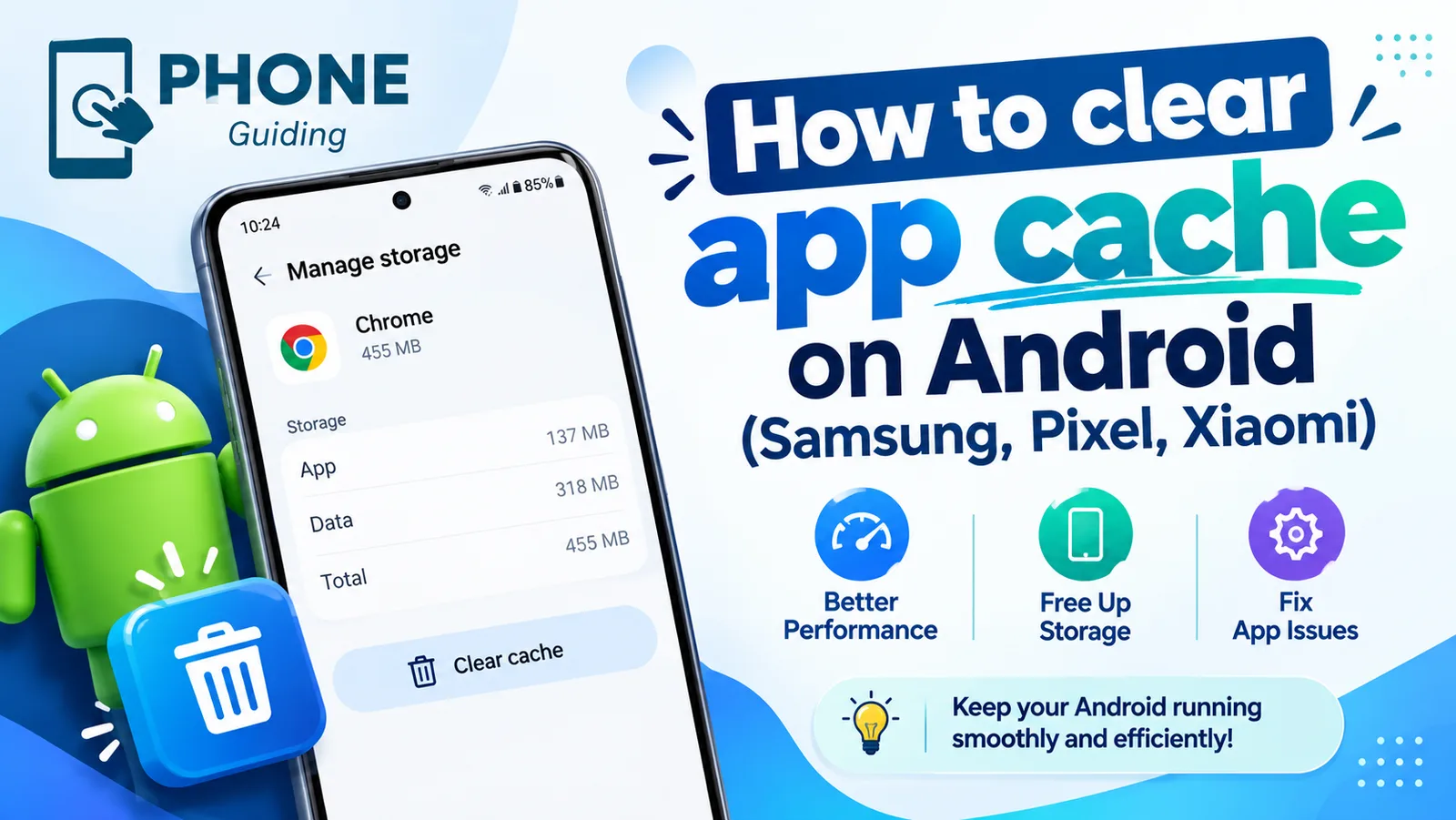
Clear app cache on Android
Clear an app's cache on Android to fix crashes and free up space. Step-by-step instructions for Samsung, Google Pixel, Xiaomi and other phones.
More guides you may need
See blocked numbers
Learn how to see blocked numbers on iPhone, Samsung and Pixel, where the list lives on iOS 26 and older versions, and how to unblock a number by mistake.
Siri keeps turning on by itself
Siri keeps turning on by itself or popping up? Find the trigger, from Type to Siri and the side button to your headphones, and stop it with these 7 fixes.