

How to pair an Apple Watch to a new iPhone without losing your data
Getting a new iPhone does not mean starting your Apple Watch from scratch. Follow Apple's order of steps and your Activity, Health and watch settings come with you, even if the old iPhone is already gone.
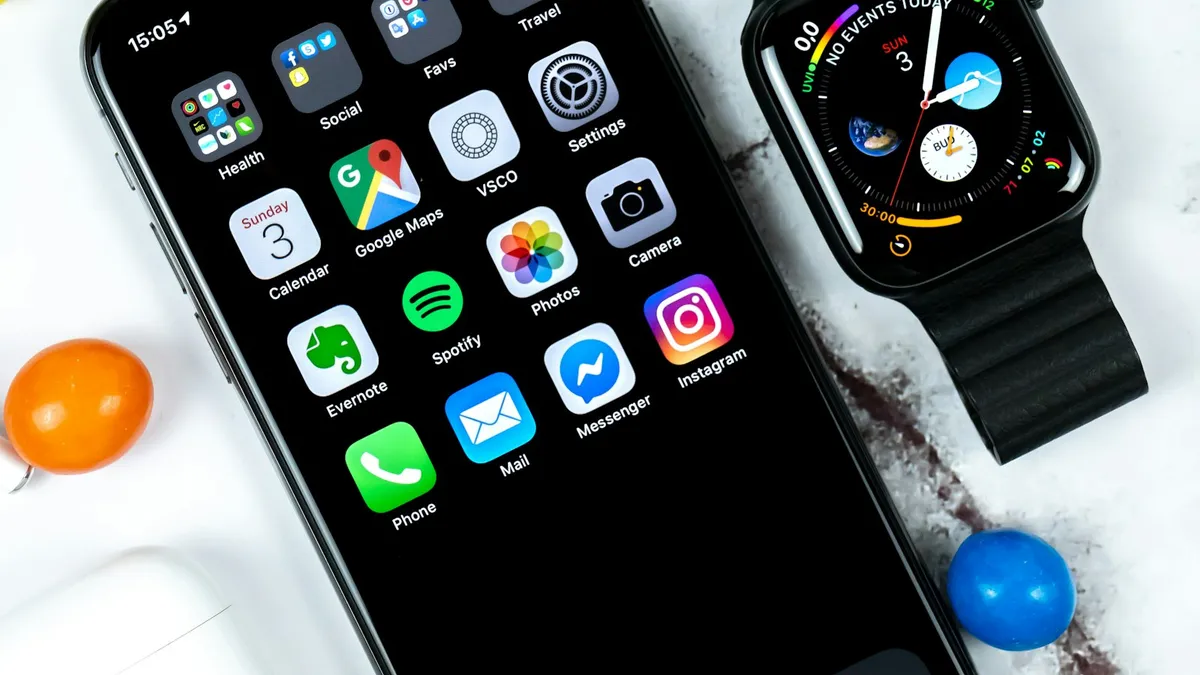
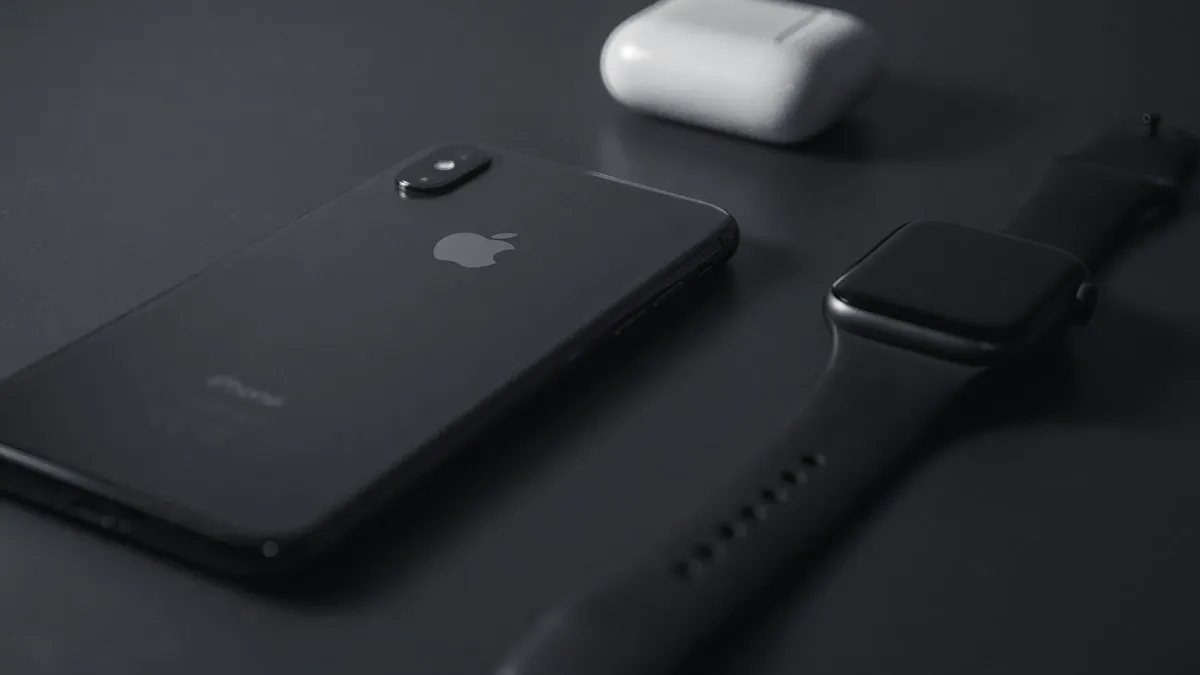
Photo by Daniel Korpai on Unsplash
A new iPhone feels great until you look at your wrist. The Apple Watch is still tied to your old phone, and you are not sure whether to unpair it, reset it, or just hope that it finds the new one on its own. The good news is that Apple has a clear order of steps, and if you follow it, your watch settings, Activity history and Health data move over with very little effort. The bad news is that the instructions are spread across several support pages, and a few small mistakes can leave you stuck at a screen that says Start Pairing or Pairing Not Complete. This guide puts the whole process in one place, shows what to do when the old iPhone is gone, and covers the errors people hit most.
What do you need before you pair an Apple Watch to a new iPhone?
Apple lists a short set of things to have ready. Collect them first, because a missing password halfway through is the usual reason a setup stalls.
- Your Apple Account email and password.
- Your Apple Watch passcode, if you set one.
- Both iPhones connected to Wi-Fi.
- An Apple Watch and a new iPhone that are each at least 50 percent charged.
- Time. The updates alone can take several minutes to an hour.
If you have not turned on a passcode for the watch, set one now in the Watch settings. A passcode is also what lets you use Apple Pay and unlock your Mac from the watch, so it is worth having anyway.
How do you pair an Apple Watch to a new iPhone, step by step?
The order matters more than any single step. Apple wants the old iPhone updated and backed up first, because backing up the iPhone also backs up the Apple Watch. The new iPhone then restores from that backup, and the watch pairs after.
Apple's steps, in order
- 1
Update the old iPhone and the Apple Watch.
Install the newest version available for each. If you skip this, the backup may not show up when you try to restore it.
- 2
Check that Health will sync.
If you use iCloud, open Settings, tap your name, tap iCloud, tap Saved to iCloud, tap Health, and make sure Sync this iPhone is on. If you back up to a computer, encrypt the backup, because only an encrypted backup saves Health and Activity content.
- 3
Back up the old iPhone.
Use iCloud or your computer. Our guide on how to back up your iPhone walks through both.
- 4
Set up the new iPhone.
When it asks how to transfer apps and data, choose the most recent iCloud or computer backup.
- 5
Answer the Apple Watch prompt.
If the new iPhone asks whether you want to use your Apple Watch, keep the watch unlocked and on your wrist, then tap Continue.
- 6
Open the Apple Watch app if no prompt appears.
Keep the watch unlocked, on your wrist and near the iPhone. Follow the steps on the screen.
- 7
Finish the setup.
Pick the restore-from-backup option when the iPhone offers one, enter your watch passcode, and wait for the sync to complete.
What if the iPhone shows Start Pairing?
Apple has a clear rule for this one. If the Apple Watch app on the new iPhone offers Start Pairing, the watch is still paired with another iPhone. You need to unpair it first, then set it up again with the new phone. If you still have the old iPhone, do the unpairing there, because it also removes Activation Lock and makes a fresh backup of the watch before it erases it. Open the Apple Watch app, go to My Watch, tap All Watches, tap the info button next to the watch, and tap Unpair Apple Watch. Enter your Apple Account password when asked. The watch then restarts as new, and you can pair it with the new iPhone and restore the backup it just made.
If the iPhone never asks whether to use your Apple Watch during setup, Apple gives the same advice: unpair the watch from the old iPhone, pair it with the new one, and restore from a backup when asked. Update both devices before you restore, or the backup may not appear in the list.
How do you pair the watch if the old iPhone is lost or broken?
You can still do it. The watch just has to be erased on its own, and some changes made after the last backup will be lost. Apple's steps are short.
When the old iPhone is gone
- 1
Erase the Apple Watch.
On the watch, open Settings, tap General, tap Reset, and tap Erase All Content and Settings. Enter the passcode if asked. Our guide on the full reset steps has more detail.
- 2
Set up the new iPhone and sign in to iCloud.
Skip this step if you already did.
- 3
Open the Apple Watch app on the new iPhone and pair the watch.
Keep the watch unlocked and near the phone.
- 4
Restore from a backup if one exists.
Update the iPhone and the watch first, or the backup may not show. Choose the most recent watch backup. If none exists, set up the watch as new.
- 5
Finish the onscreen steps.
Health and Activity data from iCloud can take a few days to show up fully.
Apple notes that you lose any Activity, Workouts or settings changes made between the last backup and the moment you erased the watch. Activity Sharing data is not stored in iCloud, so you will need to set up sharing with your friends again. Because erasing on the watch does not remove Activation Lock, you also need the Apple Account and password that were used to set up the watch. Keep them handy.
What does Pairing Not Complete mean?
This message means the watch started to pair during the iPhone setup but did not finish. It is easy to fix. Open the Apple Watch app on the new iPhone, tap My Watch, then tap All Watches. The watch should appear with Pairing Not Complete under it. Put the watch on your wrist, keep it unlocked, and tap Finish Pairing. The setup picks up where it stopped.
What if the watch is stuck on the Apple logo?
A watch that sits on a black screen with a white Apple logo needs a restart first. Press and hold the Digital Crown and the side button together until the watch restarts, then let go. When it comes back, press firmly on the screen, or press and hold the Digital Crown, and tap Reset. Bring the iPhone close and follow the steps on the screen to pair again. If the logo comes back on every start, read our guide on an Apple Watch stuck on the Apple logo.
Why is my Health or Activity data missing after pairing?
Health and Activity content comes from iCloud or from an encrypted computer backup, and a missing setting is the usual cause. If you use iCloud, check that Health is on in Settings, then your name, iCloud and Saved to iCloud, on both iPhones. Data updates over Wi-Fi when you are signed in. If you transferred with a computer and the backup was not encrypted, the data was not saved. Apple says the fix is a new iCloud backup or an encrypted computer backup from the old iPhone, then a restore on the new one and a fresh pairing. If you no longer have the old iPhone, or cannot back it up, Apple says this content cannot be recovered.
Does Apple Watch cellular need extra steps?
A cellular plan is tied to the watch and your carrier, not to the iPhone's backup. When you unpair, the Apple Watch asks whether to keep or remove the plan. Keep it if you will pair the watch with an iPhone again, which is the case here. Remove it only if you are selling or giving away the watch, and contact your carrier to cancel the subscription. If the plan does not show up after pairing, check your carrier's app or call them. Our guide on how to find out what carrier your phone uses helps if you are not sure which company holds the line.
Can you pair an Apple Watch with an Android phone?
No. The Apple Watch needs an iPhone to set up and to run most of its features. If you are switching to Android, the watch will not be useful for much beyond telling the time. Many people sell it or use it with a spare iPhone. If you already have an Android phone and wonder about messages, read about an Apple Watch that does not send messages to Android.
What if the watch still will not pair?
- Check the charge. Apple wants both devices at 50 percent or more.
- Check for updates on the watch and the iPhone, then try again.
- Restart both devices and keep them close together.
- Turn Wi-Fi and Bluetooth on, and turn Airplane Mode off.
- Erase the watch and start again as a new setup. You can restore the backup afterward if one is offered.
- Contact Apple Support if the pairing code never shows up.
Should you get a new watch or keep the old one?
That depends on the watch and on what you want from it. A newer iPhone usually asks for a newer version of watchOS, and very old watches may not support the newest iPhone features. If your watch battery drains fast, or the screen is cracked, a newer watch may be better than a repair, especially when a trade-in credit is available. Check what yours is worth with a trade-in before you decide, and compare with what the shop would charge for a battery replacement.
Whatever you decide, finish the pairing and backup first. A fresh backup is the cheapest insurance you can buy, and it makes any later change easy.
Frequently asked questions
Do I have to unpair my Apple Watch before I get a new iPhone?
Not if you set up the new iPhone from a backup and the watch prompt appears. If the Apple Watch app shows Start Pairing, the watch is still tied to the old phone, so unpair it first.
Will I lose my Apple Watch data when I pair it with a new iPhone?
Not if you restore from a backup. Apple says Health and Activity data syncs through iCloud, but watch settings and workouts since the last backup can be lost.
Can I pair my Apple Watch to a new iPhone if the old one is broken?
Yes. Erase the watch from the watch itself, set up the new iPhone, pair in the Apple Watch app, and restore the most recent watch backup if one exists.
Can an Apple Watch pair with an Android phone?
No. An Apple Watch needs an iPhone for setup, so a switch to Android means the watch loses most of what it does.
What to try next
Related guides
Unpair Apple Watch without iPhone
Unpair Apple Watch without iPhone using the watch itself or iCloud.com. See what each method does to Activation Lock and your cellular plan before you sell it.
Trade In value lower
Apple Trade In offered less than the quote after inspection? See why values change, how to accept or decline a revised price and how to avoid a cut next time.
Apple Wallet verification not available
Apple Wallet verification not available when you add a card? Check the bank options, region and date, remove the card and re-add it from your bank app. 7 fixes.
Continue setup on iPhone
Apple Watch says continue setup on iPhone but nothing happens? Finish pairing, restart, reset in pairing mode, or unpair and start again. Steps for each case.
More guides you may need
iPad is disabled, connect to iTunes
iPad is disabled connect to iTunes or says Unavailable? Learn why it locks, how to erase it with your Apple Account or a computer, and get your data back.
iPad keeps restarting
iPad keeps restarting or turning on and off by itself? Force restart it, update iPadOS, free up storage, remove bad apps and restore with a computer if needed.