

iPhone Safari settings: default browser, search bar, DNS and IP
Safari layout and autofill are in Settings › Apps › Safari. DNS and IP settings are per network, in Settings › Wi-Fi.
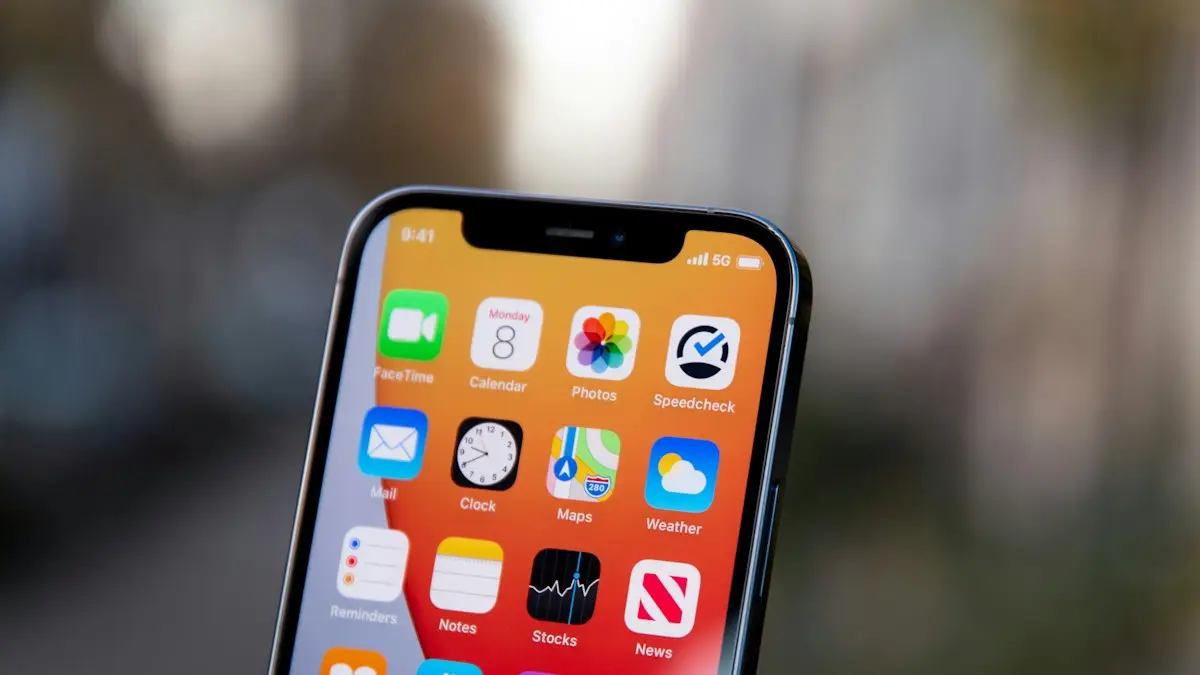
Photo by Frederik Lipfert on Unsplash
Browsing settings are spread over Safari, Default Apps, Wi-Fi and Contacts. This guide covers six of them: the default browser, the Safari search bar, autofill address, SafeSearch, DNS and IP address. On iOS 18 the Safari settings are under Settings › Apps › Safari. On older versions they are directly in Settings › Safari.
How to change the default browser on iPhone
The fix
iOS 18.2 and later
- 1
Install the browser you want from the App Store, such as Chrome.
- 2
Open Settings › Apps › Default Apps.
- 3
Tap Browser App and choose it.
From then on, links you tap in Mail, Messages and other apps open in that browser. To go back, choose Safari in the same place. On older iOS, open Settings, scroll to the browser's name, tap it and choose Default Browser App. If you do not see Default Apps, you are on iOS 18.1 or earlier. Some apps open links in their own built-in browser, and the default setting cannot change that, so look for an Open in browser option inside the app.
How to move the Safari search bar to the top
The fix
Change the layout in Settings
- 1
Open Settings › Apps › Safari.
- 2
Scroll to Tabs and choose a layout.
- 3
Top puts the search bar at the top of the screen. Bottom and Compact keep it at the bottom.
On iOS 26, Compact is the default: a small floating bar at the bottom that shrinks as you scroll, with extra buttons in the three-dot menu. On iOS 17 and 18, the options are Tab Bar and Single Tab, and Single Tab puts the bar at the top. On iOS 15 to 18, you can also tap the aA button in the address bar and choose Show Top Address Bar or Show Bottom Tab Bar. To change the start page, open a new tab, scroll to the bottom, tap Edit and turn on Background Image. If pages load slowly or look wrong, try clearing Safari's cache.
How to change the autofill address
The fix
Update your contact card and point Safari to it
- 1
Open Contacts and tap My Card at the top, then tap Edit.
- 2
Change the address. Delete old addresses with the red minus button, then tap Done.
- 3
Open Settings › Apps › Safari › AutoFill and turn on Use Contact Info.
- 4
Tap My Info and make sure it points to your card.
Safari now fills the new address in web forms. Apple Pay keeps its own address, which you change in Settings › Wallet & Apple Pay › Shipping Address. In Chrome, open the three dots › Settings › Addresses and More, then edit or delete the saved address. If an old address still appears, it is probably a second entry on your card. For updating payment details, see changing your payment method.
How to turn off SafeSearch on iPhone
SafeSearch filters explicit results in Google. In the Google app, tap your profile picture, then Settings › SafeSearch and choose Off. In Safari or Chrome, go to google.com/safesearch and choose Off. If results are still filtered, open Settings › Screen Time › Content & Privacy Restrictions › App Store, Media, Web & Games › Web Content and choose Unrestricted.
If SafeSearch is locked, your Google account is under 18 or managed by Family Link, or a school or work network forces it. Only the parent or administrator can change that. If you are signed in to Google, the setting follows your account. If not, change it in each browser. Parents who want the filter on should leave it, and can read about Screen Time controls before changing anything.
How to change DNS on iPhone
The fix
Change DNS for a Wi-Fi network
- 1
Open Settings › Wi-Fi and tap the info button next to your network.
- 2
Tap Configure DNS and choose Manual.
- 3
Delete the existing servers, then tap Add Server and enter new ones, such as 1.1.1.1 and 1.0.0.1.
- 4
Tap Save. To go back, return to Configure DNS and choose Automatic.
This only affects that Wi-Fi network. For cellular data, use an app such as Cloudflare's 1.1.1.1. Cloudflare and Google (8.8.8.8 and 8.8.4.4) are fast and free, and Quad9 (9.9.9.9) also blocks known bad sites. DNS only changes who looks up website names, so it does not hide your IP address. If a custom DNS makes sites fail to load, switch back to Automatic. For connection problems in general, see an iPhone that will not join Wi-Fi.
How to change your IP address on iPhone
Your iPhone has a local IP address from your router at home, and websites see the public IP address of your router or carrier. Which one you want to change decides the method.
- Renew Lease: Settings › Wi-Fi › info button › Renew Lease gets a new local address.
- Switch networks: moving between Wi-Fi and cellular, or to another Wi-Fi network, changes the public address.
- iCloud Private Relay: Settings › your name › iCloud › Private Relay. It needs iCloud+, and it covers Safari and some app traffic, not every app.
- A trusted VPN: covers all apps, but pick a provider carefully.
- Restart your router: some internet providers then assign a new public IP.
Safari privacy options in your iPhone Safari settings
The Privacy & Security section of Safari settings is worth a minute. Prevent Cross-Site Tracking limits how advertisers follow you from site to site. Hide IP Address keeps your address from known trackers. Block Pop-ups stops most pop-up windows, and Fraudulent Website Warning shows a notice for pages that look like phishing. All four are usually on by default, so only change them if a site you trust does not work. You can also use Clear History and Website Data in the same menu when a page loads wrong, which is a safer first step than turning protections off.
In a page, the aA menu in the address bar has Request Desktop Website, Reader view and a way to change text size for that site. These help when a mobile page is cramped or cluttered, and they do not change any account setting.
Which change fits your problem?
- Pages load slowly or fail: try another Wi-Fi network, then another DNS, and clear Safari's cache.
- A site shows the wrong address for shipping: update My Card in Contacts and check AutoFill.
- You want links to open in Chrome or another browser: set the default browser.
- You want a different public IP: use Private Relay or a VPN, or switch networks.
- The search bar is in the way: move it from the bottom to the top in Safari settings.
Be careful with free VPN apps and unknown DNS services. A service that sees your traffic can also record it, so choose a provider with a clear privacy policy, and never install a profile from a website you do not know.
Tabs, Tab Groups and Private Browsing
Safari can keep your browsing tidy if you use it a lot. Tab Groups let you save a set of tabs, such as a trip or a project, and come back to them later. Profiles, available on newer iOS versions, separate work and personal browsing, each with its own history and cookies. Private Browsing keeps history from being saved, and on iPhones with Face ID it can be locked so it needs your face to open. None of these change what websites see about your connection, so they do not replace a VPN.
If Safari settings look different from this guide, check your iOS version in Settings › General › About. From iOS 18, Safari settings moved under Settings › Apps › Safari, and iOS 26 changed the default tab bar layout. A setting that seems missing is usually just in a new place, and the search field at the top of Settings finds it quickly.
What to try next
Frequently asked questions
Why do some links still open in Safari?
Some apps open links in their own built-in browser. Look for an Open in browser option inside that app, since the default browser setting cannot override it.
Which DNS should I use?
Cloudflare (1.1.1.1 and 1.0.0.1) and Google (8.8.8.8 and 8.8.4.4) are fast and free. Quad9 (9.9.9.9) also blocks known bad sites.
Will changing DNS hide my IP address?
No. DNS only changes who looks up website names. Use iCloud Private Relay or a trusted VPN to hide your IP address.
Why does Safari fill in my old address?
The old address may still be on your contact card as a second entry. Delete it with the red minus button while editing your card.
People also ask
Why does Safari think I am in another state?
Websites usually guess your location from your IP address. Mobile carriers, VPNs and Private Relay can give you an address that belongs to another city or state.
Read the full guide: Safari wrong locationHow do I AutoFill a verification code on my iPhone?
When a site or app asks for a code and the text arrives, the code shows above the keyboard. Tap it to fill it in. Codes from Mail can also fill in Safari on recent versions.
Read the full guide: Verification codes on iPhoneSafari says my iPhone has a virus. Is it true?
No. Websites cannot scan your phone. Close the tab, do not tap anything or call any number shown, and clear Safari history and website data.
Read the full guide: Check iPhone for a virusIs it safe to clear cache on iPhone?
Yes. Cache is temporary data that apps rebuild. Clearing Safari data does sign you out of websites, so make sure you know your passwords or use iCloud Keychain.
Read the full guide: Clear cache on iPhoneRelated guides
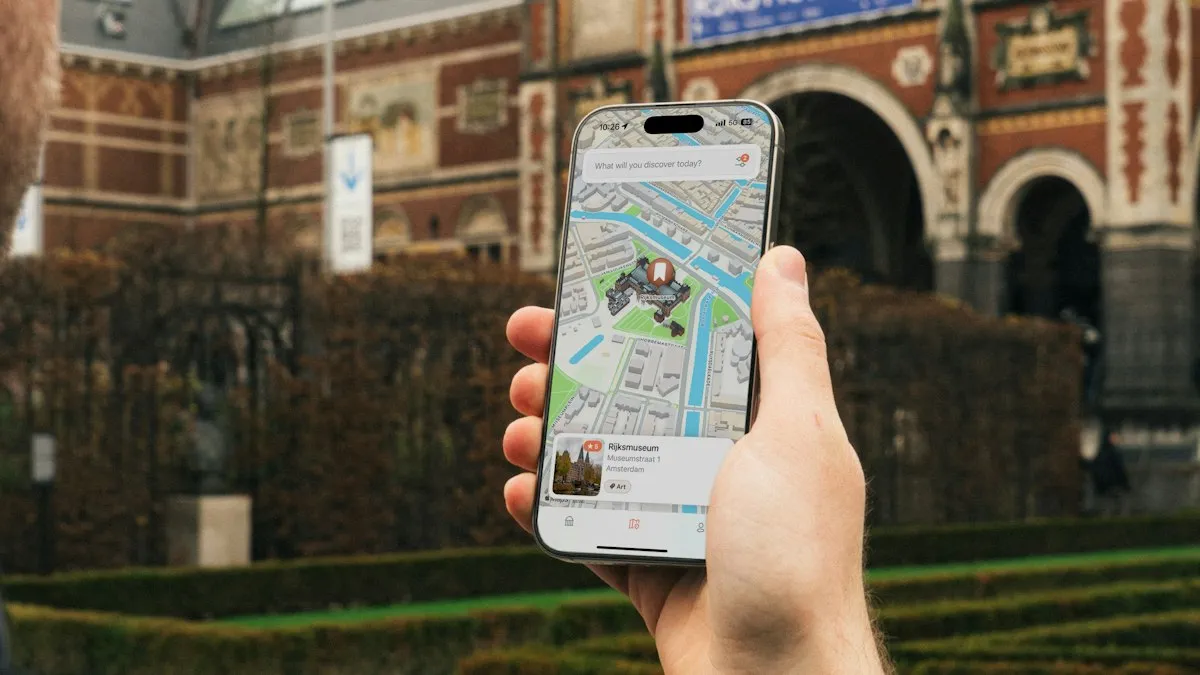
Safari wrong location
Safari showing the wrong city or state on your iPhone? Find out why sites guess your location from your IP address and how to fix it with a few settings checks.
Verification codes on iPhone
Verification codes on iPhone: how OTP and 2FA codes arrive, how to AutoFill them from Messages and Mail, use Passwords, and fix codes that don't come.
Check iPhone for a virus
Check your iPhone for a virus or malware: spot the real warning signs, remove unknown profiles and apps, clear Safari data and update iOS. No paid app needed.
Clear cache on iPhone
Clear cache on your iPhone to free space and fix slow apps. Clear Safari and Chrome data, offload apps and use in-app cache buttons, step by step.
More guides you may need
iPhone region settings
Change iPhone region settings in one guide: App Store country, phone number, in-app purchases, Maps voice, miles or kilometers and which apps see your location.
Move iCloud backup to Google Drive
You cannot move a full iPhone backup from iCloud to Google Drive, but you can move photos, files, contacts and calendar. See each method and what to expect.