

How to screenshot on iPhone (every model, plus full page)
On Face ID iPhones, press the side button and Volume Up together. Older iPhones use the Home button.
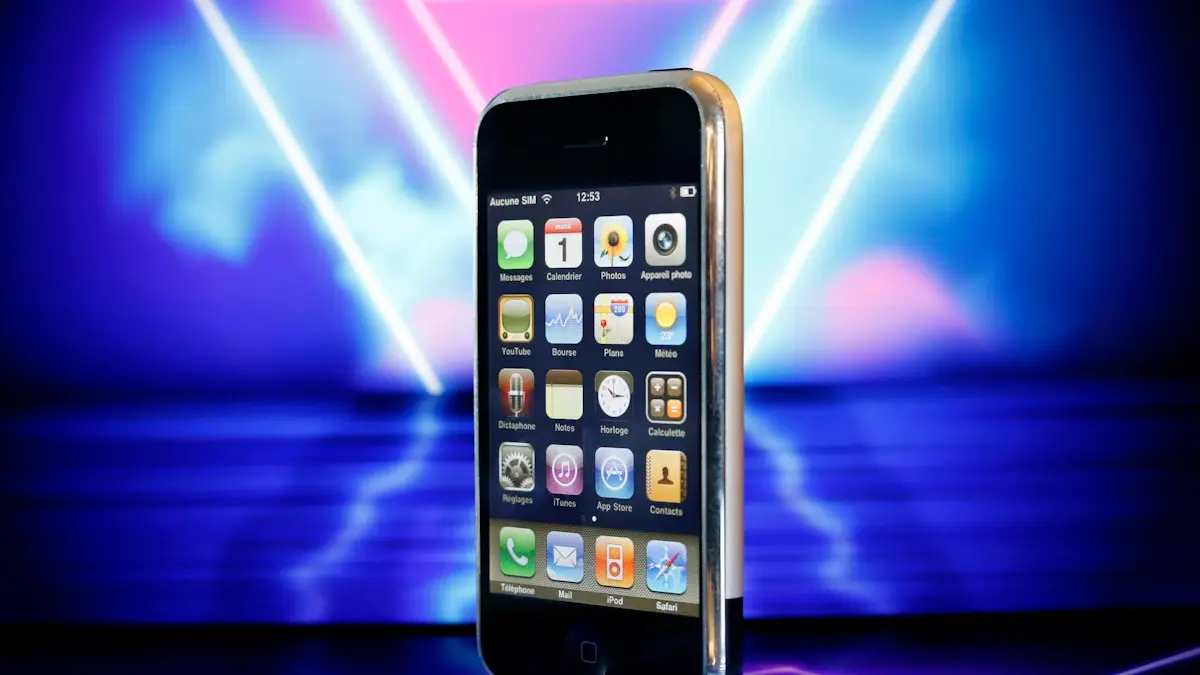
Photo by Mathieu Improvisato on Unsplash
The fix
With the buttons
- 1
Face ID iPhones: press side button and Volume Up together.
- 2
Home button iPhones: press side (or top) button and Home together.
- 3
Tap the thumbnail to mark up, or swipe it away to save.
The fix
Without buttons: Back Tap
- 1
Open Settings › Accessibility › Touch › Back Tap.
- 2
Choose Double Tap, then Screenshot.
- 3
Double tap the back of the iPhone to take one.
The fix
Full page screenshot
- 1
Take a screenshot in Safari, Mail or Notes.
- 2
Tap the thumbnail, then Full Page at the top.
- 3
Tap Done and save to Photos or as a PDF.
Which buttons does your iPhone use?
- iPhone X and later (Face ID), including iPhone 16, 17 and 18: side button and Volume Up.
- iPhone SE (2nd and 3rd generation), iPhone 8 and earlier with Home button: side button and Home.
- iPhone SE (1st generation), iPhone 5s and earlier: top button and Home.
Press both at the same moment and release quickly. Holding them too long opens the power off screen or Emergency SOS, so let go as soon as the screen flashes.
Screenshot not working?
- Nothing happens: press both buttons at exactly the same time. Practice with a quick squeeze.
- SOS screen appears: you held too long. Release faster. You can turn off the SOS button shortcuts if this keeps happening.
- Buttons feel stuck: a tight case can press them. Take it off to test.
- Screenshot saved but black: the app blocks it, like streaming apps playing a protected video.
- Storage full: the iPhone cannot save new images. Free some space.
If a button is broken, the iPhone still takes screenshots through the methods below.
Use AssistiveTouch or Siri
Turn on Settings › Accessibility › Touch › AssistiveTouch. A floating button appears. Tap it, then Device › More › Screenshot, or customize the top menu to show Screenshot directly. AssistiveTouch is hidden in screenshots. You can also say "Siri, take a screenshot" with Siri turned on, which is handy when your hands are full.
Back Tap tips
Back Tap needs iPhone 8 or later. It works through most thin cases. Choose Double Tap for screenshots and Triple Tap for something else, like the flashlight. If it triggers by accident in your pocket, switch to Triple Tap.
Edit and mark up a screenshot
Tap the thumbnail within a few seconds. The Markup screen lets you crop by dragging the edges, draw with pens and a highlighter, add text, shapes, a signature and a magnifier. Tap the plus sign for more tools. Tap Done to save to Photos, save to Files, or delete. If you missed the thumbnail, open the screenshot in Photos and tap Edit, then the Markup pen icon.
Full page screenshots in detail
Full Page appears for long content in Safari, Mail, Notes, Pages and some other apps. It saves the whole page as a PDF, not an image. In the editor, a scroll bar on the right lets you jump through the page and crop the length. Save it to Files, or share it as a PDF. To get an image instead, take normal screenshots as you scroll, or use the share sheet's Print option to turn the PDF into pages. Full Page does not appear in Chrome or most third-party apps.
Where iPhone screenshots are saved
Screenshots go to the Photos app. Find them in Albums › Media Types › Screenshots, or search "screenshot" in Photos. If iCloud Photos is on, they sync to all your devices and use iCloud storage. Full page captures saved as PDFs go to the Files app, wherever you chose.
Copy, share or delete in one step
In the editor, tap Done and choose Copy and Delete to put the screenshot on the clipboard without saving it. Paste it into a message or document. With iOS 17 and later you can also drag the thumbnail straight into an open app on iPad, and on iPhone touch and hold it to share right away.
Copy text from a screenshot
Open the screenshot in Photos. If it has text, a Live Text icon appears at the bottom right. Tap it, then select and copy text, call a phone number or open a link. This works on iPhone XS and later.
Screenshot or screen recording?
A screenshot captures one moment. For steps or a video, use a screen recording from Control Center. See how to record your iPhone screen for setup and sound.
Keep screenshots private and tidy
Screenshots often include personal details: messages, addresses, account numbers and the time. Crop or mark over them before sharing. Screenshots also pile up and use storage. Every few months, open the Screenshots album, select the ones you no longer need and delete them, then empty Recently Deleted. Our guide to clearing space on your iPhone has more ways to save room. Apps cannot tell when you screenshot, except Snapchat and a few chat apps that notify the sender.
Change screenshot settings
You can change the screenshot format, turn off the thumbnail on some versions and choose the default for full page captures. Those settings are covered in iPhone screenshot settings.
Take a screenshot of a FaceTime call
Screenshots work during FaceTime and show the other person's video. For a cleaner photo, FaceTime has its own Live Photos button (the white circle) that captures without your on-screen controls. Both people need FaceTime Live Photos turned on in Settings › Apps › FaceTime, and the other person gets a notice that you took one.
Take a screenshot of a video
Pause the video where you want, then take a screenshot. The controls may show on screen; tap the video once to hide them, then capture. For a sharper result from your own videos in Photos, see how to save a still frame from an iPhone video, which grabs a full resolution frame.
Screenshots on the lock screen
You can take a screenshot on the lock screen and in notifications. This is handy for saving a message preview or a widget. It saves to Photos like any other screenshot, without unlocking the phone.
Screenshot with an Apple Watch
Apple Watch can take its own screenshots. Turn on Enable Screenshots in the Watch app on your iPhone under General. Then press the side button and Digital Crown together on the watch. Watch screenshots appear in Photos on the iPhone.
Screenshots turned into PDFs or files
Need a document instead of a picture? Select several screenshots in Photos, tap Share and choose Print, then pinch out on the preview to turn them into a PDF you can save. Our guide to making a PDF from iPhone photos covers more ways.
Why the screenshot thumbnail is missing
If no preview appears in the corner, the screenshot is still saved; check Photos. Some versions let you hide the thumbnail. If neither the thumbnail nor the image appears, restart the iPhone. A frozen screenshot service is rare but a restart clears it.
Quick summary
- Face ID iPhone: side and Volume Up.
- Home button iPhone: side or top and Home.
- No buttons: Back Tap, AssistiveTouch or Siri.
- Whole web page: Full Page in Safari, saved as PDF.
Screenshots on iPhone with a broken screen
If parts of the screen do not respond, the buttons still take screenshots, since they do not need touch. This can help you capture an error to show a repair shop. For screen repair costs, see what an iPhone screen repair costs.
Do screenshots lose quality?
No. A screenshot saves the exact pixels on your screen as a PNG file, which is lossless. Sharing through some apps compresses it, so send through AirDrop or as a file when you need full quality.
Whichever method you pick, the screenshot always lands in the same Screenshots album in Photos.
Practice the button press a couple of times and it soon becomes second nature.
Pick the method that suits you best and practice it once.
Frequently asked questions
Where do screenshots go?
Into Photos, in the Screenshots album under Media Types. Full page captures can also be saved as PDFs in Files.
Can I screenshot without pressing buttons?
Yes. Set Back Tap to Screenshot, then double tap the back of your iPhone, or say Hey Siri, take a screenshot.
Why is my iPhone not taking screenshots?
Usually the buttons are pressed at slightly different times, or a stuck button needs a restart. Try Back Tap or AssistiveTouch, and check storage is not full.
How do I screenshot on iPhone and send it without saving?
Tap the thumbnail, then Done › Copy and Delete. Paste it into Messages or email, and it never lands in your photo library.
People also ask
How do I get the small screenshot thumbnail back in iOS 26?
Open Settings › General › Screen Capture and turn off Full Screen Previews. Screenshots then show as a thumbnail in the corner again.
Read the full guide: Change screenshot settings on iPhoneIs the iPhone 13 eSIM compatible?
Yes. All iPhone 13 models support eSIM. They also have a physical nano-SIM slot, so you can use one SIM and one eSIM.
Read the full guide: Which iPhones support eSIMIs a screenshot of a video lower quality?
Yes. A screenshot is saved at your screen’s resolution and can include black bars, while a 4K video frame has more detail. On iOS 27, Save Video Frame as Photo keeps the full video resolution instead.
Read the full guide: Take a photo from a video on iPhoneWhat is “System Data” and can I delete it?
System Data holds caches, logs and temporary files. You cannot delete it directly, but it usually shrinks after a restart, after clearing Safari data, or once iOS finishes an update.
Read the full guide: Free up iPhone storageRelated guides
Change screenshot settings on iPhone
Every iPhone screenshot setting and option: turn off iOS 26 full-screen previews, pick PNG or HDR, use Back Tap, and what older iPhones like the X can change.
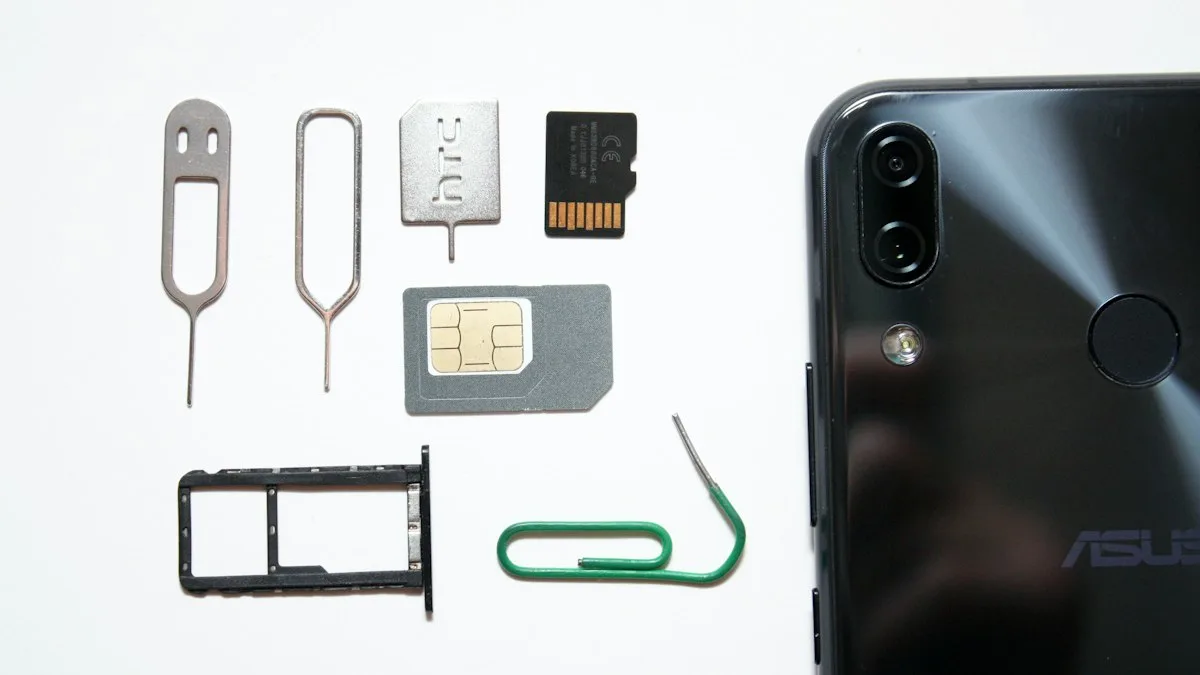
Which iPhones support eSIM
Every iPhone with eSIM support, from the XS and XR to the newest models. See if your iPhone 12 or 13 works, which are eSIM only, and how to check yours.
Take a photo from a video on iPhone
Get a still photo from a video on iPhone: use Save Video Frame as Photo in iOS 27, take a clean screenshot, pick a Live Photo frame, or export it on a Mac.
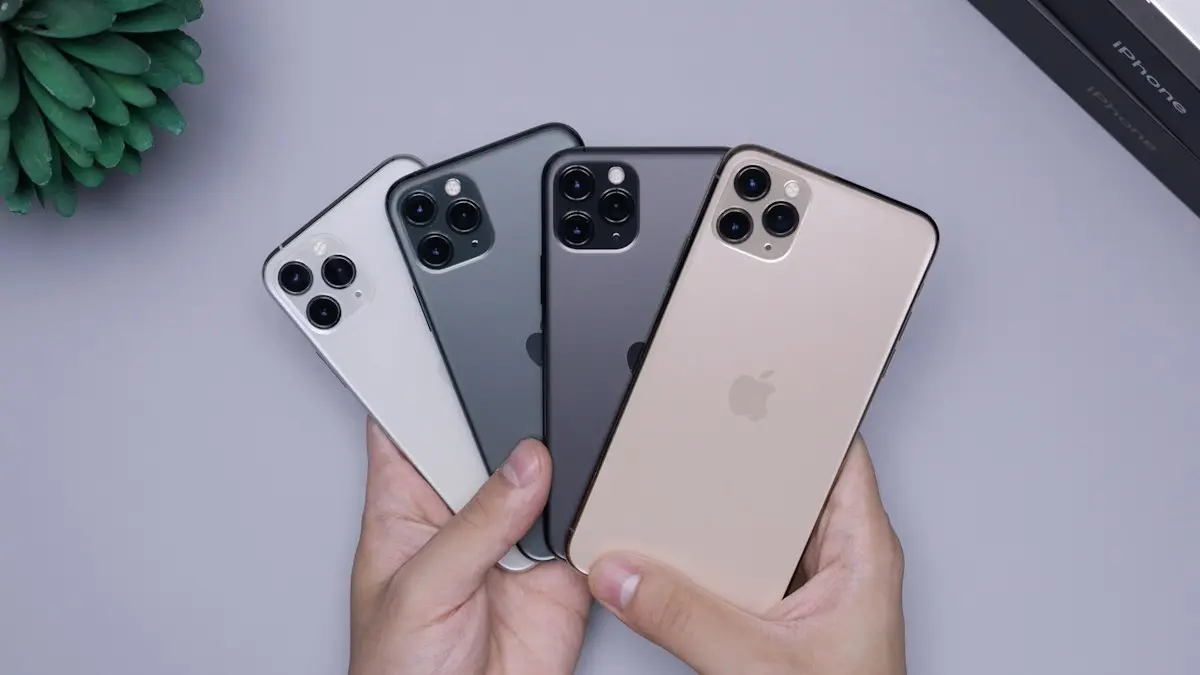
Free up iPhone storage
iPhone storage full? Here is how to find what is using the space and clear several gigabytes without losing a single photo or message you care about.
More guides you may need
Change Instagram password
Change your Instagram password on iPhone in Accounts Center, reset it if you forgot the old one, and log out every other device so nobody else stays signed in.
Change your iPhone avatar
Change your iPhone avatar: the Apple Account photo in Settings and the Contact Photo and Poster people see when you call. Use a photo, Memoji or initials.