

How to screenshot on Android (Samsung, Pixel, Motorola)
Power and Volume Down works on almost every Android phone. Each brand also adds a shortcut of its own.
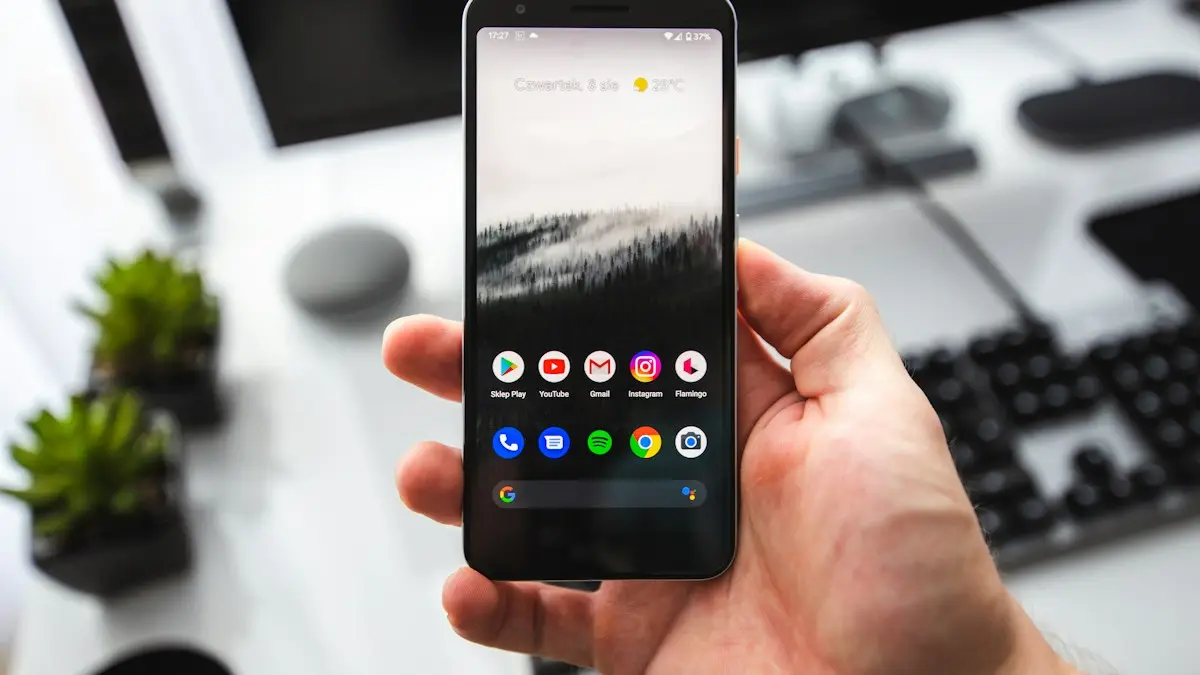
Photo by Sebastian Bednarek on Unsplash
The fix
Every Android phone
- 1
Open what you want to capture.
- 2
Press Power and Volume Down together, then let go.
- 3
Tap the preview to edit or share, or swipe it away.
Shortcuts by brand
- Samsung: swipe the side of your hand across the screen. Turn on Palm swipe to capture in Settings › Advanced features › Motions and gestures.
- Pixel: open Recent apps and tap Screenshot under the app.
- Motorola: touch the screen with three fingers, or turn it on in the Moto app.
- Any phone: say Hey Google, take a screenshot.
The fix
Take a scrolling screenshot
- 1
Take a normal screenshot.
- 2
Tap Capture more on Pixel, or the scroll arrows on Samsung.
- 3
Choose how far down to include and save.
Get the button press right
Most failed screenshots come from timing. Press Power and Volume Down at exactly the same moment and let go after about half a second. Press Power first and you lock the screen. Press Volume Down first and the volume bar appears. Holding both for too long can open the power menu or restart some phones. If your phone has a case with stiff buttons, press firmly on the edge of the buttons.
Samsung Galaxy shortcuts
Besides the buttons, Samsung offers Palm swipe to capture. Turn it on in Settings › Advanced features › Motions and gestures, then swipe the side of your hand across the screen from left to right, touching the glass. The Screenshot button in the Edge panel and the Quick panel work too. After a capture, the toolbar at the bottom lets you scroll, draw, crop, tag or share. For more on Galaxy phones, see our Samsung screenshot guide.
Pixel shortcuts
On a Pixel, open Recent apps and tap Screenshot under the app preview. You can also turn on Quick Tap in Settings › System › Gestures › Quick Tap and set it to take a screenshot when you double tap the back of the phone. The Pixel editor opens when you tap the preview, with crop, markup and a text tool.
Motorola, OnePlus and other brands
- Motorola: Three-finger screenshot in the Moto app › Gestures. Touch and hold the screen with three fingers.
- OnePlus: Three-finger swipe down, turned on in Settings › Additional settings › Gestures.
- Xiaomi and Redmi: Three-finger swipe down, or the Screenshot toggle in Control Center.
- Any phone: say "Hey Google, take a screenshot" with Google Assistant turned on.
Without buttons: Quick Settings and Accessibility Menu
Swipe down twice from the top of the screen and look for a Screenshot tile. If it is not there, tap the pencil icon to add it. For a button that always stays on screen, turn on Settings › Accessibility › Accessibility Menu. A small person icon appears, and its menu includes Screenshots. This helps if a button is broken or hard to press.
How to take a long scrolling screenshot
After taking a screenshot of a page that scrolls, look at the toolbar. On Pixel tap Capture more and drag the bottom handle down to choose how much to keep. On Samsung tap the scroll capture icon (two down arrows) repeatedly until you reach the end. This works in browsers, chats and most apps, but not on screens that do not scroll, like maps or video.
Capture only part of the screen
Crop after you capture: tap the preview, then the crop tool. Samsung also has Smart select in the Edge panel, which lets you draw a rectangle or oval around part of the screen, or even make a short GIF.
Where Android screenshots are saved
Screenshots go to the Pictures › Screenshots folder (or DCIM › Screenshots on Samsung). You see them in Google Photos under Library › Screenshots, and in the Samsung Gallery under Albums › Screenshots. If Google Photos backup is on, they also upload to your Google account, which uses storage. Delete old ones now and then, or turn off backup for that folder in Google Photos settings.
Why your Android phone will not take a screenshot
- "Can't take screenshot due to security policy": the app blocks it. Banking apps, password managers, incognito tabs and some streaming apps do this.
- Work profile: your employer may block screenshots in work apps.
- Storage full: the phone has no space to save the image. See Android storage full.
- Nothing happens: try the Quick Settings tile. If that works, a button may be failing.
- Black image: protected video content. Screen recording will be black too.
Share or send a screenshot
Tap the share icon in the preview to send it straight to Messages, email or a chat app. If you need to send several, open Google Photos or Gallery, touch and hold to select them, then share. To turn screenshots into one document for printing, use the print or Save as PDF option in the share menu.
Think before you share
A screenshot shows everything on screen, including the clock, your battery level, notifications and sometimes names and phone numbers. Crop or blur those before posting. Never share screenshots of verification codes or bank details. If you need a video instead, see how to screen record on a Galaxy.
Edit a screenshot after taking it
Tap the preview in the corner within a few seconds. Google's editor lets you crop, draw with a pen or highlighter, add text and undo. Samsung's editor adds stickers, a blur tool on some versions and an option to extract text. If you miss the preview, open the screenshot in Google Photos or Gallery and tap Edit. Both keep the original, so you can revert later.
Copy text from a screenshot
On Pixel, open the screenshot in Google Photos and tap Lens to select text, then copy it. Samsung Gallery shows a T icon on images with text. This is handy for phone numbers, addresses and error messages that you want to paste somewhere else.
Turn off the screenshot sound
Screenshots follow the system sound on most phones. Switch to vibrate to make them silent. Samsung has a separate switch under Settings › Advanced features › Screenshots and screen recordings in some versions, along with options to hide the toolbar, delete shared screenshots automatically and choose the file format.
Change where screenshots are saved
Android does not let you choose another folder for screenshots, but you can move them. In Files by Google, open Images › Screenshots, select the files and choose Move to. Samsung's Screenshots settings let you pick JPG or PNG. PNG files keep sharp text but take more space.
Screenshots on Android tablets
Tablets use the same buttons. Galaxy Tab models also have a screenshot button in the navigation bar when you turn it on in settings, and many accept a stylus shortcut through Air command. If you are on an iPhone too, see taking screenshots on iPhone for its button combo and full page captures.
Screenshots in Google Chrome
Chrome on Android blocks screenshots in Incognito tabs by default. In a normal tab, you can also tap the three dots › Share › Long screenshot to capture a full page with a handle that lets you pick the exact start and end. This is often cleaner than the system scrolling capture, because it skips the address bar and keyboard. Chrome can also save a whole page as a PDF from the Share › Print menu.
A screenshot or a screen recording?
A screenshot is the best choice for a still message, receipt or error. A screen recording is better when you need to show steps, a bug or a video. Recordings take more space, so trim them before sending.
If none of these methods work on your phone, check for a system update in Settings. Screenshot bugs are rare, but they do get fixed in updates, and an update also adds new capture options on Samsung and Pixel phones.
Screenshots are one of the most used features on any phone, so it is worth learning the shortcut that suits your hand best.
Frequently asked questions
Where do screenshots go on Android?
In the Screenshots album in Google Photos or the Samsung Gallery app, and in Pictures › Screenshots in Files.
Why does it say it cannot take a screenshot?
Some apps, like banking apps or private browser tabs, block screenshots for security. A work profile can block them too.
How do I screenshot on Android without the power button?
Use the Screenshot tile in Quick Settings, the Accessibility Menu, Samsung's palm swipe, or say Hey Google, take a screenshot.
Why are my screenshots black?
The app blocks screenshots for privacy or copy protection. Streaming apps, banking apps and incognito tabs do this on purpose.
People also ask
What happens after I factory reset my Android phone?
The phone restarts to the setup screen with no apps, accounts or personal files. To use it, sign in with the Google account that was on it before, because of Factory Reset Protection.
Read the full guide: Factory reset an Android phoneWhy don’t I see Scroll capture?
The toolbar is off. Turn on Show toolbar after capturing in Settings › Advanced features › Screenshots and screen recordings.
Read the full guide: Screenshot on SamsungHow do I get into recovery mode on a Motorola?
Turn it off, hold Volume Down and Power until the Fastboot screen shows, then use the volume keys to pick Recovery mode and press Power.
Read the full guide: Motorola stuck on logoWhat does a blocked caller hear?
Usually the call goes to voicemail or ends after one ring. They are not told they are blocked.
Read the full guide: Block a number on AndroidRelated guides
Factory reset an Android phone
Factory reset a Google Pixel, Motorola or other Android phone from Settings or with the buttons. Back up first and avoid the Google lock after the reset.
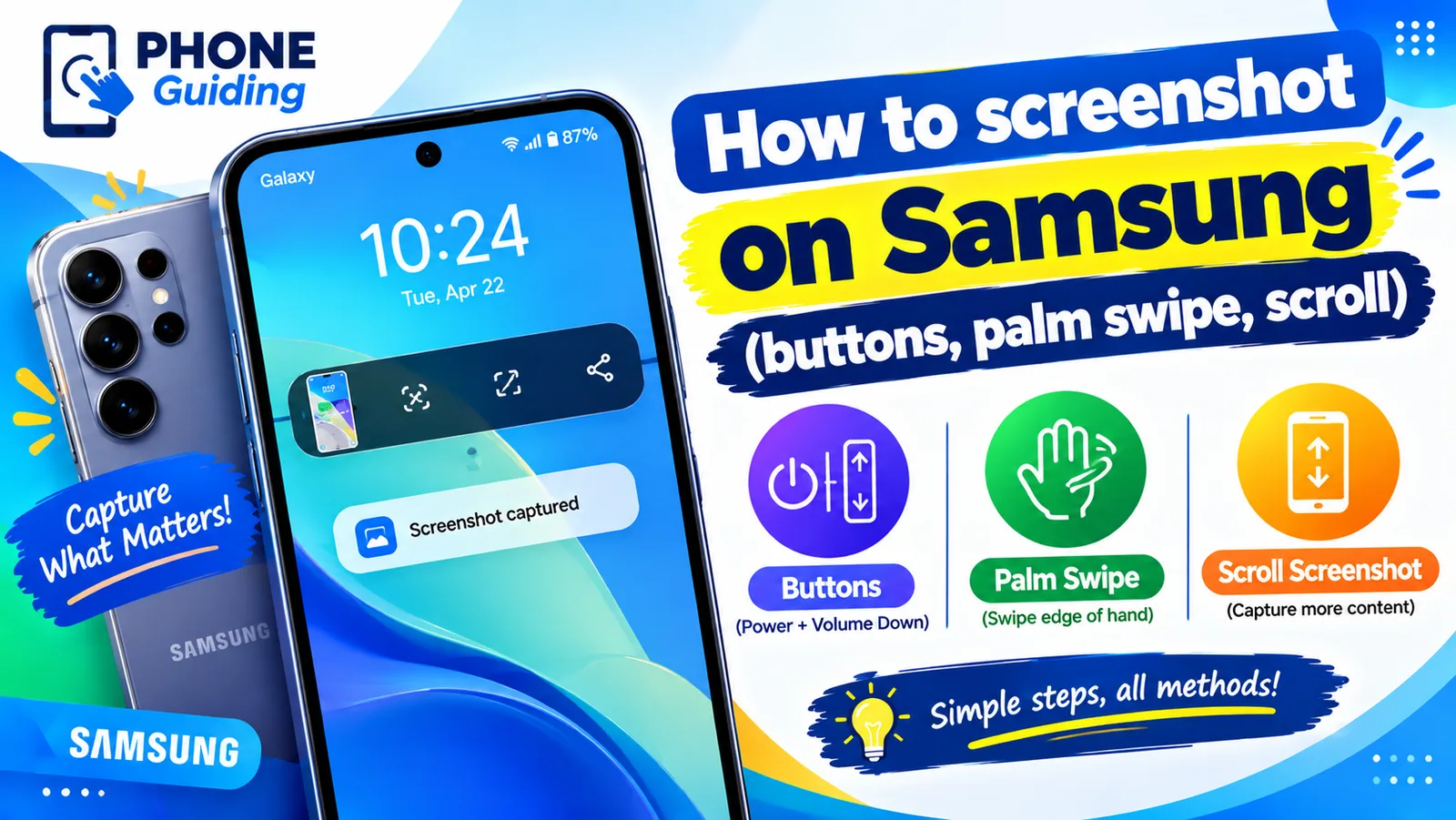
Screenshot on Samsung
Take a screenshot on any Samsung Galaxy with Power and Volume Down, a palm swipe or Bixby, and capture long pages with Scroll capture. Settings included.
Motorola stuck on logo
Motorola stuck on the Hello Moto or logo screen? Force restart it, charge it, wipe the cache in recovery and use Motorola’s Software Fix tool before a reset.
Block a number on Android
Block a number on your Android phone from Recents or Phone settings on Samsung and Pixel. Also how to block texts, add a number by hand and unblock later.
More guides you may need
Change group chat name on iPhone
How to change group chat name on iPhone: open the group in Messages, tap the names and choose Change Name and Photo. Fix a group that can't be renamed.
Change headphone settings on iPhone
Change headphone settings on iPhone: tune the sound with Headphone Accommodations, fix left and right balance, limit loud audio and set AirPods controls.