

Apple Watch says continue setup on iPhone: how to finish pairing
The message means the watch is waiting for the iPhone to finish pairing. Most of the time you only need to wake the iPhone and reopen the Watch app. When the setup is truly stuck, a reset in pairing mode clears it.
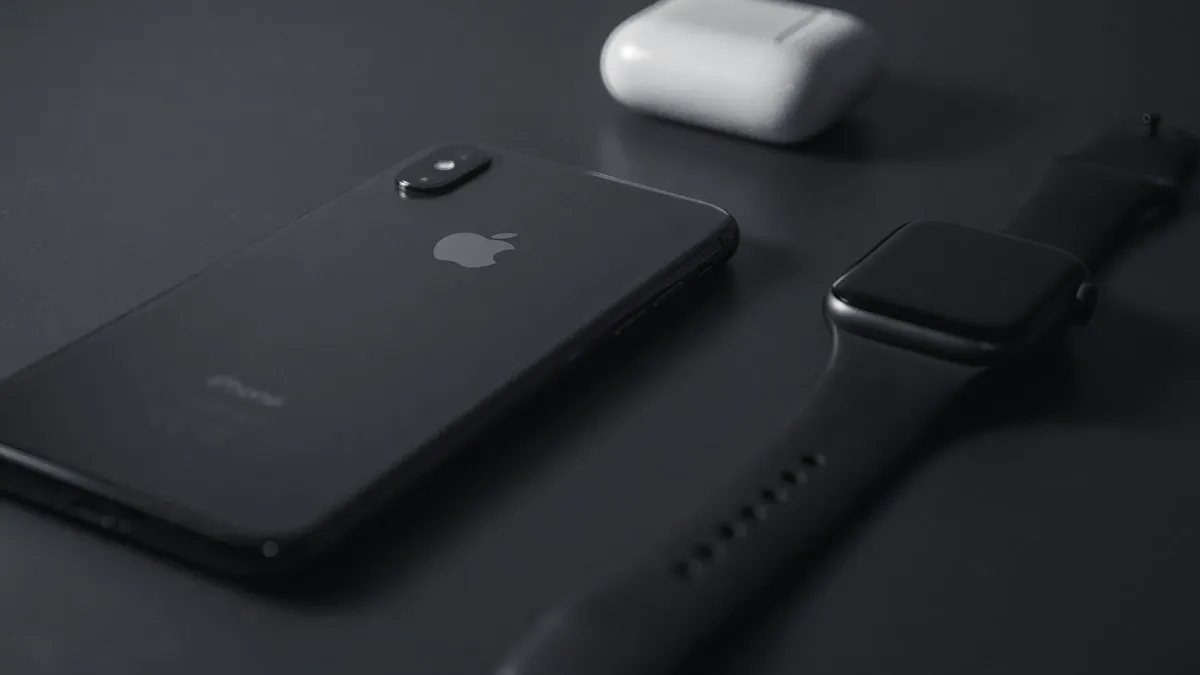
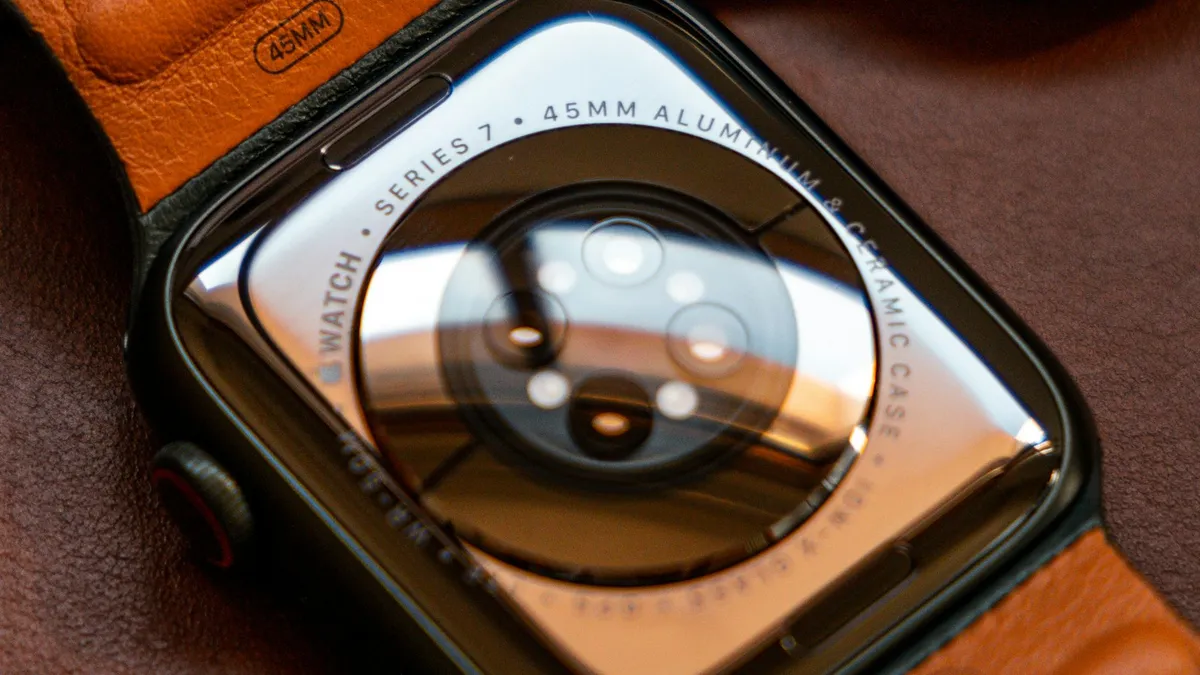
Photo by Cezar Sampaio on Unsplash
You hold a new Apple Watch near your iPhone, scan the watch face, and then the watch shows a message telling you to continue setup on iPhone. Then nothing happens. The watch screen does not change, the iPhone seems to have moved on, and you wonder if you did something wrong. You did not. This message is part of normal pairing, and it only becomes a problem when the two devices stop talking to each other halfway through. This guide explains what the message means, why it sticks, and the order of fixes that works, from the quick one to a full reset.
What does continue setup on iPhone mean on Apple Watch?
Pairing happens in two places. The watch handles the first part: it shows the pairing animation and waits for the iPhone to find it. After you scan the watch, the iPhone takes over and asks questions: whether you are setting it up for yourself or a family member, which wrist you wear it on, which settings to copy, whether to use a passcode, and which apps to install. While the iPhone asks, the watch shows a short message telling you to carry on with the iPhone. That is the screen you are looking at. It should disappear by itself as soon as you finish the iPhone side.
So the message does not mean the watch is broken. It means the watch is waiting for an answer that has not arrived. Your job is to find out why the iPhone side stopped.
Why is my Apple Watch stuck on this screen?
- The iPhone screen locked or the Watch app closed: the setup questions are still waiting, but you left them. This is the most common cause.
- Bluetooth or Wi-Fi was switched off, or Airplane Mode is on: Apple lists these as the first things to check when a watch will not pair.
- The iPhone needs a software update: a watch running newer software needs an iPhone that runs a compatible version of iOS.
- The two devices are too far apart: keep them within a few inches while pairing.
- A glitch or interrupted pairing: if the animation stays on screen for several minutes, Apple treats the pairing as stalled.
- The watch was set up before: a used watch can still be tied to another Apple Account through Activation Lock, which blocks a clean setup.
How do you finish setup from the iPhone?
Check the iPhone first
- 1
Unlock the iPhone and keep it next to the watch.
A locked or sleeping iPhone is the usual reason the watch seems to wait forever.
- 2
Open the Watch app.
This is the app with the watch icon. If you see a screen that asks you to continue pairing or shows setup options, follow it to the end.
- 3
If the Watch app shows the start screen again, tap Start Pairing.
Hold the iPhone so the watch face appears in the viewfinder. The two devices connect again.
- 4
Answer each setup screen without leaving the app.
Choose Set Up for Myself, pick the wrist, accept the terms, sign in to your Apple Account if asked, and set a passcode. Do not switch to another app while the progress bar moves.
- 5
Wait for the watch to say it is syncing, then let it finish.
A first sync can take a few minutes, because the iPhone copies apps and settings to the watch.
What should you check before you try anything stronger?
Spend one minute on the basics. They cause more stuck pairings than any hardware fault, and each takes seconds to confirm.
- Open Control Center on the iPhone and make sure Airplane Mode is off and Bluetooth and Wi-Fi are on.
- Go to Settings › General › Software Update on the iPhone and install any update that is waiting.
- Plug in both devices, or check that each has enough charge for a long setup.
- Move away from other Bluetooth devices that might crowd the connection, and keep the watch and phone close together.
- Make sure you use the iPhone that is signed in to the Apple Account you want for the watch.
How do you restart the watch and iPhone to clear a stuck pairing?
The fix
Restart both devices
- 1
Close the Watch app.
Swipe up from the bottom of the iPhone screen and flick the Watch app away.
- 2
Restart the iPhone.
Hold the side button and a volume button, then drag the power slider. Turn it on again and wait for the Lock Screen.
- 3
Restart the watch.
Hold the side button until the power slider appears, drag it, then press the side button until the Apple logo shows. If the watch does not respond, hold the Digital Crown and the side button together until it restarts.
- 4
Start pairing again from the beginning.
Open the Watch app, tap Start Pairing, and scan the watch face.
Apple says a restart of both devices comes first when a watch is not connected or paired. If the devices were otherwise fine, this step alone fixes most cases.
How do you reset the Apple Watch while it is still in pairing mode?
When the pairing animation stays on the watch screen for several minutes, Apple has a specific fix. You do not need to unpair anything, because the watch has not finished pairing yet.
The fix
Reset from pairing mode
- 1
Keep the watch in pairing mode.
This is the screen that shows the pairing animation or the continue setup message.
- 2
Press and hold the Digital Crown.
Keep holding until a Reset option appears on the watch.
- 3
Tap Reset.
The watch restarts and goes back to the beginning of setup.
- 4
Pair again.
On the iPhone, open the Watch app, tap Start Pairing, and scan the watch face.
If the Digital Crown does not bring up a Reset option, restart the watch with the Digital Crown and side button together and try again. Our guide on how to reset an Apple Watch covers other ways to erase it.
What if the iPhone does not offer to pair the watch?
- No pairing screen appears next to the watch: open the Watch app and tap Start Pairing yourself. You can also choose Pair Manually if the camera cannot scan the face.
- The watch is already paired to another iPhone: unpair it from that iPhone first, because one watch can pair with only one iPhone at a time.
- The iPhone says the watch needs an update or cannot connect: keep both devices on power and Wi-Fi, and let the update finish. Do not turn off either one.
- The camera is blocked: remove a case or screen protector that covers the lens, and clean it.
How do you unpair and erase the watch if nothing works?
Use this only after the other steps fail, or when the watch was paired before. Apple prefers that you unpair from the iPhone, because that also removes Activation Lock.
Unpair from the iPhone
- 1
Open the Watch app on the iPhone and tap the My Watch tab.
- 2
Tap All Watches at the top, then tap the i button next to the watch.
- 3
Tap Unpair Apple Watch and confirm.
Enter your Apple Account password if it asks, to turn off Activation Lock.
- 4
Wait until the watch finishes unpairing and returns to the setup screen.
The iPhone normally keeps a backup of the watch, so you can restore it when you pair again.
- 5
Pair the watch again from the start.
Choose the backup if you want your old data, or Set Up as New to start clean.
Erase the watch without the iPhone
- 1
On the watch, open Settings and tap General.
- 2
Tap Reset, then tap Erase All Content and Settings, and confirm.
- 3
Wait for the watch to finish.
After it erases, you can pair it again, but you need the Apple Account and password that were used to set it up.
What is Activation Lock, and why does it matter here?
Activation Lock links a watch to the Apple Account that set it up. It exists so a lost or stolen watch is useless to someone else. If you bought a used watch, or the previous owner did not unpair it, setup can stop at the very point where the watch needs that account. The fix is not on your side: ask the seller to remove the watch from their account, or ask them to unpair it from their iPhone. Never buy a used watch that still asks for someone else’s password. If you plan to sell your own, unpair it first, as covered in our guide on how to sell an iPhone, because the same rule applies to every Apple device.
Should you worry that the watch is defective?
Rarely. A watch that connects to the iPhone, shows the pairing animation, and then stalls is nearly always a software or connection issue. Signs of a real hardware problem are different: the screen does not turn on, the watch does not charge, it reboots in a loop, or it cannot even reach the pairing screen. If you reach that point and a reset still fails after two or three tries on a different Wi-Fi network, contact Apple Support or visit an Apple Store. If the watch is still under warranty or AppleCare, repair or replacement may cost little. If the watch is old, compare repair prices with a new one before you pay.
How do you avoid a stuck pairing next time?
- Update the iPhone before you start, and keep both devices charged.
- Do the whole setup in one go, with the Watch app open and the iPhone unlocked.
- Use a stable Wi-Fi network, not a public one that asks you to accept terms on a web page.
- Do not switch to another app while the progress bar moves.
- When you replace a watch, unpair the old one first so the iPhone can make a fresh backup.
After a successful pairing, give the watch a few minutes before you judge it. Apps keep installing in the background, and the first sync can feel slow. If the watch later shows disconnected, that is a different problem: read about an Apple Watch that is not connecting.
Frequently asked questions
Why does my Apple Watch say continue setup on iPhone?
The watch has started pairing and is waiting for you to finish the steps on the iPhone, such as choosing settings or entering a passcode. It stays on that screen if the iPhone closed the Watch app, locked, or lost its connection.
How long should the pairing screen take?
Apple describes a stalled pairing as an animation that stays on screen for several minutes. Waiting longer than that rarely helps, so reset the watch while it is in pairing mode and start again.
Will I lose data if I reset the watch during pairing?
A watch in first-time pairing has nothing on it yet. If you were restoring from a backup, the backup stays on the iPhone, so you can choose it again after the reset.
Do I need my Apple Account password to pair again?
Only if the watch was set up before. An erased watch that was paired to an Apple Account keeps Activation Lock on, so you need that account and password to pair it again.
What to try next
People also ask
Do I have to unpair my Apple Watch before I get a new iPhone?
Not if you set up the new iPhone from a backup and the watch prompt appears. If the Apple Watch app shows Start Pairing, the watch is still tied to the old phone, so unpair it first.
Read the full guide: Pair Apple Watch to new iPhoneI forgot my Apple Watch passcode. How do I reset it?
Put the watch on its charger, press and hold the side button until the power menu appears, then press firmly or hold the Digital Crown until Reset appears. Tap Reset, then set it up again with your iPhone.
Read the full guide: Reset an Apple WatchWhat does the red iPhone icon on my Apple Watch mean?
The watch is disconnected from your iPhone. Bring them close together and check that Bluetooth and Wi-Fi are on.
Read the full guide: Apple Watch not connectingDoes erasing an Apple Watch remove Activation Lock?
No. Apple says erasing on the watch leaves Activation Lock in place, so the Apple Account and password are still needed. Unpairing with the iPhone, or removing the watch at iCloud.com, turns it off.
Read the full guide: Unpair Apple Watch without iPhoneRelated guides
Pair Apple Watch to new iPhone
Pair Apple Watch to new iPhone the right way: update, back up, set up the new phone and restore. Includes what to do if your old iPhone is gone.
Reset an Apple Watch
Reset your Apple Watch by unpairing it in the Watch app, which backs it up and removes Activation Lock, or erase it on the watch, even without a passcode.
Apple Watch not connecting
Apple Watch not connecting to iPhone or showing a red iPhone icon? Check Bluetooth and Airplane Mode, restart both, update, and re-pair without losing data.
Unpair Apple Watch without iPhone
Unpair Apple Watch without iPhone using the watch itself or iCloud.com. See what each method does to Activation Lock and your cellular plan before you sell it.
More guides you may need
FaceTime not working
FaceTime not working, not connecting or missing from your iPhone? Check the connection, FaceTime settings, Screen Time and the date with these 9 fixes.
iPad attempting data recovery
iPad attempting data recovery or stuck on a data recovery failed screen? Wait, force restart, update in recovery mode and restore safely. 6 steps.