

watchOS 27 compatible Apple Watch models and how to update
Apple names the Apple Watch SE 3, Series 9 to Series 12 and Ultra 2 to Ultra 4 for watchOS 27. Here is Apple's list as published, the iPhone you need, how to update from the phone or the watch, and what to try when the update does not show.
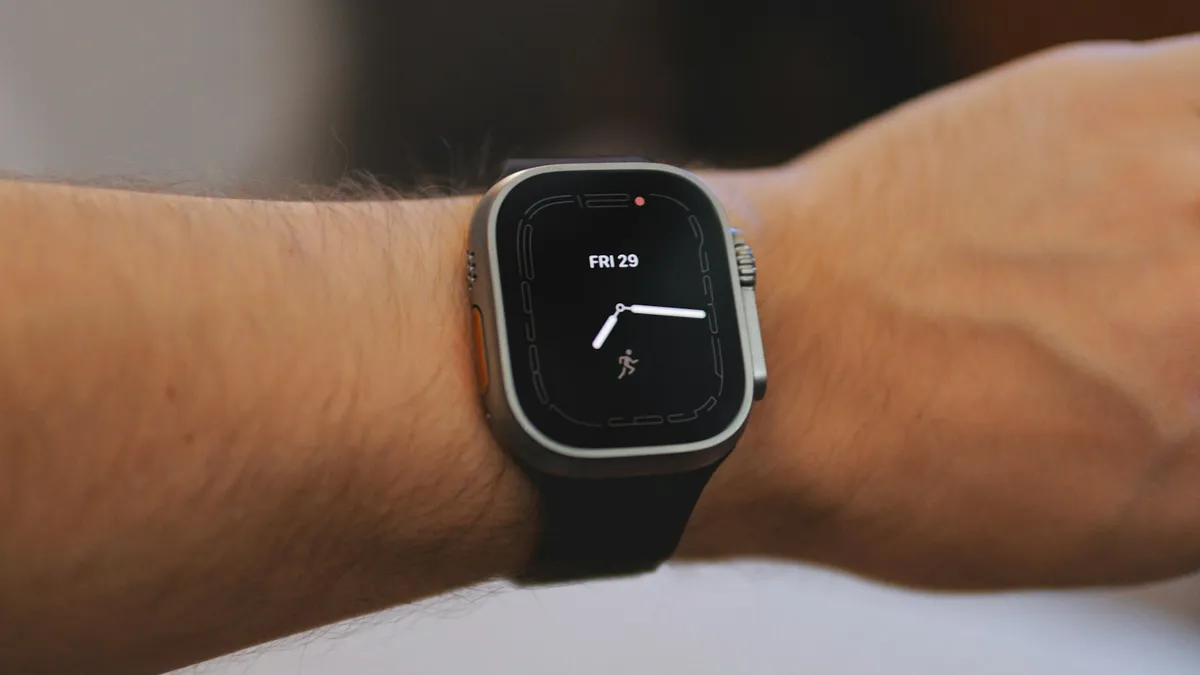
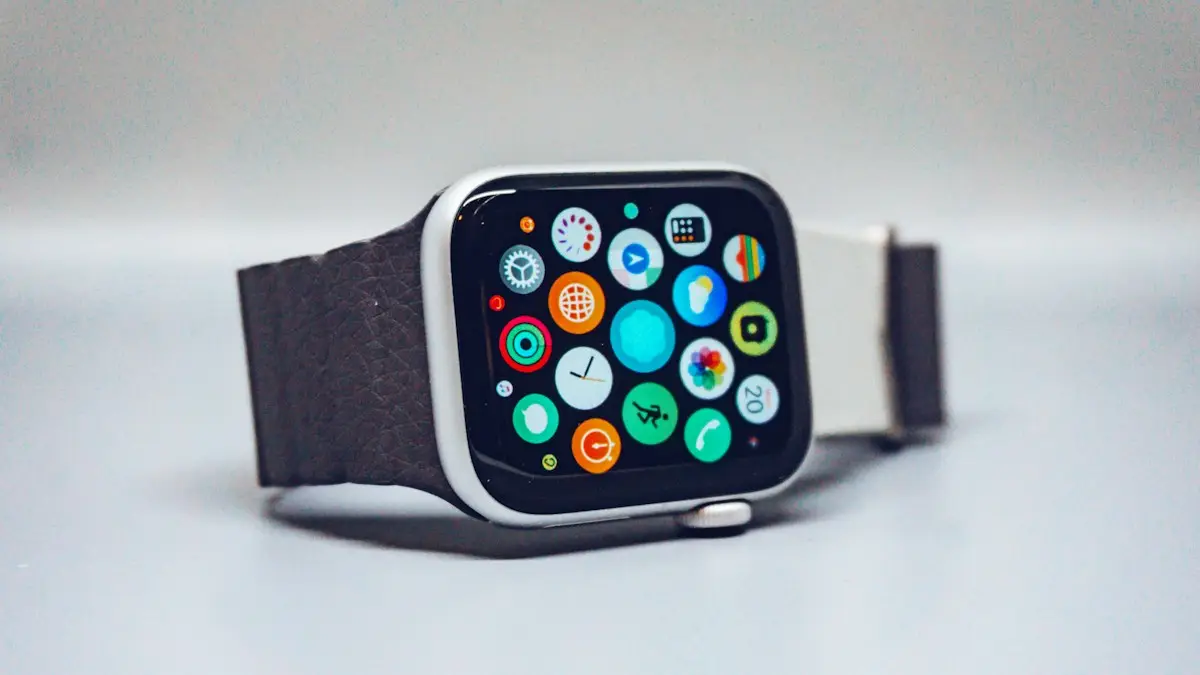
Photo by Daniel Romero on Unsplash
Apple has published the list of watches that can run watchOS 27, and some popular older models are not on it. If you own a Series 8 or an original Ultra, you may be wondering whether an update is coming for you at all. Below is Apple's list as it is written, what you need on the iPhone side, both ways to install the update, and what to try when it does not appear.
Which Apple Watch models support watchOS 27?
Apple's watchOS 27 page names these models: Apple Watch SE 3, Apple Watch Series 9, Series 10, Series 11 and Series 12, and Apple Watch Ultra 2, Ultra 3 and Ultra 4. Apple's update help page gives the same list in shorter form: SE 3, Series 9 and later, and Ultra 2 and later.
| Model | On Apple's watchOS 27 list? |
|---|---|
| Apple Watch SE 3 | Yes |
| Apple Watch Series 9, 10, 11 and 12 | Yes |
| Apple Watch Ultra 2, 3 and 4 | Yes |
| Apple Watch Series 8 and earlier | Not named by Apple |
| Apple Watch SE (1st and 2nd generation) | Not named by Apple |
| Apple Watch Ultra (1st generation) | Not named by Apple |
We read “not named” as “not on the list.” Apple's pages do not describe what happens to each older model, so we will not claim more than that. What Apple does say is useful: if your watch is not compatible with the latest watchOS, the Software Update screen shows the newest version it can run. Your watch does not stop working, it simply stays on that version.
What iPhone do you need for watchOS 27?
Apple says watchOS 27 requires an iPhone 11 or later, or an iPhone SE (2nd generation) or later, with iOS 27. The watch updates through its paired iPhone, so the phone comes first. Apple's help page tells you to update the iPhone to the latest iOS before you start. If you have not done that yet, our guide to updating an iPhone covers it, and what the iOS 27.0.1 update fixed is worth reading before you install.
How do you check which Apple Watch you have?
If you are not sure of your model, open Settings on the watch, tap General, then About. The model name is listed there. Apple's Apple Watch models page in the watch user guide also shows each model by design, which helps if the watch is not on your wrist. Compare the name with the list above.
How to update your Apple Watch to watchOS 27
Apple's page asks for a few things before you begin. Skipping them is the most common reason an update fails to start.
- Update your iPhone to the latest iOS.
- Charge your Apple Watch to at least 50 percent.
- Connect your iPhone to Wi-Fi.
- Keep the iPhone near the watch during the update. Apple says it can take from several minutes to an hour.
Update from your iPhone
- 1
Open the Apple Watch app on your iPhone and tap the My Watch tab.
- 2
Tap General, then tap Software Update.
- 3
Download the update. Enter your iPhone or Apple Watch passcode if you are asked.
- 4
Wait for the progress wheel to appear on the watch.
Keep the watch on its charger until it finishes. Do not restart either device or quit the Apple Watch app. The watch restarts by itself when it is done.
There is also an overnight option. When the watch tells you an update is ready, tap Update Tonight and confirm on your iPhone. Leave both devices charging overnight. Apple's page does not describe a separate setting for installing updates automatically, so treat Update Tonight as the hands-off route.
Update directly on the watch
- 1
Connect the watch to Wi-Fi.
- 2
Open the Settings app on the watch.
- 3
Tap General, then Software Update.
- 4
Tap Install if an update is available and follow the steps on the screen.
Keep the watch on its charger and do not restart it while it installs.
The update does not show up: what to check
- Is your model on the list? If it is not, Software Update shows the newest version it can run. That is expected, not a fault.
- Is the charger working? Apple tells you to check that the watch is connecting properly to its charger.
- Restart both devices. Apple suggests restarting the Apple Watch, then the paired iPhone, and trying the update again.
- Is the iPhone on iOS 27? The watch update depends on it.
If it still will not move, read our guide on an Apple Watch that will not update for the less common causes.
The update will not start or says it cannot install
Apple gives a specific fix for an update that will not begin. On the iPhone, open the Apple Watch app, tap General, then Storage. Delete the downloaded update file there, then try the update again. Apple also points to separate help pages for the Cannot Install Update message and for storage errors.
Did you install a beta before? Remove the profile first
Apple says you must remove a beta profile before you can update to the next major release. On the iPhone, open the Apple Watch app, tap My Watch, General, then Profiles, choose the beta profile and tap Delete Profile. You can also use Settings, General, Profiles and Device Management, choose the profile and tap Delete Profile. Restart both devices and check for the update again.
What is new in watchOS 27?
Apple's watchOS 27 page lists many changes. These are the ones most people will notice, in Apple's words and with Apple's limits.
- Siri AI and a Siri app: Apple says Siri AI is available in beta, rolling out in English first, and is not initially available in the EU. Our guide to getting Siri AI explains the wait.
- Dynamic app grid: it shows your most used and recently used apps, with the Siri app at the top.
- Tap gesture: a single tap of your index finger and thumb opens a Smart Stack widget.
- Smart Stack suggestions: Apple gives birthday reminders and the location of a parked car as examples.
- Workout Buddy: now works without your iPhone nearby and in Spanish. Apple says it needs a paired Apple Intelligence iPhone and Bluetooth headphones.
- Find My: Find Devices, Find People and Find Items are combined into one map based app.
- Cycle Tracking: perimenopause and menopause support. Apple says it is not for birth control or diagnosing health conditions.
Which new features need an iPhone nearby?
Apple's footnotes matter here. Apple Intelligence features on the watch work on Series 9 and later, Ultra 2 and later, and SE 3, but only when the watch is paired with a compatible Apple Intelligence iPhone. Server based features such as Siri AI have daily limits that vary. Apple also says some Apple Watch features need a nearby iPhone and that features can differ by region and language. So a watch can be on the compatibility list and still miss a feature because of the phone, the language or the country.
How long does the watchOS 27 update take?
Apple says the update can take anywhere from several minutes to an hour. The time depends on the size of the update, your Wi-Fi speed and the model. Do not restart the watch or the iPhone, and do not quit the Apple Watch app while the progress wheel is showing. If you cannot wait, use the Update Tonight option so the watch finishes while you sleep.
What about an Apple Watch set up for a child?
Apple's watchOS 27 page lists Apple Watch For Your Kids as a feature that lets you set up a watch for a child even without an iPhone of their own. Apple says not all features are available in every case, and that cellular service needs a wireless plan. The page does not describe a separate update process for these watches, so use the steps above and check the Software Update screen.
Should you replace an older watch?
That depends on what you use the watch for, and Apple's pages do not tell you. If your watch is not on the list, it keeps running its last supported version. Many people are happy with that for notifications and fitness tracking. If you want Siri AI or Workout Buddy features on the wrist, you need a listed model and a compatible iPhone. If you are thinking of trading in your old watch, check why a trade in quote can drop before you ship it.
Frequently asked questions
Which Apple Watch models can run watchOS 27?
Apple lists the Apple Watch SE 3, Series 9, 10, 11 and 12, and Ultra 2, 3 and 4. Apple's update help page gives the same list as SE 3, Series 9 and later, and Ultra 2 and later.
Do I need a new iPhone for watchOS 27?
Apple says watchOS 27 requires an iPhone 11 or later, or an iPhone SE (2nd generation) or later, running iOS 27. If your iPhone cannot run iOS 27, the watch cannot update.
Can I update my Apple Watch without the iPhone?
Yes, on the watch you can open Settings, tap General, then Software Update, and tap Install. The watch needs Wi-Fi, a charger and enough charge, and Apple still requires the paired iPhone to be on iOS 27.
What if my Apple Watch is not on the compatibility list?
Apple says Software Update then shows the newest watchOS your watch can run. The watch keeps working on that version, and Apple's pages do not say more about each older model.
What to try next
Sources
Official pages these steps are based on. Menus can differ by software version.
People also ask
Why does my Apple Watch keep going back to Compass?
The watch reopens the last app you used when you raise your wrist. If Compass was the last app, or it is still running a session such as Backtrack, it keeps coming back.
Read the full guide: Apple Watch keeps opening CompassHow much charge does an Apple Watch need to update?
Apple says the watch needs at least 50 percent charge, and it should stay on its charger during the update.
Read the full guide: Apple Watch won't updateWhy does my Apple Watch stop charging at 80%?
Optimized Battery Charging or Optimized Charge Limit is holding the charge at 80% to reduce battery wear. It finishes charging when it expects you to need it. You can change this in the watch’s Battery settings.
Read the full guide: Apple Watch not chargingWhat does the red iPhone icon on my Apple Watch mean?
The watch is disconnected from your iPhone. Bring them close together and check that Bluetooth and Wi-Fi are on.
Read the full guide: Apple Watch not connectingRelated guides
Apple Watch keeps opening Compass
Apple Watch keeps opening Compass or will not leave it? Change Return to Clock, turn off Return to App, end Backtrack and check the Action button. 7 easy fixes.
Apple Watch won't update
Apple Watch won't update or says Unable to Verify Update? Check charge, Wi-Fi, storage and the update file. 8 fixes straight from Apple's own steps.
Apple Watch not charging
Apple Watch not charging, stuck at 80% or showing a red lightning bolt? Clean the back, check the charger and force restart with these 8 simple fixes.
Apple Watch not connecting
Apple Watch not connecting to iPhone or showing a red iPhone icon? Check Bluetooth and Airplane Mode, restart both, update, and re-pair without losing data.
More guides you may need
CarPlay keeps disconnecting
CarPlay keeps disconnecting and reconnecting? Swap the cable, clean the port, stop your iPhone joining public Wi-Fi and try 6 more fixes for a steady link.
CarPlay not working
Apple CarPlay not working or not connecting? Check Siri, Screen Time, the cable and your car’s settings, then re-pair your iPhone with these 10 fixes.