

Apple Watch not sending messages to Android? 8 fixes to try
Texts from an Apple Watch to Android go out as SMS or MMS through your iPhone. If the iPhone is off, offline or has iMessage trouble, the watch cannot send them.
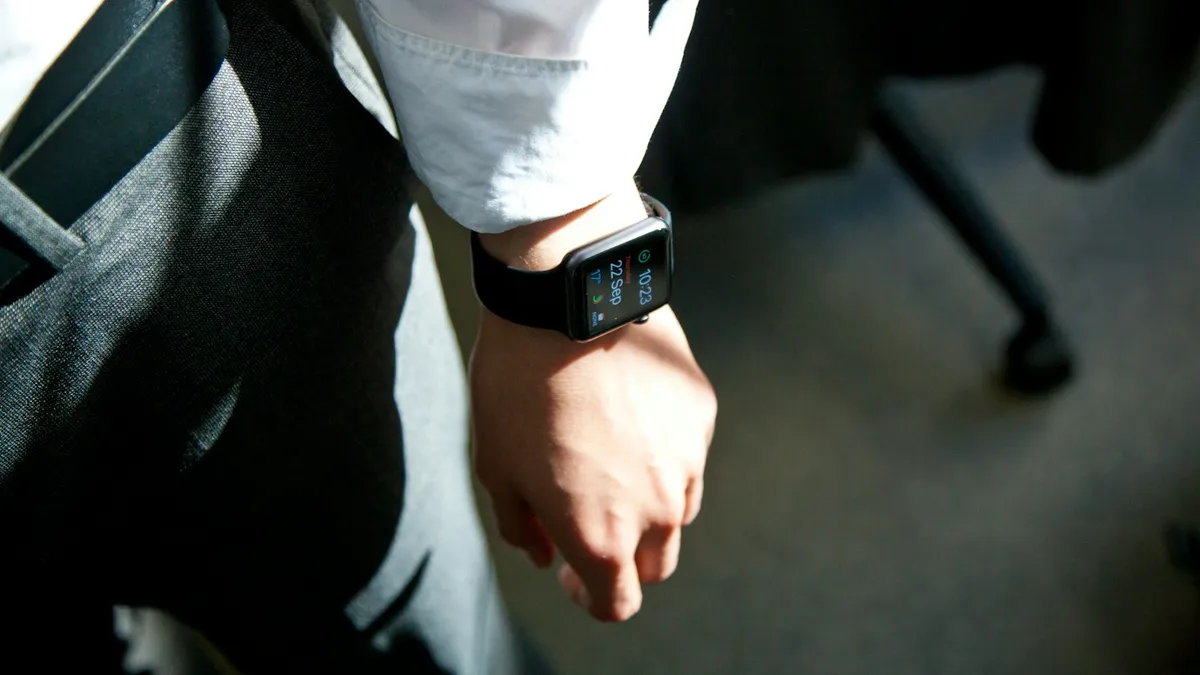
Photo by Tyler Hendy on Unsplash
You dictate a reply on your wrist, it shows as sending, and then a red exclamation mark appears. Or the text never leaves at all. It often happens with one person, a friend or family member on an Android phone, while messages to iPhone users go through fine.
The cause is usually how the watch hands texts to your iPhone, not the Android phone. The eight steps below follow the order Apple uses in its own troubleshooting, with extra checks for the Android side of the conversation.
Why does a watch have trouble texting Android users?
Messages between Apple devices use iMessage. Messages to Android phones use SMS and MMS, which are regular text messages sent over the cellular network. Apple explains that to send and receive SMS and MMS from a cellular Apple Watch, your paired iPhone has to be powered on and connected to Wi-Fi or cellular. The iPhone does not need to be nearby, but it does need to be online.
- The iPhone is off, in airplane mode or has no signal. The watch has no way to send an SMS.
- The watch lost its link to the iPhone. A Wi-Fi only watch needs the phone nearby.
- iMessage is signed out or out of step. A different Apple Account on the watch and the iPhone causes strange failures.
- A problem with that one contact. A wrong number format or an old iMessage record can block the send.
- A carrier or plan limit. SMS and MMS must be available on the iPhone's line.
Fix 1: Retry and check for the red exclamation mark
Open Messages on the watch and look for a red exclamation mark next to the failed text. Tap it, then choose Try Again. If it sends, the first attempt was a short connection drop. If it fails again, go on.
Fix 2: Turn off Airplane Mode and Do Not Disturb
Press the side button on the watch to open Control Center. Make sure Airplane Mode is off, and check that Do Not Disturb or a Focus is not on. Apple lists this early in its steps for watch messages. Then do the same on the iPhone, because airplane mode on the phone also stops texts.
Fix 3: Check the watch connection
The watch needs to reach your iPhone, a cellular network or Wi-Fi. Open Control Center and look at the connection icon. A red iPhone symbol means the watch cannot reach the phone. Bring the iPhone closer, turn Bluetooth and Wi-Fi on for both, and wait a minute. If the two will not connect, see our guide to an Apple Watch that will not connect.
Fix 4: Send the same text from your iPhone
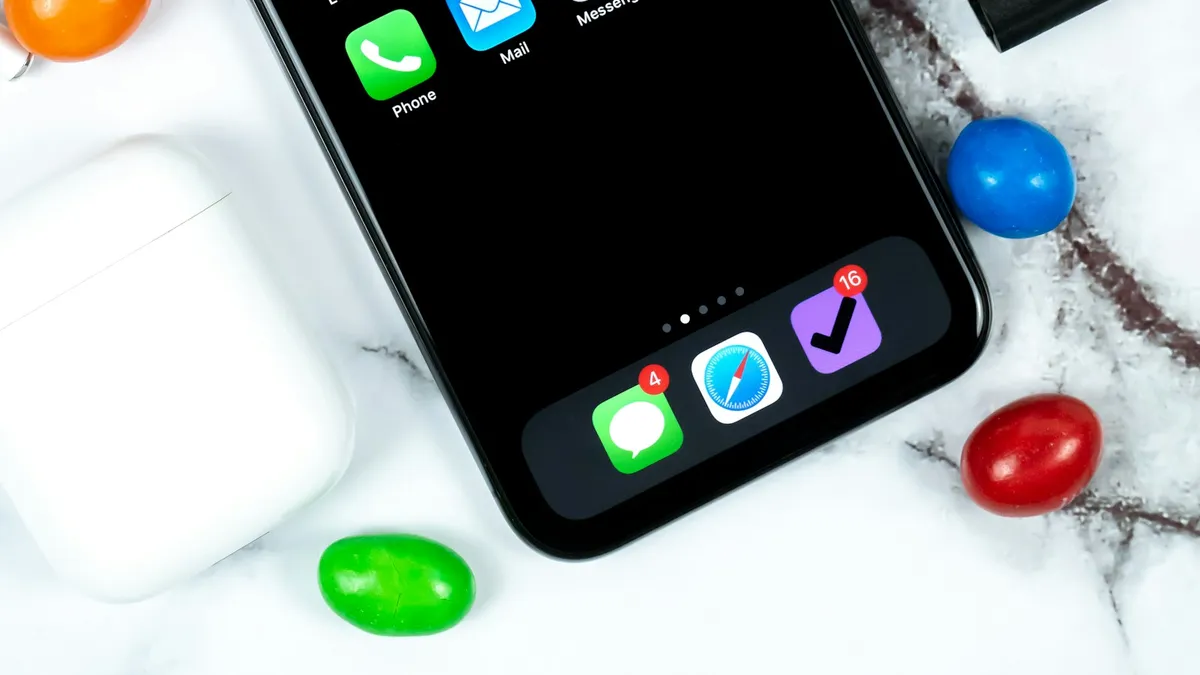
This test saves a lot of time. Open Messages on the iPhone and send the same person a text. Apple suggests testing from the iPhone for a reason: if the iPhone cannot send it either, the watch is not the problem.
- It fails on the iPhone too: the issue is the contact, the signal, or your carrier. See our guide to texts that will not send from an iPhone.
- It works on the iPhone: the watch is the weak link. Keep going through the next steps.
Fix 5: Check iMessage and your Apple Account
Apple says to make sure iMessage is on and that you use the same Apple Account on the watch and the iPhone. On the iPhone, open Settings › Messages and check that iMessage is on. Then tap Send & Receive and look at the Apple Account and the phone number listed there. The watch uses the same account as the iPhone it is paired with.
If something looks wrong, Apple's steps are to sign out of iMessage, turn it off, turn it back on and sign in again. Some people on Apple Community say that toggling iMessage helps for a short time only. Treat it as a test. If the text sends after the toggle, you know the problem sits in the iMessage setup.
Fix 6: Check the contact and the iPhone's SMS settings
- Open the contact on your iPhone and check the number. Use the full number with the country code, such as +1 for the US, and no extra characters.
- Delete the old conversation with that person on the watch and the iPhone, then start a new one.
- If the person used an iPhone before, Apple may still list the number as iMessage. Ask them to deregister iMessage on Apple's site, or to turn it off in their old iPhone.
- On the iPhone, open Settings › Messages and check that MMS Messaging is on if you send pictures or group texts.
- Check that the iPhone's plan allows SMS and MMS. If you use a prepaid plan, the carrier can tell you.
Fix 7: Restart both devices and update them
Restart the watch first. Hold the side button, tap the power icon and drag the Power Off slider, then hold the side button again to turn it on. Restart the iPhone too. Then open Settings › General › Software Update on the iPhone and the Watch app › General › Software Update for the watch. Apple lists restarting and updating as steps, in that order, after the account checks.
Fix 8: Unpair and pair the watch again
This is Apple's last step before contacting support, because it takes time. Unpairing creates a backup of the watch, and you can restore from it afterward. Follow our guide to resetting an Apple Watch. After pairing, send a test text to an Android number before you restore all your settings.
Wi-Fi only watch or cellular watch: what is different?
- Wi-Fi only watch: it needs the iPhone nearby to send an SMS. If you leave the phone at home, texts to Android will fail.
- Cellular watch: the iPhone does not need to be nearby, but Apple says it must be on and connected to Wi-Fi or cellular for SMS and MMS to work.
- iMessage: a watch connected to Wi-Fi or cellular can send iMessages to other Apple users even without the iPhone.
That last row explains a common surprise. Messages to your iPhone friends go through when the phone is off, while messages to Android do not. It is not a bug. It is how the two message types work.
What if only one Android contact fails?
If one person always fails and others work, the cause is that contact. Check the number as above, make sure the contact is saved with the right mobile number and not a landline, and ask the person to check that their phone can receive texts from unknown numbers. If they changed their phone recently, the old registration may be the cause. See also why some chats show green bubbles in green and blue messages.
How to avoid the problem
- Keep your iPhone charged and online when you rely on the watch for texts.
- Keep the same Apple Account on the watch and the iPhone.
- Save contacts with full numbers, including the country code.
- Update iOS and watchOS when updates appear.
- Send a test text after any phone or plan change.
Frequently asked questions
Can an Apple Watch text an Android phone?
Yes. Messages to people who do not use Apple devices are sent as SMS or MMS. Apple says that on a cellular Apple Watch, your paired iPhone must be powered on and connected to Wi-Fi or cellular to send and receive SMS and MMS.
Why does the message on my watch show a red exclamation mark?
A red exclamation mark means the message did not send. Tap the alert to try again. Check that the watch can reach your iPhone, Wi-Fi or cellular, and that Airplane Mode and Do Not Disturb are off.
Does my iPhone need to be nearby to send texts from the watch?
Not for a cellular watch, but the iPhone must be on and connected to Wi-Fi or cellular. For a Wi-Fi only watch, the iPhone must be nearby so the two can connect.
Do I need to turn iMessage off to text Android users?
No. iMessage stays on for Apple users, and the iPhone sends SMS or MMS to Android contacts. Some Apple Community reports say toggling iMessage helps only for a short time, so treat it as a test and not as a fix.
What to try next
People also ask
Why do texts to Android phones fail?
The iPhone may be trying iMessage to a number that left iPhone. Turn on Send as Text Message and RCS Messaging, or ask them to deregister their number from iMessage.
Read the full guide: iPhone texts not sendingWhat is Power Reserve on Apple Watch?
Power Reserve shows only the time to save battery. On older watchOS versions it turns on automatically when the battery is very low. Press and hold the side button until the Apple logo appears to leave it, after charging.
Read the full guide: Apple Watch won't turn onWhy do picture messages fail but texts work?
MMS needs mobile data. Turn mobile data on, even on Wi-Fi, and check that the APN is set to your carrier’s default.
Read the full guide: Samsung texts not sendingWhy does my Apple Watch say continue setup on iPhone?
The watch has started pairing and is waiting for you to finish the steps on the iPhone, such as choosing settings or entering a passcode. It stays on that screen if the iPhone closed the Watch app, locked, or lost its connection.
Read the full guide: Continue setup on iPhoneRelated guides
iPhone texts not sending
iPhone text messages not sending or showing a red exclamation mark? Tap Try Again, turn on Send as Text Message and RCS, check signal and try 5 more fixes.
Apple Watch won't turn on
Apple Watch won't turn on or shows only a red lightning bolt? Charge it properly, leave Power Reserve, check Theater mode and force restart with these 7 fixes.
Samsung texts not sending
Samsung text messages not sending or failing? Check signal, turn RCS off and on, clear the Messages cache, check the message center number and try 5 more fixes.
Continue setup on iPhone
Apple Watch says continue setup on iPhone but nothing happens? Finish pairing, restart, reset in pairing mode, or unpair and start again. Steps for each case.
More guides you may need
AirPods keep beeping
AirPods keep beeping in your ears or from the case? Check battery tones, Find My Play Sound, Announce Notifications and dirty contacts. 7 causes and easy fixes.
AirPods no location found
AirPods no location found in Find My? It rarely means they are gone. See what the message means, what to check right now and how to improve your chances.