

How to use an iPhone: a beginner’s guide to the basics
A plain guide to using an iPhone: what the buttons do, how to swipe around, make calls, send texts, take photos, get apps and keep the phone safe. Written for people who have never used one.
Photo by Vitaly Gariev on Unsplash
A new iPhone can feel like a lot at first. There are no obvious buttons for most things, and almost everything happens by touching, swiping and tapping the screen. The good news is that there are only a handful of things to learn, and they are the same on every iPhone. This guide covers the basics in the order you will use them, and points to a longer guide whenever you want more detail. It is written for recent iPhones, and notes where an older iPhone with a Home button works differently.
What are the buttons on an iPhone for?
- Side button (right side): press once to lock the screen or wake it. Hold it to use Siri or to turn the phone off together with a volume button.
- Volume buttons (left side): turn the sound up or down and, with the side button, take a screenshot.
- Silent switch or Action button (top left): slides to silence ringing on older models. Newer Pro models have an Action button you can set to a shortcut.
- Home button (older iPhones only): press it to go Home, double press for recent apps. If yours is worn, read about an on-screen one in adding a Home button to the screen.
How do you move around the iPhone with gestures?
Face ID iPhones have no Home button, so the screen itself does the work. Learn these five moves and you can do most things.
- Swipe up from the bottom edge: go to the Home Screen from any app.
- Swipe up and pause in the middle: see your open apps. Swipe an app up to close it.
- Swipe down from the top right corner: open Control Center for Wi-Fi, Bluetooth, brightness, flashlight and more.
- Swipe down from the top left or the middle: see your notifications.
- Swipe from the left edge: go back in many apps.
How do you unlock the iPhone and keep it secure?
When you set up the phone you choose a passcode and, on most models, Face ID or Touch ID. Look at the phone to unlock it with Face ID, then swipe up. Do not share your passcode, and pick a longer one than 1234 or your birth year. If you forget it, see resetting an iPhone without the passcode. Turn on Find My iPhone so you can locate the phone if it goes missing.
How do you make calls and send texts?
Call someone and send a message
- 1
Tap the green Phone icon and choose Keypad or Contacts.
Type a number or pick a contact, then tap the green call button.
- 2
Tap Messages and the new message icon in the top right.
Type a name or number, write your text and tap the arrow to send.
- 3
Add people to your contacts.
In Phone, open Contacts, tap the plus sign and type the name and number.
Messages sent between iPhones appear in blue (iMessage), and messages to other phones appear in green (SMS or RCS). If a text does not arrive, see iPhone texts not sending.
How do you take photos and videos?
Open the Camera app or swipe left on the Lock Screen. Tap the large white button to take a photo. Slide the labels under the viewfinder to switch between Photo, Video, Portrait and other modes. Tap the small thumbnail in the corner to see what you took, which are all saved in the Photos app. To free space later, see clearing iPhone storage.
How do you get apps?
Open the App Store, tap Search, type the name of an app and tap Get. Confirm with Face ID, Touch ID or your Apple Account password. The app appears on your Home Screen. Delete an app by touching and holding its icon and choosing Remove App. Download apps only from the App Store, and check the developer name. If you want to find where you can get Android apps, see whether you can get Google Play on iPhone.
How do you connect to Wi-Fi and use mobile data?
Open Settings and tap Wi-Fi, then tap your network and type its password. When you are away from Wi-Fi, your iPhone uses your carrier’s mobile data. Control Center has a quick toggle for both. If Wi-Fi is not working, read an iPhone that will not connect to Wi-Fi.
How do you change settings?
The gray gear icon opens Settings. It is organized by topic: your name at the top for iCloud and your Apple Account, then Wi-Fi, Bluetooth, Notifications, Sounds, Display, Battery and so on. Use the search box at the top if you cannot find something. Most guides on this site use paths like Settings › General › About, which means open Settings, tap General, then tap About.
How do you keep the battery lasting longer?
Lower the screen brightness, turn on Low Power Mode when the battery is low, and close apps that you are not using. Charge with the cable and adapter that came with the phone or a good quality one. To see how healthy the battery is, follow how to check iPhone battery health.
What should you do to protect your data?
- Turn on iCloud Backup, or back up to a computer. See a how-to on iPhone backups.
- Install iOS updates when they appear, because they fix security problems.
- Do not tap links in texts from numbers you do not know, and see recognizing scam texts.
- Think about protection for the phone itself, as in AppleCare+ costs and coverage.
Where can you learn more?
Apple’s free iPhone User Guide in the Tips app and on Apple’s website covers every feature. For a specific problem, search this site for the exact message you see, or open the iPhone category. If you are new to a feature you saw a friend using, the Tips app is a good place to start.
Quick checklist
How do you use Siri?
Hold the side button, or say Hey Siri if you turned it on, and speak. Siri can call people, set timers and alarms, send texts, give directions and answer questions. If it does not respond, see our guide to Siri not working. You can turn Siri on or off in Settings, and you can type to Siri if you do not want to talk.
How do you organize apps and widgets on the Home Screen?
Touch and hold an empty spot on the Home Screen until the icons wiggle. Drag an app onto another to make a folder, drag it to the edge to move it to another page, and tap the plus sign at the top to add widgets such as the weather or calendar. Tap Done when you finish. To find any app quickly, swipe down on the middle of the Home Screen and type its name.
How do you quiet your phone without missing important calls?
Use the silent switch or the Silent mode in Control Center to stop ringing. For longer breaks, use a Focus such as Do Not Disturb or Sleep, which silences notifications and lets selected people through. If the phone does not ring when it should, see an iPhone that is not ringing.
What should you know about emergencies?
If you need help fast, press and hold the side button and a volume button to start an emergency call, or call 911 from the Phone keypad. Your phone can also show your Medical ID to responders. Set it up in the Health app. Our guide to turning off Emergency SOS explains how the feature works and how to stop it from triggering by accident.
- You know what the side and volume buttons do.
- You can go Home, see open apps, open Control Center and see notifications with swipes.
- Face ID or Touch ID and a passcode are set up.
- Backups and updates are turned on.
- You know where to find Phone, Messages, Camera, Settings and the App Store.
Frequently asked questions
How do I turn an iPhone on and off?
To turn it on, press and hold the side button until the Apple logo appears. To turn it off, hold the side button and a volume button, then drag the slider. You can also use Settings › General › Shut Down.
How do I go back to the Home Screen?
On an iPhone with Face ID, swipe up from the bottom edge. On an iPhone with a Home button, press the Home button.
How do I take a screenshot on an iPhone?
On a Face ID iPhone, press the side button and Volume Up together. On a Home button iPhone, press the Home button and the side button together.
What should I do first with a new iPhone?
Finish setup, set a passcode and Face ID or Touch ID, turn on iCloud Backup, and install updates. Then add your contacts, email and the apps you use.
What to try next
People also ask
Why does Samsung Wallet open when I swipe up?
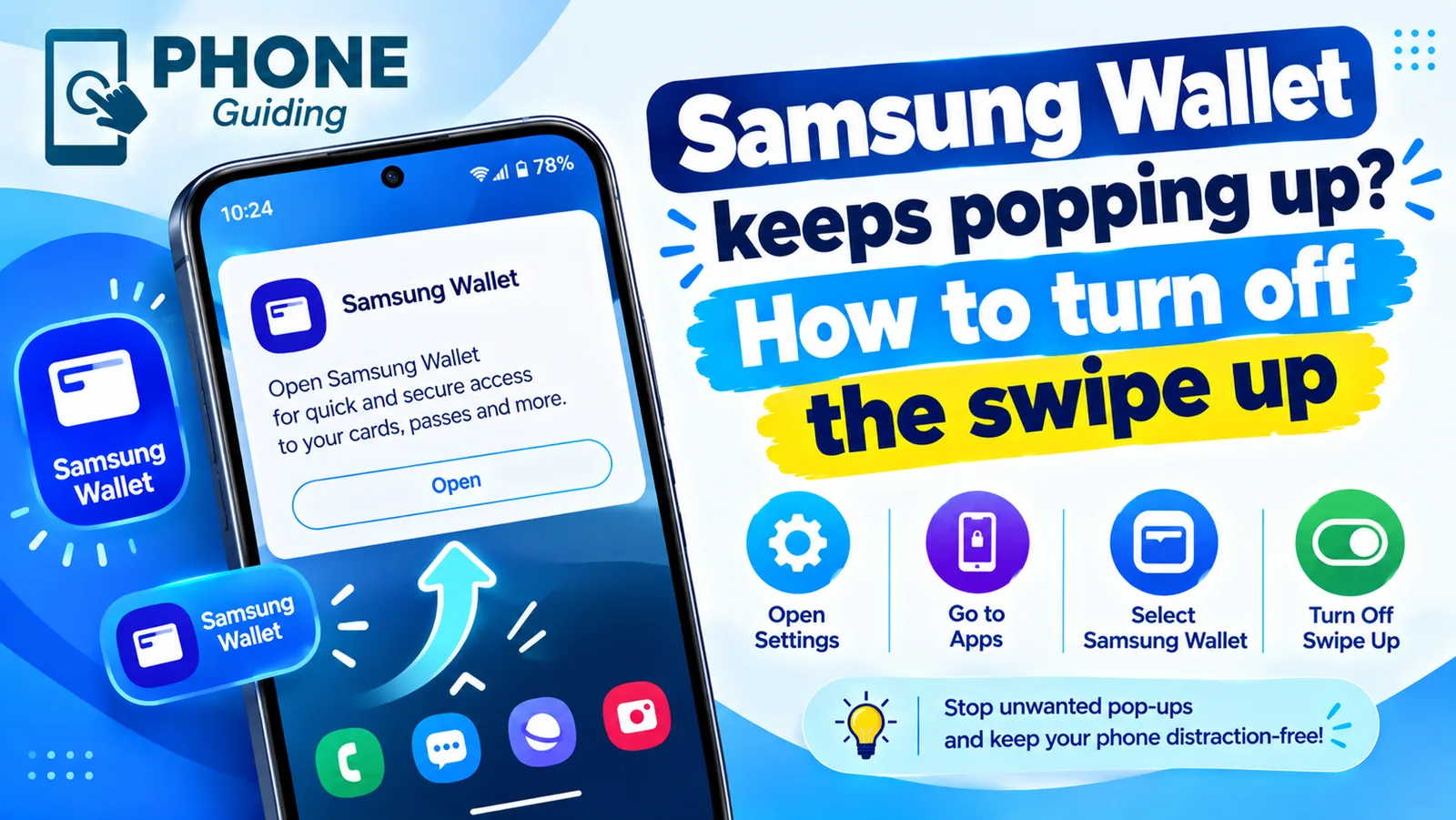
Samsung Wallet has a Quick access gesture that opens your cards when you swipe up from the small handle at the bottom of the screen. It sits right where you swipe to go home, so it is easy to trigger by accident.
Read the full guide: Stop Samsung Wallet popping upRelated guides
Stop Samsung Wallet popping up
Samsung Wallet keeps popping up when you swipe up? Turn off the swipe up gesture in a few taps, stop pocket triggers and switch to Google Wallet if you prefer.
More guides you may need
Change rings before voicemail
How to change number of rings before voicemail on iPhone: there is no iPhone setting, so use your carrier. See carrier options and fixes for fast voicemail.
Verification codes on iPhone
Verification codes on iPhone: how OTP and 2FA codes arrive, how to AutoFill them from Messages and Mail, use Passwords, and fix codes that don't come.