

Google Play Store not working? 9 fixes that work
Most Play Store problems are fixed by clearing its cache and updating Google Play services. Here is the full order.
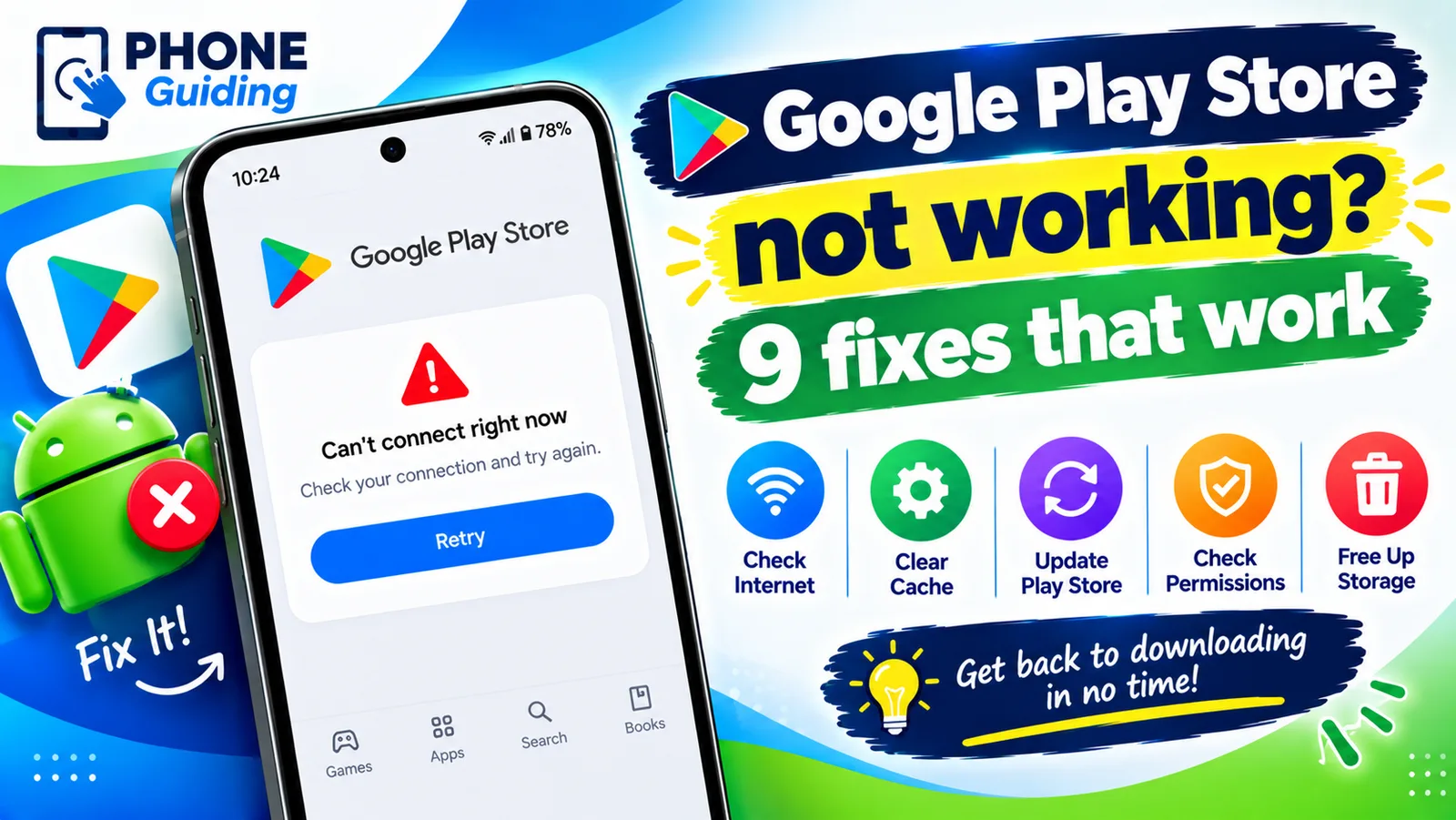
When the Play Store will not open, keeps closing, shows an error or refuses to download, you cannot install or update apps, which quickly becomes a security problem too. The good news is that it is almost always fixable without resetting the phone. Most cases come down to a stuck app, an outdated Google Play services, a connection problem or a wrong clock. Work through the nine fixes below in order, testing the Play Store after each one, then use the sections after them for specific error messages and less common causes.
The fix
9 fixes, in order
- 1
Restart the phone.
- 2
Check your connection.
Switch between Wi-Fi and mobile data.
- 3
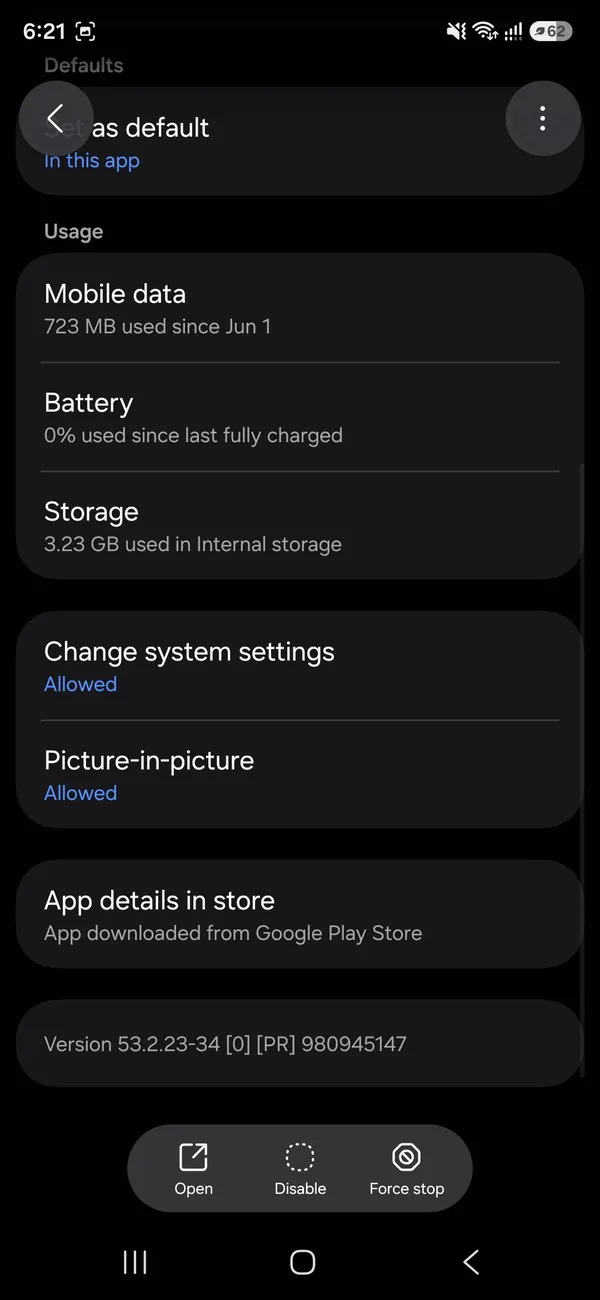
Force stop the Play Store.
Settings › Apps › Google Play Store › Force stop. Then tap Storage on the same screen to clear the cache.
- 4
Clear the Play Store cache.
Same screen › Storage › Clear cache.
- 5
Update Google Play services.
Settings › Apps › Google Play services, then open it in the Play Store and tap Update if shown.
- 6
Set date and time automatically.
- 7
Enable disabled system apps.
Check that Google Play services and Download Manager are not disabled.
- 8
Clear the Play Store storage.
Storage › Clear storage. You may need to accept terms again.
- 9
Remove and re-add your Google account.
Settings › Accounts, remove it, restart, then add it back.
Why the Play Store stops working
- A stuck app or corrupted cache: the most common cause, fixed by force stop and clearing cache.
- Google Play services out of date or disabled: the Play Store depends on it for sign-in, downloads and payments.
- Connection problems: weak Wi-Fi, a VPN, a filtering DNS or a captive portal on public Wi-Fi.
- Wrong date and time: secure connections to Google fail when the clock is off.
- Account issues: a Google account that needs re-verification after a password change.
- Low storage: downloads and updates cannot be unpacked.
Fix Google Play services too
Because the Play Store leans on Google Play services, many fixes need doing twice. In Settings › Apps, turn on Show system apps from the menu if needed, open Google Play services, and clear its cache. Make sure it is not disabled, and check that Download Manager, which handles the actual downloads, is enabled as well. If Play services itself keeps crashing, use the three-dot menu on its info page to uninstall its updates, restart, and let it update again from the Play Store.
Clearing Play services storage is generally safe, but it resets some Google settings, so you may need to sign in again in a few apps or set up things like Google Wallet cards again. Try clearing the cache first, always.
What the error message means
- “Can’t connect right now” or “No connection”: the phone cannot reach Google. Check the internet, VPN, Private DNS and date and time.
- “Google Play Store keeps stopping”: the app is crashing. Force stop, clear cache, then update or uninstall updates.
- “Error retrieving information from server”: usually an account or cache problem. Clear Play Store and Play services cache, then remove and re-add the Google account.
- “Something went wrong. Try again”: often a temporary server issue. Wait a few minutes, then restart the phone.
- “Download pending”: another download is queued or storage is low. See how to fix downloads stuck on Pending.
- “Your device isn’t compatible with this version”: the app does not support your phone or Android version; it is not a Play Store fault.
VPNs, Private DNS and ad blockers
VPN apps and ad-blocking setups are a common hidden cause. A VPN can route you through a server Google blocks or slows, and a Private DNS provider that filters ads can also block domains the Play Store needs. Turn off the VPN, then go to Settings › Connections › More connection settings › Private DNS on Samsung, or Settings › Network & internet › Private DNS on Pixel, and set it to Automatic or Off. Test the Play Store; if it works, add an exception for Google in your blocker or leave it off. See how Private DNS ad blocking works.
Uninstall Play Store updates
- 1
Open Settings › Apps › Google Play Store.
- 2
Tap the three-dot menu in the top corner and choose Uninstall updates.
The Play Store goes back to the version that came with your phone. Your apps and purchases are not affected.
- 3
Restart the phone and open the Play Store.
It updates itself to the newest version in the background, often clearing the bug.
You can also force an update from inside the Play Store if it opens at all: tap your profile picture, then Settings › About › Update Play Store.
Storage, payments and region
- Low storage: the Play Store needs free space to download and unpack apps. Keep at least a few gigabytes free. See how to free up Android storage.
- Payment declined: update your card in the Play Store under Payments & subscriptions. A failed payment can block purchases and some updates of paid apps.
- Not available in your country: the Play Store uses your account’s country. If you moved, you can change it in Payments & subscriptions › Payment profile, once a year.
Family Link, work profiles and parental controls
On a child’s phone supervised with Google Family Link, apps may need a parent’s approval, and some content is blocked by the parent’s settings. On a work phone, the organization can restrict the Play Store or use a separate Work profile with its own store. If the Play Store says an app is blocked or needs approval, the fix is in Family Link or with your IT department, not on the phone.
Remove and re-add your Google account, safely
- 1
Make sure you know the Google account password, and that the phone has a recent backup.
- 2
Go to Settings › Accounts and backup › Manage accounts on Samsung, or Settings › Passwords & accounts on Pixel.
- 3
Tap the Google account and choose Remove account.
Mail, contacts and photos stay in your Google account online; they disappear from the phone only until you sign back in.
- 4
Restart the phone, add the account again, and open the Play Store.
This clears stuck sign-in tokens that cause many server errors. If you have more than one Google account on the phone, check which one the Play Store is using by tapping your profile picture at the top; the problem is sometimes limited to one account.
Public Wi-Fi and hotel networks
On hotel, airport and café Wi-Fi, the network often needs you to accept terms in a sign-in page before anything works. Until you do, the Play Store says it cannot connect even though the Wi-Fi icon shows full bars. Open a browser and visit any website to bring up the sign-in page, or switch to mobile data. Some school and office networks also block app downloads on purpose, so try again at home.
Is Google’s service down?
Occasionally the problem is on Google’s side. If friends on different networks have the same issue at the same time, wait and try again later rather than resetting your phone. Problems that affect only you, on every network, are almost always fixed by the steps above.
Still not working?
On Samsung phones, the Galaxy Store can install many popular apps while you sort out the Play Store, though it is not a full replacement. If nothing here helps and the phone is otherwise working, back it up and consider a factory reset as a last resort, which reinstalls the Play Store fresh. See how to factory reset an Android phone and do not install the Play Store or Google apps from websites, which is a common way malware spreads.
Frequently asked questions
Will clearing Play Store data delete my apps?
No. It only resets the Play Store’s own settings. Your installed apps and purchases stay.
What is Google Play services?
A background system app that the Play Store and many other apps depend on. If it is outdated or disabled, the Play Store often breaks.
Why does the Play Store say “Can’t connect right now”?
The phone cannot reach Google’s servers. Check Wi-Fi or mobile data, turn off any VPN or Private DNS ad blocker, set the date and time automatically, and restart the phone.
Can I go back to an older Play Store version?
Yes. In Settings › Apps › Google Play Store, open the three-dot menu and tap Uninstall updates. The phone returns to its built-in version, which then updates itself again.
What to try next
People also ask
Why does it say waiting for Wi-Fi?
Play Store is set to download over Wi-Fi only. Connect to Wi-Fi, or change it in Play Store › Settings › Network preferences › App download preference.
Read the full guide: Play Store download pendingHow long do I have to ask for a Google Play refund?
Google has allowed quick self-service refunds for apps and games within a short window after purchase, and a longer window if you ask through Google Play support. Ask as soon as you can, because the options shrink with time.
Read the full guide: Google Play refundWhy is my subscription not listed?
It may be on another Google account, or you paid on the company’s website. Switch accounts in the Play Store, or cancel on the service’s site.
Read the full guide: Cancel subscriptions on AndroidCan you install the Google Play Store on an iPhone?
No. The Play Store is an Android app and iPhones only run iOS apps from Apple’s App Store. Pages that say otherwise are wrong or unsafe.
Read the full guide: Google Play Store on iPhoneRelated guides
Play Store download pending
Google Play stuck on Download pending? Cancel other updates in the queue, check the Wi-Fi only setting and storage, clear Play Store cache and try 4 more fixes.
Google Play refund
How to get a refund on Google Play for an app, game, in-app purchase or subscription. Use the order page, learn the time limits and what to do if it is missing.
Cancel subscriptions on Android
Cancel subscriptions and free trials on Android in the Play Store, find ones that do not show up, and learn why deleting the app does not stop the charges.
Google Play Store on iPhone
How to download Google Play Store on iPhone? You can't, because it only runs on Android. See why, which tricks to avoid and what to use instead.
More guides you may need
TikTok stuck on 0 views
TikTok video stuck on 0 views? Check your account and video privacy, look for a review or violation in Account status, and fix posting habits that limit views.
Unarchive a WhatsApp chat
Find your archived chats in WhatsApp and move them back to the main list on iPhone, Android or WhatsApp Web. Plus why archived chats come back on their own.