

How to lock iPhone screen from touch with Guided Access
Guided Access freezes the iPhone on one app and can turn touch off completely. Great for toddlers and videos.
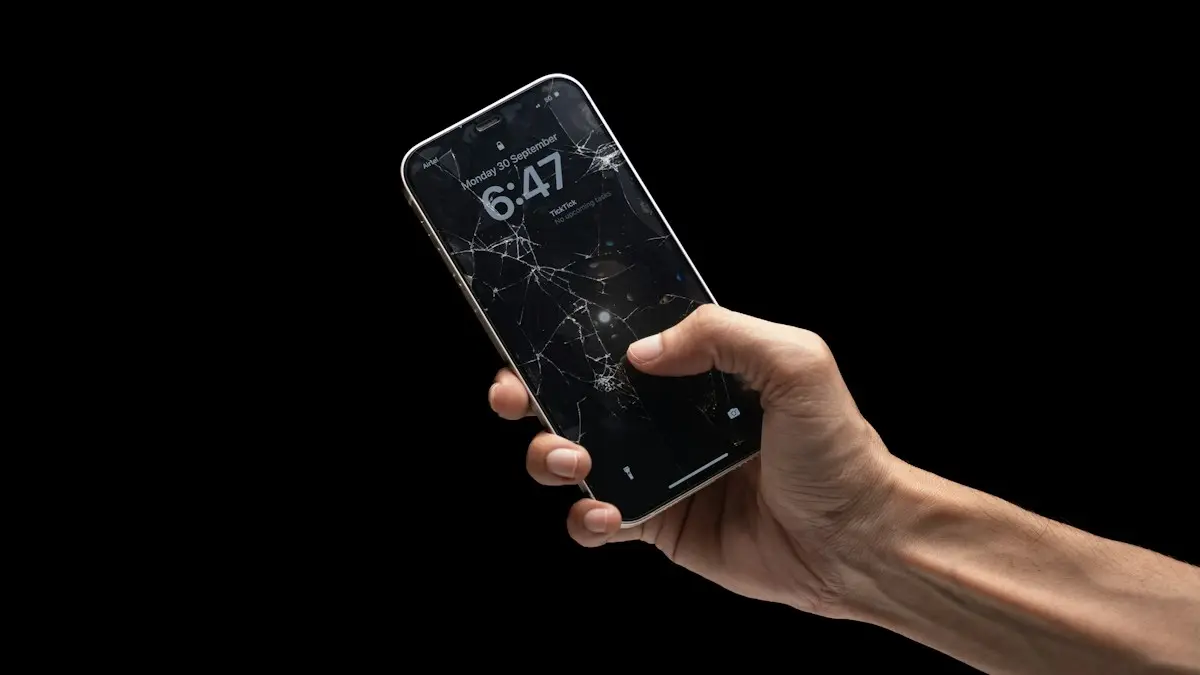
Photo by Rahul Himkar on Unsplash
The fix
Turn on Guided Access (once)
- 1
Open Settings › Accessibility › Guided Access.
- 2
Turn on Guided Access.
- 3
Tap Passcode Settings and set a code, and turn on Face ID if you like.
The fix
Lock the screen
- 1
Open the app or start the video.
- 2
Triple click the side button, or the Home button on older iPhones.
- 3
Tap Options and turn off Touch.
You can also turn off the volume buttons and set a time limit.
- 4
Tap Done, then Start.
What Guided Access does
Guided Access is an accessibility feature that keeps the iPhone in one app. While it is on, the Home Screen, Control Center, notifications and app switching are blocked. You can also turn off touch completely, disable the volume and side buttons, block motion, and set a time limit. Parents use it for toddlers watching videos, teachers for tests, and businesses for single-app kiosks. It is built in on every iPhone and iPad, with nothing to install.
How to lock your iPhone screen from touch
- Turn on Guided Access once in Settings › Accessibility › Guided Access.
- Open the app and start the video.
- Triple click the side button (or Home button).
- Tap Options at the bottom left.
- Turn off Touch. Optionally turn off Volume Buttons, Side Button and Motion.
- Tap Done, then Start at the top right.
- Enter a passcode if this is your first session.
The screen now ignores every touch. A small message appears if someone taps, but nothing happens.
Guided Access options explained
- Side Button: off stops the screen from locking with the button. A child can still wait for auto-lock.
- Volume Buttons: off keeps the volume where you set it. Set a safe level first.
- Motion: off stops the screen rotating when the phone moves, useful for videos.
- Keyboards: off hides the keyboard so nothing can be typed.
- Touch: off ignores all taps and swipes.
- Dictionary Lookup: off stops the Look Up pop-up in reading apps.
- Time Limit: ends the session after the time you choose, with a sound if you like.
Set a time limit
In Options, turn on Time Limit and choose hours and minutes. When time is up, the screen goes gray and says time has expired. The child cannot continue without your passcode. In Settings › Accessibility › Guided Access, you can turn on Sound and Speak to give a warning before the time ends.
Disable part of the screen
If you want a child to use a game but not tap ads or the settings button, keep Touch on. When you start Guided Access, draw a circle around each area you want to block. A gray box appears, and you can drag its corners to resize it. Those areas ignore taps during the session. This works well for menus, store buttons and links.
How to end Guided Access
Triple click the side or Home button, enter your passcode and tap End at the top left. If you turned on Face ID or Touch ID for Guided Access, double click the side button and look at the phone, or rest your finger on the Home button. Turning on biometrics means you never need to type the code in front of the child.
Forgot the Guided Access passcode?
Force restart the iPhone: press and release Volume Up, press and release Volume Down, then hold the side button until the Apple logo appears. The session ends. Then set a new code in Settings › Accessibility › Guided Access › Passcode Settings. The Guided Access code is separate from your phone's passcode and from the Screen Time passcode.
Triple click does nothing
- Guided Access is off: turn it on in Settings first.
- Another shortcut is set: if Accessibility Shortcut lists several features, a menu appears. Choose Guided Access from it.
- Clicking too slowly: set Side Button click speed in Settings › Accessibility › Side Button.
- Button damaged: use AssistiveTouch and add Guided Access to its menu, or ask Siri to turn on Guided Access.
Screen still responds to taps
Make sure you turned Touch off in Options before tapping Start, not after. Options are saved per app, so check them again in a different app. If taps still work, end the session, restart the iPhone and try again. Updating iOS fixes rare bugs where Guided Access settings do not stick.
Guided Access for kids: tips
Start the video first, then lock. Pick a show with autoplay off so the next episode does not start an endless loop, or use a playlist you chose. Set Volume Buttons off at a safe level, and add a Time Limit so the session ends on its own. For a child with their own iPhone, use Screen Time limits that actually block apps and our guide to setting up an iPhone for a child.
Guided Access vs Assistive Access
iOS 17 added Assistive Access, a simpler layout with big buttons and a short list of apps for people with cognitive disabilities. It is a bigger change to the whole phone. Guided Access is the quick one-app lock you turn on and off in seconds. Most parents want Guided Access.
Doing the same on Android
Android has no touch lock built in, but app pinning keeps a child inside one app. See app pinning on Android for the steps.
Guided Access on iPad
iPads use the same steps. On iPads with Touch ID in the top button or Face ID, triple click the top button. It is ideal for shared family tablets and for reading apps. Combined with a time limit, a toddler can watch one show and the iPad stops on its own.
Use Guided Access for a kiosk or test
Teachers and businesses use Guided Access to keep an iPad or iPhone on a single app, such as a sign-in form, a quiz or a menu. Turn off the side button and motion, block the corners where menus appear, and set a strong passcode. For many devices, Apple Business Manager offers Single App Mode, which is better managed but needs more setup.
Guided Access and the battery
Guided Access itself uses no extra power. The screen stays on as long as the app keeps it on, so a video will run until the battery is low. Plug in the iPhone for long sessions. Set Display Auto-Lock inside Guided Access settings if you want the screen to lock while the session stays active.
Lending your iPhone to a stranger
Guided Access is also handy when you hand your phone to someone to make a call or look at a photo. Open the app, triple click and tap Start. They cannot leave the app or see your messages. It takes two seconds and works better than hoping they do not swipe.
Is Guided Access safe?
Yes. It does not change your data, and ending a session returns everything to normal. The only risk is forgetting the code, which a force restart fixes. Children cannot end the session without the code or your Face ID, so pick a code they have not seen you type.
Turn Guided Access off for good
If you do not use it, switch it off in Settings › Accessibility › Guided Access. Triple click then goes back to any other Accessibility Shortcut you have set, or does nothing.
Common mistakes
- Starting the session before opening the right app. Guided Access locks whatever app is open.
- Forgetting to turn Touch off in Options before tapping Start.
- Using the same code as the phone passcode, which older kids may know.
Once it is set up, locking the screen takes three clicks and a tap, so it quickly becomes a habit before handing the phone to a child. Practice once yourself so you know exactly how to end a session.
It is one of the most useful features most iPhone owners never find.
Frequently asked questions
How do I end Guided Access?
Triple click the side button (or Home button) and enter the Guided Access passcode, then tap End. With Face ID turned on, double click instead.
I forgot the Guided Access passcode. What now?
Force restart the iPhone. Then set a new code in Settings › Accessibility › Guided Access › Passcode Settings.
Does Guided Access work with Netflix and YouTube?
Yes. Start the video, triple click and turn Touch off. The video keeps playing while taps are ignored.
Will Guided Access stop notifications?
Notifications are hidden while a session is running. Turn on a Focus mode as well if you also want calls to stay silent.
Sources
Official pages these steps are based on. Menus can differ by software version.
People also ask
Can my child still touch the screen while pinned?
Yes, they can use the pinned app normally. They just cannot leave it. On Android there is no built in touch lock like iPhone’s Guided Access.
Read the full guide: Lock Android to one appWhy does only part of my screen not work?
A dead strip or corner usually means damage to the touch layer, often after a drop. A screen protector with a bubble or a crack can also cause it.
Read the full guide: iPhone touch screen not workingWhere is screen lock time on iPhone?
Open Settings › Display & Brightness › Auto-Lock. Apple calls the screen lock time Auto-Lock. Pick 30 Seconds, 1 to 5 Minutes, or Never.
Read the full guide: Change screen lock time on iPhoneWhy does my screen touch things by itself only while charging?
Electrical noise from a cheap or damaged charger. Use the original charger and cable, or another certified one.
Read the full guide: Android touch screen not workingRelated guides
Lock Android to one app
Lock your Android screen to one app before handing it to a child. Turn on app pinning, pin YouTube Kids or a game, and require your PIN to unpin it.
iPhone touch screen not working
iPhone touch screen not working or not responding? Force restart with the buttons, remove the screen protector, dry the screen and try 5 more fixes by symptom.
Change screen lock time on iPhone
Change how long your iPhone screen stays on before it locks. Use Auto-Lock, fix it when it is greyed out or stuck at 30 seconds, and keep the screen on longer.
Android touch screen not working
Android touch screen not working or touching by itself? Force restart, clean the screen, remove the protector, adjust touch sensitivity and test in safe mode.
More guides you may need
See Wi-Fi password on iPhone
See the password of any Wi-Fi network your iPhone has joined, in Settings or the Passwords app, and share it with friends nearby without typing it.
Sell your Android phone
How to sell your Android phone safely: back up, remove your accounts, factory reset, check unlock status and pick a trade-in or private sale.