

iPhone says “Liquid Detected” but it is dry? 7 fixes that work
Your iPhone refuses to charge and blames water, but you have not been near any. The sensor is usually right that something is in the port, just not always water. Here is how to clear it safely.
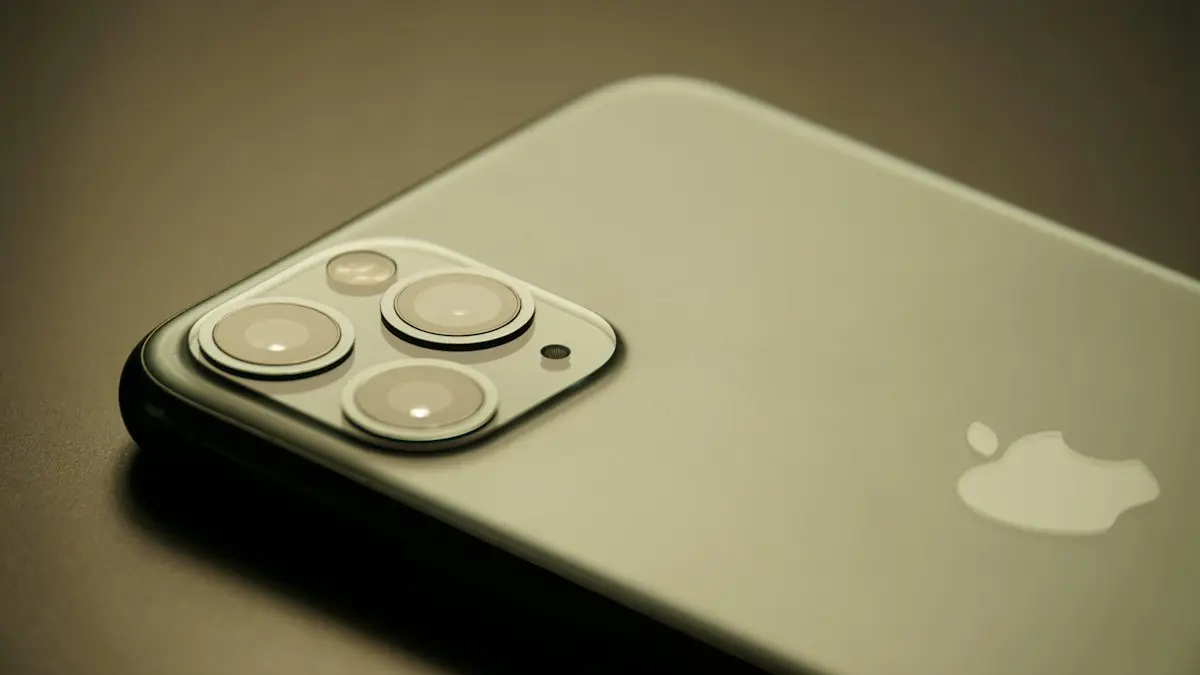
Photo by Jan Zinnbauer on Unsplash
Since the iPhone XS and XR, iPhones check the charging port for liquid before they start charging. If the pins look wet to the sensor, the iPhone stops charging to protect itself and shows one of these messages:
- Liquid Detected in USB-C Connector (iPhone 15 and later)
- Liquid Detected in Lightning Connector (iPhone 14 and earlier)
- Charging Not Available with an explanation that liquid was found
The alert is there to prevent corrosion. Charging with water in the port can damage the pins on the phone and the cable, which turns a free problem into a repair.
Why does my iPhone say liquid detected when it is not wet?
The sensor does not see water. It measures electricity between the pins, and anything that conducts a little can set it off. That is why the alert often appears on a phone that has not been near a sink:
- Humidity and sweat. A bathroom after a shower, a gym bag, a hot car or a phone in a pocket on a humid day can leave a thin layer of moisture in the port.
- Lint and dirt. Pocket lint packs into the port over months. It holds moisture and can connect pins that should not touch.
- A damp or damaged cable. The alert checks the whole connection. A cable end that got wet, or a cheap cable with bad wiring, can trigger it on a perfectly dry phone.
- Corrosion. Old water exposure can leave a green or dark film on the pins that keeps setting off the sensor.
- Software glitches. Occasionally the alert gets stuck after an update. A restart clears that.
7 fixes for the iPhone liquid detected alert
The fix
Work through these in order
- 1
Unplug everything right away.
Disconnect the cable and any accessory from the port. If the phone really is wet, this is the most important step.
- 2
Tap out any liquid.
Hold the iPhone with the charging port facing down and tap it gently against your palm a few times. This is Apple's own advice for getting water out.
- 3
Let it air dry for at least 30 minutes.
Leave it somewhere dry with some airflow, such as in front of a fan on the cool setting. Then try charging again. If the alert returns, keep trying every few hours. Apple says it can take up to 24 hours.
- 4
Try a different cable and charger.
Use an Apple cable or a certified one that you know is dry. If a second cable charges fine, the first cable was the problem. Look at its connector for dark marks or bent parts and replace it if you see any.
- 5
Look inside the port with a flashlight.
Shine a light into the port. Packed lint, dirt or green or white residue means the sensor is reacting to something real. Apple advises against pushing objects like cotton swabs or paper into the port, so if you see buildup, an Apple Store or repair shop can clean it safely, often at little or no cost.
- 6
Restart your iPhone.
If the port is clean and dry and several cables trigger the alert, restart the phone. On iPhone 8 and later, press and release volume up, then volume down, then hold the side button until the Apple logo appears. This clears a stuck alert.
- 7
Update iOS.
Go to Settings › General › Software Update. False liquid alerts after an update are sometimes fixed in the next small release.
What is Emergency Override, and should you use it?
When the alert appears while the cable is plugged in, the iPhone may offer an Emergency Override. Choosing it lets the phone charge anyway.
- Use it if you need the phone for an emergency and it is nearly dead, or if you are sure the phone is dry and the alert is a false alarm.
- Avoid it if the phone really got wet in the last day. Charging with water in the port can corrode the pins on both the phone and the cable.
A safer option in most cases is wireless charging, which does not use the port at all.
Charge wirelessly while you wait
Apple confirms that wireless charging still works while the alert is showing. Wipe the back of the iPhone dry, then place it on a Qi, Qi2 or MagSafe charger. If you do not have one, this is a good reason to buy one: it means a wet port never leaves you with a dead phone again.
Did your iPhone actually get wet?
Recent iPhones are water resistant, not waterproof. The rating is tested with fresh water in a lab and wears down over time, especially after drops or a screen or battery repair. Salt water, pool water, soda and coffee are also harder on the phone than clean water.
If the phone went in the pool, the ocean or a drink, rinse the port area briefly with clean fresh water if it was salt water or a sugary drink, then follow our guide on what to do when your phone gets wet. Watch for signs of real damage over the next few days: a foggy camera, speakers that sound muffled, a screen that flickers or a battery that drains fast.
How to stop the alert from coming back
If you see this warning every few weeks, something in your routine is getting moisture or dirt into the port. A few habits make a big difference:
- Do not charge in the bathroom, and leave the phone outside while you shower. Steam is one of the most common causes.
- After the gym or a run, wipe the phone and let it sit for a few minutes before plugging in. Sweat is salty and conducts well.
- Keep the phone in a pocket without lint, or in a case with a port cover if you work outdoors, at the beach or on a construction site.
- Replace frayed or cheap cables. Stick to Apple cables or certified ones.
- Use a wireless charger at night. It keeps the port out of use and saves wear on the connector too.
Android phones have a similar feature. Samsung Galaxy phones, for example, show a “moisture detected” warning and stop cable charging in the same way, and the same fixes apply: dry the port, try another cable, and charge wirelessly in the meantime.
Alert keeps coming back? It may need a repair
If the alert appears with every cable, on a dry phone, after 24 hours, a restart and an update, the port may be corroded or damaged. Book an appointment with Apple or an Apple Authorized Service Provider such as Best Buy.
- Under warranty: Apple's one-year limited warranty does not cover liquid damage. If the port is simply faulty, it is covered.
- With AppleCare+: accidental damage, including liquid, is covered for a service fee, which is much cheaper than paying full price.
- Out of warranty: ask for a diagnosis first. Sometimes a professional port cleaning is all it needs. If the phone is older and has other problems, compare the quote with the value of the phone before you decide.
If the alert goes away but the phone still charges slowly or not at all, the problem is elsewhere. Our guide to an iPhone that will not charge covers the next steps, and a worn battery can make charging behave oddly too. See whether replacing the battery is worth it.
Frequently asked questions
How long does it take for the liquid detected alert to go away?
Apple says to wait at least 30 minutes before trying again, and that it can take up to 24 hours for the port to dry fully. Leave the iPhone in a dry place with some airflow in the meantime.
Is it safe to use Emergency Override?
Only when you truly need the charge. If there really is liquid in the port, charging can corrode the pins or the cable. When the phone is dry and it is a false alarm, override is usually fine.
Can I charge my iPhone wirelessly when it says liquid detected?
Yes. Apple says wireless charging still works. Dry the back of the iPhone first, then place it on a Qi or MagSafe charger.
Should I put my iPhone in rice?
No. Apple specifically advises against it, because small rice particles can get into the port and cause damage. Air drying works better.
What to try next
Sources
Official pages these steps are based on. Menus can differ by software version.
People also ask
What does Liquid or debris in USB port mean on a Pixel?
The phone has detected moisture or dirt in the USB-C port and disables it for safety. Google says to unplug everything, check the port and wait until it shows OK to use USB port.
Read the full guide: Pixel liquid or debris in USB portWhy does my iPhone say this accessory may not be supported?
Apple says the alert can appear when the accessory is damaged or not certified for your iPhone, or when your iPhone has a damaged or dirty port. Disconnect it, check both ends for debris and try again.
Read the full guide: iPhone accessory not supportedWhy does my iPhone stop charging at 80%?
That is usually deliberate. Optimized Battery Charging, or the charge limit on iPhone 15 and later, holds the charge at 80% to reduce battery wear. The phone also pauses charging when it gets too warm.
Read the full guide: iPhone not chargingHow long does it take for the moisture warning to go away?
If the port is damp, it usually clears in a few hours once it dries. Leave the phone unplugged in a dry place with the port facing down. If it stays more than a day, the port may be dirty or damaged.
Read the full guide: Samsung moisture detectedRelated guides
Pixel liquid or debris in USB port
Pixel says Liquid or debris in USB port or Unplug charger? Unplug, dry the port, wait for OK to use USB port and clear the cache. 6 fixes from Google.
iPhone accessory not supported
iPhone says accessory not supported or may not be supported? Fix a bad cable, clean the port, update iOS and learn what to do when nothing is plugged in.
iPhone not charging
iPhone not charging, charging slowly or stuck at 80%? Work through 7 fixes, from the cable and a dirty port to charging messages, software and battery health.
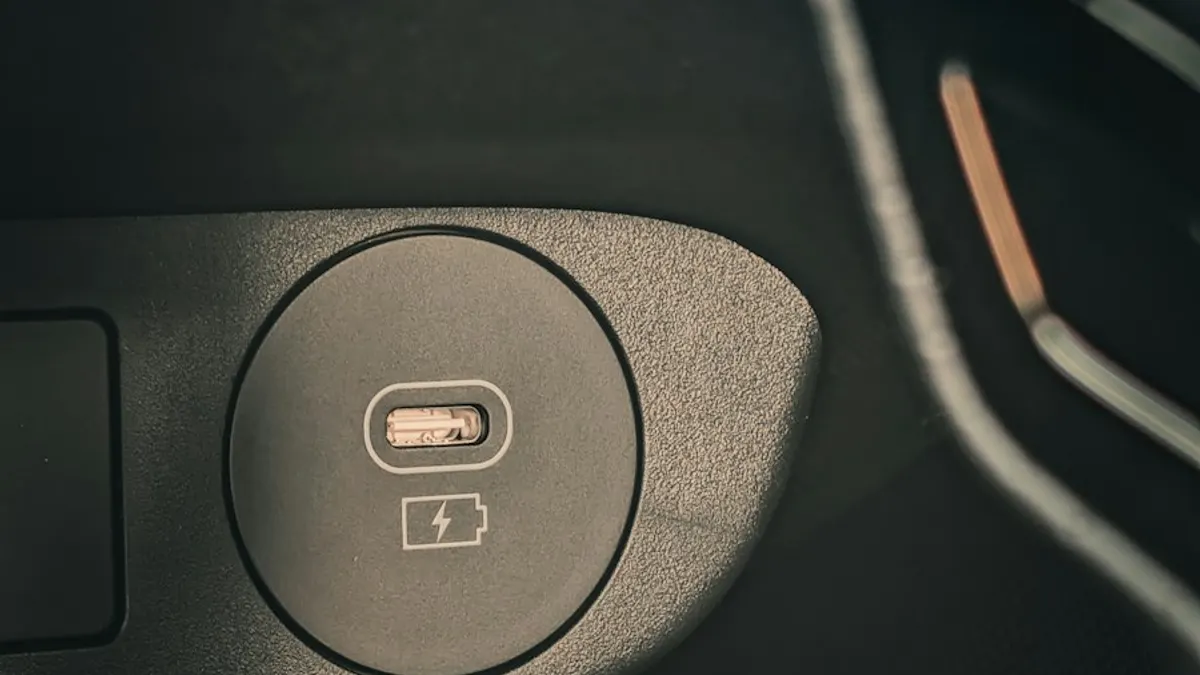
Samsung moisture detected
Samsung moisture detected warning won't go away? Dry the port, clean it safely, charge wirelessly, restart and fix a false alarm. Know when to get it repaired.
More guides you may need
iPhone ringer volume going down
Ringer gets quieter by itself? Turn off Attention Aware Features, fix Change with Buttons and check Bluetooth to keep your iPhone ringer at the level you set.
iPhone accessory not supported
iPhone says accessory not supported or may not be supported? Fix a bad cable, clean the port, update iOS and learn what to do when nothing is plugged in.