

Pixel says Liquid or debris in USB port? 6 fixes and when to worry
A Pixel shows Liquid or debris in USB port when it senses moisture or dirt in the charging port, and Unplug charger when the port or cable gets too hot. Six fixes in Google's order, and when to contact support.
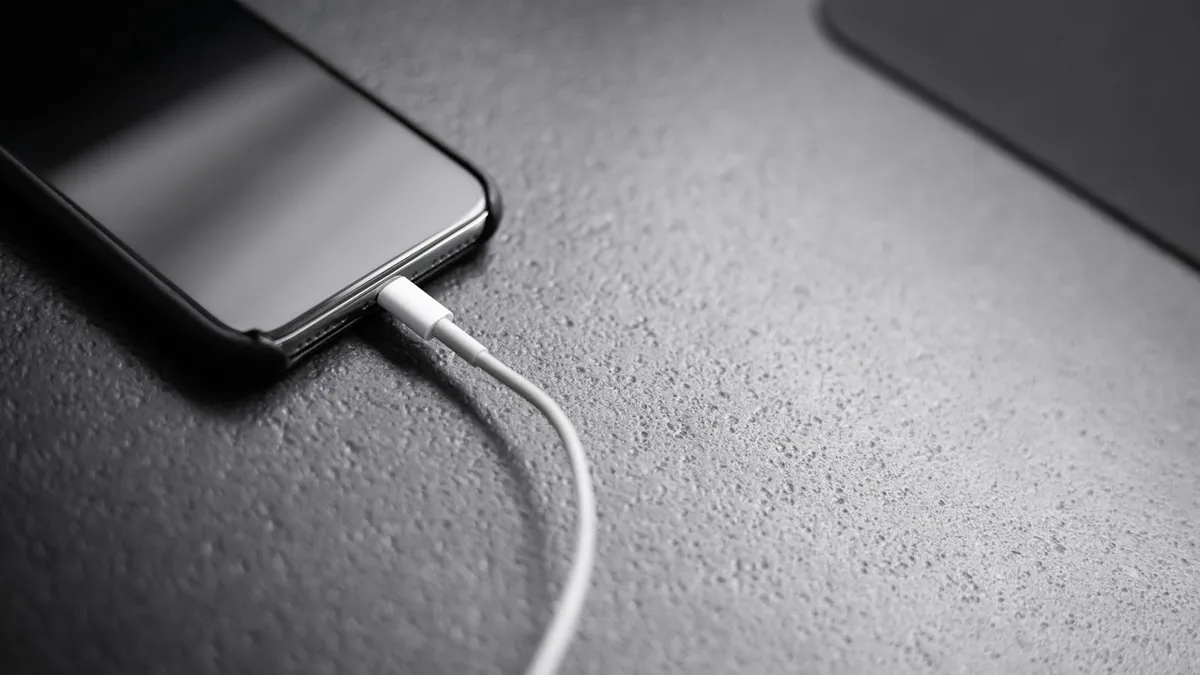
Photo by Andreas Haslinger on Unsplash
You plug in your Pixel and a warning appears. Either it says Unplug charger, or it says Liquid or debris in USB port. The phone stops charging, and sometimes the port stops working for headphones too. These warnings are a safety feature. Google's help page explains both messages and gives a short list of steps. Most of the time, the cause is a trace of moisture or lint in the USB-C port, and the warning goes away when the port is dry or clean. Here is what each message means, six fixes in the order Google gives them, and when the problem is a hardware or warranty case.
What do the two warnings mean?
- Unplug charger. The USB-C port or the cable is overheating, according to Google. The phone cuts power to protect itself.
- Liquid or debris in USB port. The phone detects liquid or debris in the port and turns the port off until it is clear.
They look alike, but the steps differ in one place: for the liquid message you wait until the phone says it is OK to use the port, and for the overheating message you turn the phone off to let it cool.
Fix 1: Unplug the charger and any headphones
Disconnect everything from the port. Google tells you to be careful, because the cable may be very warm. Unplug the power adapter from the wall first, let the phone cool for a few minutes, and then disconnect the cable from the phone. Remove any USB-C headphones from the port too. Keep the phone out of the sun and do not put it on a heater or a pillow while it cools. Do not charge it again until you have done the checks below. A phone that sat in a damp pocket, a bag with a water bottle or a steamy bathroom can show the same warning, so think about where the phone was before the message appeared.
Fix 2: Check the USB-C port and the cable
Look into the port with a light. Google says to use the cable that came in the box, and to look for moisture or debris. The rule is simple and important: do not insert anything into the port or the cable. Some websites suggest a pin or a toothpick to scrape out lint. Google's page says not to, and a bent contact can make the problem permanent. If the cable is bent, frayed or has a damaged tip, stop using it and replace it. Google says a damaged cable should be replaced, and it points to the Google Store for a new one.
Fix 3: If the port is wet, turn the phone off and let it dry
If you see moisture, or you think the phone got wet, turn it off and put it on a flat surface to dry at room temperature, as Google says. Give it plenty of time. Do not use a hair dryer, an oven, rice or any heat source, because heat can spread the moisture or damage the phone. Third-party guides also warn against heat. If the phone went into water for more than a splash, see our guide on what to do when a phone gets wet.
Fix 4: If you see debris, tap it out
If the port has lint or dust, hold the phone with the port facing down and tap it gently against your hand, as Google says. Check again with the light. Repeat a few times. Do not blow into the port with your mouth, because your breath adds moisture, and do not use compressed air at close range, which can push dirt deeper. If the debris is packed in and will not shake out, an authorized repair partner can clean it.
Fix 5: Wait for OK to use USB port, or restart after cooling
If the port is clean and dry, Google gives two paths. For the Liquid or debris in USB port message, wait until you see the message that says it is OK to use the USB port, and then try the cable again. For the Unplug charger message, turn the phone off and let it cool for a few minutes before you turn it on. While you wait, you can use the phone normally on battery, as long as it is not hot to the touch. If the phone is too hot to touch, Google says to use another device to contact support.
Fix 6: Clear the cache if the warning will not go away
Google lists one more step only if the warning keeps appearing after the steps above. It resets the part of Android that handles the port.
Clear the USB Settings cache
- 1
Open Settings and tap Apps, then See all apps.
- 2
Tap More, then Show system apps.
The system apps list is hidden by default.
- 3
Search for USB Settings or Android System.
Scroll to find it if the search does not show it.
- 4
Tap Storage & cache, then tap Clear cache.
This clears temporary files and does not delete your data.
- 5
Try the charger again.
If the warning returns or the port stays disabled, contact support.
The menu names can differ a little between Android versions, so use the search box in Settings if you cannot find an item.
When should you contact Google?
- The Unplug charger message appears more than once.
- The Liquid or debris in USB port message lasts two hours or more.
- The port looks burned, melted or corroded. Google points to a warranty claim or an authorized repair partner.
- The phone is too hot to touch. Use another device to contact support.
- The warning returns after you clear the cache.
Keep a note of the date, the charger and cable you use, and what you tried. If the phone is under warranty, say so when you contact support. If it is not, ask for the repair price before you agree.
Does wireless charging still work?
Google's page does not say anything about wireless charging, so we cannot give you a Google answer. Many people use a wireless charger as a short-term workaround while a port is drying out, but check your own phone's behavior and do not use it if the phone is hot. If the problem was caused by liquid, switching to a wireless charger does not fix the cause, and the port still needs to dry.
How to avoid the warning next time
- Keep the port clean. Lint from a pocket builds up over weeks, so check it with a light now and then.
- Use the cable and charger that came with the phone, or good certified ones. Google tells you to use the cable that came in the box when you test.
- Do not charge a wet phone, even after a splash. Dry it first.
- Do not leave the phone charging under a pillow or in direct sun.
- Replace a bent or frayed cable instead of nursing it along.
Is it the same on iPhone and Samsung?
The idea is the same, and the messages differ. An iPhone shows an alert about liquid in its charging port, and a Samsung shows a Moisture detected warning. Our guides on the iPhone alert and the Samsung warning have the steps for those phones. If the warning is really a charging speed problem, see how to fix a phone that is charging slowly.
Still seeing the warning?
If you have done all six fixes and the warning remains, the port or a sensor may be faulty. Contact support with the details above, ask about a repair and avoid charging until you get an answer. If the phone works on a wireless charger, you can keep it powered while you arrange the repair, but do not leave a hot phone unattended. Also check for system updates, because a software update can change how the port sensor behaves, and install any that are waiting.
Frequently asked questions
What does Liquid or debris in USB port mean on a Pixel?
The phone has detected moisture or dirt in the USB-C port and disables it for safety. Google says to unplug everything, check the port and wait until it shows OK to use USB port.
What is the difference from Unplug charger?
Unplug charger means the USB-C port or the cable is overheating. Liquid or debris in USB port means the phone detects liquid or debris in the port.
Can I poke the port with a pin to clean it?
No. Google says not to insert anything into the port or cable. Gently tap the phone with the port facing down to shake loose any debris.
When should I contact Google?
Google says to contact support if Unplug charger appears more than once, if Liquid or debris in USB port lasts two hours or more, or if the port looks burned, melted or corroded.
What to try next
Sources
Official pages these steps are based on. Menus can differ by software version.
People also ask
How long does it take for the liquid detected alert to go away?
Apple says to wait at least 30 minutes before trying again, and that it can take up to 24 hours for the port to dry fully. Leave the iPhone in a dry place with some airflow in the meantime.
Read the full guide: iPhone liquid detectedWhy does my Samsung stop charging at 80% or 85%?
Battery protection is turned on. It stops charging early to reduce battery wear. Turn it off or change it in Settings › Battery › Battery protection.
Read the full guide: Samsung phone not chargingWhy is my Pixel call so quiet?
Common causes are weak mobile signal, a Bluetooth device taking the audio, a case or screen protector over the earpiece, or dirt in the speaker. Google's help page lists each as a check.
Read the full guide: Pixel call volume too lowWhy can't my Pixel find my Samsung TV when I cast?
Many Samsung TVs do not support Google Cast the way a Chromecast does. The TV may need to be in screen mirroring mode, or you may need a streaming device that supports Cast.
Read the full guide: Pixel can't cast to Samsung TVRelated guides
iPhone liquid detected
iPhone liquid detected alert even when it is dry? Learn why it happens, how long to wait, when Emergency Override is safe and 7 fixes to charge again.
Samsung phone not charging
Samsung Galaxy not charging, charging slowly or stopping at 80%? Check the cable, port, Battery protection and Moisture detected with these 9 fixes.
Pixel call volume too low
Pixel call volume too low or the caller sounds quiet and unclear? Check signal, Bluetooth, Wi-Fi, the case and the speaker with Google's own steps. 8 fixes.
Pixel can't cast to Samsung TV
Pixel can't cast to Samsung TV or says no devices found? See why Samsung TVs hide from Cast, fix Wi-Fi and permissions, or use a cable or dongle.
More guides you may need
Motorola losing network
Motorola phone keeps losing network or showing no service? Toggle Airplane mode, reseat the SIM, change network type, reset APN and network settings.
Motorola stuck on logo
Motorola stuck on the Hello Moto or logo screen? Force restart it, charge it, wipe the cache in recovery and use Motorola’s Software Fix tool before a reset.