

Samsung moisture detected? 8 ways to clear the charging warning
The warning stops your Galaxy from charging to protect it from a short circuit. Often the port really is damp, but a dirty port or a faulty sensor can trigger it too.
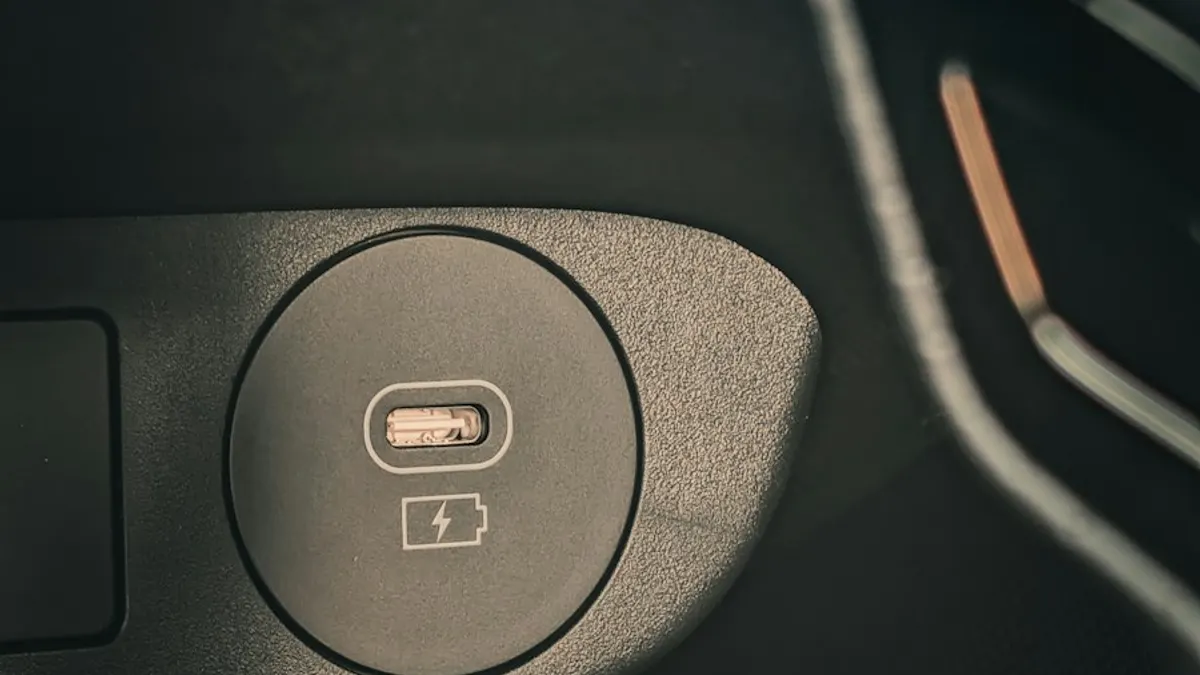
Photo by Obi on Unsplash
You plug in your Galaxy and a message pops up: moisture has been detected in the charging port, and charging is stopped. It can show up after a rainy day, a workout or a swim, but it also shows up on phones that never touched water. Samsung built this warning to prevent a short circuit, so it is worth taking seriously, but it is not always a sign of damage.
This guide explains what the warning does, why it appears on a dry phone, and how to clear it. Follow the steps in order. The early ones are about safe drying, and the later ones are for a phone that shows the warning even though nothing is wet.
What does the Samsung moisture warning mean?
The USB-C port on a Galaxy phone has a sensor that checks for liquid across the charging pins. If it sees moisture, the phone blocks charging and data transfer and shows a warning. Power through a wet port can cause corrosion or a short, which can damage the port and the battery. The block lifts on its own once the sensor sees a dry port.
Many Galaxy phones are water resistant under the IP68 rating, which means they can survive being in shallow water for a limited time. That rating covers the body of the phone, but it does not make the open charging port safe to use while wet. Water resistance also wears down with age, drops and repairs.
Why does the warning show up on a dry phone?
- Hidden moisture. A few drops inside the port can stay for hours, even if the outside looks dry.
- Lint and dirt. Pocket lint, dust and debris can bridge the pins and fool the sensor.
- Salt, sweat or spilled drink. These leave a residue that conducts electricity even when dry.
- A corroded or bent pin. Older phones and phones that were wet before can show a permanent warning.
- A cable or accessory problem. A damaged cable or a dock with its own moisture can set off the alert.
- A software bug. Some people see a false alarm after an update, which a later patch fixes.
Fix 1: Unplug everything and let the phone dry
- 1
Unplug the charger and any accessory.
Pull the cable out of the port and the wall. Do not plug it back in while the warning is on.
- 2
Wipe the phone with a soft, dry cloth.
Dry the buttons, the speaker grille and the port area.
- 3
Hold the phone with the port facing down and tap it gently against your palm.
This helps loose drops run out.
- 4
Leave it in a dry, cool, well-ventilated place for several hours.
Open air is best. Do not use a hair dryer, an oven, a heater or the freezer, because heat can warp parts and hurt the battery.
- 5
Try charging again after a few hours.
If the warning is gone, you are done. If it is still there, go on.
Fix 2: Use a wireless charger if your Galaxy supports it
Wireless charging does not use the USB port, so the moisture block does not stop it. Most Galaxy S and Z phones and some A models support it, but check your model. Make sure the back of the phone and the charging pad are dry, and keep the phone cool. This lets you keep the battery up while the port dries. If your phone does not support wireless charging, do not try to force a charge through the wet port.
Fix 3: Clean the charging port safely
If the port should be dry, but the message stays, dirt may be the cause. Turn the phone off first so nothing is powered while you clean.
- 1
Power the phone off.
- 2
Shine a light into the port and look for lint or dirt.
- 3
Use a wooden or plastic toothpick, gently.
Scrape along the walls of the port and pull out lint. Never use a metal pin, which can short the contacts or bend them.
- 4
Use a clean, dry, soft brush or cotton swab for the loose dust.
A little bit of lint can look like a big problem.
- 5
Let it sit for a few minutes, then turn the phone back on and test.
Use a different cable if you have one. A worn cable can carry moisture or dirt back into the port.
Fix 4: Restart the phone
Hold the side button and the volume down button, then tap Restart. A restart resets the sensor and the charging software, and it clears a stuck warning in many cases. If the phone will not respond, hold the side button and the volume down button together for about ten seconds to force a restart.
Fix 5: Update the software
If the warning began after an update, or shows on a phone that you know is dry, a newer version may fix it. Open Settings › Software update › Download and install. You may need to use Wi-Fi or a wireless charger to keep the battery up, because the phone cannot charge through the port. For general update help, see our guide to updating an Android phone.
Fix 6: Test in Safe mode
Safe mode turns off apps you installed. If a charging or battery app is the cause of a false alarm, the warning disappears in Safe mode. Hold the side button, touch and hold Power off, then tap the green Safe mode check mark. Test the charger. If the warning is gone, remove recent apps, especially battery savers and charging monitors. Our guide to Safe mode on Android explains how to enter and leave it on all models.
Fix 7: Try a different cable and charger
A cheap or damaged cable can bring dirt and moisture into the port and can cause false alarms. Use the cable that came with the phone, or a good quality USB-C cable, and a power adapter you trust. Look at the plug end for bent pins or green and white residue, which is corrosion. If the cable is bad, replace it. Also try another outlet or a different charger, in case the problem is the power source.
Fix 8: When the warning will not go away, get the port checked
If the phone is dry and clean and the warning stays for more than a day, the sensor or the port may be damaged. Corrosion from an earlier splash can cause a constant alert. This is also common on a phone that was repaired, or whose water seals have aged. Take it to Samsung or a repair shop and ask them to inspect the USB-C port and the charging board.
- Check coverage first. Use this guide to phone warranty. Samsung's standard warranty does not usually cover liquid damage, but a defective sensor can be a different case.
- Ask about the cost before you agree. A port repair is often cheaper than a new phone, but a screen or board repair is not. Our guide to Samsung screen replacement costs gives an idea of typical pricing.
- Back up your data. Back up the phone to the cloud or to a computer while it still turns on, because a corroded port can fail completely.
Should I charge the phone when the warning shows?
Do not charge through a wet port. The warning exists because current in a wet port can corrode the pins or short the board. If your phone offers a charge-anyway option on the warning, use it only when you are sure the port and the cable are dry, and never in a wet or humid place. If the battery is nearly empty, use a wireless charger or wait for the port to dry. If you are charging a phone that fell into water, switch it off and see our guide to what to do if a phone gets wet.
How to avoid the warning in the future
- Dry the phone with a cloth after it gets wet or sweaty, before you plug it in.
- Do not charge at the beach, in the bathroom or in the kitchen near water.
- Keep the port clean. Check it every few months for lint.
- Use a case with a port cover if you work in dusty or wet places.
- Charge wirelessly for a day after exposure to water, if your phone supports it.
- Replace old, frayed cables, and keep the software up to date.
If the phone charges but the battery drains fast, look at how to check Samsung battery health, and for a phone that will not charge for another reason, read why a Samsung will not charge.
Frequently asked questions
How long does it take for the moisture warning to go away?
If the port is damp, it usually clears in a few hours once it dries. Leave the phone unplugged in a dry place with the port facing down. If it stays more than a day, the port may be dirty or damaged.
Why does my Samsung say moisture detected when it is dry?
Lint, dirt, salt or a corroded pin can look like moisture to the sensor. A software bug after an update can cause a false alarm too. Clean the port gently, restart the phone and update the software.
Can I charge a Samsung phone wirelessly when it says moisture detected?
On models that support wireless charging, yes. It does not use the USB port, so the warning does not block it. Make sure the back of the phone and the pad are dry first.
Is putting a Samsung in rice a good idea?
No. Rice does not pull moisture out of a phone well, and grains and dust can get into the port. Leave the phone in open air with the port down instead.
What to try next
People also ask
How long does it take for the liquid detected alert to go away?
Apple says to wait at least 30 minutes before trying again, and that it can take up to 24 hours for the port to dry fully. Leave the iPhone in a dry place with some airflow in the meantime.
Read the full guide: iPhone liquid detectedWhy does my Samsung stop charging at 80% or 85%?
Battery protection is turned on. It stops charging early to reduce battery wear. Turn it off or change it in Settings › Battery › Battery protection.
Read the full guide: Samsung phone not chargingWhy does my Samsung restart at night?
That is almost certainly Auto restart, a Samsung feature that restarts the phone on a schedule to keep it running smoothly. You can turn it off in Settings › Device care › Auto optimization.
Read the full guide: Samsung phone keeps restartingWhat does the red number on the iPhone Phone app mean?
It counts your missed calls and new voicemails. Opening the Missed tab and listening to or marking voicemails as read clears it.
Read the full guide: iPhone red dot on Phone appRelated guides
iPhone liquid detected
iPhone liquid detected alert even when it is dry? Learn why it happens, how long to wait, when Emergency Override is safe and 7 fixes to charge again.
Samsung phone not charging
Samsung Galaxy not charging, charging slowly or stopping at 80%? Check the cable, port, Battery protection and Moisture detected with these 9 fixes.
Samsung phone keeps restarting
Samsung Galaxy keeps restarting on its own? Check Auto restart, test in Safe mode, run Samsung Members diagnostics and try 6 more fixes before a reset.
iPhone red dot on Phone app
iPhone red dot on Phone app that will not go away? Check voicemail, Deleted Messages and Recents, refresh your carrier count and turn off the badge.
More guides you may need
Android new tag scanned
Android new tag scanned keeps popping up? It means your phone touched something with an NFC chip. Find the cause and stop it without losing tap to pay.
Android no command screen
Android no command screen with a lying robot? It is the recovery gate, not a crash. Use the button combo to get past it and reboot without wiping your data.