

iPhone not charging? How to find the cause and fix it
Most charging problems come down to the cable, the adapter or lint in the port. Start with the quickest checks and work down.
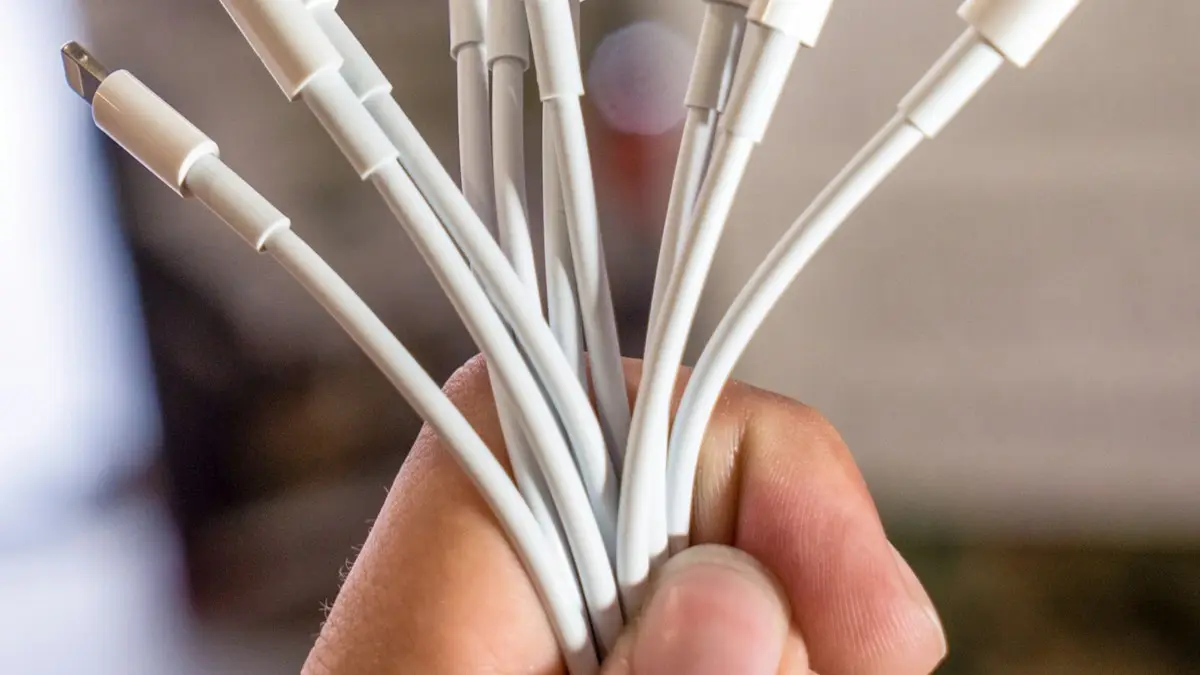
Photo by Mika Baumeister on Unsplash
A phone that will not charge feels like a broken phone, but most of the time it is not. The cable, the adapter and pocket lint cause far more charging problems than a failed battery. Work through the fixes in order: each one takes a minute or two, and the first three solve most cases.
Why is my iPhone not charging when plugged in?
Charging needs four things to work: a power source, an adapter, a cable, and a clean connection into the phone. Then iOS decides whether it is safe to charge, based on temperature and battery settings. A fault in any one of these stops charging. That is why swapping parts one at a time is the fastest way to find the cause.
- Cable: the wires break inside near the ends long before anything looks damaged. This is the single most common cause.
- Adapter or power source: laptop ports, car chargers and old 5W cubes may give too little power to charge a phone that is in use.
- Port: lint packs into the bottom of the port every time you put the phone in a pocket, until the plug can no longer seat fully.
- Software: a frozen process can stop the phone from showing or accepting a charge until it restarts.
- Battery or hardware: a worn battery, liquid damage or a failed charging chip. These need a repair.
The fix
7 fixes, in the order to try them
- 1
Use a different cable.
Use a cable you know works with another device. iPhone 15 and later use USB-C, so any good USB-C cable works. iPhone 14 and earlier need a Lightning cable; cheap uncertified ones often stop working after an iOS update. Look for the MFi (Made for iPhone) label.
- 2
Plug into a wall socket with a proper adapter.
Try a wall adapter and a different socket. For fast charging, use a USB-C Power Delivery adapter of 20W or more. Apple says a wired charger of 7.5W or less charges slowly, which is why a laptop port or old cube may barely keep up while you use the phone.
- 3
Clean the charging port.
Turn the phone off and shine a flashlight into the port. If you see lint, loosen it gently with a wooden toothpick or a soft, dry brush and tip it out. Never use pins, paper clips or anything metal, and do not blow into the port, since moisture from your breath can cause corrosion. A plug that clicks in firmly afterward is a good sign.
- 4
Try wireless charging.
If the iPhone charges on a MagSafe or Qi charger but not with a cable, the problem is almost certainly the port or its connector. If it charges neither way, the cause is more likely software or the battery.
- 5
Force restart the iPhone.
Press and release volume up, press and release volume down, then hold the side button until the Apple logo appears. This works on iPhone 8 and later. Then plug it in and leave it alone for 30 minutes: a completely drained battery can take a while before the charging screen appears.
- 6
Update iOS and check charging settings.
Once it has some charge, install any update in Settings › General › Software Update. Then open Settings › Battery › Charging to check whether a charge limit or Optimized Battery Charging is holding it at 80%.
- 7
Check battery health, then book a repair.
Open Settings › Battery › Battery Health (Battery Health & Charging on iPhone 14 and older). If it says Service, or Maximum Capacity is well below 80%, the battery is the likely cause. If the battery looks fine and nothing above helped, the port or charging hardware needs a repair.
What do the charging messages mean?
Your iPhone often tells you why it is not charging. Here is what each message means and what to do.
- Slow Charger: shown on the Lock Screen and in Settings › Battery when a stronger adapter would charge faster. Nothing is wrong. Use a 20W or higher USB-C adapter if you want more speed.
- Charging On Hold: the phone is too hot or too cold, so iOS paused charging to protect the battery. Remove the case, move it out of the sun or a hot car, and it resumes on its own.
- This accessory may not be supported: the cable or adapter is damaged, dirty, uncertified, or not made for your model. Unplug and reconnect, clean the connectors, and try a different cable. If the alert appears with nothing plugged in, the port may need service.
- Liquid Detected in Lightning or USB-C Connector: moisture is in the port. Unplug, tap the phone gently with the port facing down, and let it dry for at least 30 minutes. Wireless charging is still safe in the meantime.
iPhone stuck at 80% while charging?
- Optimized Battery Charging: learns your routine and holds at 80% overnight, then finishes before you usually unplug. On the Lock Screen you may see a note saying when it will finish.
- Charge limit (iPhone 15 and later): in Settings › Battery › Charging you can set a limit between 80% and 100%. If it is set to 80%, the phone always stops there by design.
- Heat: a warm phone may stop at 80% until it cools down, even with both features off.
None of these is a fault. Holding at 80% slows battery aging, so leave them on unless you need a full charge for a long day. When Optimized Battery Charging is holding the charge, you can touch and hold its notification on the Lock Screen and choose Charge Now.
MagSafe or wireless charging not working?
- Take off the case. Thick cases, wallets, PopSockets and metal rings block wireless charging.
- Line the iPhone up with the center of the pad. MagSafe snaps into place; other pads need careful placement.
- Use a 20W or stronger USB-C adapter with MagSafe. A weak adapter charges very slowly or not at all.
- Wipe the back of the iPhone and the pad with a dry cloth.
- If the phone is warm, wireless charging pauses until it cools. Charge with a cable instead.
Port or battery? How to tell
If the phone charges wirelessly but not by cable, even with several known good cables, the port is the problem. If the phone charges but the percentage drops quickly, jumps around or it shuts down at 20% or 30%, the battery is worn. If it does not charge by any method and will not turn on after an hour on a charger, it needs a repair shop to test it.
A battery replacement costs $69 to $129 at Apple, depending on the model. Port repairs vary more, so ask for a quote. If you have AppleCare+, check your coverage first, and if the phone is old, compare the repair price with its trade-in value before paying.
How to stop charging problems coming back
- Keep the phone in a pocket without loose lint, or check and clean the port every few months with a flashlight and a wooden toothpick.
- Unplug by holding the plug, not the cable. Pulling on the cable is what breaks the wires inside.
- Avoid charging on a bed, under a pillow or in a hot car. Heat pauses charging and ages the battery.
- Buy certified cables and adapters from known brands. Very cheap ones fail quickly and can damage the port.
Frequently asked questions
Why does my iPhone stop charging at 80%?
That is usually deliberate. Optimized Battery Charging, or the charge limit on iPhone 15 and later, holds the charge at 80% to reduce battery wear. The phone also pauses charging when it gets too warm.
Can I use rice to dry a wet iPhone?
No. Apple advises against putting a wet iPhone in rice, because small particles can get into the phone. Tap it gently with the port facing down and leave it to dry in a place with some airflow.
Why does my iPhone charge with a cable but not wirelessly?
The case, the pad position or a weak adapter is usually the cause. If none of those fix it, the wireless charging coil may need repair.
How much does it cost to fix an iPhone charging port?
It depends on the model and the shop, so get a quote before you agree to a repair. Check whether AppleCare+ covers you first, and compare the price with the phone's trade-in value if it is an older model.
What to try next
Sources
Official pages these steps are based on. Menus can differ by software version.
People also ask
How long does it take for the liquid detected alert to go away?
Apple says to wait at least 30 minutes before trying again, and that it can take up to 24 hours for the port to dry fully. Leave the iPhone in a dry place with some airflow in the meantime.
Read the full guide: iPhone liquid detectedWhy does my iPad say Not Charging?
It is connected but not getting enough power, usually from a computer USB port or small phone charger. Use the adapter that came with the iPad or a 20W or stronger USB-C adapter.
Read the full guide: iPad not chargingWhy does my Samsung stop charging at 80% or 85%?
Battery protection is turned on. It stops charging early to reduce battery wear. Turn it off or change it in Settings › Battery › Battery protection.
Read the full guide: Samsung phone not chargingWhy does my iPhone say this accessory may not be supported?
Apple says the alert can appear when the accessory is damaged or not certified for your iPhone, or when your iPhone has a damaged or dirty port. Disconnect it, check both ends for debris and try again.
Read the full guide: iPhone accessory not supportedRelated guides
iPhone liquid detected
iPhone liquid detected alert even when it is dry? Learn why it happens, how long to wait, when Emergency Override is safe and 7 fixes to charge again.
iPad not charging
iPad not charging or showing Not Charging? Use a strong wall adapter, clean the port, try another cable and force restart. 8 fixes before you book a repair.
Samsung phone not charging
Samsung Galaxy not charging, charging slowly or stopping at 80%? Check the cable, port, Battery protection and Moisture detected with these 9 fixes.
iPhone accessory not supported
iPhone says accessory not supported or may not be supported? Fix a bad cable, clean the port, update iOS and learn what to do when nothing is plugged in.
More guides you may need
Straight Talk IMEI invalid
Straight Talk says your IMEI is invalid or the phone can’t be activated? Check the number, the compatibility tool, the carrier lock and the blocked status.
Verizon verification code
Verizon not sending verification code texts for logins and apps? Check blocked short codes, spam filtering, your plan blocks and port delays, then call Verizon.