

iPhone Camera "Unknown Part" Message: What It Means and What to Do
The warning looks serious, but Apple says it does not stop you from using the camera. Here is what it really tells you, and the one case where you should act.
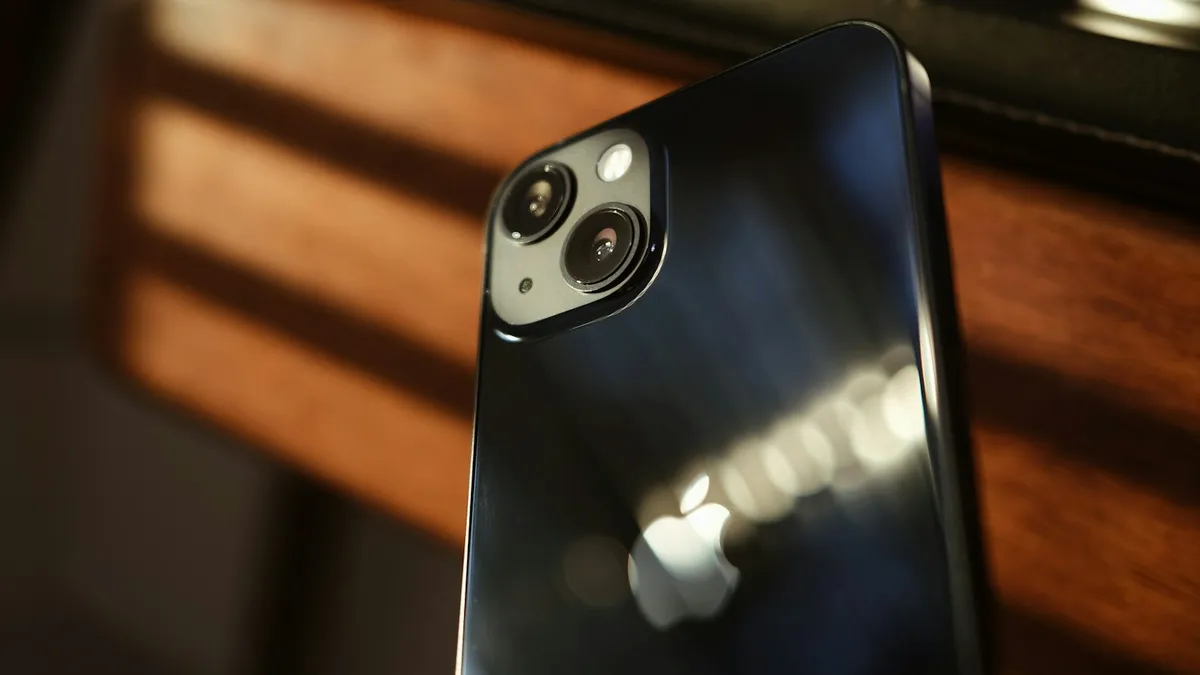
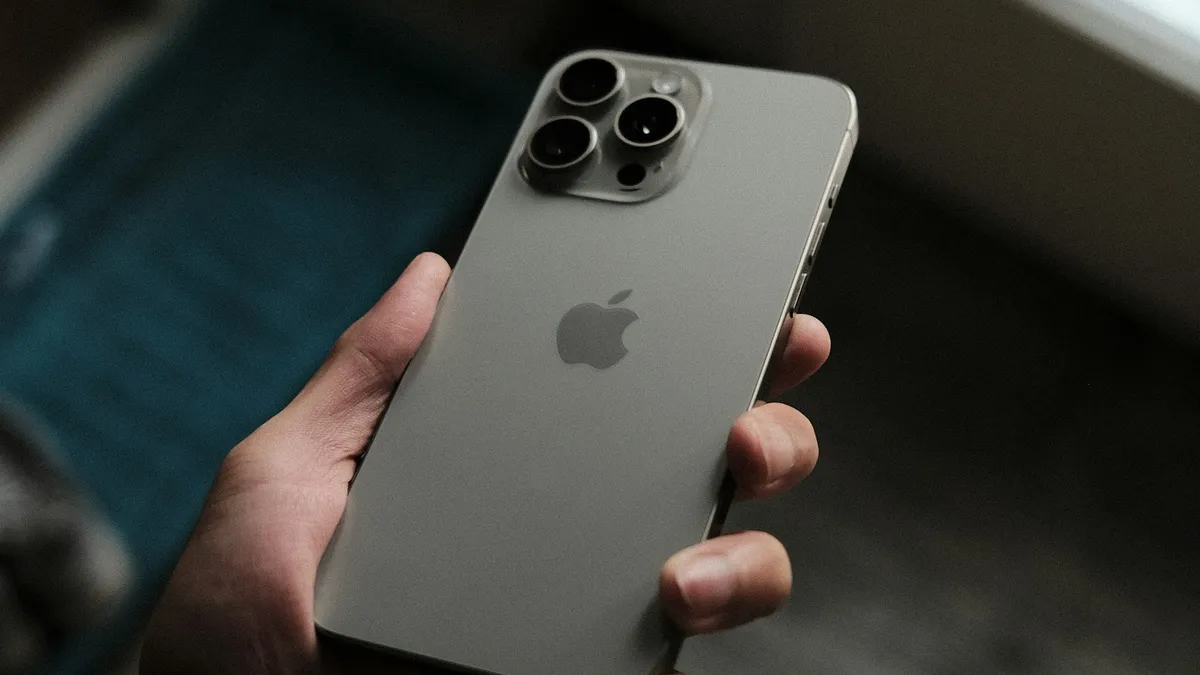
Photo by Fujiphilm on Unsplash
A message pops up in Settings or on the lock screen. "Unknown part." Your camera was working a minute ago, and you have never taken the phone apart. It is easy to panic, and Apple Community has a long line of people asking what they did wrong.
In most cases the answer is plain. The message tells you something about how the camera was installed. It does not tell you the phone is dying. This guide explains each status Apple uses, what to check first, and the one situation where a repair is the right call.
What does the unknown part message mean?
Newer iPhones check their own main parts, such as the camera, the battery and the screen. Each part has a serial identity that is paired with the phone. When the check cannot confirm it, the phone labels the part. Apple lists the reasons the Unknown label appears on its page about genuine iPhone cameras:
- The camera installation is not complete.
- The camera is not a genuine Apple part.
- The camera is not working as expected.
- The camera was not verified and linked to the iPhone after a repair.
- The camera has been modified or cannot be verified.
On iOS 15.1 and earlier the same situation showed up as "Important Camera Message." The newer wording shows up in Settings once the phone has the part history feature, which Apple says is on iPhone 12 and later with iOS 15.2 or later.
Step 1: Check what your iPhone actually says
- 1
Open Settings › General › About.
- 2
Scroll to Parts and Service History.
It only shows if the phone has had a part replaced or a part could not be verified. On iPhone 12 and later with iOS 15.2 or later.
- 3
Tap it and look next to Camera.
You will see one of four words: Genuine, Used, Finish Repair or Unknown.
If there is no Parts and Service History entry at all, the phone has not detected a part change. In that case the warning you saw is probably a software hiccup, and a restart and an update may clear it.
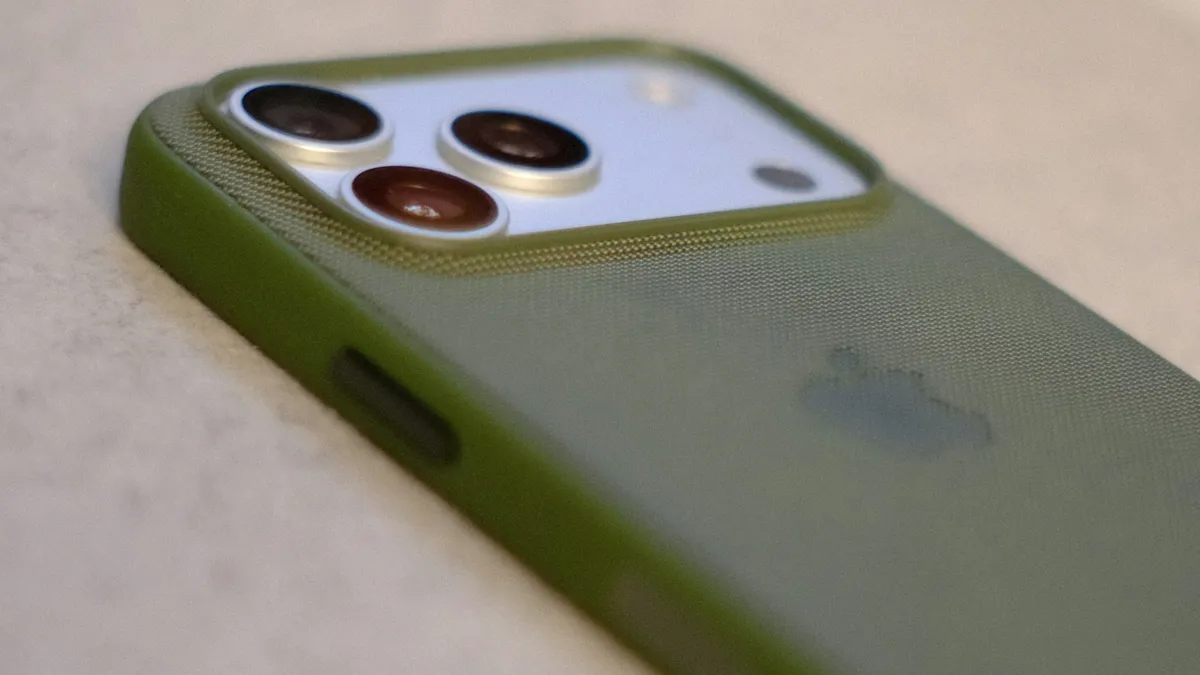
What each status means
- Genuine: the camera was installed with genuine Apple parts and processes. Nothing to do.
- Used: on iPhone 15 and later with iOS 18 or later, this means the camera was already installed in another iPhone. Apple says a used part may work, but quality and performance can be inconsistent.
- Finish Repair: a new genuine camera is in the phone, but the repair has not been completed in Apple's Repair Assistant. This one needs action.
- Unknown: the camera could not be verified for one of the reasons above.
Did you ever have the camera repaired?
This is the question that decides what to do. There are two paths.
If the camera was replaced, even a few years ago, by a shop that did not use Apple's tools, the part most likely never got linked to the phone. The message is correct, and it is not going away on its own. If the phone has never been repaired and you bought it new from Apple or a carrier, the message is much more surprising, and it is worth contacting Apple.
If you bought the phone used, you may be seeing a repair that a previous owner did. Our guide to checking whether your iPhone is refurbished explains how to read the signs.
Fix 1: Restart the iPhone
A software glitch can show a false message, so a restart is worth the 30 seconds. Press and hold the side button and either volume button until the slider appears, drag it, wait half a minute, then hold the side button to turn the phone on. Some people on Apple Community say the message went away for a short time after this and then returned. That points to a real part status, not a glitch.
Fix 2: Update iOS
Open Settings › General › Software Update and install what is offered. Apple says problems with a camera can appear after an iOS update with camera changes, and the next update often fixes them. If the message appeared right after an update and the camera works fine, wait for the next point release and check again.
Fix 3: Test the camera properly
A message with a working camera is annoying. A message with a faulty camera is a repair. Test before you decide. Apple lists the kinds of problems a nongenuine camera may cause:
- Poor focus or soft photos.
- Portrait mode photos where the subject is blurry or only partly in focus.
- Third party camera apps that freeze, quit or show a blank or stuck preview.
- Zoom that stops working, which some Apple Community members report.
Open the Camera app and take a photo of a page of text at normal range. Switch between the lenses, try Portrait mode and open a third party app such as Instagram. If everything works, the message is a label, not a fault. If you see soft focus or a stuck preview, our guides to a blurry iPhone camera and a phone camera that is not working cover the steps that come first.
Fix 4: Have the repair completed or redone
This is the only real fix for an Unknown or Finish Repair message. A provider must install a genuine camera and finish the process with Apple's Repair Assistant, or complete the step that was skipped. Apple recommends certified technicians with genuine parts. Your choices depend on where you live:
- Apple Store, Apple Authorized Service Provider or Apple Repair Center. Covered by Apple's repair terms.
- Independent Repair Provider. Apple says these providers also have access to genuine parts, but their repairs are not covered by Apple's warranty or AppleCare.
- Self Service Repair. Available only in certain countries and for eligible iPhone models from 2021 onward.
Ask the shop two things before you pay. Will you use a genuine Apple camera, and will you finish the repair in Repair Assistant so the part shows as Genuine? A shop that cannot answer both questions is the reason you got the message in the first place.
Should you pay to fix it?
That depends on what you plan to do with the phone. Be honest about three things.
- You keep the phone and the camera works: you can leave it alone. Apple says the message does not limit your use.
- You plan to sell or trade in: the message can lower the price. Fixing it before a trade-in may pay off. Check what a buyer offers first with our trade-in guide and iPhone value guide.
- The camera is soft or freezes apps: the part is probably the cause. A genuine replacement is worth it if the phone is otherwise healthy.
Check whether you have coverage before paying. Our guide on buying AppleCare+ explains what camera repairs it covers. If the phone is old, compare a repair with the cost of a newer model.
If you are buying a used iPhone
This message is one of the best free checks on a used phone. Open Settings › General › About before you pay, and look for Parts and Service History. A camera that says Unknown or Used tells you the phone has had work done. It may be fine, but it should lower the price. Also look at the battery line, because the same page shows the battery and display status. Our guide to iPhone battery health shows how to read it.
Common questions people ask Apple Community
- "I never opened my phone." Then ask Apple to run a diagnostic. If the camera is faulty, they may repair it, and coverage depends on your warranty.
- "It works in other apps but not the Camera app." That suggests a software problem. Update iOS, restart, and test again.
- "Can a reset fix it?" Resetting does not change a part's status. Back up first if you try it anyway.
- "Is it a virus?" No. The message comes from the phone's own parts check.
Which step fits your case?
- No repair history and the camera works: restart, update and wait.
- No repair history and the camera is faulty: contact Apple support.
- A third party shop replaced the camera: go back and ask them to complete it, or use an Apple provider.
- Finish Repair is shown: return to the repair provider the same day.
- You bought the phone used: use it as a price argument or walk away.
Frequently asked questions
What does "Unknown Part" mean for an iPhone camera?
It means the iPhone cannot verify the camera as a genuine Apple part that is linked to the phone. Apple says this can happen when the camera is not genuine, was not set up after a repair, or is not working as expected.
Does the camera unknown part message affect my iPhone?
Apple says the Unknown message does not affect your ability to use the iPhone or its camera. It can lower trade-in value, and a nongenuine camera may give soft focus or freeze some apps.
Why did the message appear after an iOS update?
Updates can change how the phone checks its parts, so a message may show up for the first time. Apple also notes that camera problems can appear after an update that includes camera changes.
Can I remove the unknown part message myself?
No. A repair provider has to complete or redo the repair with a genuine part and Apple's Repair Assistant. Restarting or resetting the iPhone does not clear it.
What to try next
Sources
Official pages these steps are based on. Menus can differ by software version.
People also ask
Why does my new iPhone say coverage expired?
A new iPhone can show it if the purchase has not registered yet, if it was bought used or refurbished, or if the plan was bought from a third party. Check the serial number at checkcoverage.apple.com and contact Apple if the record is wrong.
Read the full guide: iPhone coverage expiredWhy does my eSIM say Unknown for the phone number?
Carrier forum answers say the number shows as Unknown when it is not programmed into the SIM, and it can also happen after a number was ported from another network. Calls, texts and data can still work.
Read the full guide: iPhone eSIM unknown numberWhere is my phone number on an iPhone?
Open Settings › Phone and look for My Number at the top. You can also check Settings › General › About, or the Contacts app under your own card.
Read the full guide: Find your phone numberWhy does Mail say 1 unsent message?
An email failed to send and is waiting in the Outbox. Common causes are no connection, a wrong address, a large attachment, or a problem with the outgoing server or account password.
Read the full guide: Mail unsent messageRelated guides
iPhone coverage expired
iPhone says coverage expired in Settings? Learn what it means, how to check the real dates, when you can still renew AppleCare and what to do if it is wrong.
iPhone eSIM unknown number
iPhone eSIM shows Unknown or no phone number? Often it is cosmetic. Check that calls and texts work, then set My Number or ask your carrier to fix it.
Find your phone number
How to find your phone number on iPhone and Android in seconds. Check Settings, Contacts, your carrier app or a quick call, and fix a number that shows Unknown.
Mail unsent message
Mail on your iPhone shows 1 unsent message and will not clear? Open the Outbox, send or delete the stuck email, then check the server settings and account.
More guides you may need
iPhone accessory not supported
iPhone says accessory not supported or may not be supported? Fix a bad cable, clean the port, update iOS and learn what to do when nothing is plugged in.
iPhone screen won't rotate
iPhone screen won't rotate with the lock off? Check Control Center, the app, Display Zoom and the Measure app Level test, then restart or reset it.