

AirPods not working on calls? How to fix the microphone
Often the call is simply using the iPhone’s microphone instead of your AirPods. Fix the audio route first, then the mic itself.
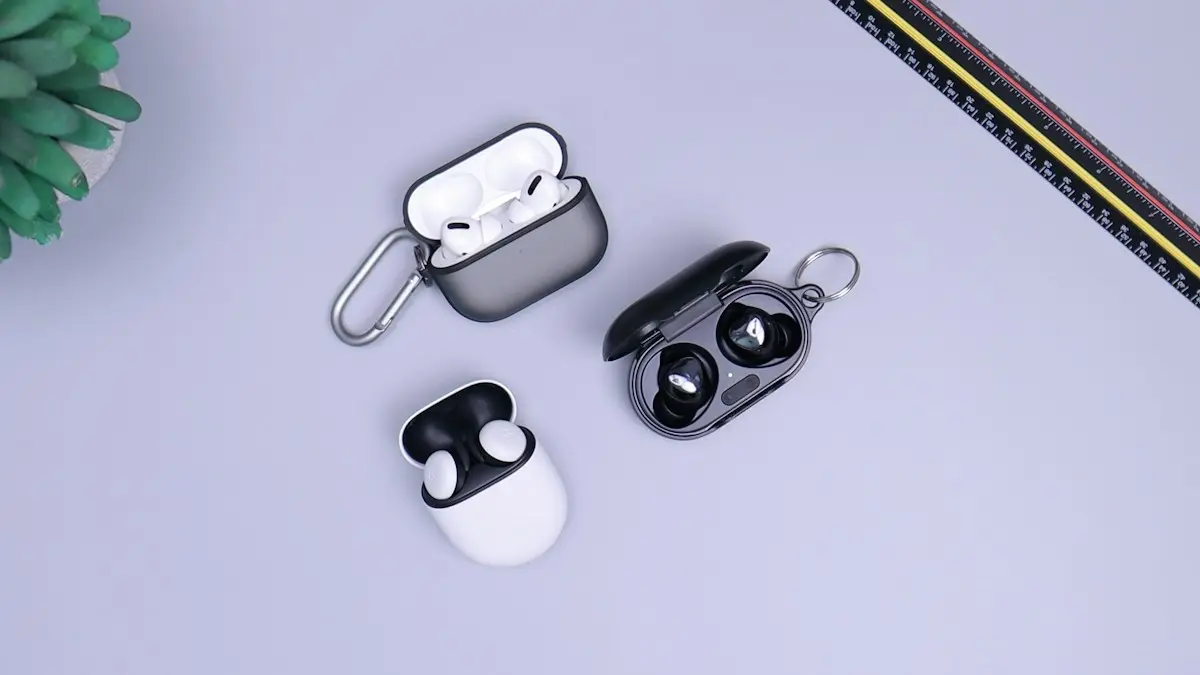
Photo by Daniel Romero on Unsplash
There is a big difference between AirPods that cannot be heard, AirPods that sound bad and AirPods that do not play the call at all. Each has its own cause. In many cases the AirPods are fine, and the call is simply using the wrong microphone or an app has no permission. The steps below start with the simplest settings and end with hardware.
How to fix AirPods that don’t work on calls
The fix
8 fixes, in order
- 1
Choose AirPods as the call audio.
On the call screen, tap Audio and select your AirPods.
- 2
Reset the Microphone setting.
Settings › [your AirPods] › Microphone. Pick Always Left, then switch back to Automatically Switch AirPods.
- 3
Clean the microphone openings.
Gently brush the mesh on the stems with a dry, soft brush.
- 4
Check microphone permission.
Settings › Privacy & Security › Microphone. Allow the app you are calling with.
- 5
Charge both AirPods.
- 6
Test each AirPod alone.
Put one in and make a test call. If only one works, that AirPod’s mic is faulty.
- 7
Update iOS and restart the iPhone.
- 8
Reset your AirPods and pair again.
Forget them in Settings › Bluetooth, then hold the case button until the light flashes amber, then white.
Why are my AirPods not working on calls?
A call has two audio paths: what you hear, and what the other person hears from your microphone. Both must go through the AirPods. The call may use the iPhone speaker, or the iPhone’s own mic, if the route is wrong. An app may lack permission to use the microphone. One AirPod’s mic may be blocked by dirt or wax, or may be set as the main mic while you wear the other. Bluetooth may be weak, or a software glitch may be at work. Hardware faults are less common but they do happen.
What is going wrong? Match your symptom
- They cannot hear you, but you hear them: a microphone problem. Check the Microphone setting, dirt on the mic and app permission.
- You cannot hear them, but they hear you: an output problem. Check the volume, the audio route and the AirPods’ charge.
- You hear nothing and they hear nothing: the call is on another device. Choose your AirPods in the Audio menu.
- Your voice sounds muffled or robotic: weak Bluetooth, wind, or a blocked mic.
- It works in one app, not another: an app permission or a setting inside the app.
- It works with one AirPod only: the other AirPod has a hardware or battery problem.
Pick the AirPods as the call audio
During a call, look for the Audio button on the call screen, or open Control Center and tap the audio output icon at the top right of the media card. Choose your AirPods from the list. If the AirPods do not appear, they are not connected. Open the case near the iPhone, or check Settings › Bluetooth. A call that began before the AirPods connected can stay on the iPhone speaker, so choose them again, even if they seem connected. In FaceTime, WhatsApp, Zoom and Teams, the audio menu sits inside the app, so look there too.
Check the Microphone setting
With the AirPods connected, open Settings on your iPhone and tap your AirPods near the top. Find Microphone. The default is Automatically Switch AirPods, which uses whichever one is in your ear. If you picked Always Left or Always Right, and you wear only the other earbud, people cannot hear you. Set it back to automatic. A good trick is to switch it to a fixed side, make a test call, and then return it to automatic, which refreshes the setting. The name and place of this menu can change a little between iOS versions.
Allow the app to use the microphone
An app cannot use any microphone, including your AirPods, without permission. Go to Settings › Privacy & Security › Microphone, and make sure the app you call with is on. If the app is missing from the list, open it and start a call, so iOS can ask. Also check the app’s own audio settings. Some apps let you pick the microphone, and may be set to the iPhone. In a video meeting app, choose the AirPods for both the speaker and the microphone.
Clean the microphones
AirPods have tiny microphone openings on the stems, or on the outside of the earbuds on some models. Earwax, makeup and lint can cover them. Use a dry, soft brush or a clean, dry cotton swab, and wipe the mesh gently. Do not poke anything into the holes, and do not use liquids or compressed air. A blocked mic is a very common reason for a voice that is quiet or muffled. Wipe the speaker mesh as well, since it can muffle the sound you hear.
Charge them, then test each AirPod alone
A low battery can make an AirPod drop out or lose its microphone mid-call. Charge both, and look at the battery levels on your iPhone. Then test each one. Put only the left AirPod in your ear, put the right one in the case, and make a test call to a friend, or record a voice memo. Do the same with the right one. If one fails, the problem is that AirPod. If both work alone but not together, look at the Microphone setting and the Bluetooth connection. If a single one fails after cleaning and a reset, it may need replacing.
Fix a weak or noisy Bluetooth link
Calls use a narrower Bluetooth mode than music, so a weak link shows up in calls first. Keep the iPhone close, and keep it in a pocket on the same side as the AirPods, not in a bag. Turn Bluetooth off and on, restart the iPhone and update iOS. Other Bluetooth devices, such as a smartwatch or a car, can compete, so disconnect them to test. If AirPods drop in and out, read the guide on AirPods that will not connect. For wind or noisy places, switch noise control to Transparency or Off, and see if the voice improves.
Update iOS and reset the AirPods
Bugs in iOS or in the AirPods firmware can break the microphone. Update the iPhone under Settings › General › Software Update. To refresh the AirPods firmware, put them in the case, close the lid, and leave them near the iPhone on power for 30 minutes. If it still fails, reset them. Forget the AirPods in Settings › Bluetooth, then put them in the case, open the lid, and hold the setup button on the back for about 15 seconds, until the light flashes amber and then white. Pair again. The steps are explained in the guide to resetting your AirPods.
Using AirPods with Android, Windows or a Mac
AirPods work as plain Bluetooth headphones with Android and Windows, but some features, such as the automatic switching, do not. On Windows, the AirPods often show two devices: one for music, and one called “Hands-Free” for calls. If your voice is not picked up, set the Hands-Free device as the input in the sound settings, and in the app. On a Mac, open System Settings › Sound, choose Input, and select your AirPods. Calls on these systems use the lower quality mode, so a thin or muffled sound is normal there.
When it is a hardware problem
If one AirPod’s microphone stays silent after a clean, a reset and an update, the hardware has failed. Water, a drop and age are the usual causes. Apple Support or an authorized service provider can test them and replace a single AirPod. Check your coverage with the serial number, and see whether AppleCare is worth it if you are weighing a plan. Ask for the price before you agree. A single replacement often costs less than a new pair, but on older AirPods, a new pair may be the better deal.
How to keep calls clear
- Wipe the microphone openings every few weeks.
- Leave the Microphone setting on Automatically Switch AirPods.
- Keep iOS up to date, and restart the iPhone now and then.
- Check app permissions after you install a new calling app.
- Charge both AirPods before long calls.
Frequently asked questions
Why can I hear the call but they can’t hear me?
The microphone may be blocked by dirt, set to the AirPod you are not wearing, or the app may not have microphone permission. Set Microphone to Automatically Switch AirPods and clean the mic openings.
Do AirPods work for calls in WhatsApp and Zoom?
Yes, but each app has its own audio menu during a call. Choose AirPods there, and make sure the app is allowed to use the microphone in Settings.
Why do my AirPods sound muffled or robotic on calls?
Calls use a narrower Bluetooth mode than music, and a weak signal, a dirty mic or interference makes it worse. Move closer to your iPhone, clean the mics and restart Bluetooth.
Can I use only one AirPod for calls?
Yes. Either AirPod can take calls, and the Microphone setting lets you pick which one picks up your voice.
What to try next
People also ask
Why can people hear me on speaker but not normally?
Phones use a different mic for each mode. The bottom mic may be blocked or damaged. Clean it and test again.
Read the full guide: Phone microphone not workingWhy do my AirPods switch to my Mac or iPad?
Automatic switching moves them to whichever Apple device starts playing. Set Connect to This iPhone to When Last Connected to This iPhone.
Read the full guide: AirPods keep disconnectingWhy is only one AirPod connecting?
The other AirPod is usually flat or dirty. Put both in the case, check the charging contacts and the inside of the case are clean, charge for 30 minutes and try again. If it still fails, reset the AirPods.
Read the full guide: AirPods not connectingWhy does Siri not respond when my iPhone is face down?
By default, iPhone does not listen for “Siri” when it is face down or covered, to avoid accidental activations. Turn it face up, or change this in Accessibility › Siri with Always Listen for “Siri”.
Read the full guide: Siri not workingRelated guides

Phone microphone not working
People can’t hear you on calls? Test your phone microphone with a voice memo, disconnect Bluetooth, check permissions, clean the mic holes and try 5 more fixes.
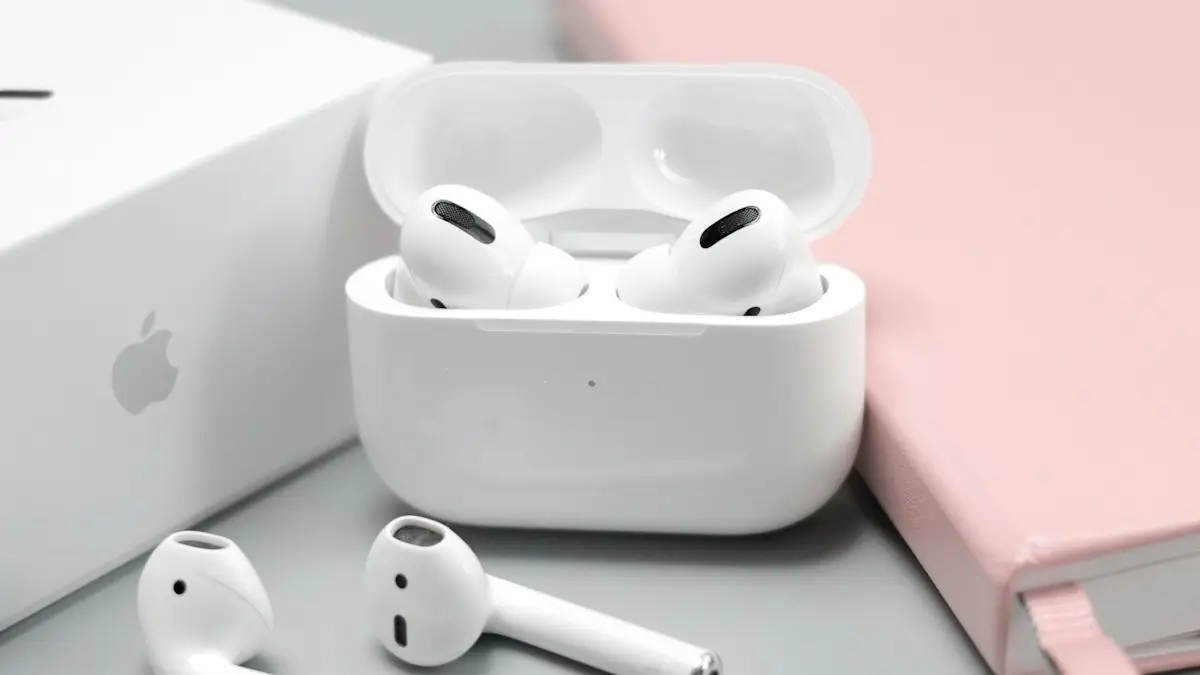
AirPods keep disconnecting
AirPods keep disconnecting from your iPhone? Turn off automatic switching and ear detection, charge both buds, forget and pair again, and reset if needed.
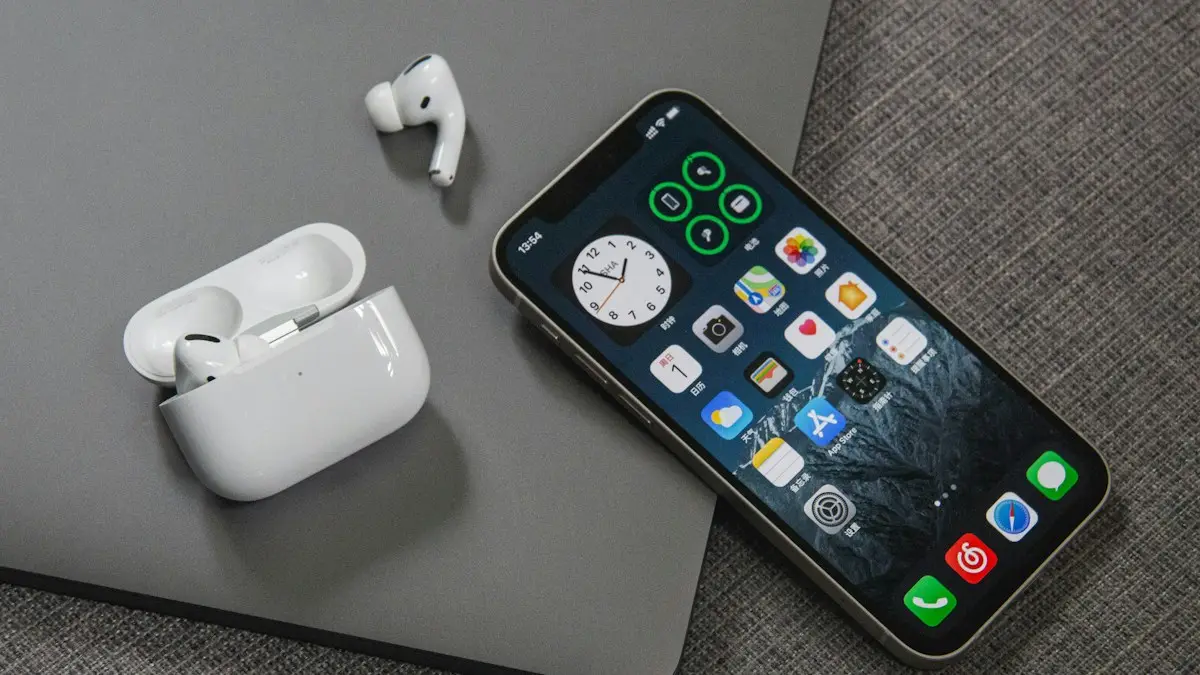
AirPods not connecting
AirPods not connecting to your iPhone or stuck on connecting? Charge the case, check Bluetooth, forget and re-pair, and reset your AirPods with these 8 fixes.
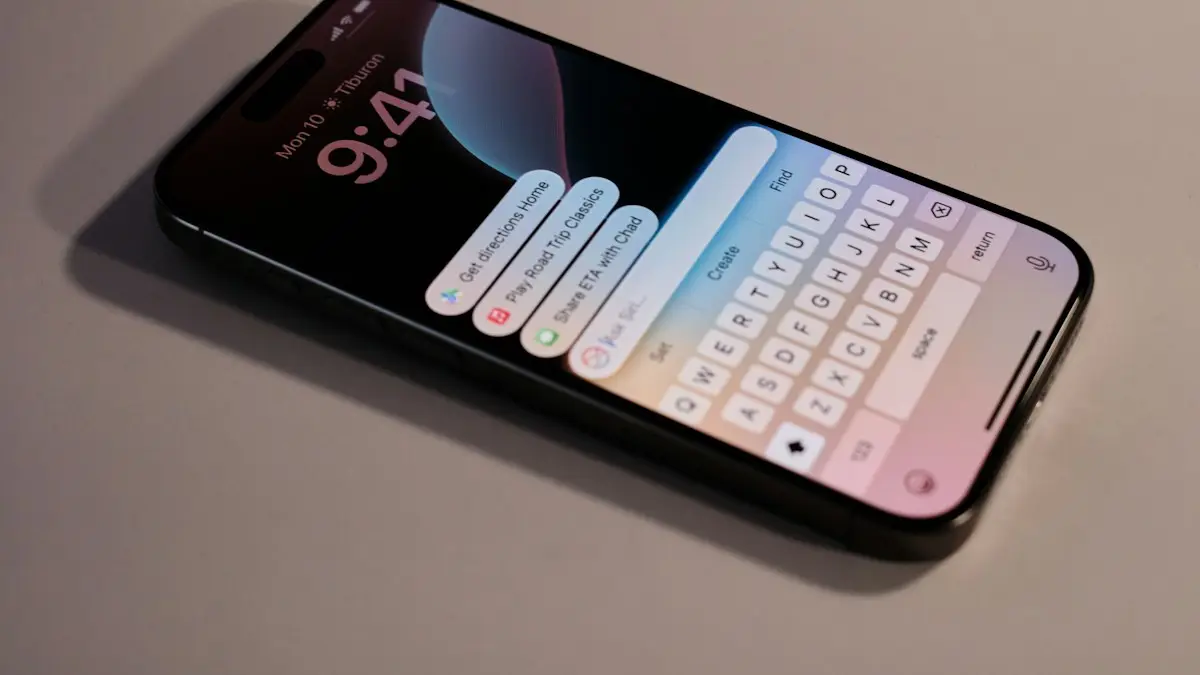
Siri not working
Siri not working or not responding to “Hey Siri”? Check Siri settings, the microphone, Screen Time and your connection with these 10 fixes for iPhone.
More guides you may need
iPad not connecting to Wi-Fi
iPad not connecting to Wi-Fi or showing no internet? Forget and rejoin the network, turn off Private Address and VPN, restart the router and try 5 more fixes.
iPad white lines on screen
Seeing iPad white lines on screen? Find out whether it is a software glitch or a damaged display with Apple's checks, the screenshot test and repair options.