

Your iPhone has been used more than usual since upgrading iOS? What it means and what to do
After an iOS update, Settings can show a battery message saying your iPhone has been used more than usual. It usually reflects update work in the background. Here is what Apple says, how long to wait and eight tips.
Photo by Rahul Chakraborty on Unsplash
You updated your iPhone to iOS 27.0.1. A day later you open Settings, tap Battery, and see a line that says your iPhone has been used more than usual since upgrading iOS, and that this may affect battery life. It sounds like a warning, and it is natural to ask if you did something wrong, if the update broke the battery, or if you should use the phone less. In almost every case the answer is no. Apple does not publish a page about this exact message, so this guide combines what Apple does say about battery life after an update, what Apple Community staff and users report, and the checks that tell you whether you have a real problem. It ends with eight tips that suit a newly updated iPhone, including an iPhone 14.
What does the message mean?
The message is a usage notice. After a major update, your iPhone does a lot of work that you do not see. It rebuilds search data, refreshes apps, downloads system files and prepares data for features such as Siri. That work uses the processor and the battery, so for a while the phone is busier than it normally is. The message is the battery screen noticing that.
An Apple Community specialist described it this way in a thread on this message: the iPhone appears to be detecting more usage since updating, and if you are not seeing lower battery life, you can keep using your phone normally. A forum reply in another thread said the message clears itself when the condition resolves, and added that Apple does not publish a timeframe. Those are community answers and not an Apple help article, so treat them as a good explanation and not as official policy.
What does Apple say about battery life after an update?
Apple's support page on a battery that drains too quickly says that even though you can use your device right after an update, certain tasks related to the update continue in the background and may affect battery life and thermal performance. Its advice is to wait a few days and then check again. It also explains that when the activity finishes, battery life returns to normal.
That is the key idea. A temporary drop after an update is normal. It is different from a battery that is wearing out, which does not recover by waiting.
Where do you see it, and what is Ongoing iOS Update?
Open Settings and tap Battery. On iOS 18 or later, Apple shows Insights just above Daily Usage. One of them is called Ongoing iOS Update, and Apple describes it as telling you that a recent software update is finishing in the background. If you see it, the extra work is still running, which is a good sign that the message is tied to the update. When the Insight disappears, the background work is finished.
The wording of the notice itself can differ by iOS version. Older Apple Community threads quote it as used more than usual since upgrading iOS, and say it appears in the battery section of Settings. On a newer iPhone you may see it worded a little differently, so do not worry if your screen does not match word for word.
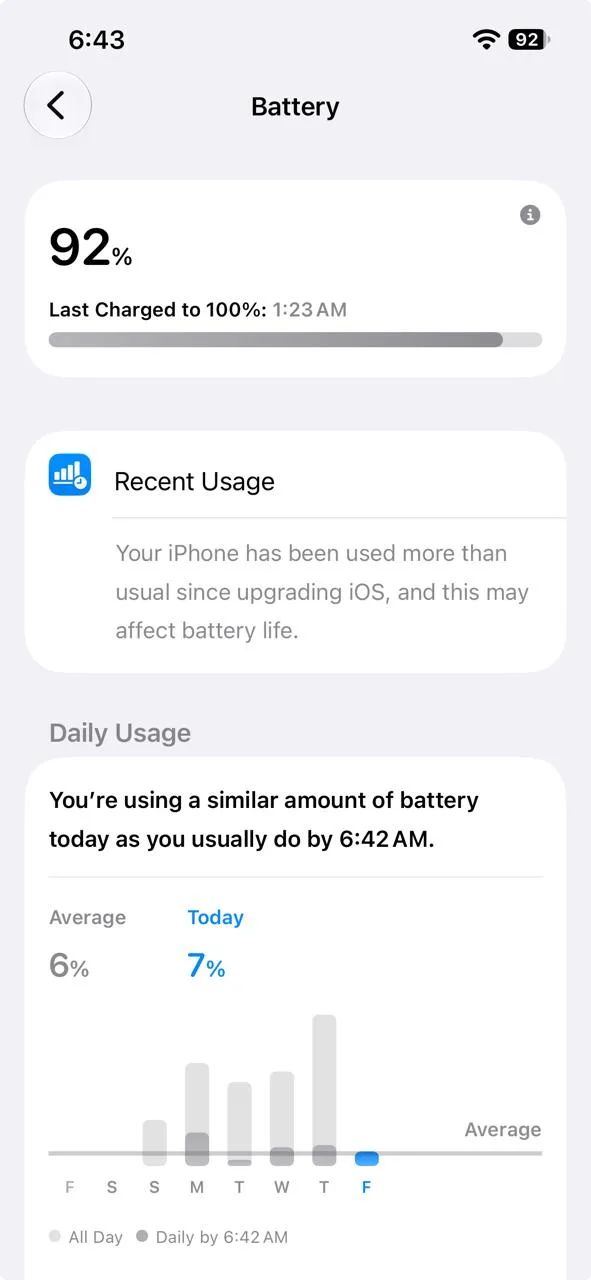
On this phone the notice sits in a card called Recent Usage. Right below it, Daily Usage says the phone is using a similar amount of battery today as it usually does: 7% against an average of 6% by 6:42 AM. So the message appeared even though real battery use was normal. That is a handy check on your own phone. If Daily Usage says your use is similar to normal, the message is not a sign of a real drain.
Is this a problem with iOS 27.0.1?
We cannot confirm that. MacDailyNews reported on 28 September 2026 that Apple released iOS 27.0.1 as a bug-fix update, and the fixes it lists cover a Face ID restart on some models, a camera color artifact at 2x zoom and a touchscreen freeze when two panels are open together. None of the listed fixes is about battery. I could not open Apple's own release notes page, so check it yourself if you want to be sure. The message also appeared on older versions of iOS, long before iOS 27, so it is tied to updating in general and not to one release.
There is one reason iOS 27 may feel heavier. 9to5Mac reported that iOS 27 re-indexes content on the phone, which makes the background work larger than usual and may take several days. TechSpot reported that the drain is usually most noticeable in the first 24 to 48 hours, and that Apple says this activity does not harm the battery. Both are news reports and not Apple documentation, so we treat them as helpful background. Our guide to iOS 27 indexing in progress covers that part in detail.
Tip 1: Give it a few days and keep using the phone normally
This is Apple's own advice, and it is the most useful one. Use the phone as you normally do. You do not need to use it less, and you do not need to avoid charging it. Heavy use on the first days is part of the normal process. Check back after two or three days, not after two or three hours.
Tip 2: Charge on Wi-Fi, ideally overnight
Several reports suggest that leaving the iPhone plugged in overnight with Wi-Fi on lets it finish update tasks while it is charging, so the work does not eat into your day. Put the phone on the charger, connect to Wi-Fi and leave it alone. Apple's page also says that Wi-Fi uses less power than a weak mobile signal, so use Wi-Fi when you can.
Tip 3: Check Daily Usage and the top apps
On iOS 26 or later, Settings, Battery shows Daily Usage, which compares today's usage with the last seven days and lists the top apps. Tap View All Battery Usage for more. Apple lists usage types such as Background Activity, Notifications and Connected to Charger. Look for an app that stands out. A single app that uses far more than the rest may need an update. If you find one, update it in the App Store, and if it still uses too much, delete it and install it again.
Tip 4: Update your apps and restart once
Some apps are slow to catch up with a new iOS version and can burn extra battery until they are updated. Open the App Store, tap your profile and update the apps waiting there. Then restart the iPhone once. This is a common suggestion in post-update guides, and it costs nothing. Do not restart over and over, because that does not speed up the background work.
Tip 5: Use Low Power Mode if you need to get through the day
Apple says Low Power Mode reduces or turns off some features, such as Mail fetch, Hey Siri, Background App Refresh and some visual effects. Turn it on in Settings, Battery, Power Mode, or from Control Center. It turns itself off when the phone reaches a high charge. This is a good short-term fix on a busy day while the update tasks finish. If you want to know more, see what Low Power Mode does.
Tip 6: Check Battery Health on an iPhone 14
Because an iPhone 14 is a few years old, it is worth checking that the battery itself is fine, and that you are not blaming the update for a worn battery. Apple says the path is Settings, Battery, Battery Health & Charging on an iPhone 14 and earlier. Look at Maximum Capacity. If you see Service next to Battery Health, Apple says to consider replacing the battery. If you bought the phone used or refurbished, this is the first number to check. Our guide on how to check iPhone battery health explains what the numbers mean, and whether a battery replacement is worth it helps if it is low.
Tip 7: Use the settings that save power without hurting the phone
- 5G Auto: Apple lists Settings, Cellular, Cellular Data Options, Voice & Data, then 5G Auto, on iPhone 12 and later, to save power when a fast connection is not needed.
- Wi-Fi over a weak mobile signal: a phone that keeps searching for a signal uses more power.
- Optimized Battery Charging: this helps slow the aging of the battery. See the charging feature that slows battery aging.
- Background App Refresh and Location Services: reports suggest turning these off for apps that do not need them. Do it only for apps you do not rely on.
Tip 8: Do not reset or restore unless the problem lasts
It can be tempting to erase the phone or restore it to remove the message. Do not, at least not yet. A reset costs you time, and the message and the heavy use come from the update work, not from a broken setting. If battery life is still poor after a week, and Battery Health looks fine, then it is reasonable to dig deeper. Start with our guide on an iPhone battery that drains fast, and if the phone is slow, see how to speed up a slow iPhone.
When should you worry?
- The message is still there after several weeks. One forum user reported it lingering for more than 20 days after a battery replacement, so it is not always quick.
- Battery life is clearly worse after a week, not just on the first day.
- Battery Health shows a low Maximum Capacity or a Service label.
- The phone becomes hot while idle, or the battery drops very fast, for example several percent every few minutes.
- One app or system process dominates Daily Usage after you have updated it.
If any of these apply, contact Apple Support. They can run diagnostics on the battery and tell you if it needs service. If you have AppleCare, check what it covers, see whether AppleCare is worth it if you are not sure.
What about other problems after an iOS update?
Heat, slow animations and missing search results are also common in the first days, for the same reason: the phone is busy. Give it time before you troubleshoot. If something is clearly broken, such as a crash or Wi-Fi that will not connect, our guide to the usual post-update fixes lists the usual fixes in order.
Frequently asked questions
Does the message mean my battery is damaged?
No. The message reflects higher usage since the update. Battery damage shows in Settings, Battery, Battery Health & Charging as a lower Maximum Capacity or a Service label.
How long does the message stay?
Apple does not publish a time. Apple says to wait a few days after an update and check again. A forum reply says it clears itself when the condition ends.
Is this a problem with iOS 27.0.1?
Not that we can confirm. iOS 27.0.1 was reported as a bug-fix update, and its listed fixes do not mention battery. The message is tied to updating, not to one version.
Should I reset my iPhone to get rid of it?
No. A reset rarely helps and costs you time. Wait a few days, charge on Wi-Fi, and only act if battery life stays poor or Battery Health shows a problem.
What to try next
Sources
Official pages these steps are based on. Menus can differ by software version.
People also ask
Is Slow Charger bad for my battery?
No. Charging slowly is gentle on the battery. It just takes longer to fill up.
Read the full guide: iPhone slow charger messageHow long does indexing take on iOS 27?
Apple says it can take from a few hours to a few days, depending on how much is on your iPhone. Phones with large photo and message libraries can take a week or more, especially if they are rarely left charging.
Read the full guide: iOS 27 indexing in progressDoes Samsung show battery health as a percentage?
Some newer Galaxy phones show a battery health or capacity figure in Settings. Many show only a status such as Good, so the exact number depends on your model and One UI version.
Read the full guide: Samsung battery healthIs 74% battery health OK on an iPhone?
It works, but it is worn. Apple considers a battery below 80% of its original capacity worn out. At 70% to 79% you will notice shorter days and may see sudden shutdowns in the cold or at low charge. A replacement fixes it.
Read the full guide: Check iPhone battery healthRelated guides
iPhone slow charger message
iPhone says Slow Charger? It means your adapter or cable delivers less power than your iPhone can use. Here is what counts as slow and which charger fixes it.
iOS 27 indexing in progress
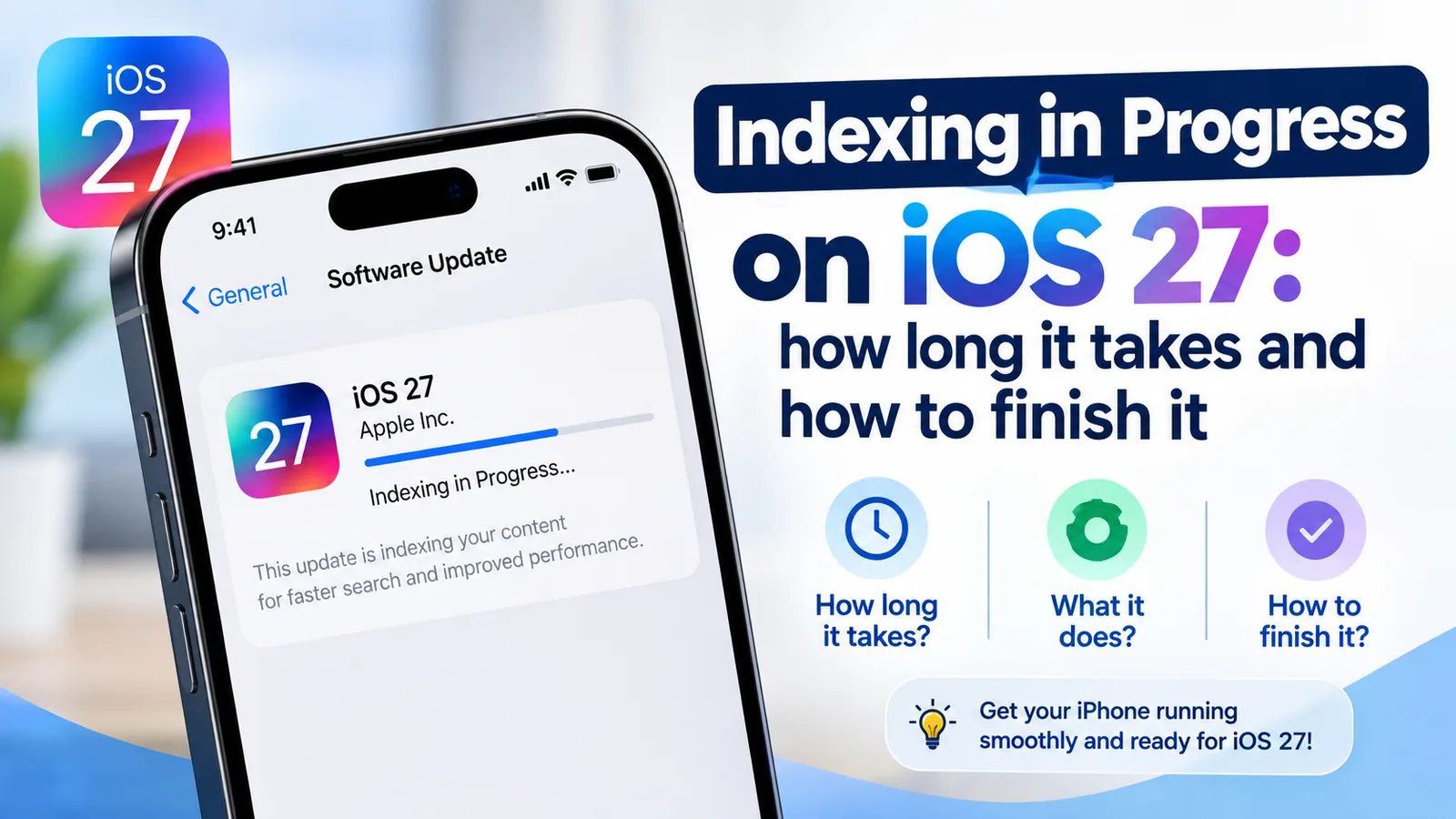
Indexing in Progress on iOS 27 means your iPhone is rebuilding search. Most finish in hours to days. See how long yours takes and how to speed it up.
Samsung battery health
How to check battery health on Samsung with Settings, the Samsung Members app or a dial code. Learn what the results mean and when to replace the battery.
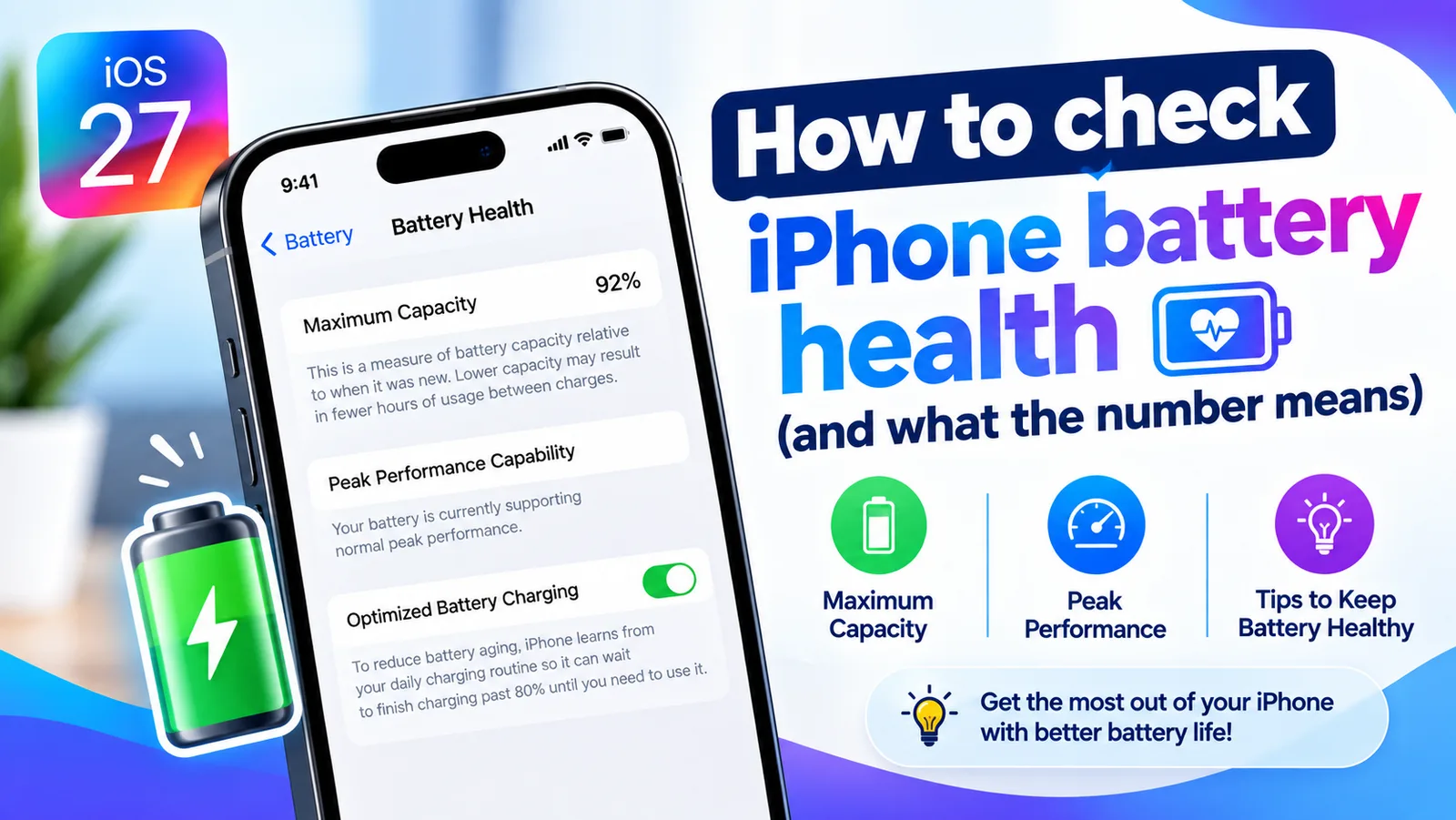
Check iPhone battery health
Find your iPhone's Maximum Capacity in Settings, understand what the percentage tells you, and learn when a battery replacement is actually worth it.
More guides you may need
iPhone stuck on Reconnecting
iPhone stuck on reconnecting while setting up a new iPhone? Keep both phones close, check Wi-Fi and Bluetooth, restart, then use a cable or backup.
iPhone stuck on Update Requested
iPhone stuck on update requested and not downloading? Check Wi-Fi and storage, delete the update, reset network or update from a computer. 7 fixes.