

iPhone keeps asking to transfer phone number? 7 fixes
A new iPhone asks to transfer your phone number when the number has not finished moving over. It repeats when the transfer never completed, your carrier does not support the quick method, or the old iPhone was not nearby and unlocked. Finishing it on the right screen stops the prompt.
Photo by Thai Nguyen on Unsplash
You set up a new iPhone, and now it keeps asking you to transfer your phone number. You tap through, nothing happens, and the prompt comes back. Or the list of numbers is empty, or a banner tells you to finish setting up your carrier’s plan. This is nearly always a stalled move of your line, not a broken phone. Below are the checks that fix it, starting with the ones Apple names itself. The steps follow recent versions of iOS and may differ a little on yours.
Why does my iPhone keep asking to transfer my number?
Modern iPhones in the US use an eSIM, which is a SIM built into the phone. When you get a new one, your number has to move from the old phone to the new one. If that move was skipped, interrupted or refused, the new iPhone keeps offering to do it. It is a reminder that the line is not active here yet, so it will not go away until the transfer finishes or the line is set up another way.
- The old iPhone was not ready. It was locked, too far away or had Bluetooth off.
- The software is too old. Quick Transfer needs iOS 18.4 or later on both phones.
- Different Apple Accounts. The two phones must be signed in to the same one.
- Your carrier does not support it. Some carriers and plans cannot use Quick Transfer.
- A problem with the line itself. Users report that an unpaid balance, a line on someone else’s account, or a switch between prepaid and monthly plans can block the move.
The fix
Fix 1: Update both iPhones
- 1
On each iPhone, open Settings › General › Software Update.
Install anything that is offered, then restart both phones.
- 2
Check the version number.
Both need iOS 18.4 or later. With iOS 26 or later, Apple says you can move more than one number at a time.
- 3
Plug the new iPhone in and keep it on Wi-Fi.
An update stalls on a weak connection. If it will not start, see our guide to updating your iPhone.
If the update will not install, how to update iOS covers the usual blockers, such as low storage and a slow download.
The fix
Fix 2: Get the old iPhone ready
- 1
Unlock the old iPhone and keep the screen on.
Apple says it must be unlocked with its device passcode.
- 2
Turn Bluetooth on, and keep both phones side by side.
Open Control Center and check the Bluetooth icon is blue.
- 3
Check both phones use the same Apple Account.
Open Settings and look at the name at the top of each phone. The email under it should match.
- 4
Restart the transfer from the new iPhone.
Use the steps in Fix 3.
The fix
Fix 3: Start the transfer again from Settings
- 1
On the new iPhone, open Settings › Cellular.
On some versions this is called Mobile Service. In the US it reads Cellular.
- 2
Tap Set Up Cellular or Add eSIM.
Follow any prompts.
- 3
Pick the number to move.
If no list of numbers appears, tap Transfer From Nearby iPhone.
- 4
Confirm on the old iPhone.
Tap Transfer, or type the verification code shown on the new iPhone if it asks for one.
- 5
Wait for the plan to turn on.
Apple says the new iPhone’s plan deactivates the old SIM when it activates, so the number leaves the old phone.
If you finish the transfer and a banner says Finish Setting Up Your Carrier’s Cellular Plan, tap it. Apple says it sends you to your carrier’s web page to complete the eSIM move. Sign in with your carrier account there and follow the steps. This is common on carriers that need their own approval for the move. For the full walkthrough, see how to transfer an eSIM to a new iPhone.
Fix 4: Check your Wi-Fi and Apple Account
The new iPhone must be on Wi-Fi or a hotspot, because the plan downloads over the internet. If your Wi-Fi has a login page, hotel style, switch to a personal hotspot from the old iPhone or another phone. A VPN can also block the request, so turn it off for now. Make sure you are signed in on the new phone, and that no Apple Account alert is waiting at the top of Settings. If the account asks you to confirm something, do that first and then try the transfer again.
Fix 5: Ask your carrier to move the line
If your carrier does not support Quick Transfer, Apple’s advice is short: contact the carrier. You do not have to do it all in the Settings app. Most US carriers can move the line for you in several ways. They may send a QR code, give you a link, or let you do it inside their own app. Some will mail a physical SIM. Have these ready before you call or chat:
- Your account number, or the account holder’s name and billing zip code.
- The account PIN or passcode. You may be asked for it.
- The new iPhone’s model and its IMEI, found in Settings › General › About.
- Whether the old phone is still active. Say that you want the number moved, not a new line.
Ask if the account has any hold on it, such as an unpaid balance or a recent plan change. Those are the problems people most often report from the carrier side, and the carrier can fix them quickly once you ask. If you are changing carriers as well, see how to switch phone carriers so you do not lose your number.
Fix 6: Use a physical SIM for now
If the transfer keeps failing and you need the phone working today, a physical SIM is a good way around it. Many iPhones sold outside the US have a SIM tray, and your carrier can send or swap a SIM for a line. Ask the carrier to put the line on a physical SIM if your model has a tray. Not every new iPhone has one, since US models of the iPhone 14 and later are eSIM only. Check which iPhones support eSIM if you are not sure about yours.
Fix 7: Restart, then reset network settings as a last step
Restart both iPhones first. If the prompt still loops, open Settings › General › Transfer or Reset iPhone › Reset › Reset Network Settings on the new one. This clears saved Wi-Fi networks and VPN settings, so you will need to join Wi-Fi again. Do not choose Erase All Content and Settings unless you are happy to set the new phone up from the start. Then try Fix 3 again.
What happens to the old iPhone and its number?
Once the new iPhone’s plan activates, the number is on that phone only. The old iPhone can still use Wi-Fi, but it cannot make calls or send texts on that line. Do not erase or trade in the old iPhone until you have made and received a call and a text on the new one. If you plan to sell it, our guide to selling an iPhone lists what to do before you hand it over.
If your number turns up as Unknown after the move, that is a different issue. See an eSIM that shows an unknown number.
A fast way to find the cause
- No list of numbers appears: tap Transfer From Nearby iPhone, and check Bluetooth and the old phone’s lock.
- It says the plan cannot be transferred: your carrier does not support Quick Transfer, so contact the carrier.
- The prompt returns after a restart: the transfer was never completed. Run Fix 3 to the end.
- The banner asks you to finish your carrier’s plan: tap it and sign in to your carrier account.
Quick checklist
- Both iPhones run iOS 18.4 or later and use the same Apple Account.
- The old iPhone is unlocked, nearby, and has Bluetooth on.
- The new iPhone is on Wi-Fi or a hotspot with the VPN off.
- You ran Settings › Cellular › Set Up Cellular and finished every prompt.
- The carrier has no hold on the account and supports Quick Transfer, or has moved the line for you.
- You tested a call and a text on the new iPhone before wiping the old one.
Frequently asked questions
Why does my new iPhone keep asking to transfer my phone number?
The number has not finished moving to the new iPhone. The usual reasons are an old iPhone that is locked or out of range, software older than iOS 18.4, or a carrier that does not support eSIM Quick Transfer.
What do I need for eSIM Quick Transfer?
Apple lists both iPhones signed in to your Apple Account, the old one unlocked and nearby with Bluetooth on, iOS 18.4 or later on both, a carrier that supports it, and the new iPhone on Wi-Fi or a hotspot.
Will my old iPhone stop working after I transfer the number?
The number stops working on the old iPhone once the plan on the new iPhone activates. The old phone still works on Wi-Fi for apps, but it will no longer make calls or send texts on that line.
What if my carrier does not support eSIM Quick Transfer?
Contact the carrier. Apple says to ask them to move the line, and many carriers also offer a QR code, a link or their own app to move an eSIM, or a new physical SIM.
What to try next
People also ask
Why does my eSIM say Unknown for the phone number?
Carrier forum answers say the number shows as Unknown when it is not programmed into the SIM, and it can also happen after a number was ported from another network. Calls, texts and data can still work.
Read the full guide: iPhone eSIM unknown numberDoes my old iPhone stop working when I transfer the eSIM?
It stops working as a phone. Apple says the old SIM is deactivated when the plan activates on the new iPhone. It still works on Wi-Fi.
Read the full guide: Transfer eSIM to a new iPhoneWhere is my phone number on an iPhone?
Open Settings › Phone and look for My Number at the top. You can also check Settings › General › About, or the Contacts app under your own card.
Read the full guide: Find your phone numberHow long does Preparing to Transfer take on an iPhone?
Anywhere from a few minutes to a few hours, depending on how much data you have and your Wi-Fi speed. If there is no change at all after about two hours, treat it as stuck.
Read the full guide: iPhone stuck on Preparing to TransferRelated guides
iPhone eSIM unknown number
iPhone eSIM shows Unknown or no phone number? Often it is cosmetic. Check that calls and texts work, then set My Number or ask your carrier to fix it.
Transfer eSIM to a new iPhone
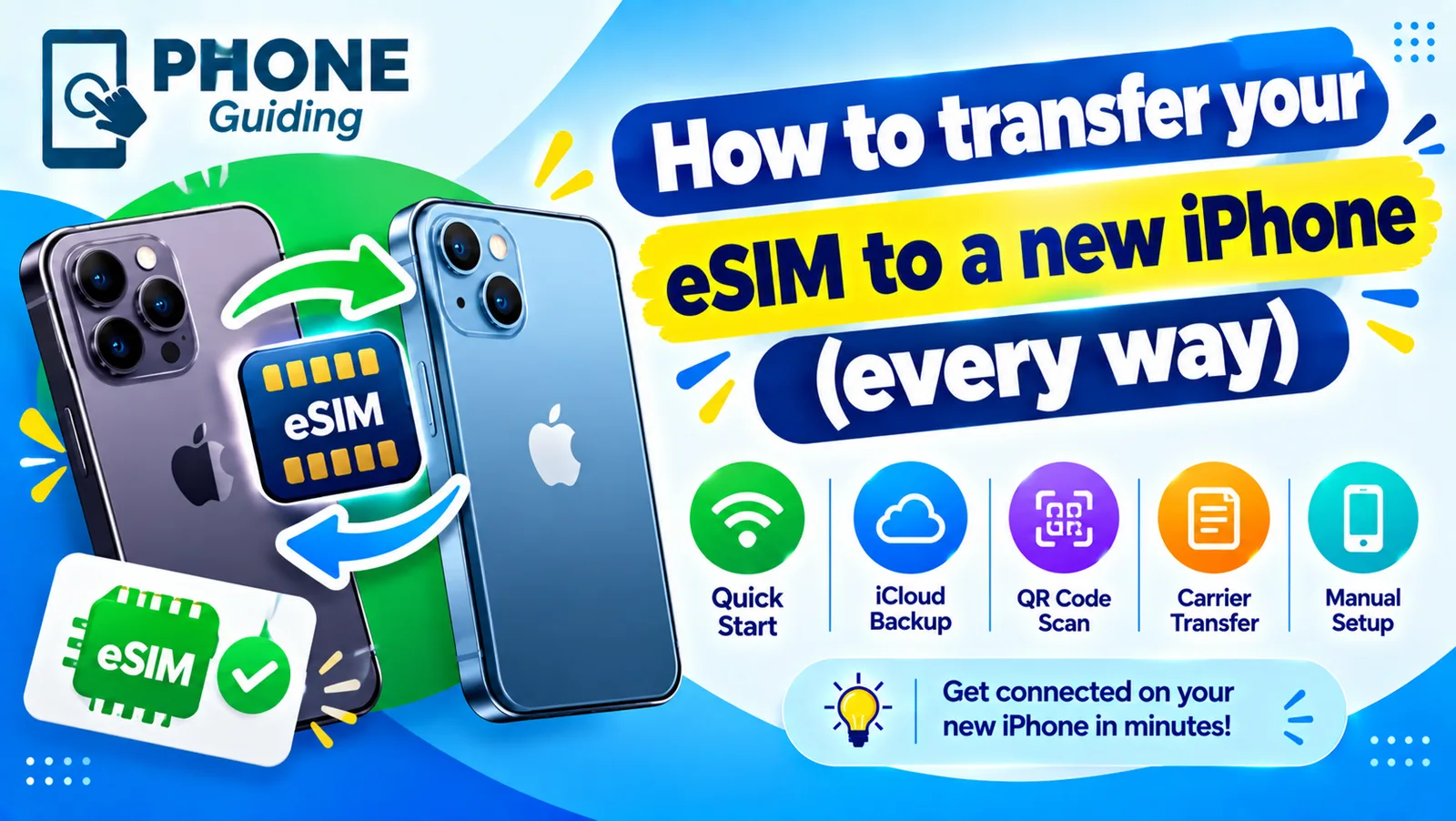
Transfer your eSIM to a new iPhone with eSIM Quick Transfer, from an Android phone or with your carrier if the old phone is lost. Verizon, AT&T and more.
Find your phone number
How to find your phone number on iPhone and Android in seconds. Check Settings, Contacts, your carrier app or a quick call, and fix a number that shows Unknown.
iPhone stuck on Preparing to Transfer
iPhone stuck on preparing to transfer during setup? Learn how long to wait, what to check on both phones and how to use iCloud or a computer instead.
More guides you may need

iPhone flashlight not working
Fix an iPhone flashlight that will not turn on, is greyed out, missing from Control Center or too dim. Step by step, and how to tell a bug from a failed LED.
iPhone flashlight turns on by itself
iPhone flashlight turns on by itself in your pocket or when you wake the screen? Why it happens and 7 ways to stop it, from Tap to Wake to the Action button.