

iPhone stuck on Reconnecting during setup? 7 fixes
Reconnecting appears when the new and old iPhone lose their link during setup. Putting them close together, keeping both on the same Wi-Fi with Bluetooth on, and restarting usually restores it. A cable or a backup is the backup plan.
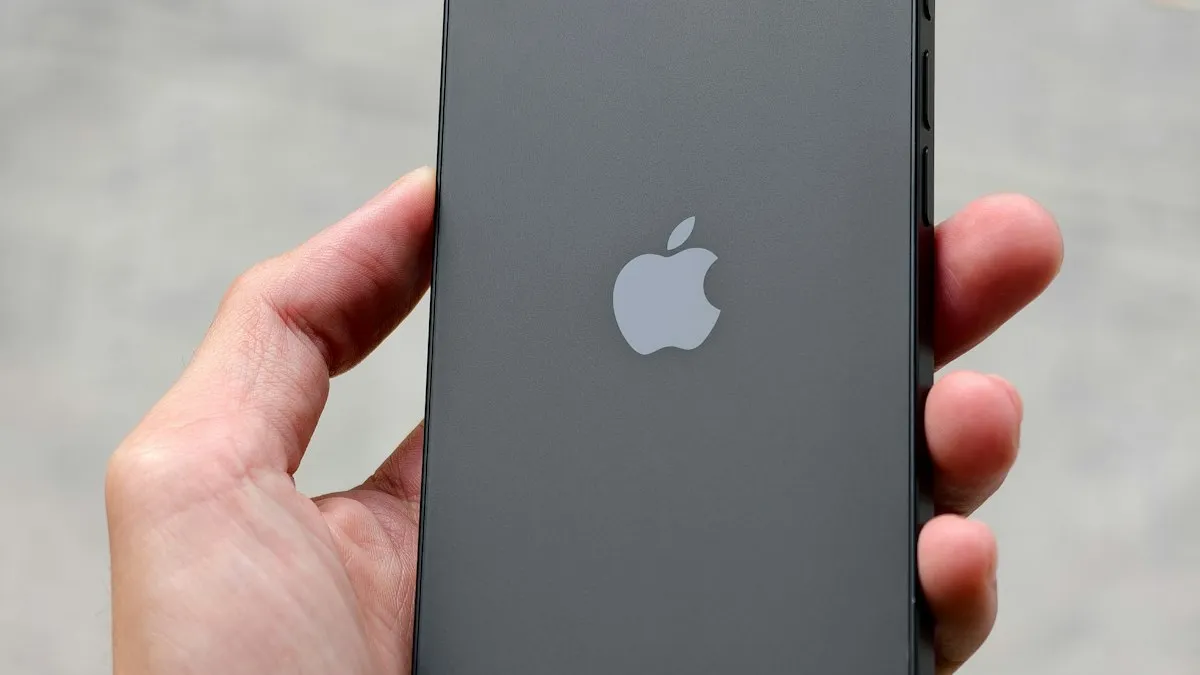
Photo by Thai Nguyen on Unsplash
Setting up a new iPhone is supposed to be the easy part. You hold the old phone next to the new one, a swirl of dots appears, and your data begins to move. Then the new screen says Reconnecting, a small wheel spins, and nothing happens. This guide explains what the message means, how long to wait, and how to get unstuck without losing anything. Menu names follow recent iOS versions and can differ a little on yours.
What does Reconnecting mean on a new iPhone?
Quick Start uses Bluetooth to find the old iPhone and Wi-Fi to move your data. If either link drops, the new iPhone shows Reconnecting while it tries to join again. A few seconds is normal. If it is stuck, one of the connections has failed for good, or one of the phones is waiting for something, such as a software update or a screen tap. Apple Community and carrier forum threads show the same stall, and a restart of both phones is the common remedy.
Why does the iPhone get stuck on Reconnecting?
- The phones moved apart or the screen locked. Bluetooth is short range, and a locked screen can pause the process.
- Weak or different Wi-Fi. The two phones are on different networks, or the network drops.
- Old software on the other phone. The old iPhone may need an update before it can hand data over.
- A mid-setup update. The new iPhone installs an update during setup and the screen looks frozen.
- Bluetooth or a VPN problem on the old phone. A turned-off radio or a VPN blocks the link.
- A glitch. A simple bug that a restart clears.
First, decide if it is stuck
Wait about five to ten minutes with both phones plugged in and touching distance apart. Tap each screen once in a while to keep them awake. If the screen moves on, you are fine. If the new iPhone says Update Now with a spinning wheel, it may be installing a software update, which can take much longer. In that case, leave it on power and Wi-Fi for up to an hour before you act. If nothing at all changes after that, move on to the fixes.
The fix
Fix 1: Check the basics on both iPhones
- 1
Plug both iPhones into power.
A long setup drains a battery fast, and low power can stop the process.
- 2
Place them side by side.
Keep them within a few inches for the whole transfer.
- 3
Turn on Bluetooth and Wi-Fi on the old iPhone.
Open Control Center on the old phone and make sure both are on. Airplane Mode should be off.
- 4
Join the same Wi-Fi network on both.
Use a strong network that does not need a web login, such as a hotel or office portal.
Fix 2: Update the old iPhone
The old iPhone should run a recent iOS version. On it, open Settings › General › Software Update and install what is available. A new iPhone ships with a newer iOS than your old one, and a big gap between the two can break the handoff. If the old phone will not update, see our guide to an update stuck on Update Requested.
Fix 3: Restart both iPhones and start again
Stop the transfer by restarting. Your old iPhone is safe, because Quick Start copies data and does not remove it. Force restart both phones:
- iPhone 8 and later: press and release Volume Up, press and release Volume Down, then hold the side button until the Apple logo appears.
- iPhone 7: hold Volume Down and the side button together until the logo appears.
When both phones are back, begin setup again and hold the old iPhone next to the new one. If the new phone resumes the same screen, tap Set Up Manually or Set Up Without Another Device and try Fix 4 or Fix 6.
Fix 4: Reset network settings on the old iPhone
A confused network stack on the old phone often causes the drop. Go to Settings › General › Transfer or Reset iPhone › Reset › Reset Network Settings. This clears saved Wi-Fi networks, Bluetooth pairings and VPN profiles, but it does not touch your photos, apps or messages. Rejoin your Wi-Fi, turn off any VPN, and try Quick Start again. If the old phone has Wi-Fi trouble of its own, see an iPhone that will not connect to Wi-Fi.
Fix 5: Use a cable instead of wireless
Recent iPhones can transfer over a cable, which does not depend on Bluetooth or Wi-Fi staying steady. Apple supports a wired option during Quick Start on supported models, using a USB cable or a Lightning to USB adapter. When setup asks how to transfer, look for an option about using a cable, or a prompt to connect the two phones. A cable is also much faster for a big library. The cable you need depends on the two models, so check that it carries data and fits both phones.
Fix 6: Set up manually and use an iCloud backup
Move your data without the two phones talking
- 1
On the old iPhone, make a fresh backup.
Go to Settings › your name › iCloud › iCloud Backup and tap Back Up Now. Wait until it says it finished.
- 2
On the new iPhone, choose Set Up Manually.
Join Wi-Fi and continue to the Apps and Data screen.
- 3
Pick Restore from iCloud Backup.
Sign in with your Apple Account and choose the newest backup by date and size.
- 4
Keep the new iPhone on Wi-Fi and power.
Apps and photos can keep downloading for a while after you reach the Home Screen.
If the backup fails because your storage is full, you can switch to a computer. Our guide to iPhone backup restore steps walks through both iCloud and computer restores in detail.
Fix 7: Restore the new iPhone with a computer
If the new iPhone itself is frozen on a setup screen, use a Mac or a Windows PC. Connect the new iPhone with a cable. On a Mac, open Finder. On Windows, use the Apple Devices app. If the computer asks, choose Update first, then Restore only if the update does not fix it. A restore erases the new iPhone, which is fine because nothing important is on it yet. After the restore, begin setup from the start. Apple’s own archived advice for a stuck transfer is the same: restore the new iPhone on a computer, install any update offered during setup, and then transfer your data again.
Is it the old iPhone or the new one?
To find out which phone is at fault, test them one at a time. If the old iPhone is slow, hot or low on storage, it can fail while preparing data, and the new phone shows Reconnecting. If the new iPhone is stuck on an update, nothing the old phone does will help. A quick test is to set up the new phone with Set Up Manually and no data. If that works, the new phone is fine and the old one is the cause. If it stalls again, the new phone needs a computer restore.
After the move: what to check
- Open Photos, Messages, Contacts and Notes and make sure they look right.
- Check your eSIM or SIM, then test a call and a text.
- Re-add cards in Wallet if prompted, and set up Face ID.
- Pair your Apple Watch and AirPods again if needed.
- Keep the old iPhone until you are sure everything is on the new one.
For the full process from start to finish, see our guides to setting up a new iPhone step by step and how to transfer data to a new iPhone. If the transfer instead sits on a different screen for hours, read about an iPhone stuck on Preparing to Transfer.
Quick checklist
- Both iPhones are plugged in, side by side, with Bluetooth and Wi-Fi on.
- Both are on the same Wi-Fi, and any VPN is off.
- The old iPhone is on the latest iOS.
- You restarted both phones and tried Quick Start again.
- You tried a cable, or Set Up Manually with an iCloud or computer backup.
Frequently asked questions
What does Reconnecting mean when I set up a new iPhone?
The new iPhone lost its connection to the old one or to the internet during setup and is trying to join again. A short pause is normal, but a screen that stays for many minutes means it is stuck.
How long should I wait on the Reconnecting screen?
About five to ten minutes with both phones close and on power. If nothing changes, restart both and start Quick Start again.
Will I lose my data if I restart during setup?
Not on the old iPhone. The transfer copies data, so your old phone keeps everything. The new iPhone just starts the setup again.
Can I skip Quick Start and set up the new iPhone another way?
Yes. Choose Set Up Manually, then restore from an iCloud backup or from a computer. You do not need the two phones to talk to each other.
What to try next
People also ask
How long does Preparing to Transfer take on an iPhone?
Anywhere from a few minutes to a few hours, depending on how much data you have and your Wi-Fi speed. If there is no change at all after about two hours, treat it as stuck.
Read the full guide: iPhone stuck on Preparing to TransferWhy does my iPhone say it is unable to complete the data transfer?
The link between your old and new iPhone dropped, or one of them has old software, a weak Wi-Fi connection or low battery. Restarting both phones and trying again fixes many cases.
Read the full guide: iPhone unable to complete data transferIs there an official time for a Quick Start transfer?
No. Apple says transfer time depends on network conditions and the amount of data, and it gives no fixed number.
Read the full guide: How long an iPhone transfer takesHow long does it take to set up a new iPhone?
The setup screens take about 10 to 15 minutes. Restoring your apps and photos from a backup can take an hour or more, depending on your Wi-Fi and how much you have.
Read the full guide: Set up a new iPhoneRelated guides
iPhone stuck on Preparing to Transfer
iPhone stuck on preparing to transfer during setup? Learn how long to wait, what to check on both phones and how to use iCloud or a computer instead.
iPhone unable to complete data transfer
iPhone unable to complete data transfer in setup? Restart both phones, update, switch to a cable or iCloud, and fix an Apple logo stall. 7 fixes.

How long an iPhone transfer takes
How long does an iPhone transfer take? Apple gives no fixed time. See what changes it, Quick Start vs iCloud vs cable, and how to tell slow from stuck.
Set up a new iPhone
How to set up a new iPhone from the first screen to the last: Quick Start, restore from backup, eSIM, Face ID and the settings to check on day one.
More guides you may need
iPhone stuck on Update Requested
iPhone stuck on update requested and not downloading? Check Wi-Fi and storage, delete the update, reset network or update from a computer. 7 fixes.

iPhone water eject
Water in your iPhone speaker? Learn if the Water Eject shortcut and speaker cleaner apps work, how to use them safely, and what to do if sound stays muffled.