

How to transfer your eSIM to a new iPhone (every way)
Most people can move their eSIM to a new iPhone during setup in a couple of taps. If that does not work, your carrier can do it in minutes.
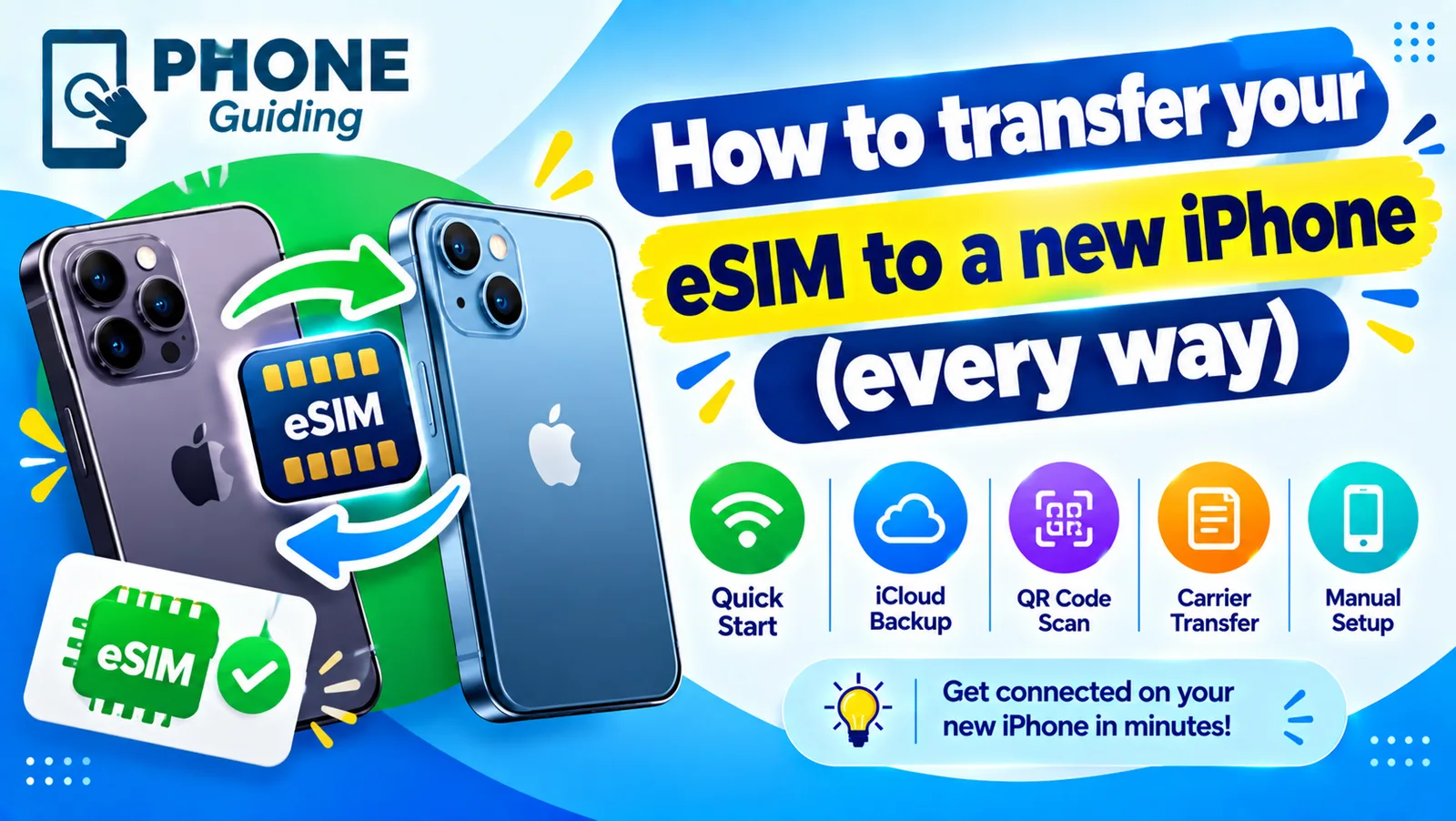
An eSIM is a digital SIM built into the iPhone, and US iPhones since the iPhone 14 only use eSIM. That makes switching phones simpler than swapping a card, as long as you pick the right method. Below is every way to move your number, from the two-tap transfer between iPhones to carrier activation when your old phone is gone.
Before you start
- Update both iPhones. eSIM Quick Transfer needs iOS 18.4 or later on both.
- Sign in with the same Apple Account on both iPhones.
- Turn on Bluetooth and Wi-Fi on both, and keep them next to each other.
- Know your old iPhone’s passcode. You may also need your carrier account PIN.
- If the new iPhone came from a different carrier, check that it is unlocked first.
How to transfer eSIM to new iPhone during setup
The fix
Method 1: eSIM Quick Transfer during setup
- 1
Turn on the new iPhone and start Quick Start with your old iPhone nearby.
Hold the old iPhone over the animation on the new one when asked, then enter your old passcode.
- 2
When setup shows your phone number, choose to transfer it.
You see the number and carrier from your old iPhone. Tap Continue or Transfer.
- 3
Confirm on the old iPhone.
Tap Transfer on the old iPhone, and enter a verification code sent by your carrier if asked.
- 4
Wait for Cellular Setup Complete.
It usually takes a minute or two. The old iPhone loses service at the same time.
The fix
Method 2: after setup, from a nearby iPhone
- 1
On the new iPhone, open Settings › Cellular.
Keep the old iPhone unlocked and within a few inches.
- 2
Tap Set Up Cellular or Add eSIM.
The wording depends on whether a line is already set up.
- 3
Choose Transfer From Nearby iPhone, or pick the number from the list.
- 4
Follow the prompts on the old iPhone and enter any verification code.
- 5
Wait for activation. If a carrier banner appears, tap it to finish on the carrier’s website.
Transfer an eSIM from Android to iPhone
With iOS 26, an iPhone 11 or later can take an eSIM directly from an Android phone running Android 16 or later, if your carrier supports it. In the US, that includes AT&T, FirstNet, T-Mobile and Verizon. Put both phones side by side with Wi-Fi and Bluetooth on. On the iPhone, tap Set Up Cellular, then Transfer from Android; if the iPhone is already set up, go to Settings › Cellular › Add eSIM › Transfer from Android. A QR code appears; follow the prompts on the Android phone to scan it and confirm.
If your carrier or phone does not support this, the carrier can activate a new eSIM on the iPhone instead. Moving everything else, like contacts and photos, is a separate step with Apple’s Move to iOS app during setup.
No old phone, or the transfer fails
- Carrier activation: many carriers push the eSIM straight to the new iPhone once you confirm the switch in their app or on the phone. A notification says Carrier Cellular Plan Ready to Be Installed; tap it.
- QR code: the carrier emails or shows a QR code. Go to Settings › Cellular › Add eSIM › Use QR Code and scan it.
- Carrier app: the Verizon, AT&T and T-Mobile apps can move your line to a new device after you sign in.
- Store visit: bring photo ID to a carrier store if online verification fails. It is quick and free.
Moving from a physical SIM card
If your old iPhone uses a plastic SIM card and your new US iPhone has no SIM tray, the number still moves easily. During setup, Quick Transfer can convert the physical SIM into an eSIM on the new iPhone with supported carriers. On the old iPhone you may also see Convert to eSIM in Settings › Cellular, which turns the card into an eSIM before you switch. Otherwise, ask your carrier to issue an eSIM for the new phone. Remove the old card afterward; it stops working once the eSIM is active.
Can I keep the number on both phones?
No. One phone line works on one phone at a time, so the old iPhone loses service when the new one activates. If you want calls on both, look at your carrier’s number sharing service, or add a second line. An Apple Watch with cellular shares your number through a separate feature, which comes next.
Cellular Apple Watch
When you move your Apple Watch to the new iPhone during setup, its cellular plan usually moves with it. If the watch says it cannot connect to cellular afterward, open the Watch app on the new iPhone, tap Cellular, and set up the plan again. Some carriers need you to remove and re-add the watch line in their app.
Carrier notes for the US
- Verizon, AT&T and T-Mobile: support eSIM Quick Transfer between iPhones and transfer from Android. If it fails, use the carrier app or call; you may be asked for your account PIN.
- Prepaid brands such as Visible, Mint Mobile, Cricket and Metro: support varies. Many use their own app or website to move the eSIM, so start there if Quick Transfer does not offer your number.
- Business lines: may need the account administrator to approve the transfer.
Two lines, travel and dual SIM
An iPhone can store several eSIMs and use two at once. If you had a work line or a travel eSIM on the old iPhone, move each one separately; Quick Transfer lists every eSIM it finds. Travel data eSIMs from other companies sometimes cannot be moved and need to be reinstalled from the provider’s app. After the transfer, check Settings › Cellular to label each line and choose which one is used for calls and data. Our guide to eSIM basics explains dual SIM in more detail.
eSIM transfer not working?
- 1
Restart both iPhones and try again, with both on Wi-Fi and Bluetooth on.
- 2
Update both to the latest iOS. Quick Transfer needs iOS 18.4 or later.
- 3
Check the new iPhone is unlocked if it came from a different carrier, or is locked to your carrier.
- 4
Look for a carrier settings update.
Go to Settings › General › About and wait a few seconds; install the update if a pop-up appears.
- 5
Contact your carrier. They can see why activation failed and push the eSIM manually, often in a few minutes on chat or by phone.
Switching carriers at the same time?
Quick Transfer only moves a line within the same carrier. If you are switching to a new carrier with your new iPhone, the new carrier ports your number instead. You give them your old account number and a transfer PIN, which you get from your current carrier’s app or website, and they activate a new eSIM on the iPhone. Keep your old service active until the port finishes, or you could lose the number.
After the transfer
- Make a test call and send a text from the new iPhone, and open a web page with Wi-Fi turned off to check cellular data.
- Check that iMessage and FaceTime show your phone number in Settings › Apps › Messages › Send & Receive.
- Move your apps, photos and messages if you have not already. See how to transfer data to a new iPhone.
- Before selling the old iPhone, erase it. When asked about the eSIM, choose to delete it; your line already lives on the new phone.
Frequently asked questions
Does my old iPhone stop working when I transfer the eSIM?
It stops working as a phone. Apple says the old SIM is deactivated when the plan activates on the new iPhone. It still works on Wi-Fi.
Can I transfer an eSIM without the old phone?
Yes, through your carrier. Contact them, verify your identity, and they activate the eSIM on the new iPhone with carrier activation or a QR code.
How long does eSIM transfer take?
Usually a few minutes. Activation with the carrier can take up to an hour in rare cases. Restart the new iPhone if it still shows no service after that.
Can I move an eSIM from Android to iPhone?
Yes, if your carrier supports it. In the US, AT&T, T-Mobile and Verizon do, with iOS 26 on the iPhone and Android 16 or later on the other phone. Otherwise, the carrier can activate a new eSIM.
What to try next
Related guides
Change km to miles on iPhone
How to change km to miles on iPhone: set Measurement System for Apple Maps and Distance units in Google Maps. Also change temperature units.
Activate eSIM on iPhone
How to activate eSIM on iPhone with a QR code, manual details or your carrier's app. Steps for Verizon, AT&T and T-Mobile, plus fixes when activation fails.
Add a Home button to the iPhone screen
How to add home button to iPhone screen: turn on AssistiveTouch in Accessibility, tap Home, move the button and set shortcuts. Works on every iPhone, no repair.

Change a document to PDF on iPhone
How to change a document to PDF on iPhone: use Files and Markup, the Print trick, Pages, Word or Google Docs. Free, no extra app needed, for each file type.
More guides you may need
Recover data from a dead phone
How to recover data from a dead phone, starting with free options. Check cloud backups, try a charge and force restart, and know when a lab is worth paying.
Recover deleted photos on iPhone
Recover deleted photos on iPhone from Recently Deleted, iCloud.com or a backup, and learn your honest options after 30 days before paying for recovery software.